


Category: Uncategorized

In our digital era workdays are filled with hundreds of notifications, meetings, switching between tools, and constant multitasking. Without the right digital tools, simple tasks take more time and efficiency drops.
The good news is that the right mix of apps can simplify daily workflows, optimize manual effort, and help teams keep on track. This post breaks down the main categories of tools that make workdays easier from communication apps and project management systems to time management software, file management solutions, AI platforms, and multimedia software.
Communication and collaboration apps
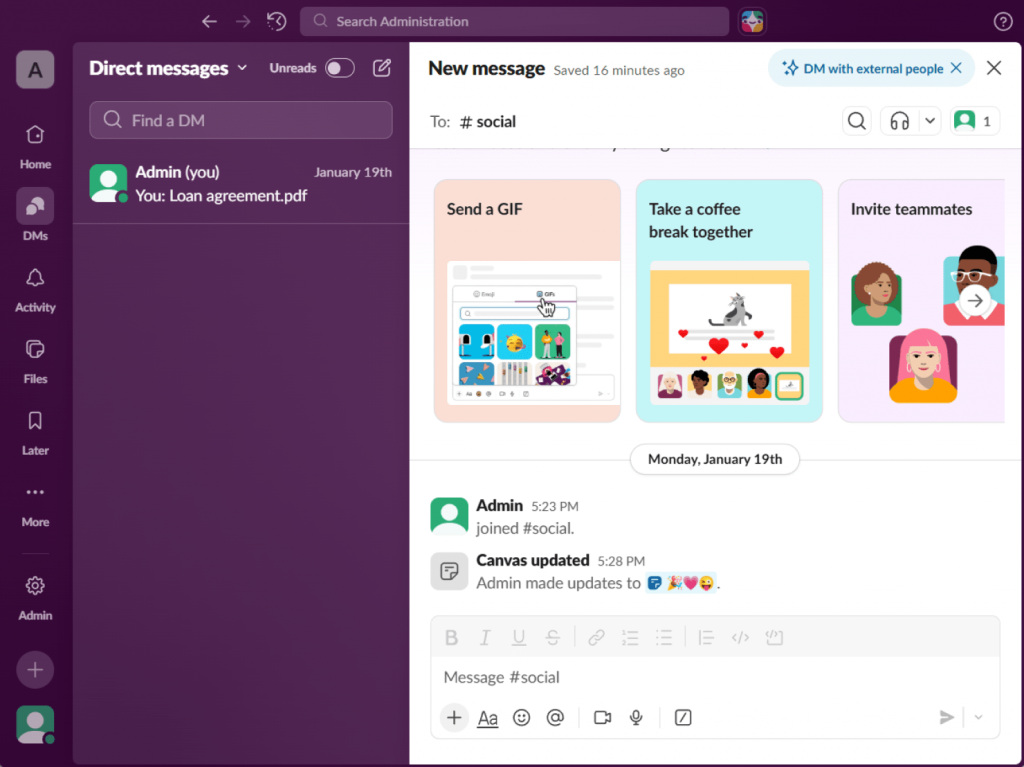
Software for improving communication and collaboration lets reduce email overload, centralize conversations, and support asynchronous work. When teams use it correctly, they shorten decision cycles and eliminate unnecessary meetings.
Popular Tools
| Tool | Free Plan | Best For | Core Purpose |
| Slack | Yes | Team messaging | Channel-based communication |
| Microsoft Teams | Yes | Corporate teams | Chat + meetings + file sharing |
| Zoom | Yes | Video meetings | Remote calls and webinars |
| Google Meet | Yes | Quick meetings | Browser-based video calls |
How these tools simplify work:
- Keep discussions organized by channels and topics
- Support async communication across time zones
- Decrease inbox clutter
- Shorten feedback time
Task, project, and document management systems
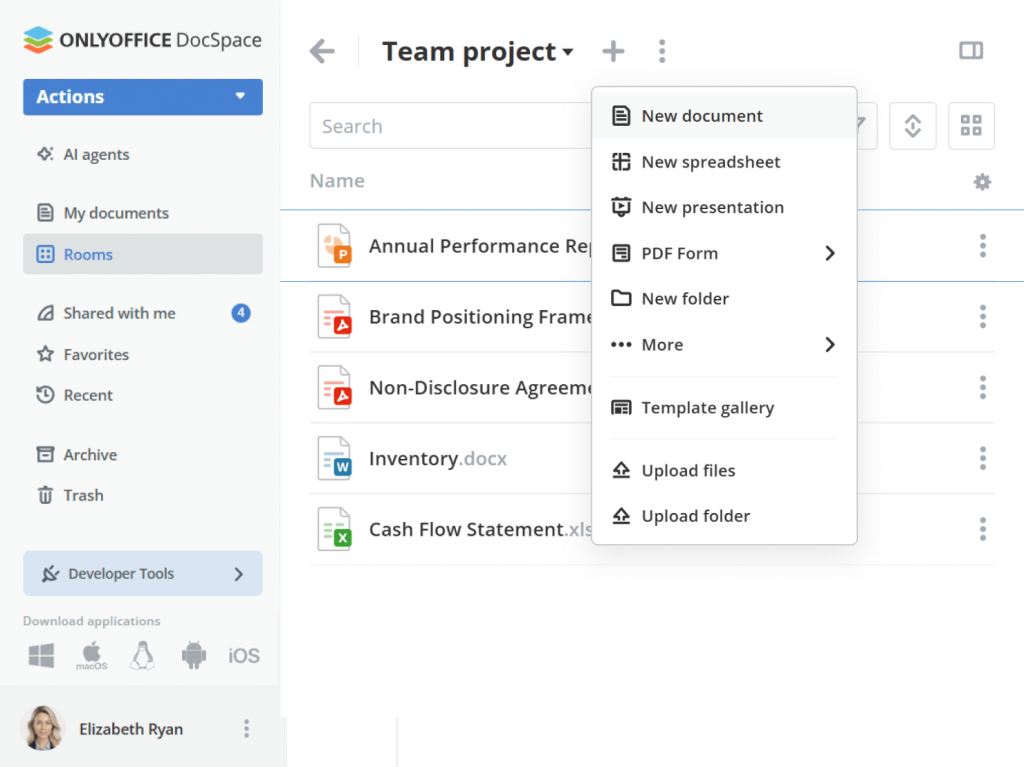
Task and project management tools allow teams to organize workloads, track progress, and avoid missed deadlines. With document management software teams can create, share, and effectively collaborate on files.
Recommended platforms
| Tool | Free vs Paid | Complexity Level | Ideal Team Type |
| ONLYOFFICE | Free + Paid | Medium | Document-focused teams |
| Trello | Free + Paid | Low | Small teams, visual planners |
| Asana | Free + Paid | Medium | Growing teams |
| ClickUp | Free + Paid | High | Complex workflows |
Why these tools matter:
- Centralize tasks and project updates
- Improve accountability
- Eliminate manual status updates
- Simplify document collaboration
Time management tools
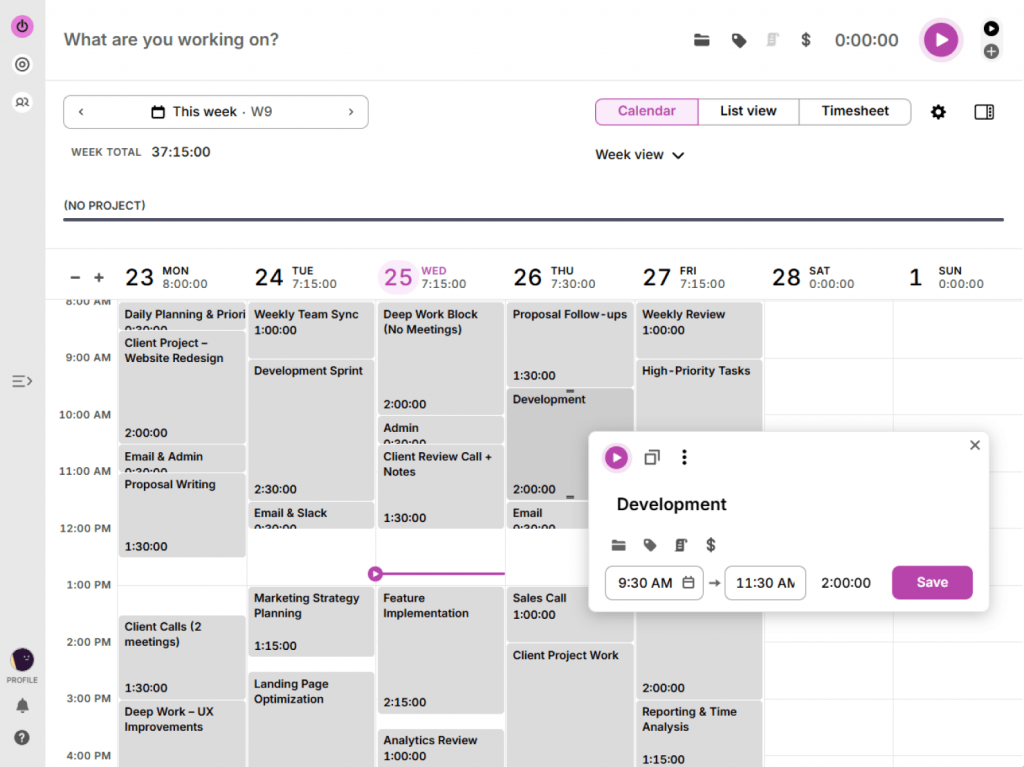
The role of time management software is to keep users focused on priorities, create healthy work rhythms, and minimize multitasking fatigue. They also provide insights into how time is actually spent.
Popular Time Tracking Solutions
| Tool | Individual or Team | Free / Paid | Automation Level |
| Toggl Track | Both | Free + Paid | Medium |
| Clockify | Both | Free + Paid | Medium |
| RescueTime | Individual | Paid | High |
| Motion | Team | Paid | High |
Benefits for daily work:
- Identify time-wasting activities
- Improve task prioritization
- Automate scheduling
- Reduce distractions during work
File and content management solutions
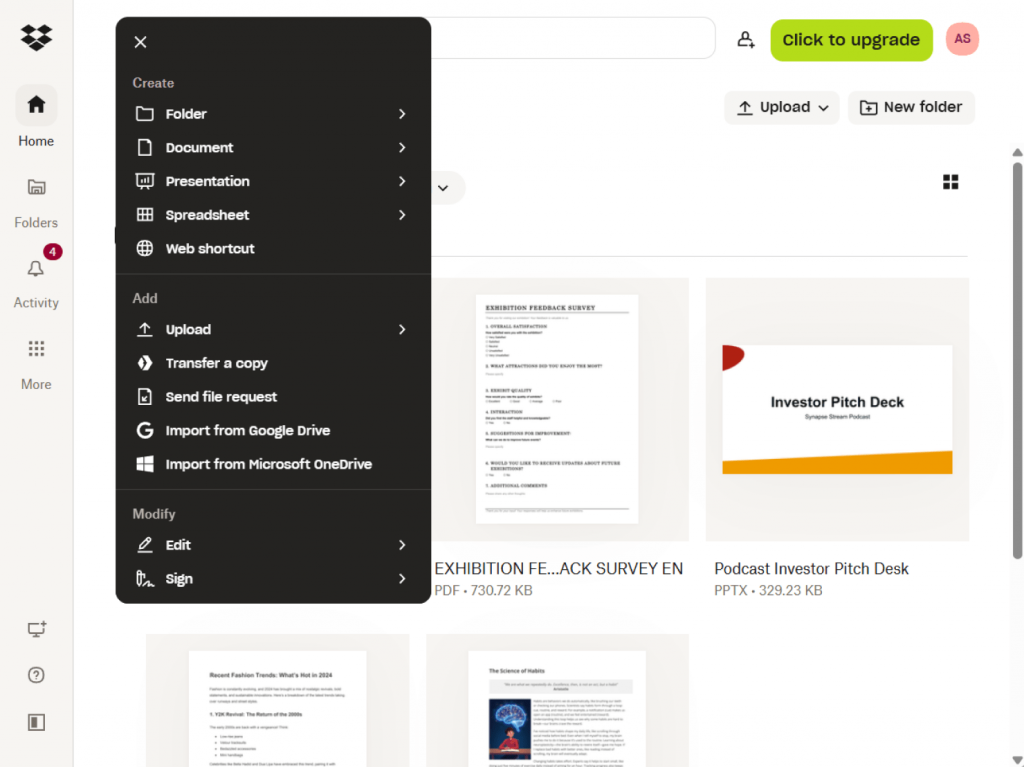
File and content management systems store all documents in one place, simplify sharing, prevent version conflicts, improve access control, strengthen data security, speed up collaboration, and make file retrieval faster.
Common platforms
| Tool | Collaboration Features | Free Tier | Best Use Case |
| Google Drive | Strong | Yes | Cloud-first teams |
| Dropbox | Medium | Yes | External file sharing |
| OneDrive | Strong | Yes | Microsoft ecosystem |
| ONLYOFFICE | Strong | Yes | Secure team collaboration |
How they improve workflows:
- Prevent duplicate files
- Enable real-time collaboration
- Simplify access control
- Improve version tracking
AI tools that simplify daily work
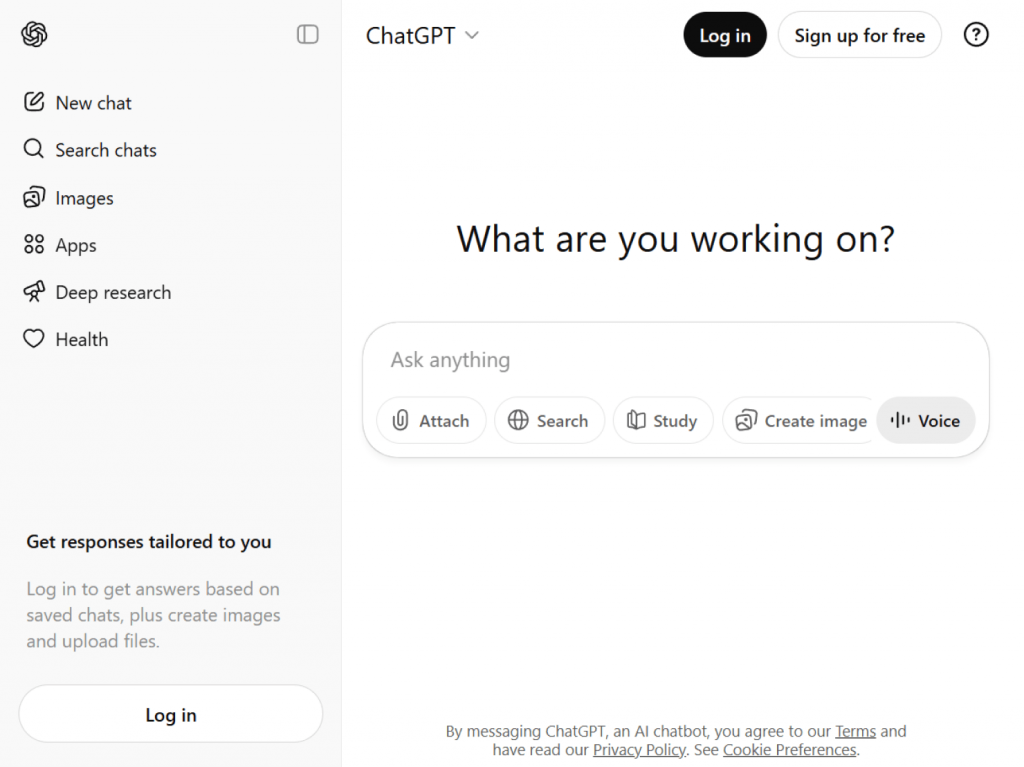
AI tools like ChatGPT and similar platforms reduce repetitive tasks, automate admin work, and speed up content processing. AI assistants are also widely used in education and e-learning for summarization and research support.
Popular AI platforms
| Tool | Complexity Level | Team Size Fit | When Paid Plans Make Sense |
| ChatGPT | Basic → Advanced | All sizes | Heavy usage and API access |
| Claude | Medium | Small teams | Long document analysis |
| Gemini | Medium | Google users | Workspace integration |
| Zapier | Advanced | Teams | Workflow automation |
Typical use cases:
- Writing summaries and reports
- Automating routine tasks
- Planning automated processes
- Processing large text volumes
Multimedia and content creation software
Visual content plays a growing role in onboarding, training, and internal communication. Good video editing software and image tools empower teams to replace long manuals with short tutorials and clear visuals.
Video editing and creation programs
These solutions allow teams to create screen tutorials, onboarding videos, and training materials.
Recommended software:
| Software | Best for | Key strengths | Platforms |
| AVS Video Editor | Simple everyday editing | Easy timeline, effects, export presets, powered with AI | Windows |
| Clipchamp | Fast online video creation | Templates, stock media, browser-based | Web, Windows |
| Shotcut | Intermediate video editing | Advanced filters, format support, no watermark | Windows, macOS, Linux |
How video tools enhance work:
- Replace written guides with visual instructions
- Improve knowledge sharing
- Speed up training creation
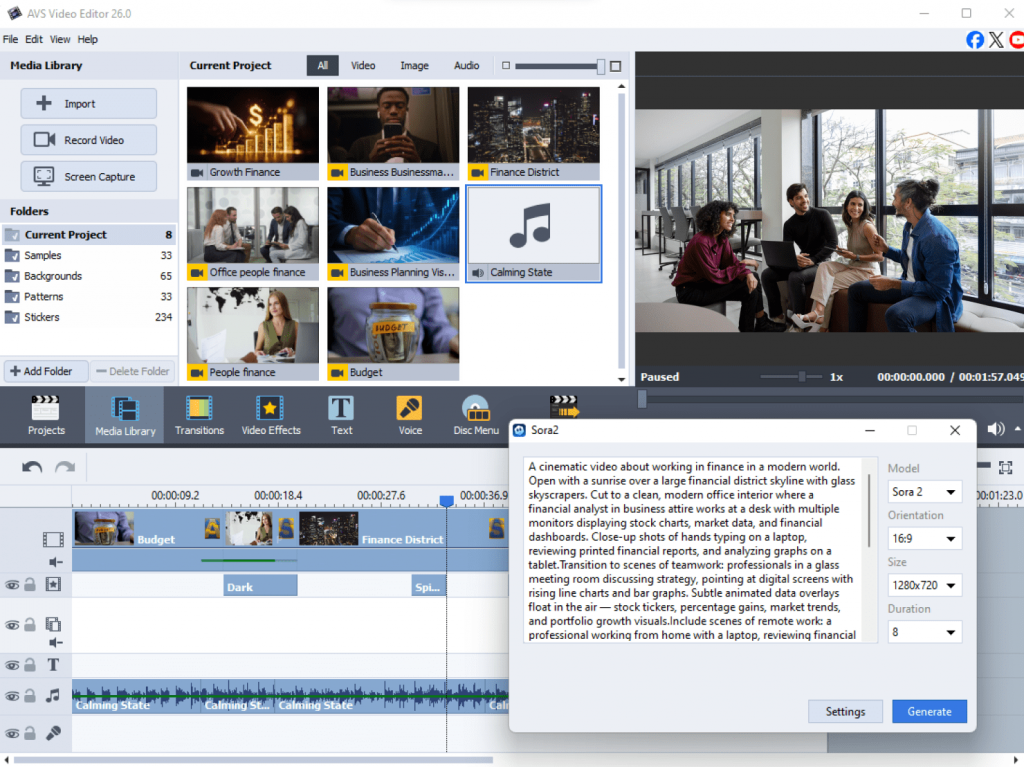
Image editing and asset preparation solutions
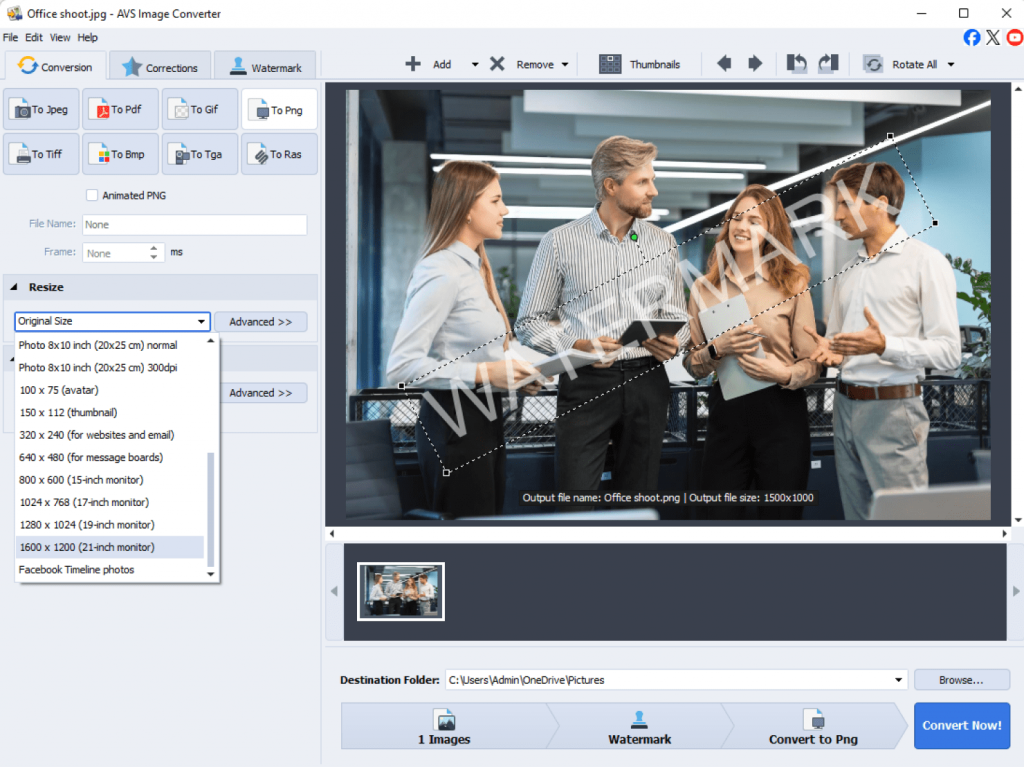
Teams often need visuals for presentations, documentation, and marketing materials. Specialized image software simplifies resizing, conversion, and formatting.
Popular solutions:
| Software | Best for | Key strengths | Platforms |
| AVS Image Converter | Batch image conversion | Format support, resizing, watermarking, AI image effects | Windows |
| Canva | Quick graphic design | Templates, drag-and-drop editor, online use | Web, Windows, macOS |
| GIMP | Advanced image editing | Layer tools, plugins, retouching features | Windows, macOS, Linux |
Benefits:
- Faster asset preparation
- Consistent branding
- Easy format conversion
Final thoughts
Simplify workflows with the right combination of tools
Simplifying your workday is not about installing more apps. It is about the right combination of tools that match your needs. When communication flows smoothly, tasks are well-organized, files are easy to find, and repetitive work is automated, teams spend less time managing processes and more time getting work done.
The most effective workspaces usually combine free and paid options based on real needs, not trends. What matters is how well everything fits your workflow and supports your daily routines.
What’s more, it is worth reviewing your digital stack regularly. As teams grow and priorities change, some apps become unnecessary while others can save hours each week. Small adjustments over time result in better productivity and make workdays simple and efficient.
Useful links

Remote work has become a permanent part of the modern professional landscape. In 2026 distributed teams are not just common—they are the norm. On the one hand, working at home, employees enjoy flexibility andfreedom, not to mention the time saved from a daily commute.
On the other hand, they have to face a lot of challenges. Building genuine connections and understanding teammates’ needs can feel harder from a distance. Without the spontaneous chats and face-to-face interactions of an office, fostering a natural sense of teamwork requires more efforts. On top of it, teams should stay connected across different time zones, manage intensive workloads, and collaborate with colleagueswithout a traditional office.
This is where productivity tools come in.The right software ecosystem allows teams to effectively communicate, manage tasks, share files, and streamline daily workflows. In this article, we explore the most useful productivity apps for remote teams, highlighting real-world scenarios and practical solutions.
1. Communication and collaboration tools
Clear communication keeps remote teams working smoothly. Nowadays, many companies are switching to flexible communication to cut down on meetings and using all-in-one tools for quick real-time teamwork. Here are some of the most popular apps:
Slack
Slack is a team messaging app that organizes conversations into channels. It supports messaging, file sharing, and integrations with other productivity tools.
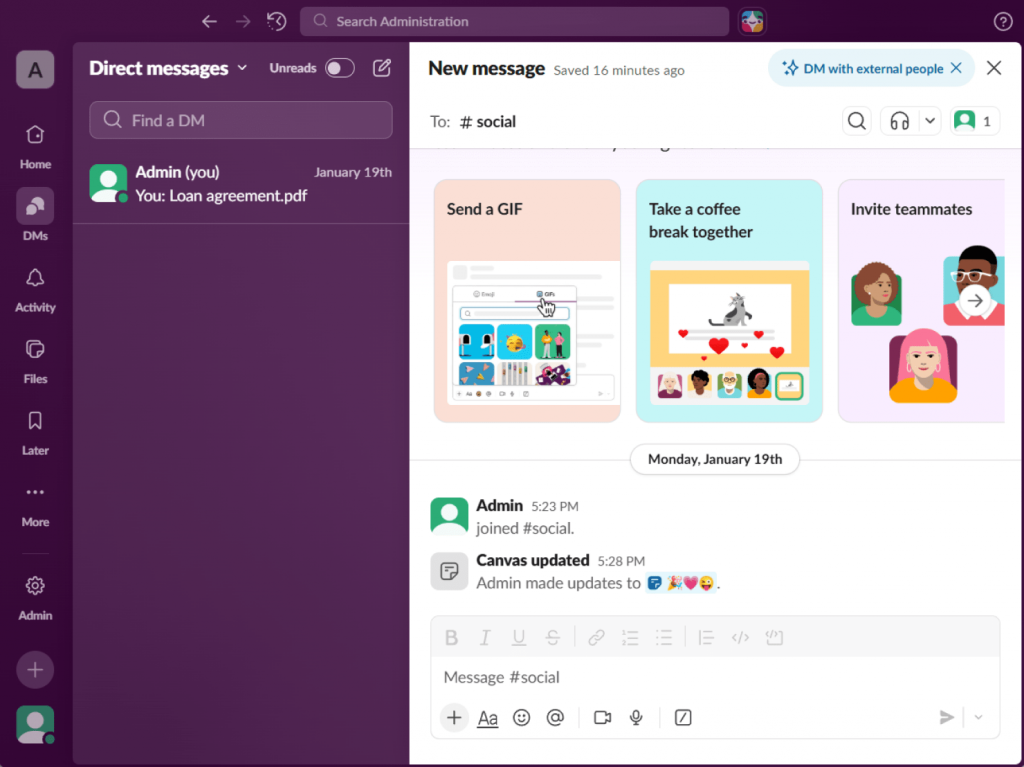
Pros: Intuitive interface, searchable message history, strong app integrations, supports async and real-time communication.
Cons: Can become noisy if channels are not well-organized; premium features require paid plans.
Best use: Daily team communication, project-specific discussions, and coordinating across distributed teams.
Microsoft Teams
Microsoft Teams is a powerful communication and collaboration platform that combines chat, video meetings, file storage, and Office 365 integration.
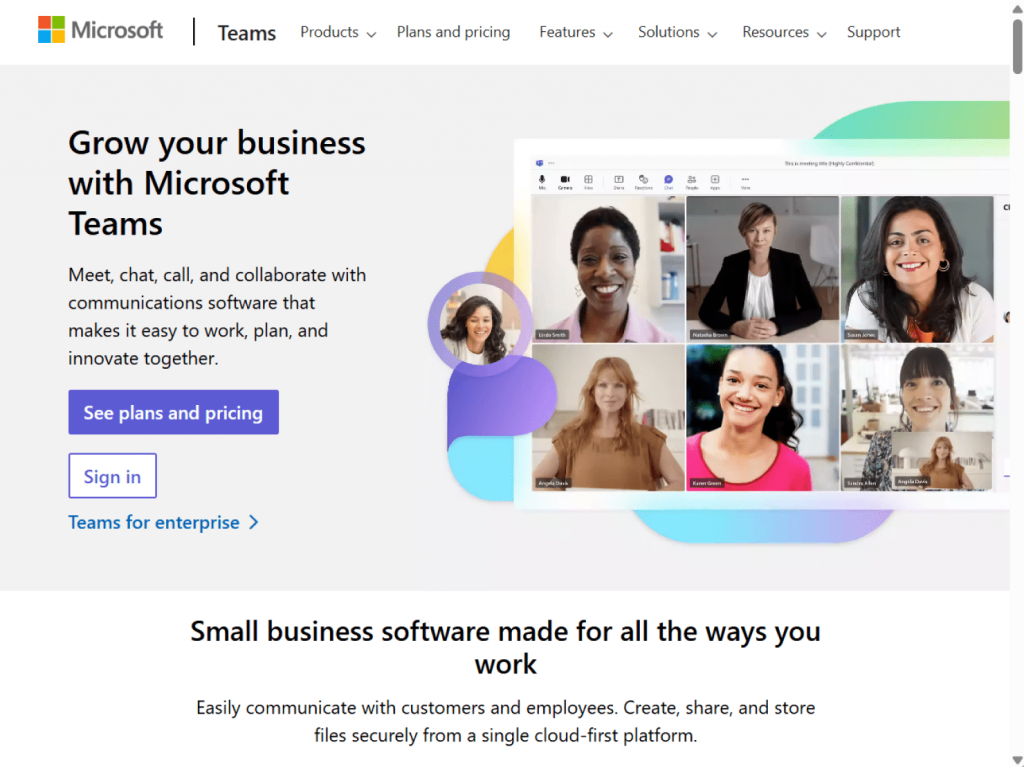
Pros: Deep integration with Microsoft Office apps, video conferencing, document collaboration, enterprise-grade security.
Cons: Interface can be overwhelming; non-Office users may find some features unnecessary.
Best use: Organizations already using Office 365, managing team projects, and hosting meetings with file collaboration.
Zoom
Zoom is a video conferencing platform widely used for virtual meetings, webinars, and online events.
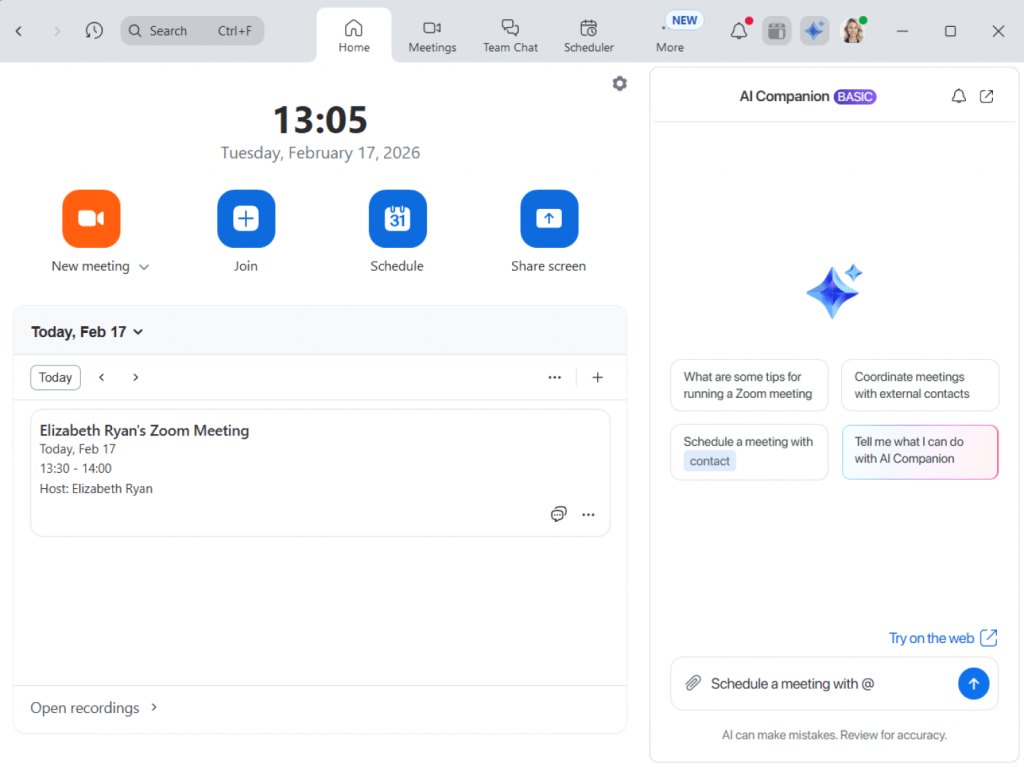
Pros: High-quality video and audio, screen sharing, breakout rooms, webinar functionality.
Cons: Overuse can cause “Zoom fatigue”; free plan limits have meeting duration.
Best use: Team meetings, client presentations, workshops, and remote training sessions.
Google Meet
Google Meet is a browser-based video conferencing tool integrated with Google Workspace, offering secure and simple video calls.
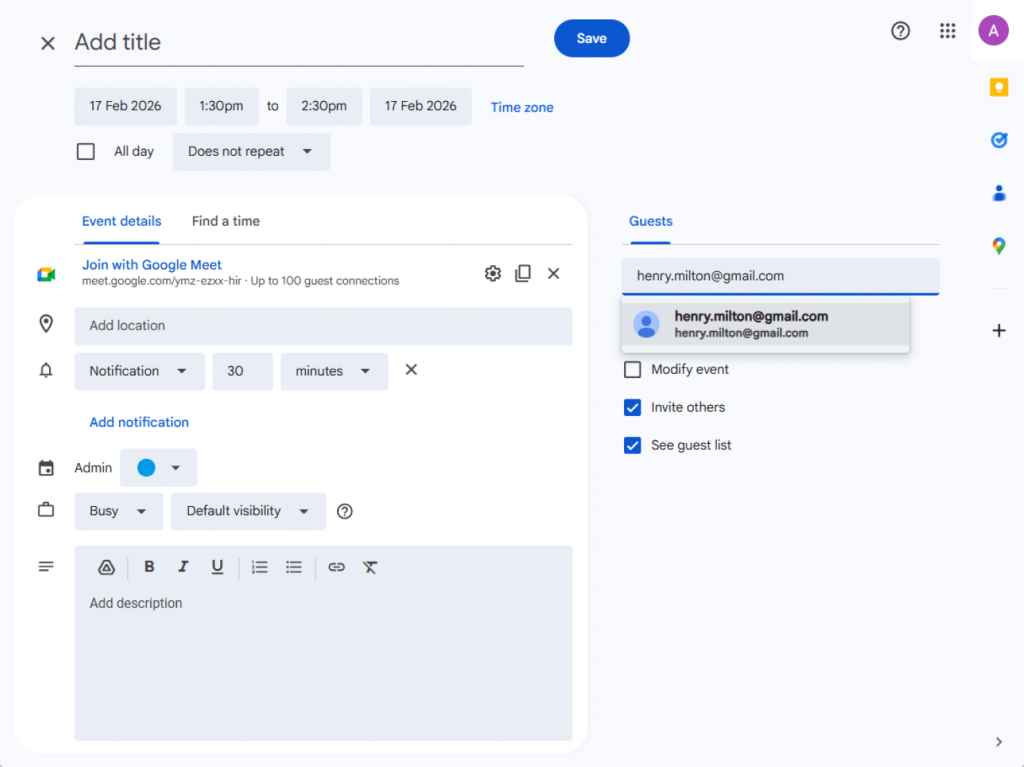
Pros: Easy to join via browser or app, integrates with Google Calendar, no installation required for participants.
Cons: Limited advanced features compared to Zoom, less customizable for large events.
Best use: Quick team calls, internal meetings, and video collaboration for Google Workspace users.
Best practice: Choose communication tools that strike a balance between real-time collaboration and personal focus. This way, your team can connect and work together when needed, while also having the space to concentrate deeply without constant interruptions.
2. Project and task management tools
Managing tasks across distributed teams involves clear workflows, transparency, and role-based responsibility.
Trello
Trello is a visual task management platfom that uses boards, lists, and cards to help teams organize projects and workflows. Its drag-and-drop interface makes it easy to track progress and collaborate on tasks.
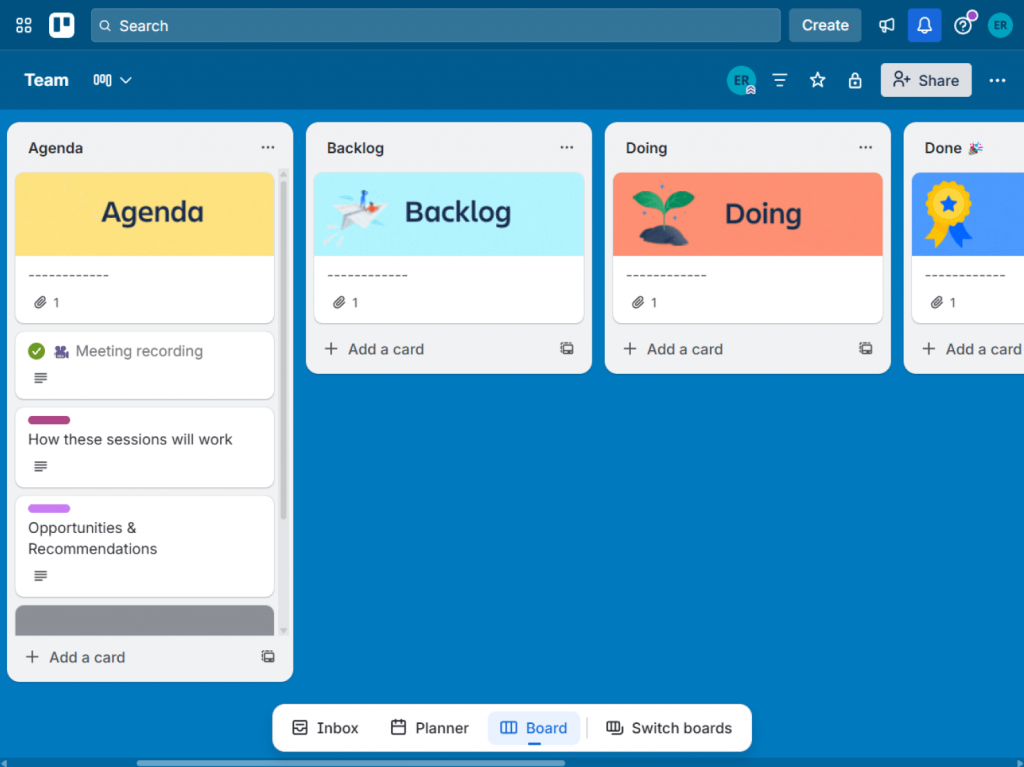
Pros: Intuitive, easy to visualize workflows, supports automations with “Butler,” highly customizable with labels, checklists, and integrations.
Cons: Lacks advanced reporting and analytics for large or complex projects.
Best use: Managing daily tasks, simple project tracking, small to medium team sprints.
Asana
Asana is a comprehensive project and task management system designed for teams of all sizes. It combines task lists, timelines, and boards to track responsibilities and deadlines in one place.
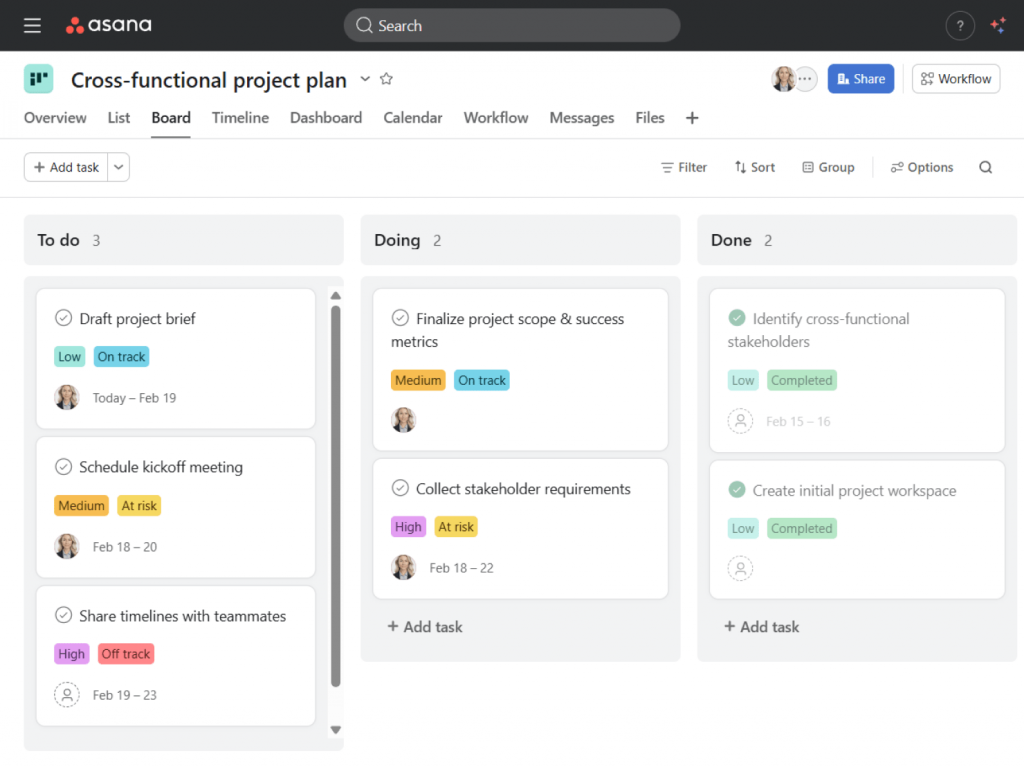
Pros: Flexible views (list, board, timeline), supports task dependencies, automations, and integrates with many collaboration tools.
Cons: Can feel overwhelming for new users due to many features; free plan has limitations on advanced features.
Best use: Coordinating team projects, tracking deadlines, and visualizing task progress across departments.
ClickUp
ClickUp is an all-in-one productivity solution that allows teams to manage tasks, docs, goals, and time tracking in a single workspace. It’s highly customizable to match different workflows.
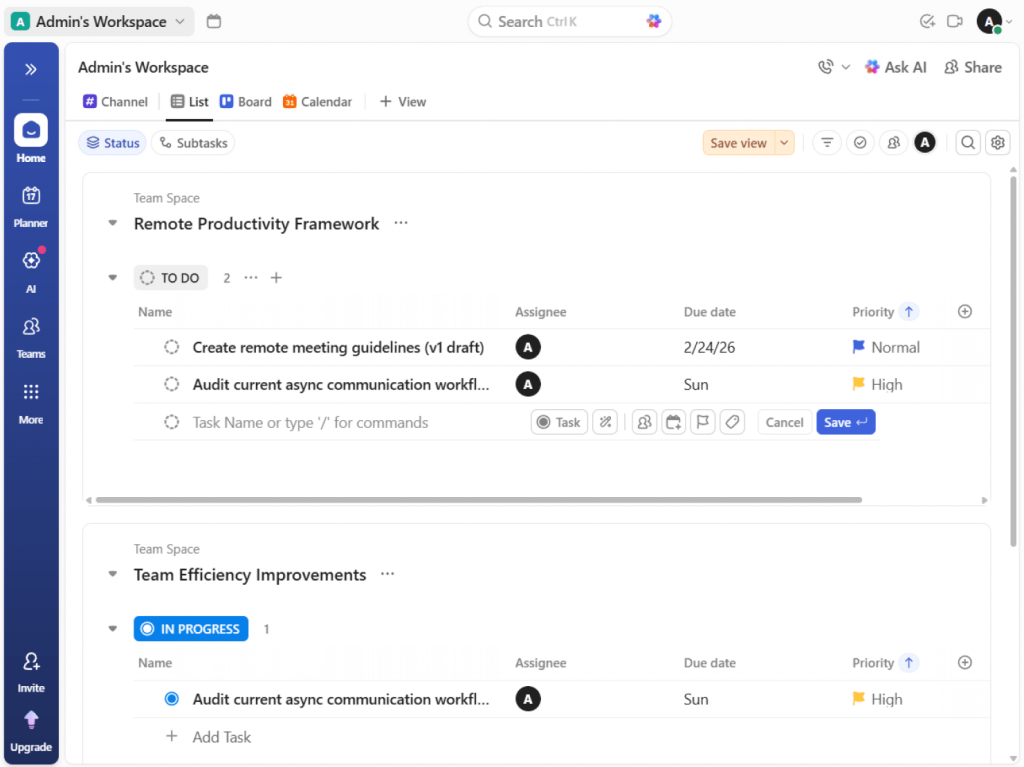
Pros: Flexible task management, multiple views (board, list, Gantt chart, calendar), automations, robust integration options.
Cons: Steeper learning curve because of its many features; the interface can feel cluttered and overwhelming for small teams.
Best use: Managing complex workflows, cross-functional team projects, and combining tasks with documents and goal tracking.
Jira
Jira is a specialized project management tool for software development teams, particularly for agile and scrum workflows. It focuses on issue tracking, sprint planning, and release management.
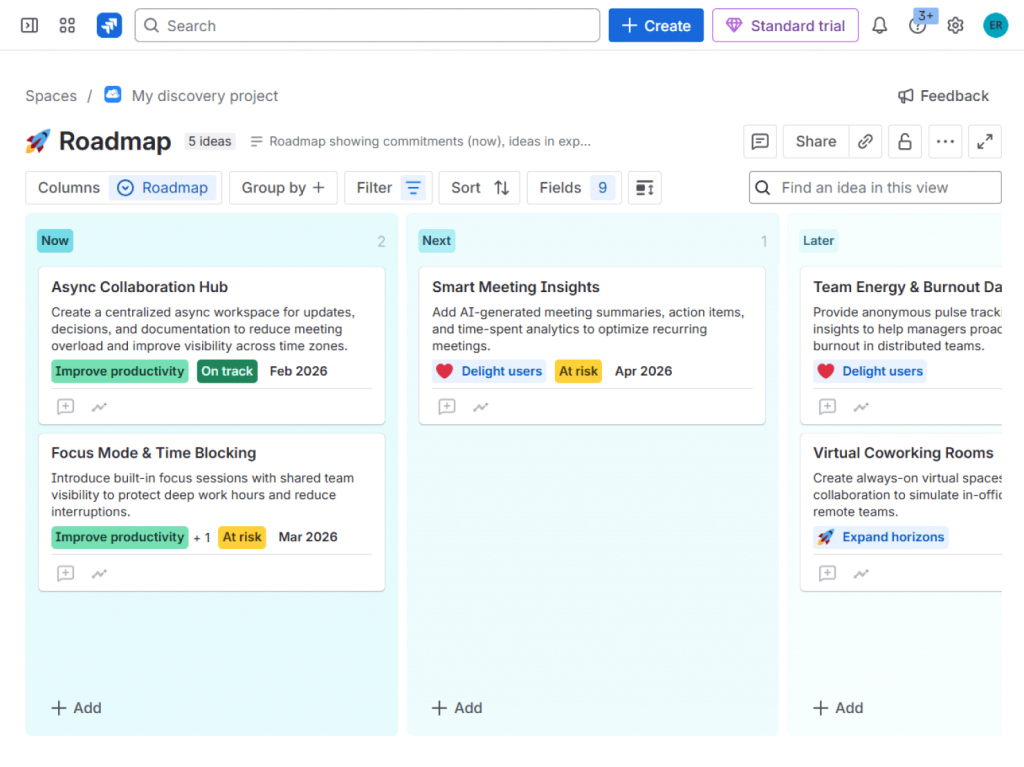
Pros: Advanced issue tracking, customizable workflows, supports agile methodologies (scrum, kanban), reporting and dashboards for project metrics.
Cons: Steep learning curve for non-technical users; setup can be complex for smaller teams.
Best use: Agile software projects, bug tracking, sprint planning, and technical team collaboration.
Best practice: Integrate task management tools with communication platforms to ensure everyone stays updated on project progress.
3. File management and content sharing
File sharing is critical for remote collaboration. Teams need cloud storage that supports version control, access permissions, and cross-platform accessibility.
Google Drive
Google Drive is a cloud storage and file collaboration platform integrated with Google Workspace. It allows teams to store, share, and edit documents in real time.
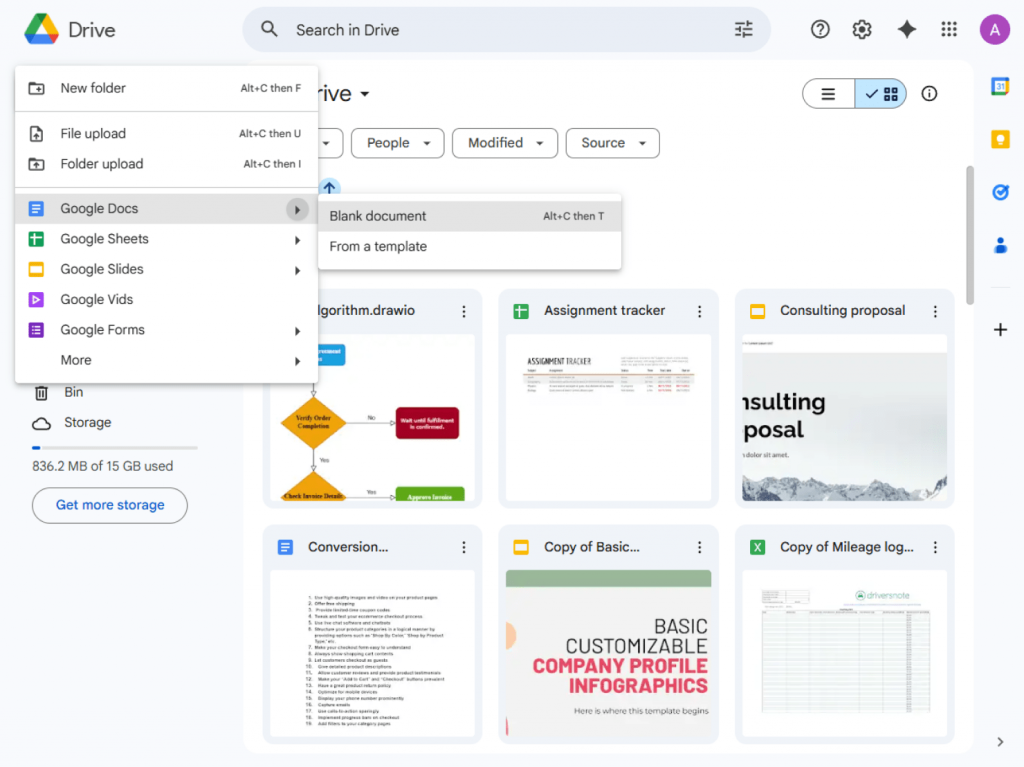
Pros: Real-time collaboration on Google Docs, Sheets, Slides; easy sharing and permission management; seamless integration with Gmail and Calendar.
Cons: Storage is limited in free plans; version control can become tricky with many contributors.
Best use: Collaborative document editing, team file storage, sharing files across locations.
Dropbox
Dropbox is a cloud-based file storage and synchronization service designed to keep files organized and accessible across devices.
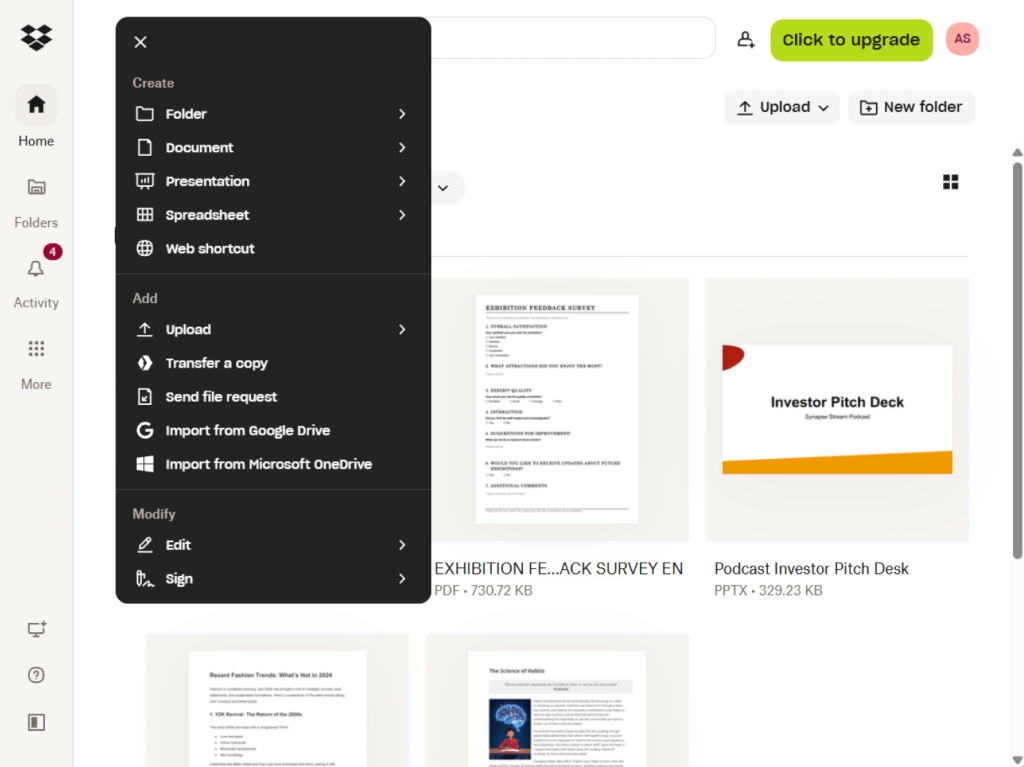
Pros: Simple and reliable file syncing, robust folder sharing, integration with many third-party apps.
Cons: Collaboration features are less advanced than in Google Workspace; free storage is limited.
Best use: Cross-device file access, storing large files, and team collaboration on documents and media.
OneDrive
OneDrive is Microsoft’s cloud storage platform. Integrated with Office 365, it provides secure file storage, sharing, and collaboration.
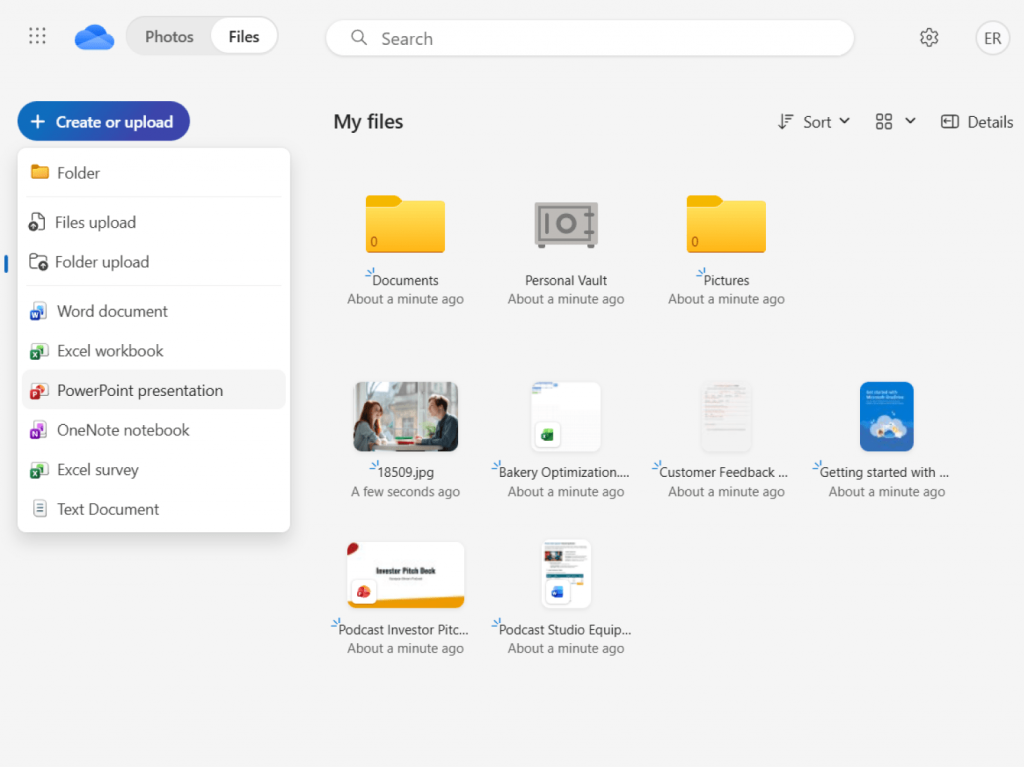
Pros: Tight integration with Microsoft Office apps, secure file sharing, offline access on multiple devices.
Cons: Best features tied to Office 365 subscription; syncing issues can occur with very large file sets.
Best use: Teams using Microsoft Office, sharing and editing documents collaboratively, backup storage.
Best practice: Choose file-sharing solutions that balance easy access with strong security and role-based permissions to protect sensitive team data.
4. Multimedia and content creation tools
Multimedia content plays an important role in remote collaboration. From onboarding videos to marketing materials and internal presentations, teams need reliable tools to create, edit, and share visual and audio content.
AVS4YOU Multimedia Suite
AVS4YOU Multimedia Suite is an all-in-one toolkit that includes video and audio editing programs. It isdesigned for teams that need to create, edit, and repurpose multimedia content for remote work and digital collaboration.
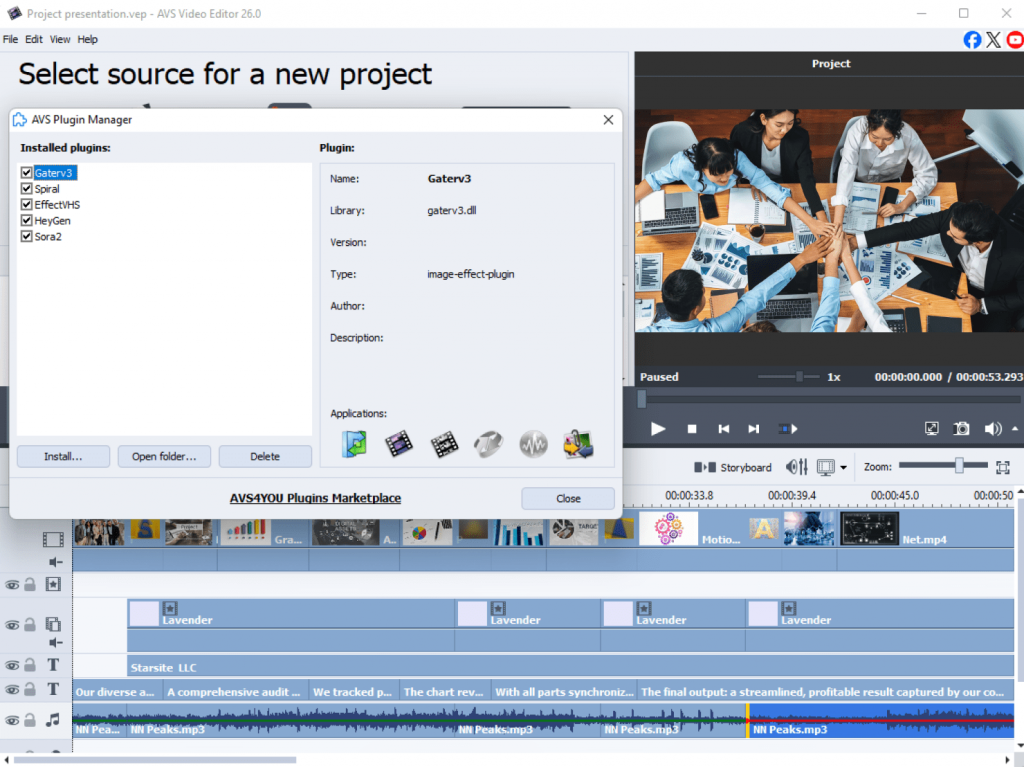
Pros: All-in-one solution for video/audio editing and production; suitable for tutorials, onboarding content, and presentations; supports multiple output formats.
Cons: Windows-only software; advanced tools require some learning time.
Best use: Creating training and demo videos, producing marketing content, preparing visuals and multimedia presentations.
Camtasia
Camtasia is a video editing and screen recording tool widely used for creating tutorials, demos, and instructional content.
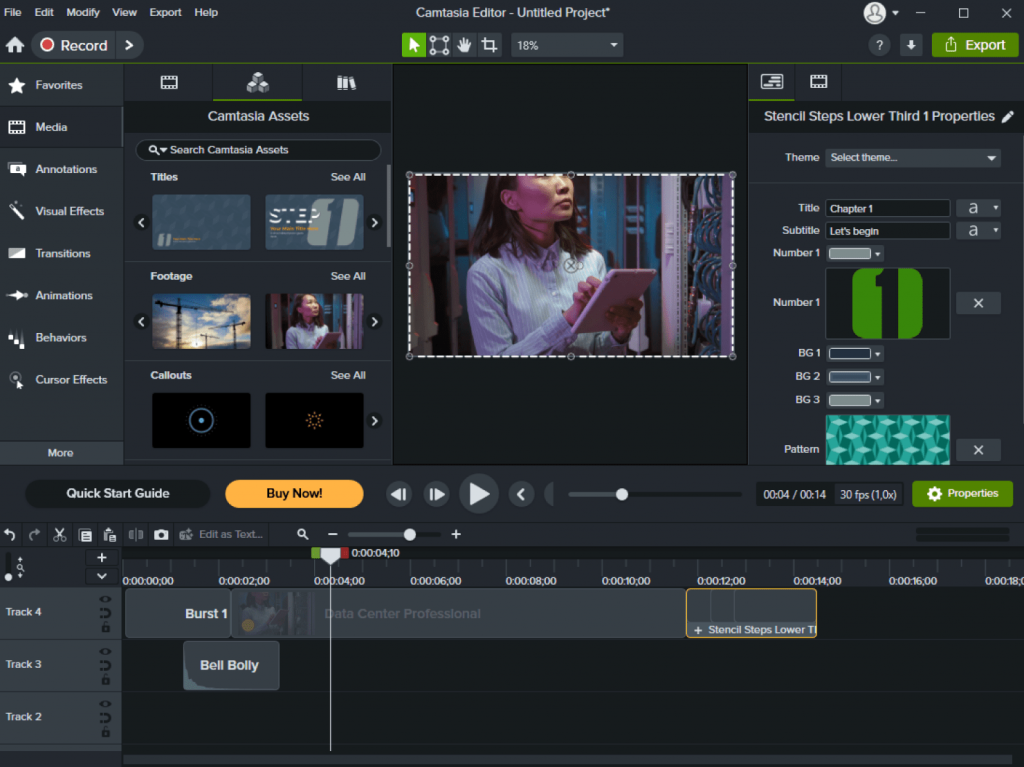
Pros: Built-in screen recording, easy timeline editing, ready-made templates and effects; beginner-friendly interface.
Cons: Limited advanced video editing features; higher price compared to basic editors.
Best use: Creating explainer videos, software tutorials, product demos, and training materials.
Canva
Canva is a cloud-based design and multimedia creation platform focused on fast visual content creation.
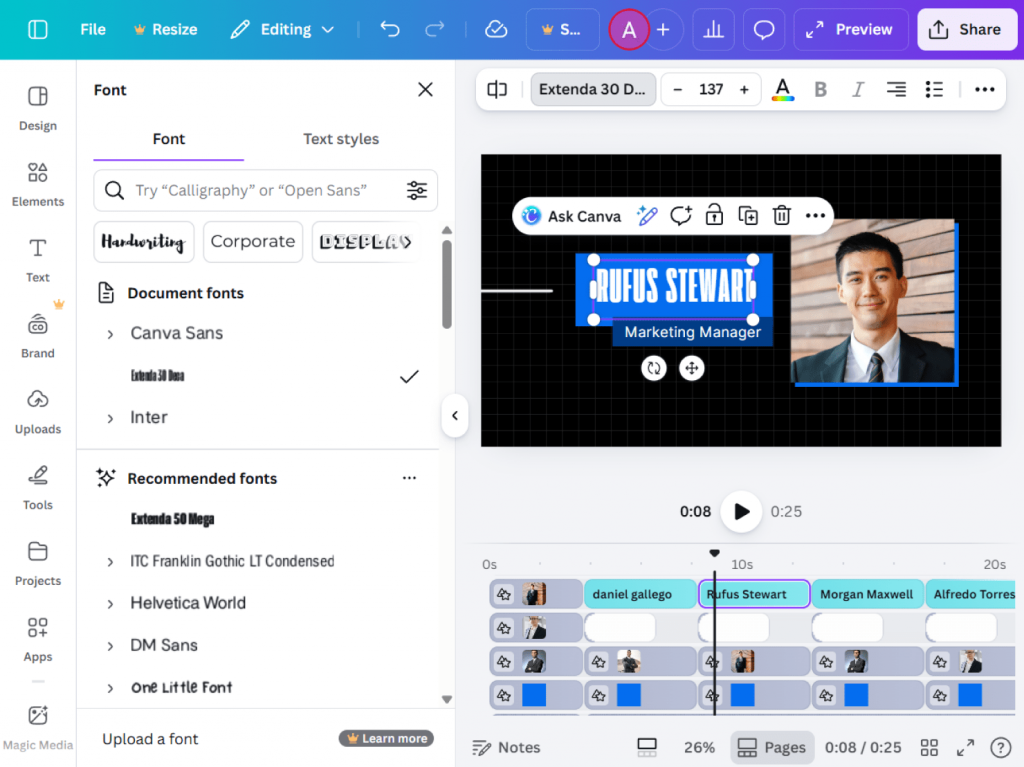
Pros: Easy drag-and-drop editor, a large template library, supports social media graphics, short videos, and presentations.
Cons: Limited advanced video editing capabilities; some features require a paid plan.
Best use: Designing social media visuals, presentation slides, simple promotional videos, and branded content.
DaVinci Resolve
DaVinci Resolve is a professional-grade video editing and color correction software used in film and media production.
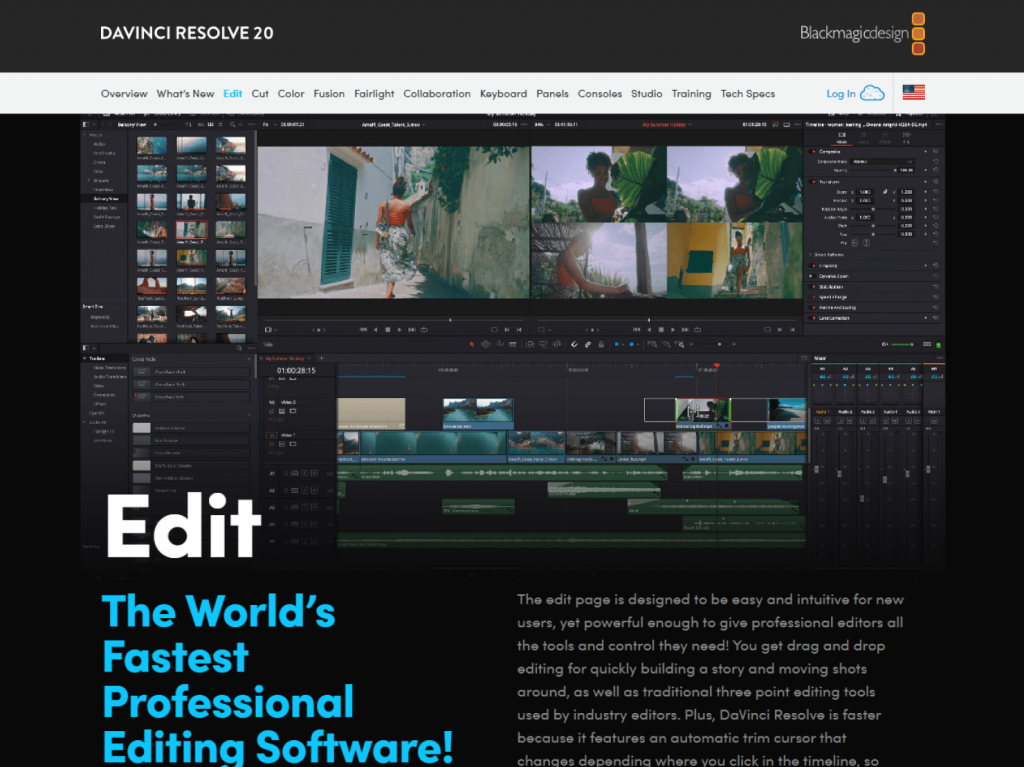
Pros: Powerful video editing and color grading tools, advanced audio features, free version with solid functionality.
Cons: Steep learning curve; requires more powerful hardware.
Best use: Professional video production, advanced editing workflows, cinematic content creation.
Best practice: Choose multimedia tools based on your team’s skill level and content needs. Simple editors work best for fast everyday content, while advanced tools are better for high-quality video production.
5. Cloud collaboration and digital workspaces
Modern distributed teams need more than file storage, communication or project management software. They need collaborative workspaces with access control, co‑editing, communication, and centralized content organization. Tools in this category let teams collaborate on documents, manage permissions, and work together in project‑specific “rooms” or hubs.
ONLYOFFICE DocSpace
ONLYOFFICE DocSpace is a room-based collaboration platform that lets teams securely share and manage documents, spreadsheets, presentations, and PDFs. It offers multiple room types with flexible access roles, real-time co-editing, comments, version history, and built-in chat and calls. AI agents help automate tasks such as content analysis, summarization, idea generation, and document hub organization.
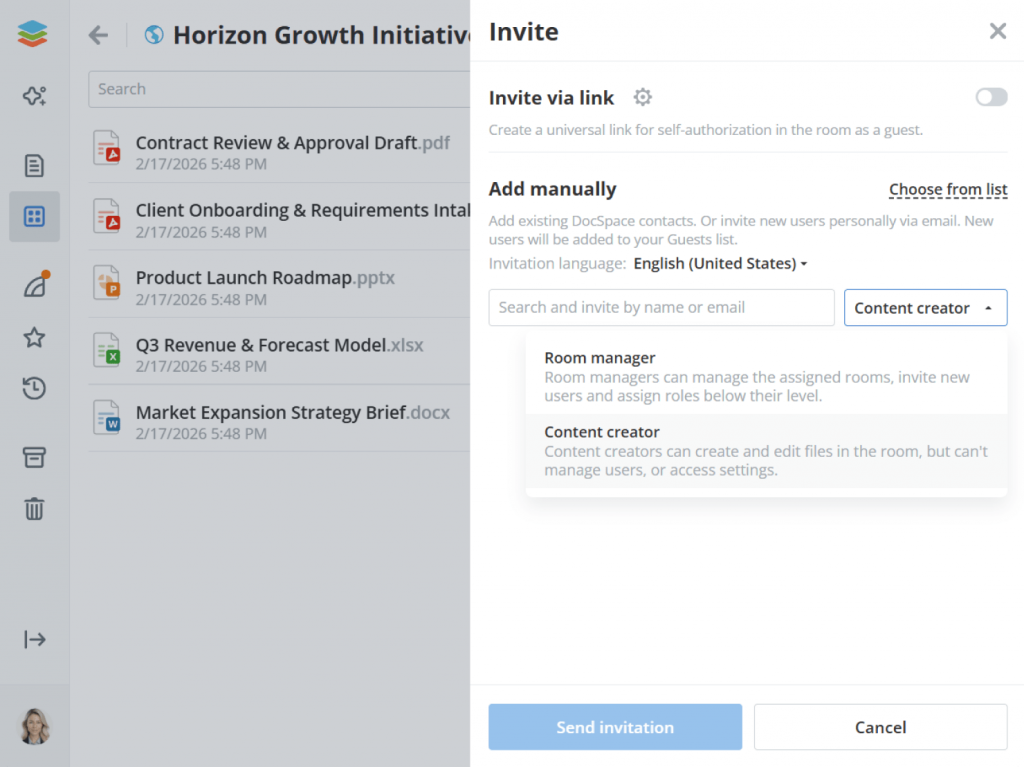
Pros: Flexible access rights and roles, real‑time co‑editing, multiple room types for different workflows, public and custom collaboration spaces, strong security and audit controls, AI-driven tools.
Cons: Requires some setup for larger teams; advanced admin features may require paid plans.
Best use: Shared project workspaces with fine‑grained permissions, external collaboration, and secure review workflows.
Google Workspace (Docs, Sheets, Drive)
Google Workspace combines cloud storage with real‑time document editing and shared folders. Teams can co‑author documents, assign editing rights, and keep all content organized in Drive with permission controls and version history.
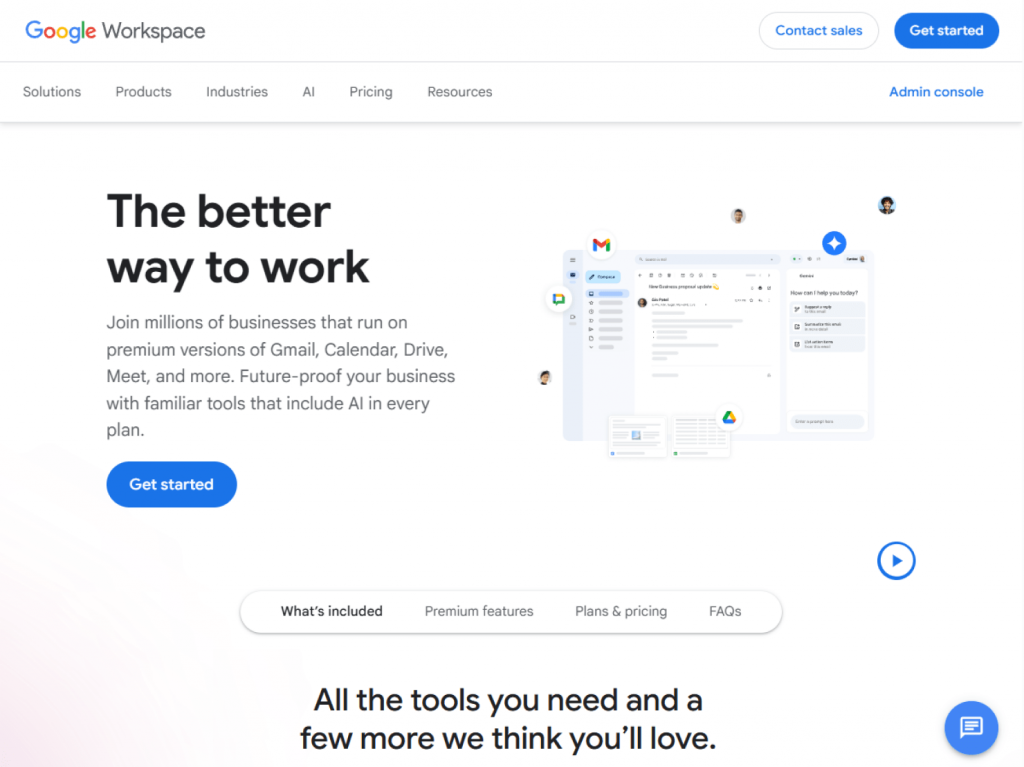
Pros: Seamless real‑time collaboration and commenting, easy sharing via links and permissions, strong ecosystem integration (Gmail, Calendar, Meet).
Cons: Offline access is limited; core features require internet connection.
Best use: Cloud‑native team collaboration, organization‑wide document access, and shared workflows.
Dropbox Paper
Dropbox Paper is a cloud workspace for collaborative document creation that integrates with Dropbox storage. Teams can write, embed media, comment, and manage tasks inside shared documents.
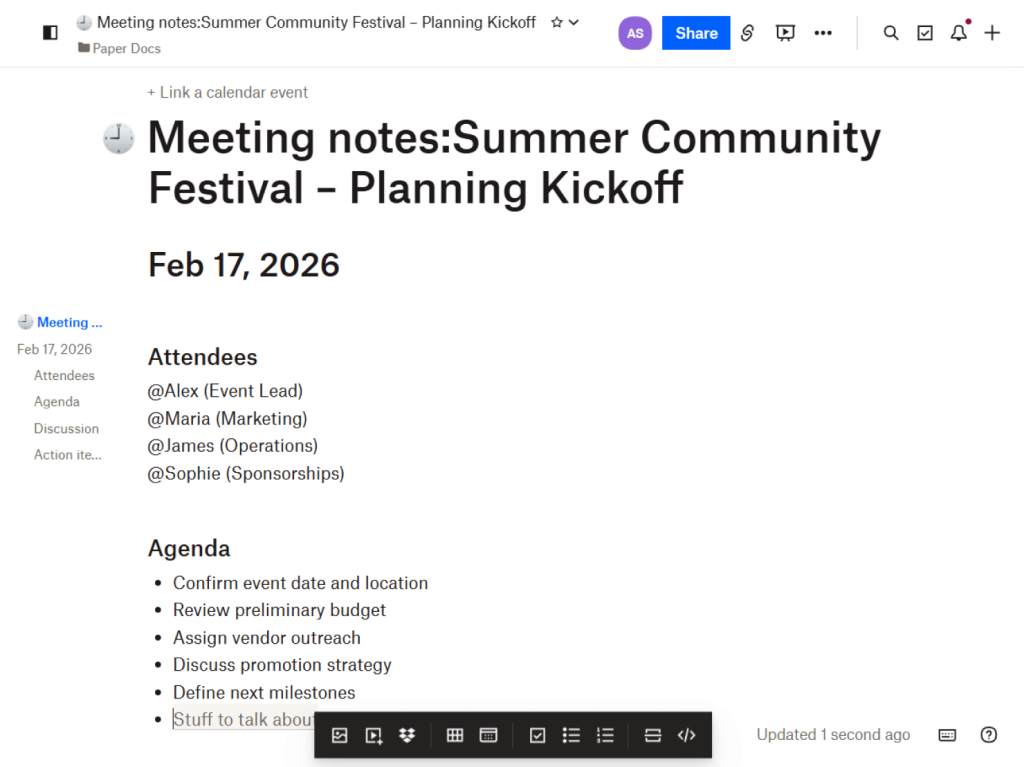
Pros: Simple, intuitive interface with rich media support and embedding; integrates with Dropbox files.
Cons: Not as robust for complex document structures or enterprise permission controls.
Best use: Lightweight collaborative documents, meeting notes, and content planning.
Best practice: Choose cloud collaboration platforms that combine document co-editing, permission control, and communication tools in one workspace to streamline team workflows.
Conclusion
In today’s work environment, team productivity depends on carefully selected tools that support communication, task management, content creation, and efficient collaboration. From Slack and Asana to AVS Video Editor and ONLYOFFICE DocSpace, combining the right platforms can streamline workflows, improve collaboration, and enhance the final results.
The most effective teams will be those that blend communication, collaboration, project management, and multimedia tools into a unified ecosystem, allowing creativity and efficiency to thrive regardless of a time zone and physical location.
Use AVS4YOU to make professional videos and tutorials for your remote team.
Create your free DocSpace account today and start collaborating securely with your team.
Useful links

Valentine’s Day is the perfect time to share emotions, create meaningful memories, and surprise your loved ones in a personal way. This year, go beyond cards and chocolates and create something truly special.
Creative Valentine’s video ideas
Not sure where to start? Here are some easy and fun ideas you can craft in minutes.
For couples:
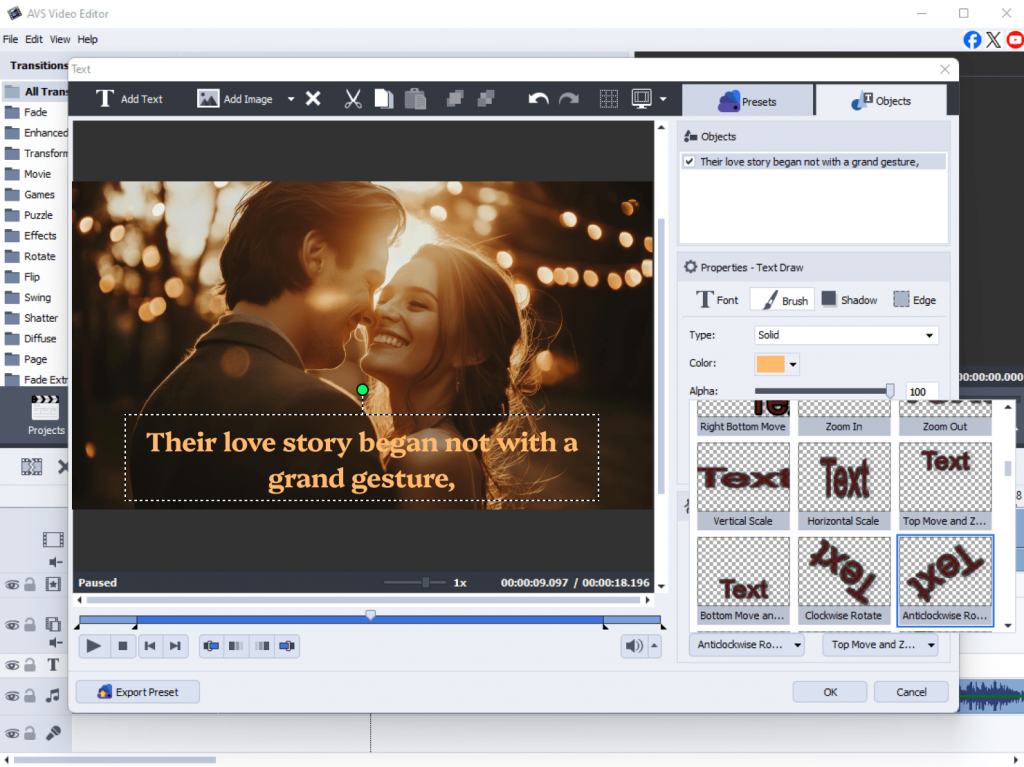
Love story slideshow
Collect your favorite photos and video clips, add soft transitions, romantic music, and captions to tell your story from your first meeting to today.
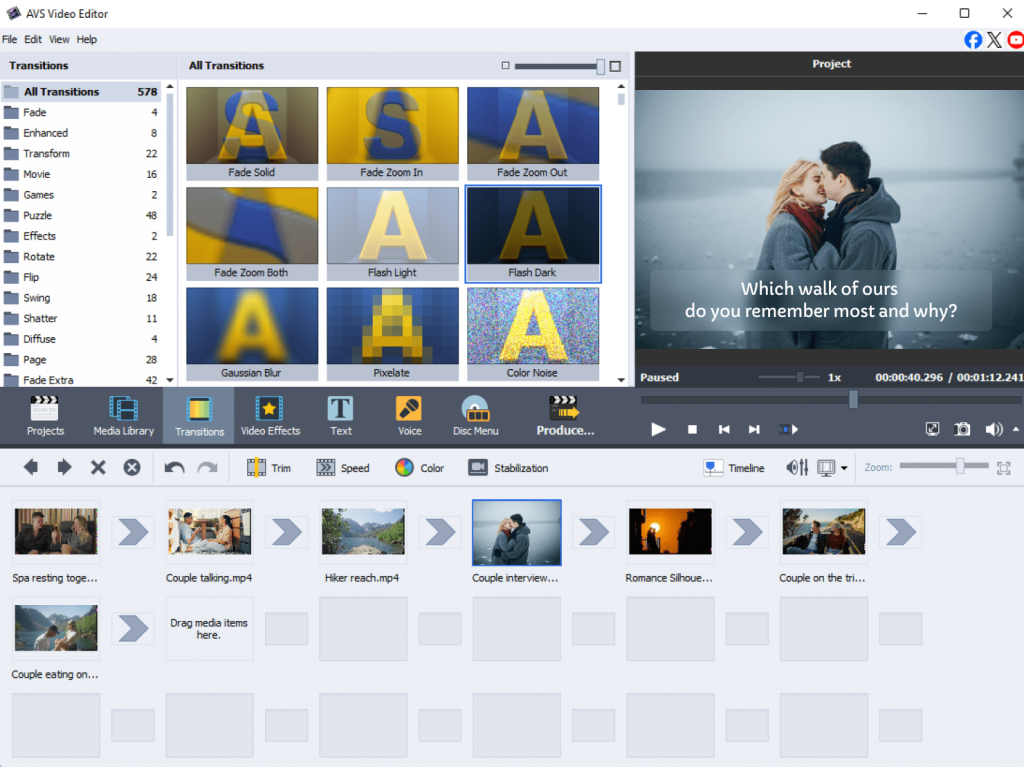
“Our story” video
Interview each other with fun, romantic questions and combine the answers with your favorite moments together.
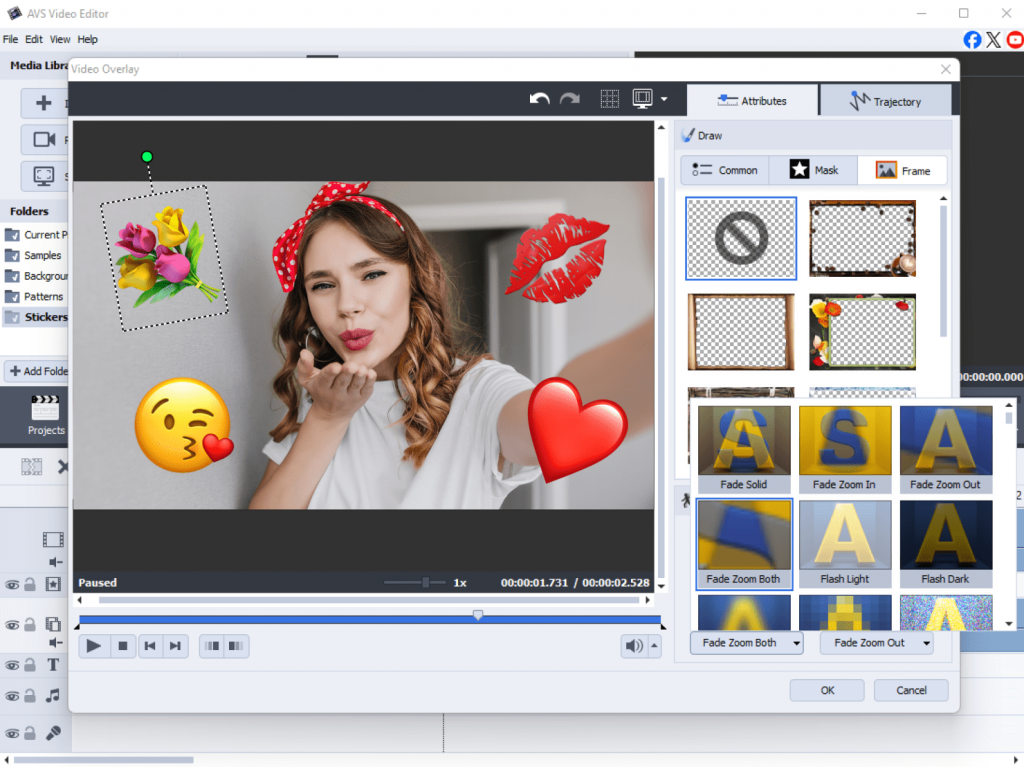
Video greeting card
Record a short personal message, decorate it with animated stickers, hearts, and text effects, and send it as a digital Valentine’s card.
Cooking together vlog
Film your Valentine’s dinner preparation from playful flour fights to the final plated masterpiece.
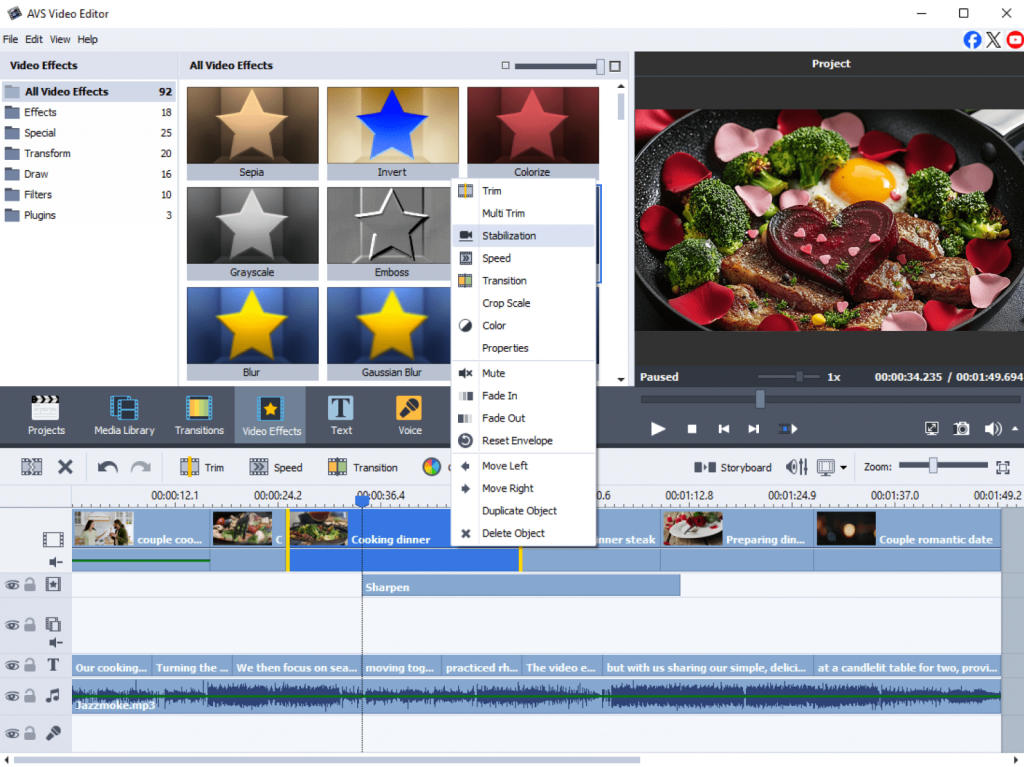
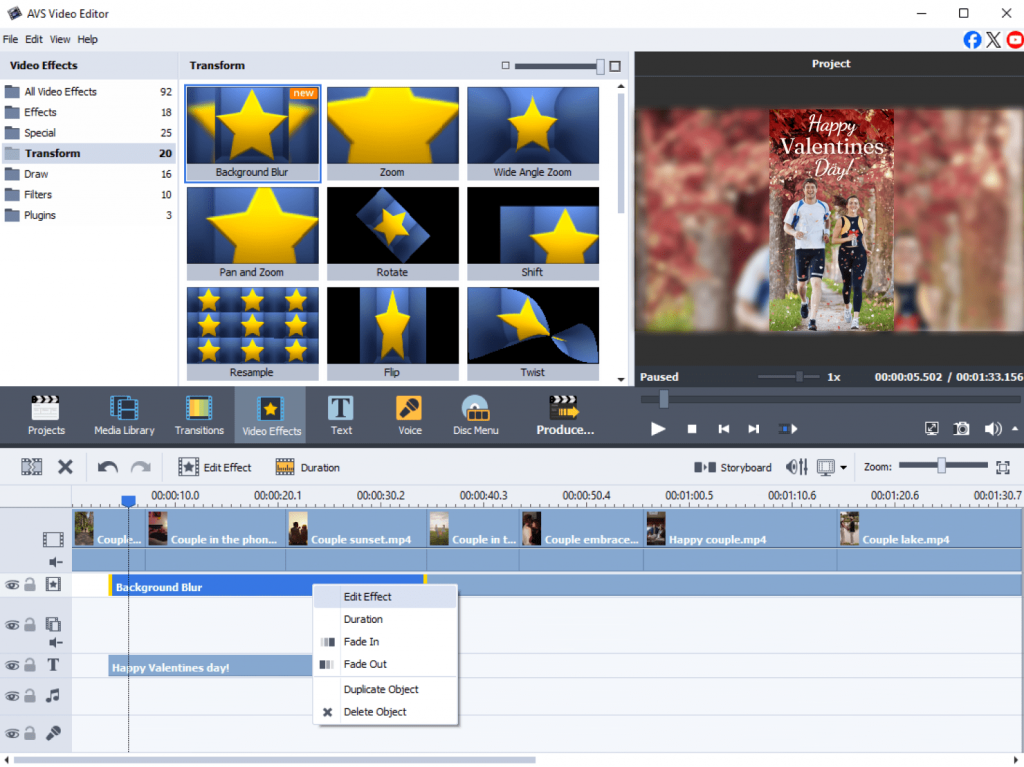
Memory reel
Create a short highlight reel with your best moments – travels, celebrations, or everyday happiness — and share it privately or on social media.
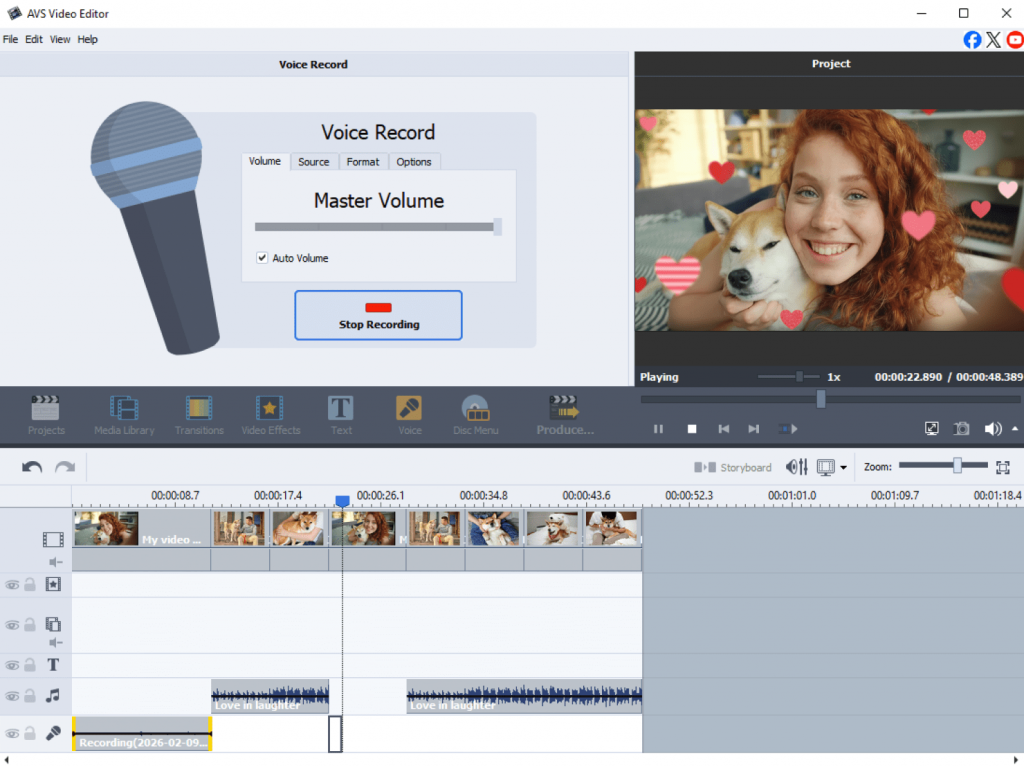
Long-distance surprise
If you can’t be together, a video message with voice-over, photos, and background music can help you feel closer than ever.
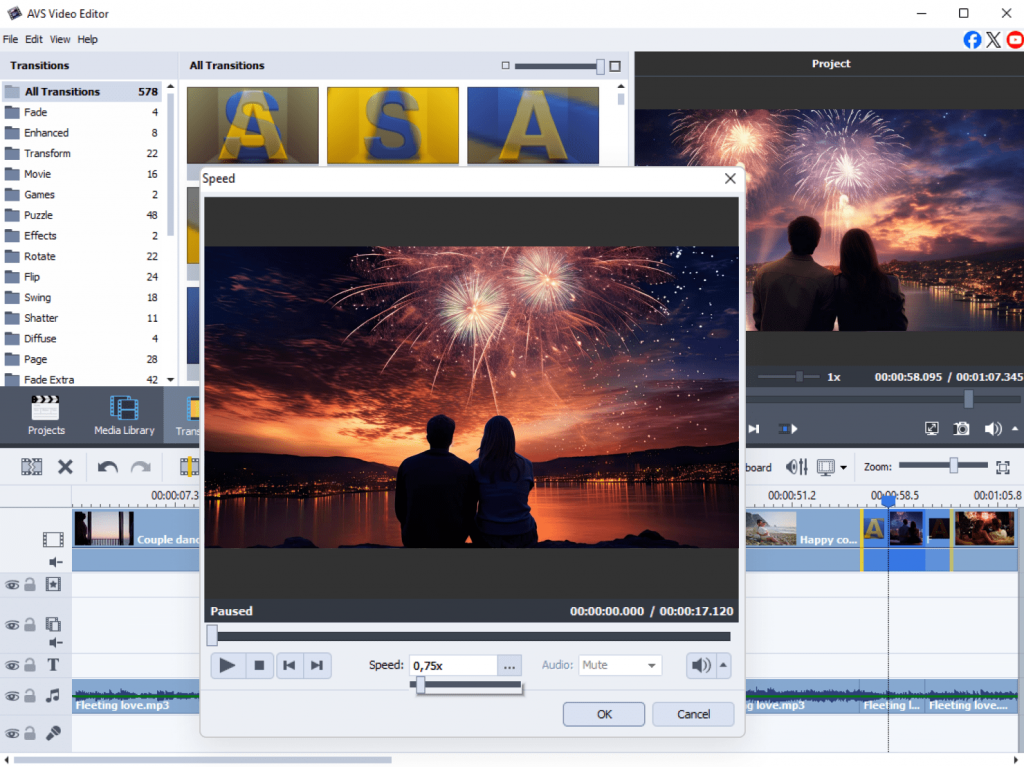
Proposal or anniversary video
Planning something big? Create a cinematic-style video with emotional music, slow-motion clips, and smooth transitions to make the moment unforgettable.
For yourself:
The “Self-love and passion project”
Invest in what inspires you. Launch a YouTube channel or podcast, create content for your hobby or side hustle, and experiment with audio and video effects. Your creativity deserves the spotlight.
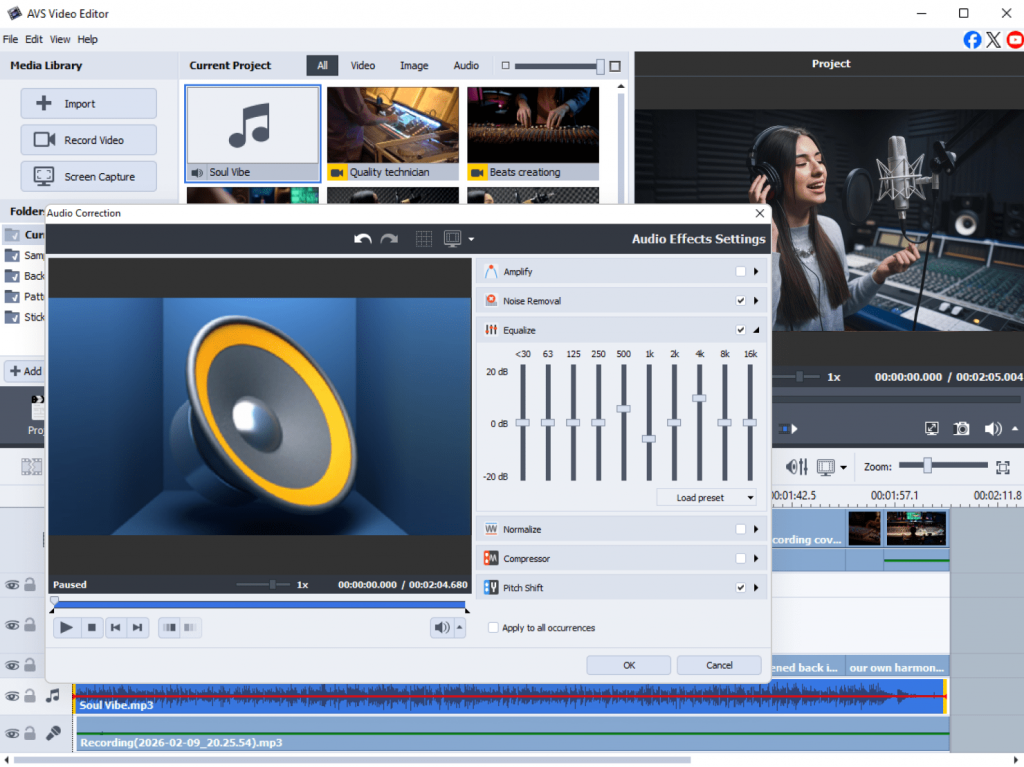
The “Chief family memory officer”
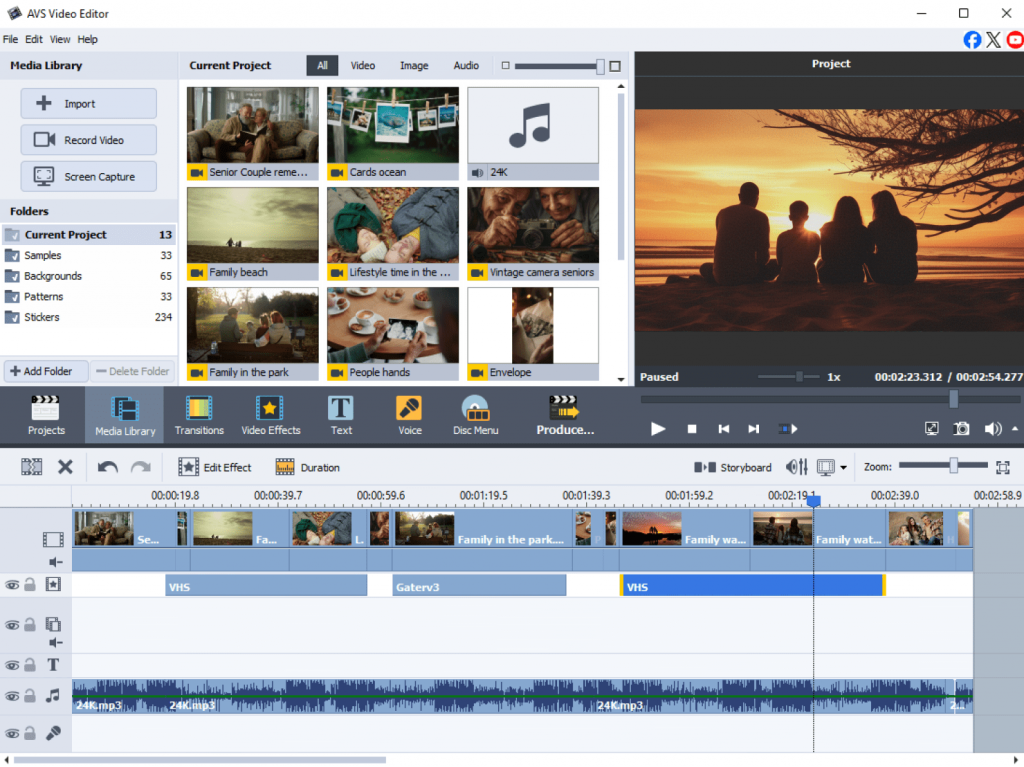
Preserve moments that matter by converting and restoring old family videos, creating birthday or anniversary montages, and organizing years of photos and clips. Memories can fade, but videos shouldn’t.
The “Efficiency expert”
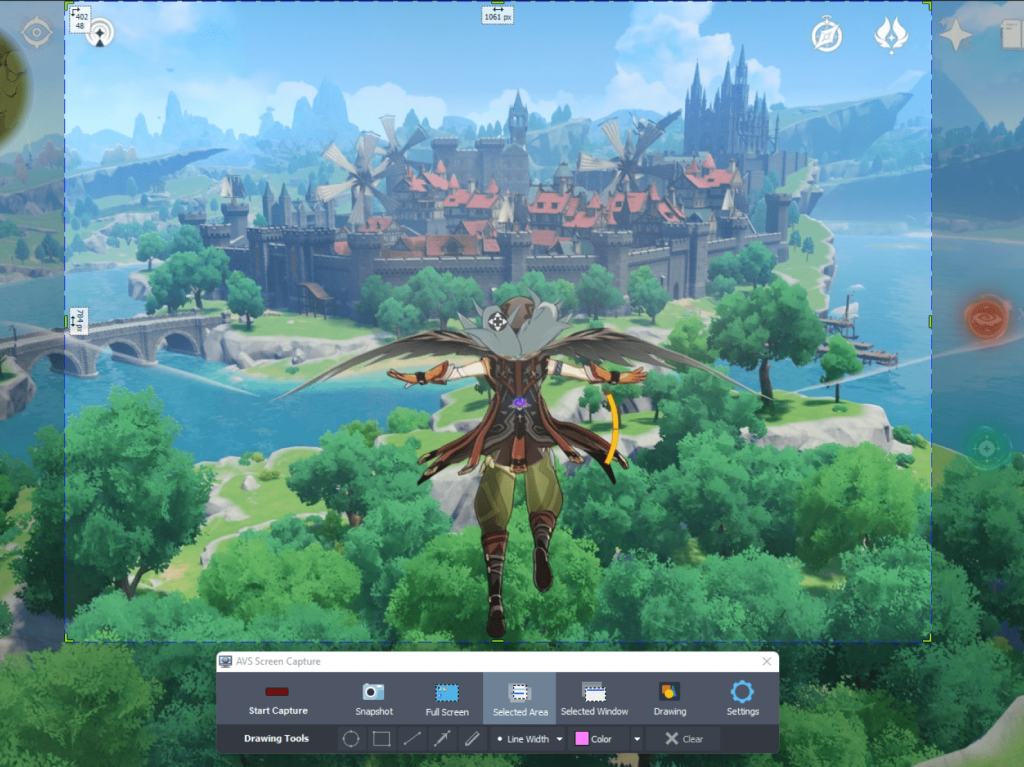
Love productivity? We do too. Batch convert files in minutes, record tutorials, webinars, or gameplay, and edit faster with ready-made tools. Save time and effort, create more.
A Gift from us to you: 25% Off
To help you create with love, we’re offering a 25% discount on AVS4YOU Multimedia Suite until the end of the month. Think of it as our digital chocolate box for you.
Don’t miss the chance to turn your Valentine’s ideas into beautiful videos.
Share love your way
This Valentine’s Day, let your creativity speak. Create, edit, and share moments that matter because the best gifts come from the heart.
Happy Valentine’s Day from the AVS4YOU team!
May your day be filled with joy, creativity, and love in every frame.
With love,
AVS4YOU Team
We’re thrilled to unveil the latest evolution of the AVS4YOU Multimedia Suite. Now with AI-powered plugins it will take your creative projects to the next level. Our new Plugins Marketplace is now live, bringing cutting-edge AI technology directly into your favorite AVS4YOU applications – AVS Video Converter, AVS Video Editor, and AVS Image Converter.
This update focuses on giving you smarter tools to generate, enhance, and transform your content with ease.
AI Plugins Marketplace
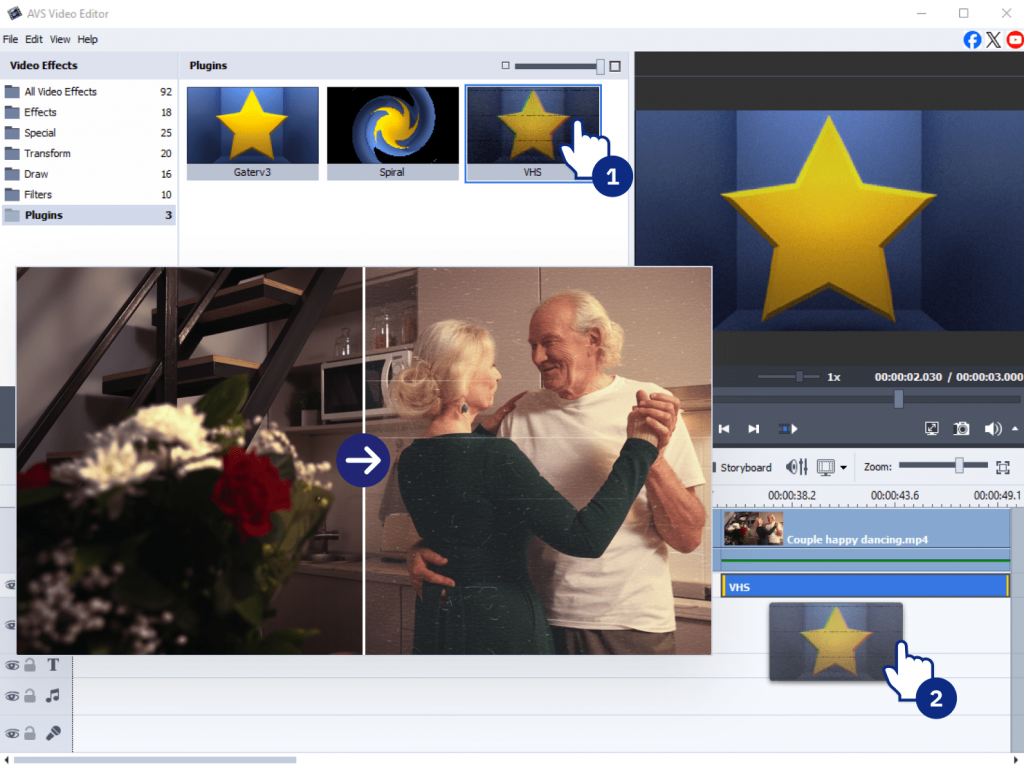
The brand-new AVS4YOU Plugins Marketplace offers a growing collection of extensions. From generative video to intelligent restoration, the new plugins expand what AVS4YOU can do:
AI-powered content
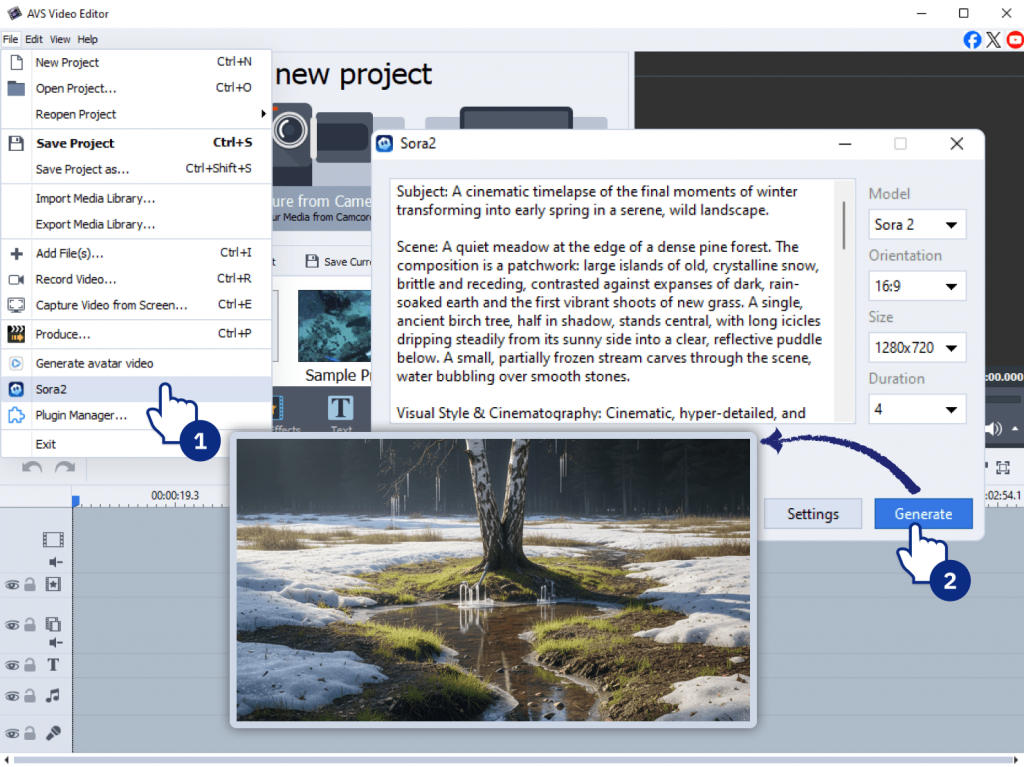
Sora2 Video Generator
Generate high-quality short clips from text descriptions using the OpenAI Sora 2 API. This lets you create unique content directly in AVS Video Editor and AVS Video Converter.
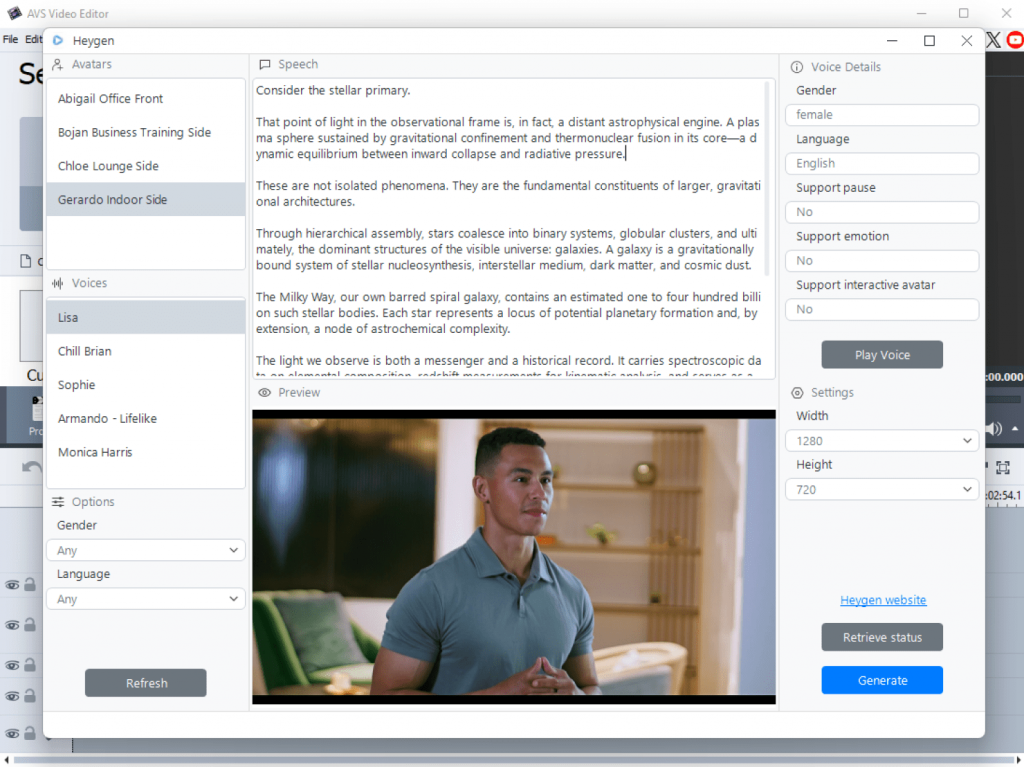
HeyGen AI Video Generator
An excellent tool for professionals and marketers, making it easy to create engaging or presenter videos.
Creative Visual Effects
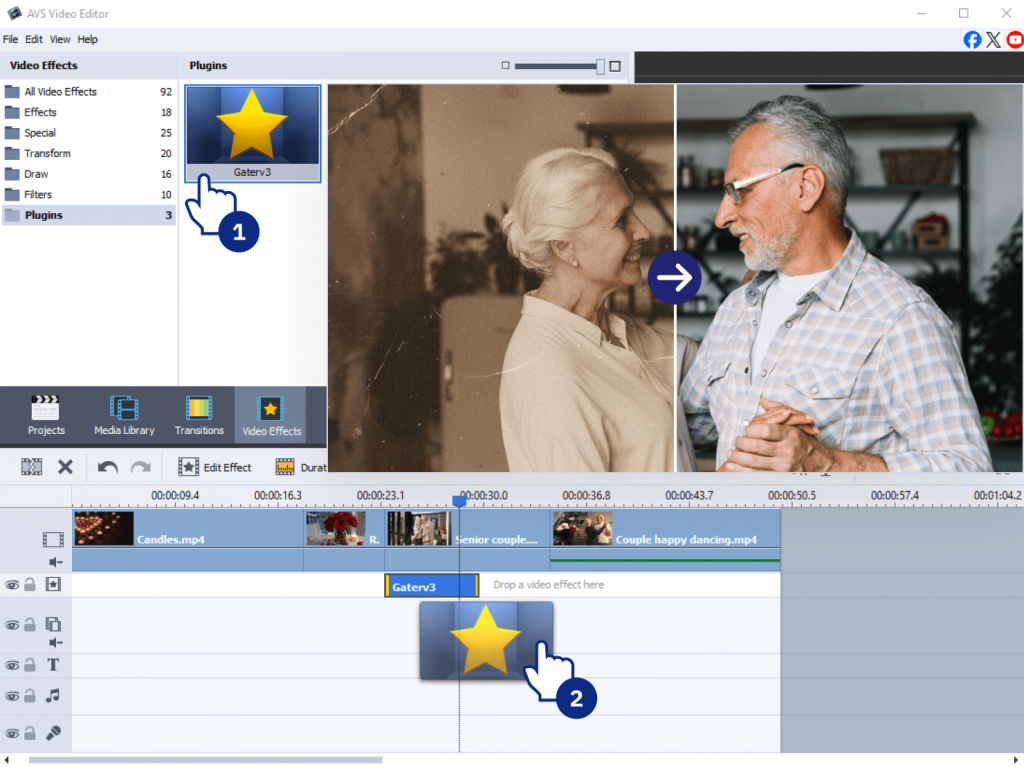
Effect Restoration Gaterv3
Enhance image and video quality via AI-based noise reduction, resizing, and mild blur correction.
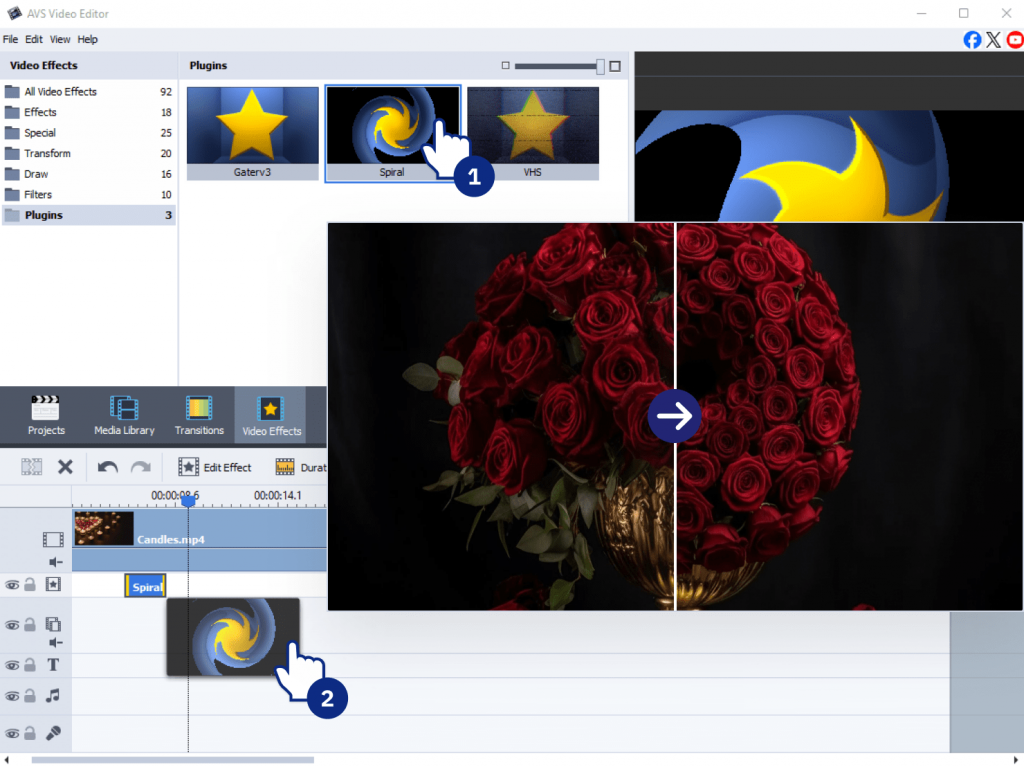
Effect Spiral
Add dynamic motion with a radial twist and outward explosion animation for stunning visual effects.
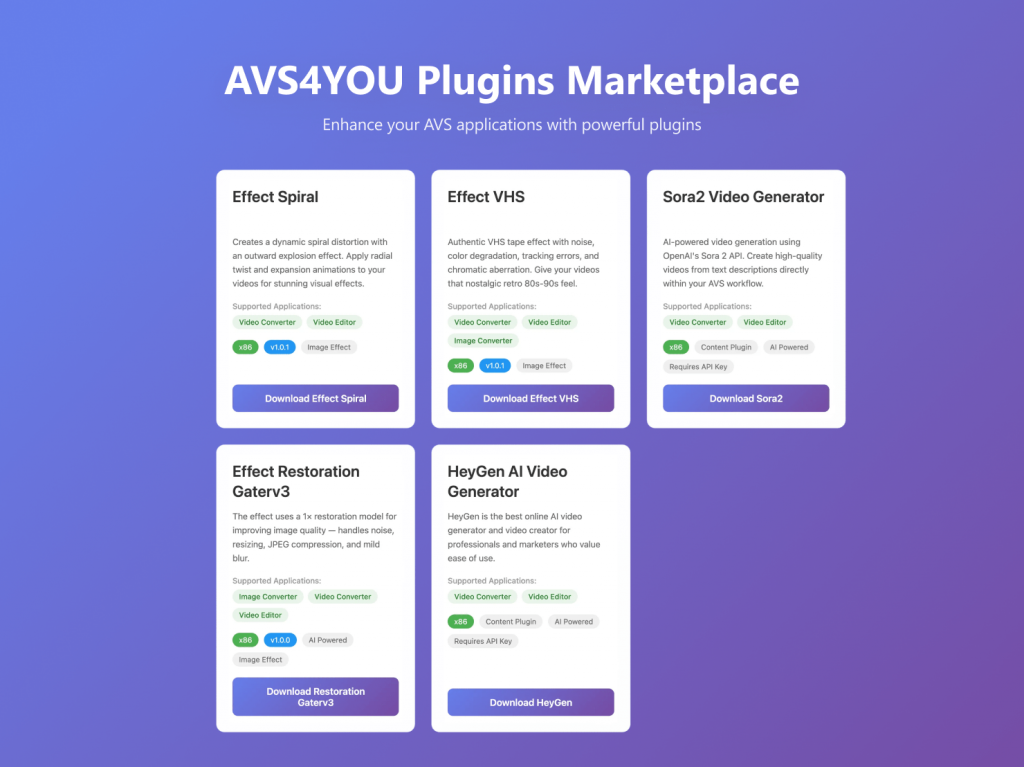
Effect VHS
Give any project a nostalgic retro feel with authentic tape noise, color degradation, and tracking errors.
All plugins are open source and available on GitHub, so that it is easy for developers and creators to explore, customize, and contribute.
How it works
Each plugin integrates seamlessly with supported AVS4YOU applications:
- Add AI effects or tools directly into your project pipeline.
- Enable plugins that require an API key (for AI services) right from the interface.
- Combine traditional editing features with generative AI content for richer, more efficient workflows.
Get Started Today
To explore the new AI capabilities:
- Visit the AVS4YOU Plugins Marketplace on GitHub.
- Download the plugins that fit your creative needs.
- Follow the documentation to enable them in your AVS4YOU applications.
By bringing AI generation and advanced effects into our core software, we’re empowering you to break through creative blocks and work faster. Now, you can handle everything from restoring old footage and generating new scenes to applying pro-level visual styles all in one trusted software suite.
Our marketplace is constantly growing. If you need a specific plugin, don’t hesitate to leave your comments below this post.
Interested in making a plugin of your own? Check out our step-by-step guide to view examples and get started.
Stay tuned for more updates as we continue enhancing AVS4YOU for creators everywhere!

In today’s digital learning environment, online apps have become an essential part of student life. From writing essays and collaborating on group projects to creating video presentations and multimedia assignments, students completely rely on fast and and easy to use software. In 2026, free digital tools for learners play an even bigger role, reducing costs while improving productivity and creativity.
In this article, we’ll explore two powerful free solutions that cover both academic and creative needs: ONLYOFFICE for document editing and collaboration, and AVS4YOU for video projects and multimedia creation.
ONLYOFFICE: Writing and collaboration made easy
Speaking about academic software, document editing and teamwork are at the top of the list. ONLYOFFICE provides a complete office suite that helps students write, edit, and collaborate efficiently.
Key features for students
ONLYOFFICE offers a wide range of tools designed for everyday academic tasks:
- Text editing and formatting for essays, reports, and assignments
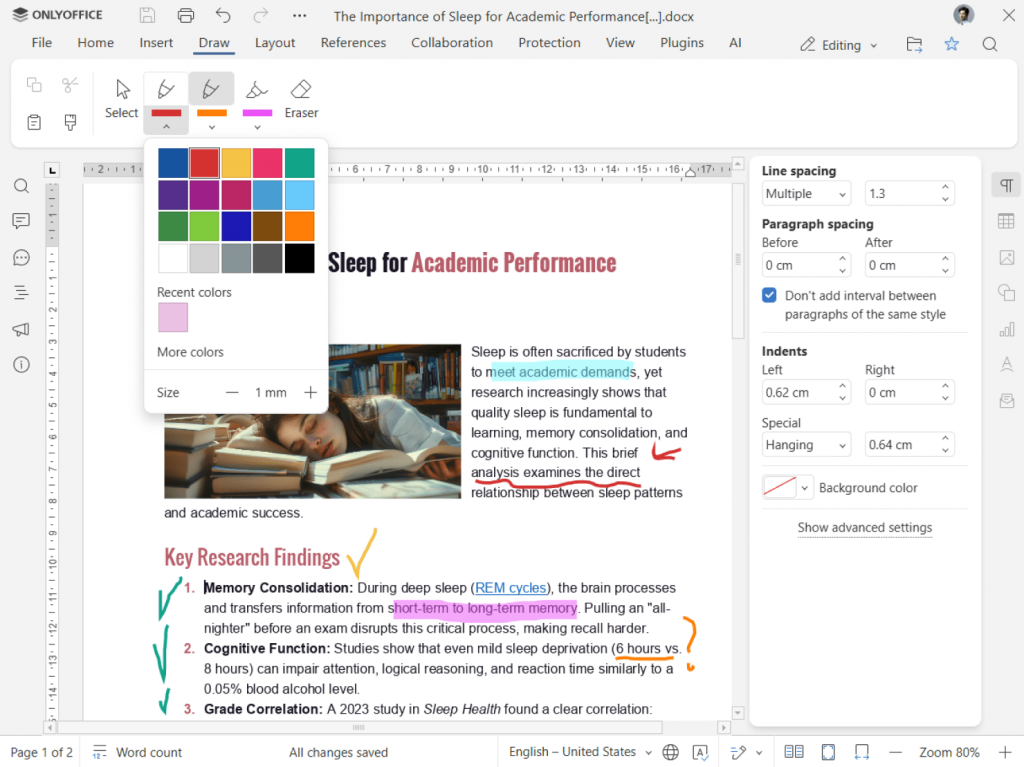
- Real-time collaborative editing with multiple users working on the same document
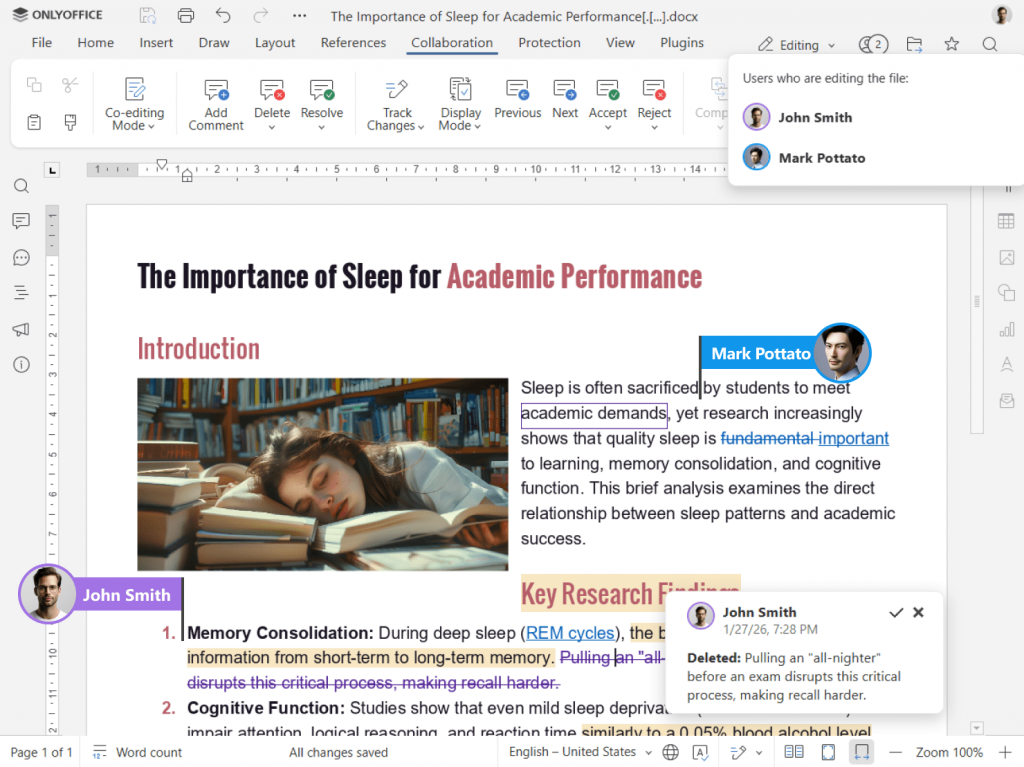
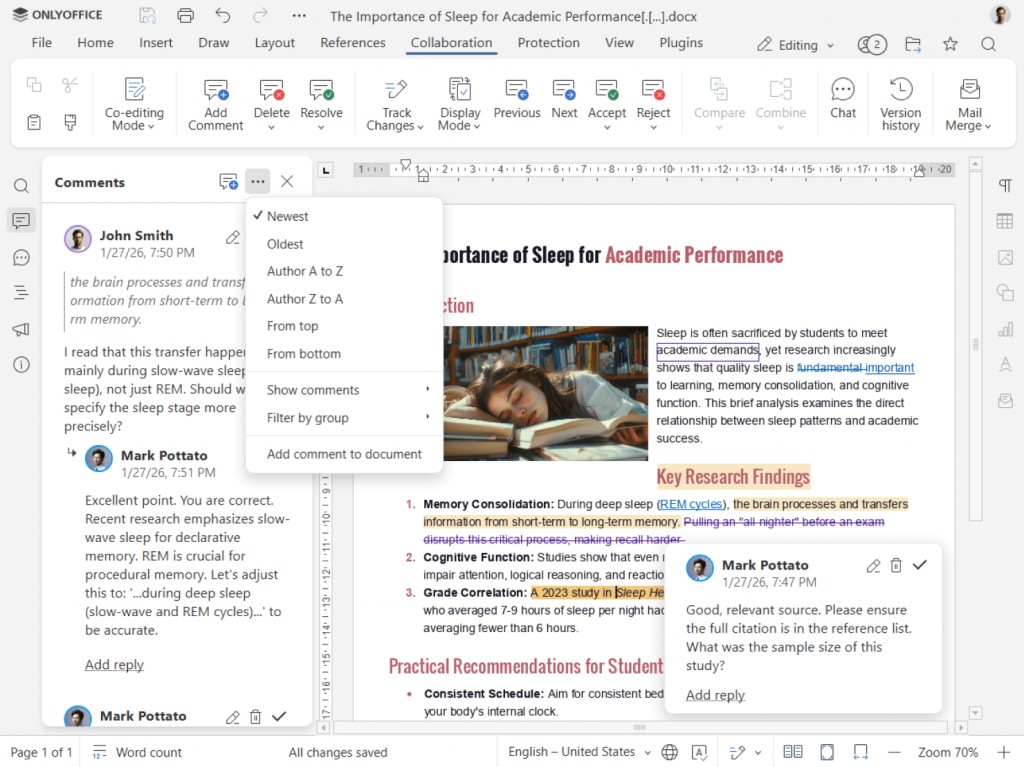
- Comments and track changes for feedback from teachers or classmates
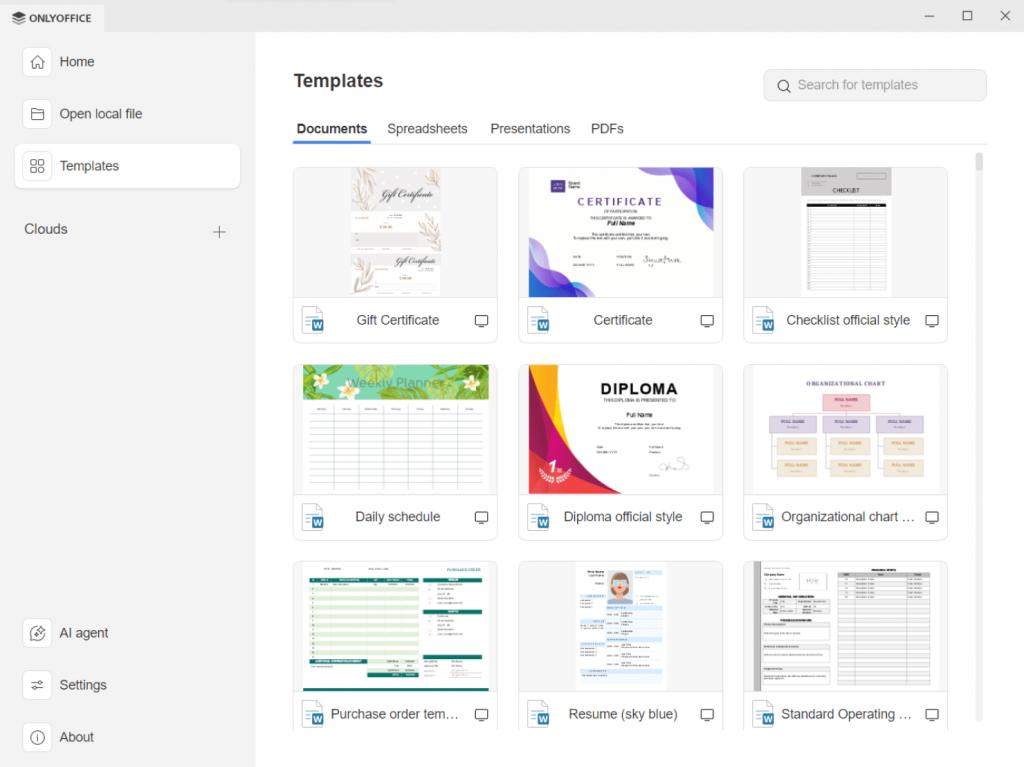
- Ready-made templates for academic papers, resumes, and presentations
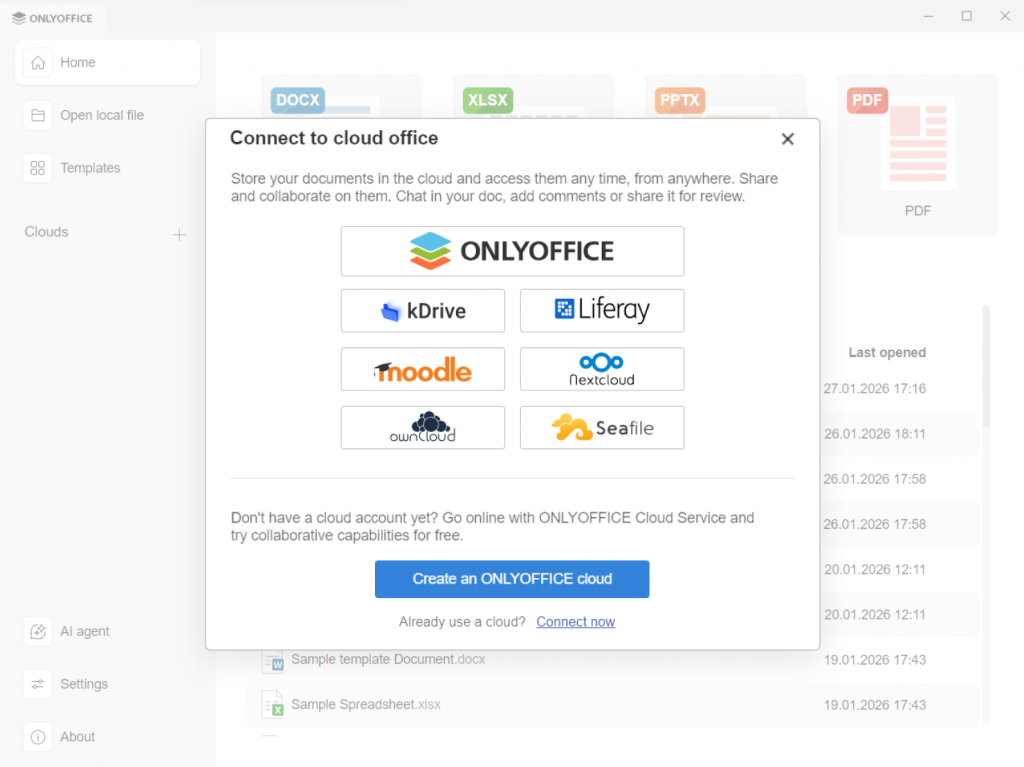
- Cloud and desktop solutions allow users to open and work with documents on popular platforms such as Nextcloud, Moodle, and others, or download the desktop app for offline work.
AI plugins for smarter studies
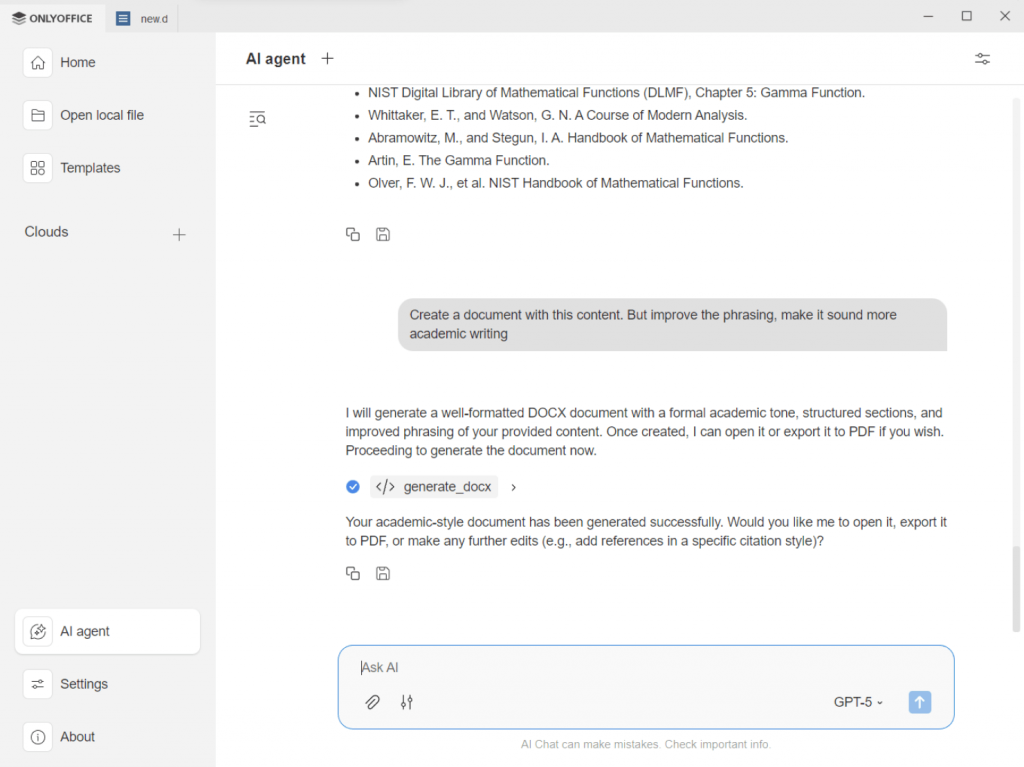
ONLYOFFICE offers various AI tools that help students work faster by automating routine writing and editing tasks, saving time and improving results:
- Smart content generation and rewriting allow students to create drafts, improve phrasing, and structure essays and reports.
- Grammar and style assistance automatically checks spelling, grammar, and tone to improve writing skills.
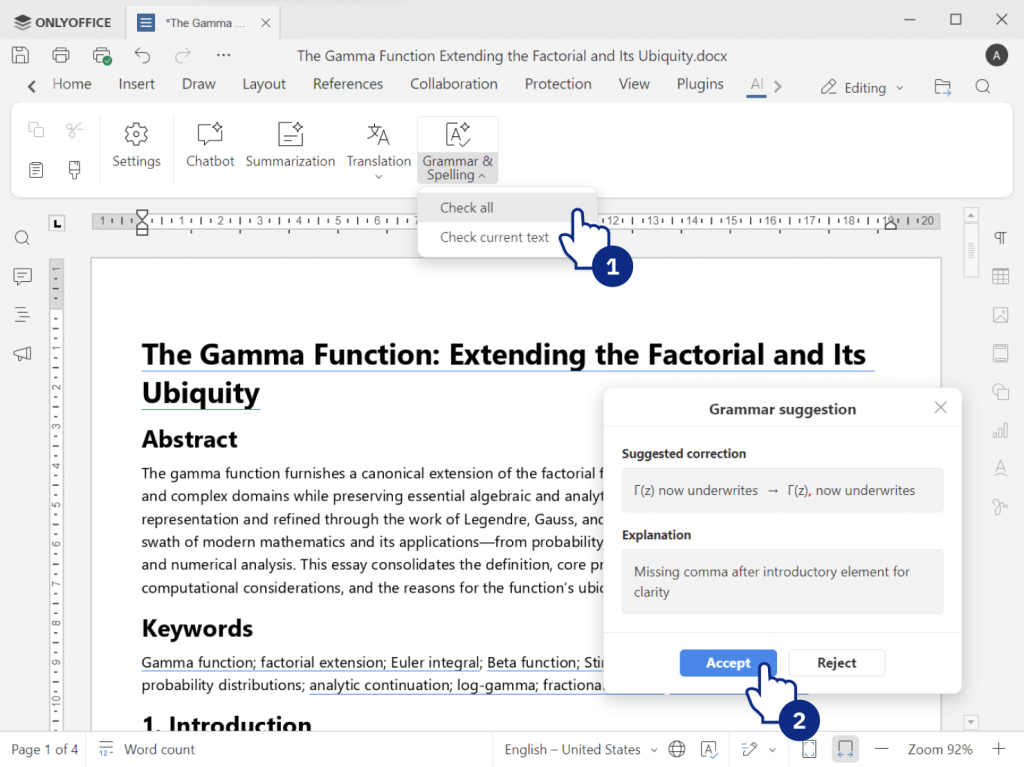
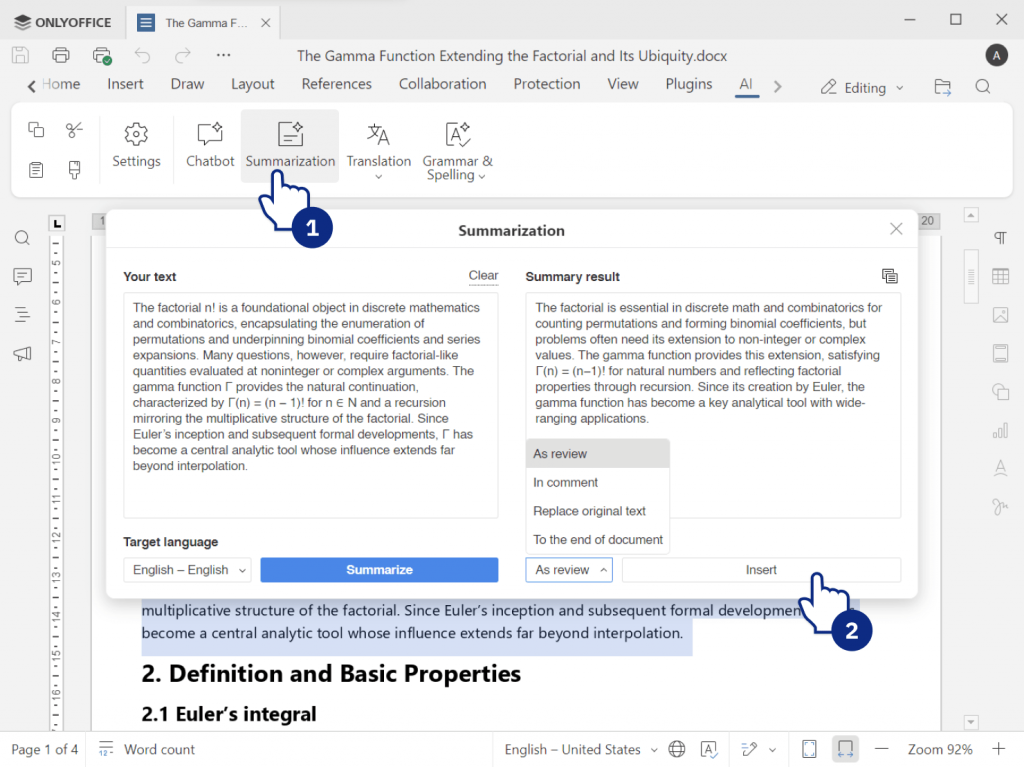
- Text summarization converts long articles and research papers into short, easy-to-read summaries for faster studying.
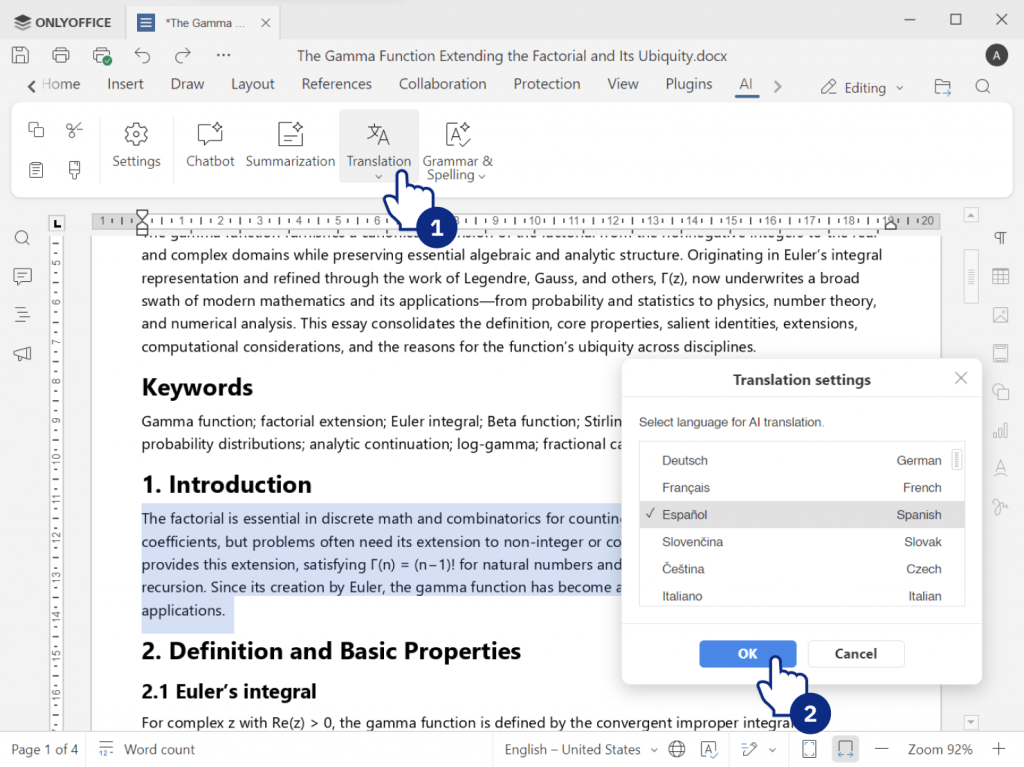
- Multilingual translation enables students to translate learning materials and collaborate with international peers.
- Content simplification lets adjust complex texts for presentations, assignments, or study notes.
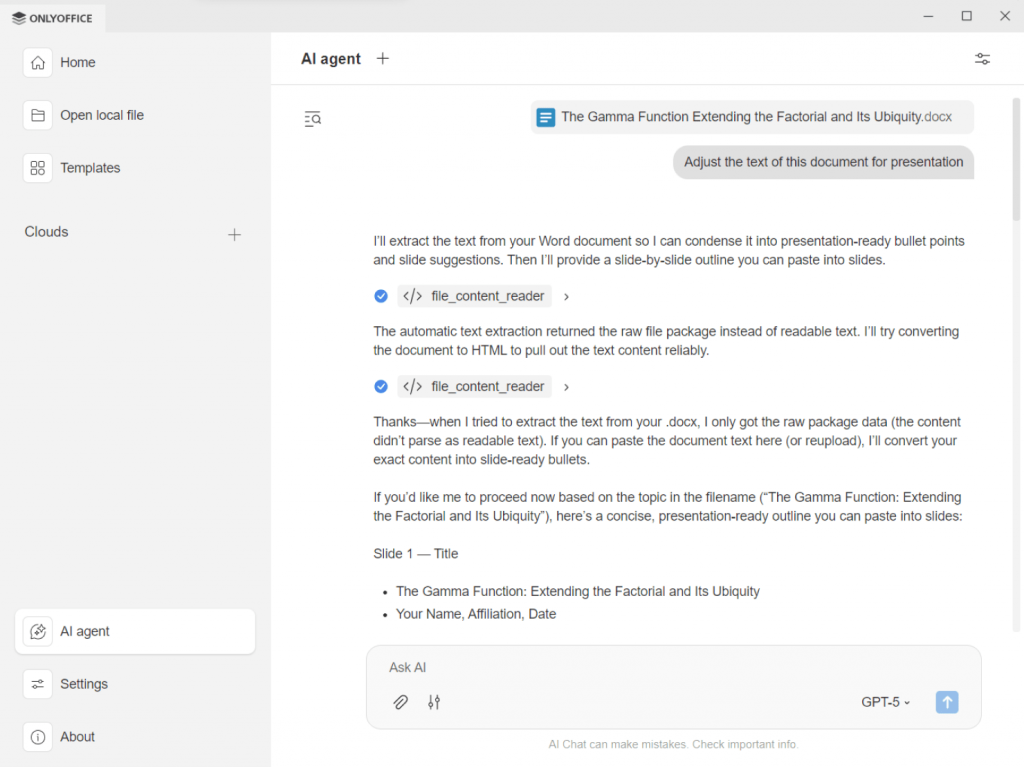
Thanks to these features, ONLYOFFICE is a reliable solution for both individual work and group projects.
Benefits for academic work
As students usually have multiple assignments and deadlines, they have to switch between various apps. ONLYOFFICE simplifies e-learning by keeping everything organized in one place. Collaborative editing allows classmates to work together without sending file versions back and forth. Built-in commenting tools make it easy to leave notes, suggest edits, and review changes.
Not only pupils can benefit from ONLYOFFICE solutions but educators as well. Thanks to ONLYOFFICE Docs it is easier to prepare materials for classes, make creative assignments, including lively worksheets, colorful slides, and comprehensive multi-page guides with diagrams, images, equations, and even a script for a YouTube video. The enabled review mode lets teachers check and grade submitted assignments. As a result, e-learning becomes a mutually enjoyable process for both teachers and students.
Example scenario: a group research project
- One student creates the report outline in ONLYOFFICE and shares the link with the group.
- Team members join simultaneously. One writes the methodology, another adds data analysis, while a third focuses on the conclusion.
- After that the group discusses comments via a chat or a video call. Once the draft is ready, the supervisor adds feedback directly into the document.
- Finally, the document is properly formatted and exported as PDF for submission.
This saves time and reduces confusion caused by multiple file copies.
AVS4YOU: Video projects and creative tasks
Video projects and presentations as well as creative tasks are becoming more common in classrooms and online learning platforms. Consequently, students need simple yet powerful apps to create engaging content. AVS4YOU offers a rich collection of video and multimedia tools, allowing students to turn raw footage or images into professional-looking projects.
Key features for student video projects
AVS4YOU provides everything needed to craft high-quality video content:
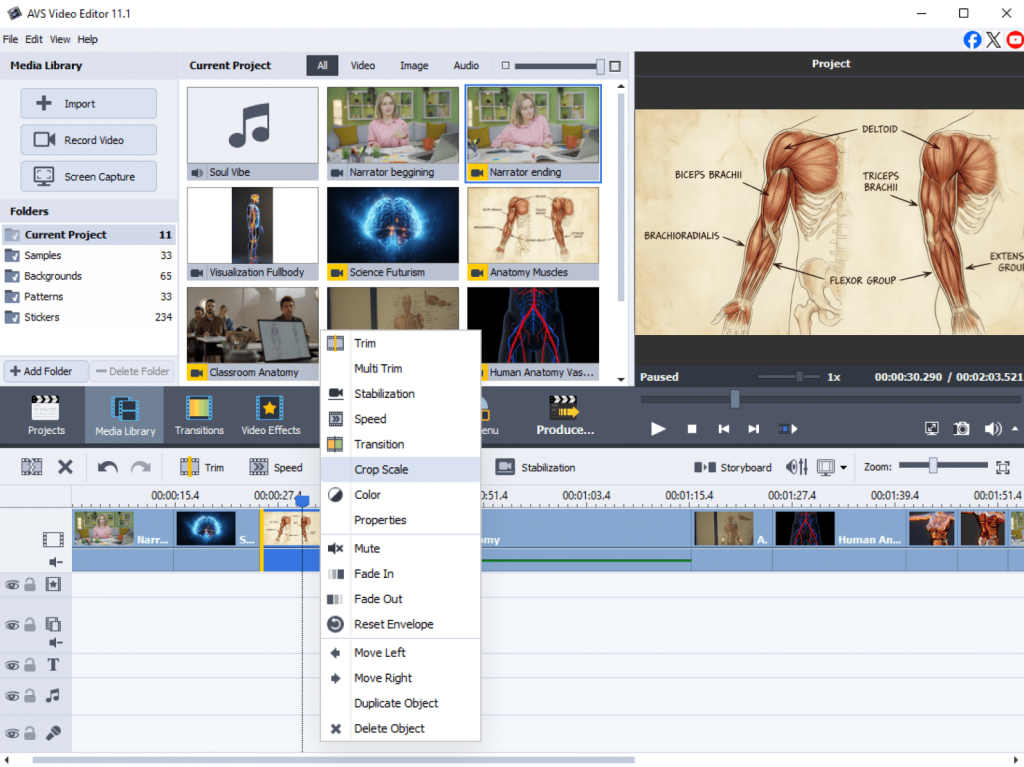
- Video editing tools for trimming, merging, and organizing clips
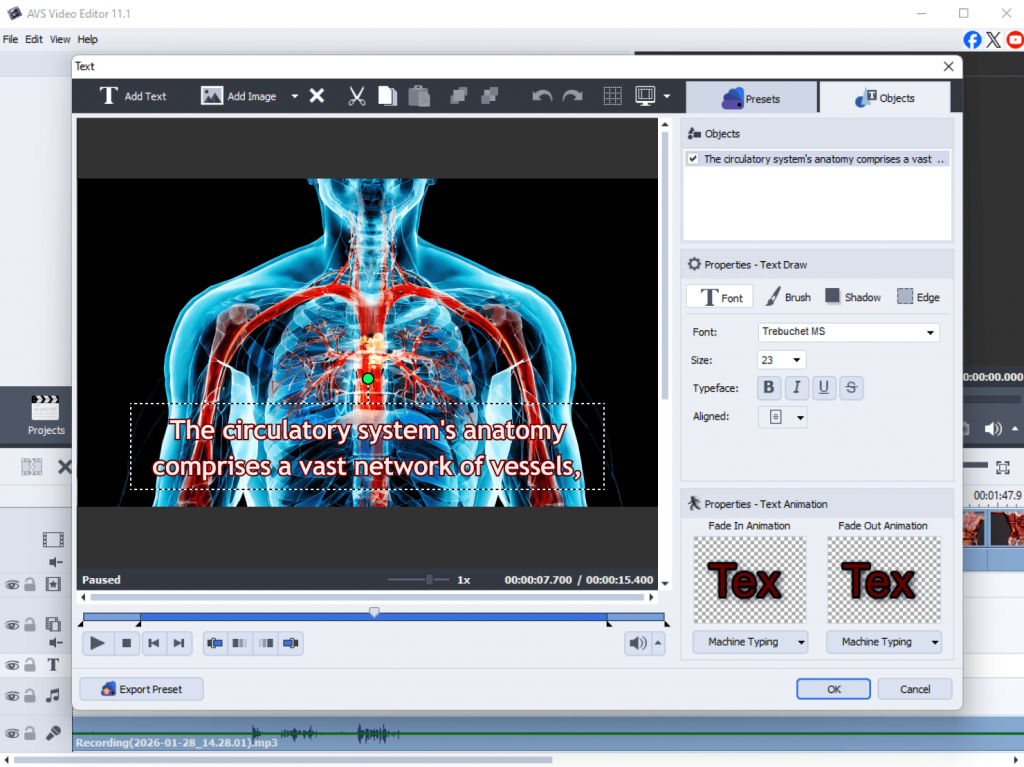
- Text overlays and subtitles for presentation videos
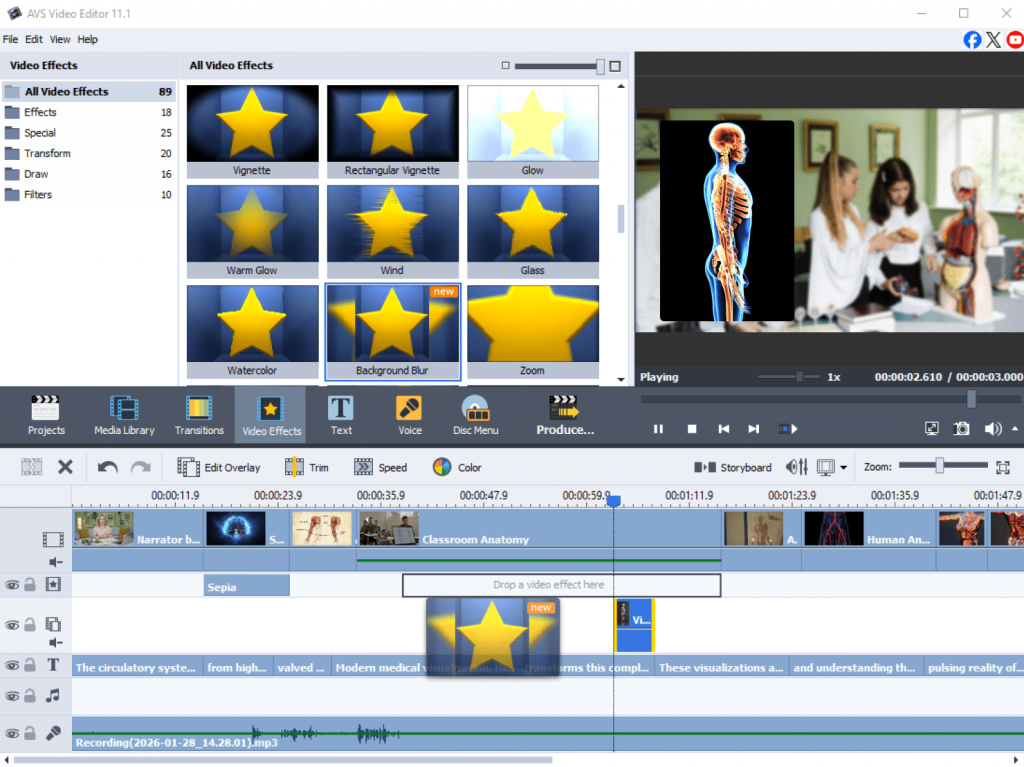
- Visual effects and transitions to enhance storytelling
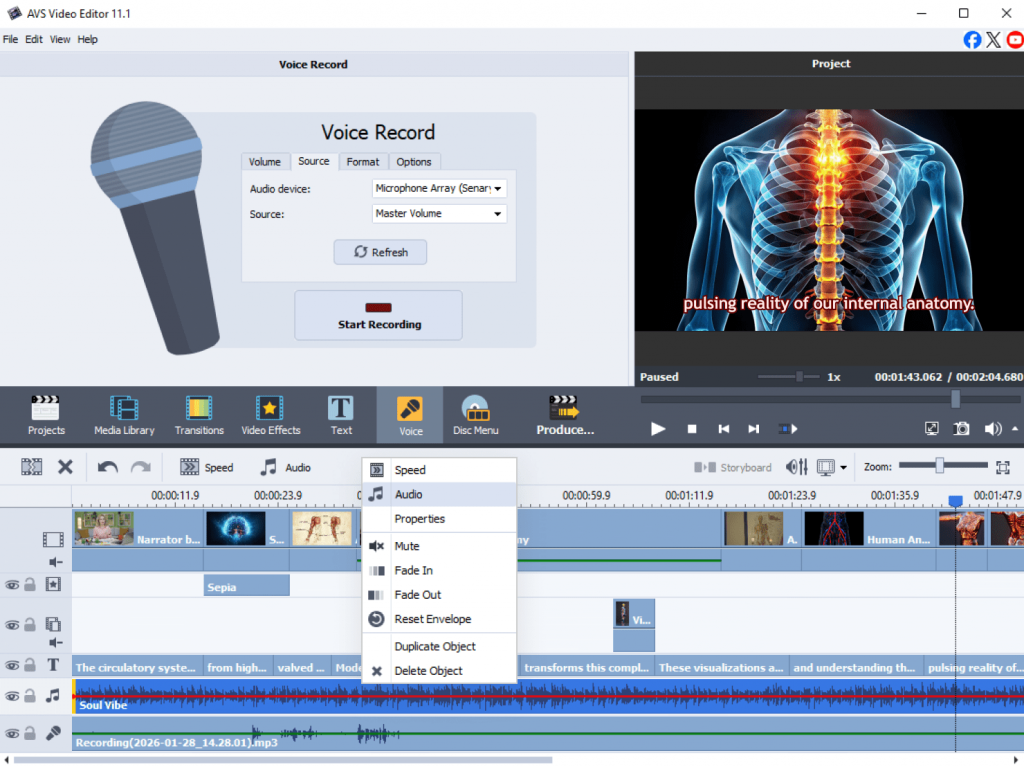
- Audio editing tools for voiceovers and background music
- Export options for different formats and platforms
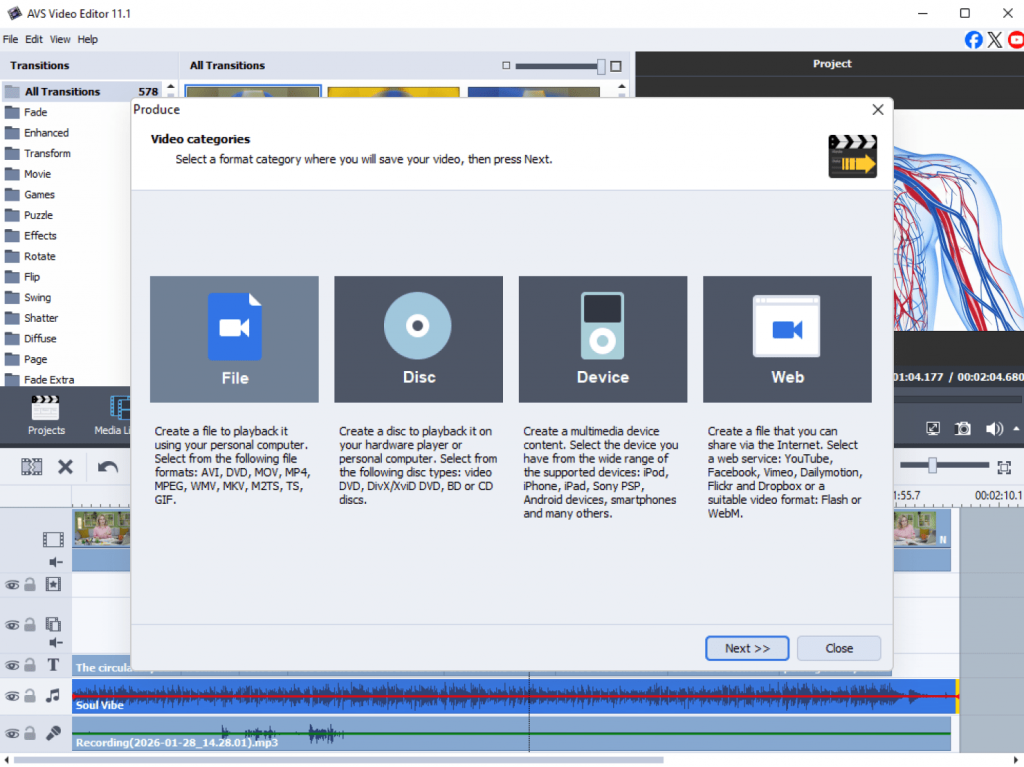
Students can make video essays, animated slideshows, tutorial videos, or visual reports that boost engagement and interactivity.
Benefits for creative learning
Video assignments help students develop communication, storytelling, and digital media skills. AVS4YOU transforms video creation into a simple task even for those who are new in video editing. The interface is user-friendly, and the programs are designed to support school projects and creative multimedia tasks, offering built-in effects, screen recording tools, wide format compatibility, and optimized export presets for social meadia and video hosting platforms.
Example scenario: History presentation video
- Gather historical images, archive footage, and a script for your voiceover.
- Import media files into AVS Video Editor and arrange them on the timeline in a logical order.
- Record or import your voice, then add background music at a low volume.
- Insert dates, key terms, and citations directly onto the video.
- Add smooth transitions between segments and apply a subtle color filter for a consistent look.
- Export the final video and share it with your class or upload it to a learning management system.
This approach is more engaging than traditional slides.
Tips for students: Maximizing a digital toolkit
Combining document software and video editors creates a powerful workflow for academic success. Here are some practical tips for using ONLYOFFICE and AVS4YOU together:
Plan your project
Start by outlining your ideas in ONLYOFFICE. Draft your script, key points, and references in a document so that your project is well-structured before video production.
Create and edit content
Write your essay, presentation text, or narration script in ONLYOFFICE. Once the content is ready, import text ideas into your AVS4YOU video project to create subtitles or voiceover overlays.
Present and share
After editing your video using AVS4YOU software, review the final result and make small adjustments. Use ONLYOFFICE to prepare additional materials such as handouts, reports, or summaries that go along with your video presentation.
This simple workflow starting from planning to presenting the ready creation ensures that students stay organized and produce better results.
Must-have student tools for modern learning in 2026
Student productivity tools in 2026 should be budget-friendly, easy to use, and flexible to to fit different learning styles. With free digital apps, students can access powerful features without extra costs. In general, they support modern learning formats, including remote classes, hybrid education, and project-based learning. By combining collaborative document editing with a multimedia suite, students will develop both academic and creative skills that are valuable beyond the classroom.
ONLYOFFICE empowers students to write, collaborate, and manage academic projects efficiently, while AVS4YOU makes video presentations and creative assignments easier and more engaging. By using them together, students become more productive, boost creativity, and may achieve good results in any subject.
Explore ONLYOFFICE for document collaboration and AVS4YOU for multimedia projects to make your learning experience more efficient and creative.
Useful links

As hybrid and remote work continue to shape everyday life in 2026, handling documents has become more complicated than it used to be. People now switch between multiple file formats, make last-minute edits, and work with teammates who may be located in completely different time zones. The right software can handle these tasks much easier saving time, reducing mistakes, and helping teams stay productive.
In this post, we will take a closer look at nine popular tools that cover three essential areas: document conversion, document editing, and collaboration. For each tool, you’ll find a simple breakdown of what it does, pros & cons, and recommended use cases.
Category 1: Best Document Converters
Converters are essential when you deal with multiple file types. For example, you may need to transform DOCX into PDF, distribute e-books in MOBI, extract images from a file. Document converters make transformations quick and painless ensuring format compatibility and preserving your layout.
AVS Document Converter
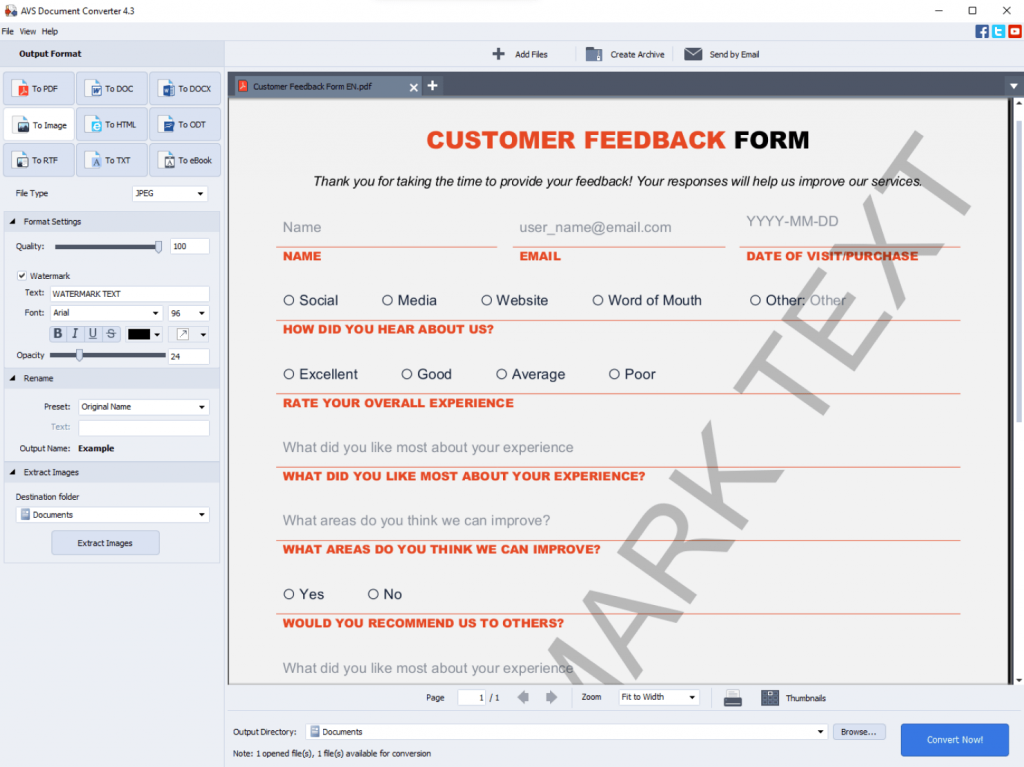
A desktop application, part of AVS4YOU Multimedia Suite, designed to deliver bulk conversion across a wide range of document and e-book formats. It supports DOCX, PDF, TXT, RTF, HTML, e-book formats MOBI, EPUB,FB2, and more.
Key Strengths
Batch conversion: Converts dozens or hundreds of files at once, ideal for large-scale projects or archives used in several projects.
Format flexibility: Converts between standard office formats, e-books, HTML, and plain text.
Security features: Offers password protection and watermarking when exporting to PDF. It is useful for sharing sensitive documents.
Consistent formatting: Maintains layout, styling, and references (tables, images, footnotes) accurately across formats.
User-friendly interface: Clean, minimal UI, easy-to-use even for less tech-savvy users.
Typical Use-Cases: Ideal for professionals, students, multi-language teams, and administrators who regularly convert large batches of documents for archiving, sharing, or publishing. It is a good choice for users who want fast conversions and a simple workflow.
Potential Limitations
Desktop-only: Requires installation and runs locally; not a cloud solution.
No collaborative editing: Once converted, further edits need separate software.
No OCR (by default): If source is scanned images, another tool is needed to convert it to editable text.
Pricing: It is free without hidden restrictions. The app allows to convert an unlimited number of files.
Zamzar
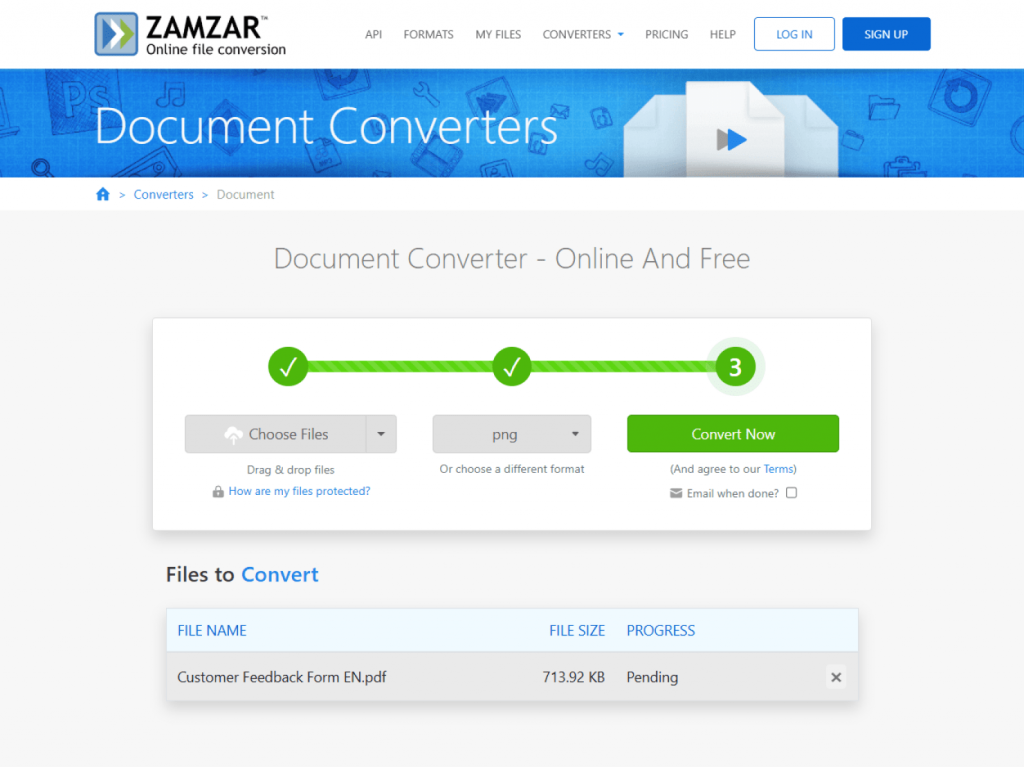
A web-based file conversion service which does not require installation. Upload your file, choose the necessary format, and download the output. It supports over 1200 formats and allows to send converted files via e-mail.
Key Strengths
Cross-platform: Works on any operating system via browser: Windows, macOS, Linux, ChromeOS.
Speedy for small tasks: Perfect for quick, one-off conversions without software installation.
Wide format support: Hundreds of input and output formats, including outdated ones.
Accessibility: Great for occasional users or for working on devices where installation isn’t an option.
Typical Use-Cases: Great for occasional users, freelancers, and anyone who needs to convert a few documents quickly and don’t want to install anything. It’s also suitable for use on public or restricted computers, or for occasional conversions of uncommon formats.
Potential Limitations
File size limits: free tier limits upload size, may not suit large documents or bulk conversions.
Speed varies depending on your internet and server load.
Privacy concerns: Uploading sensitive files to another server could compromise their security.
Pricing: Freemium model with paid plans for higher volume and faster conversion times.
Doxillion Document Converter
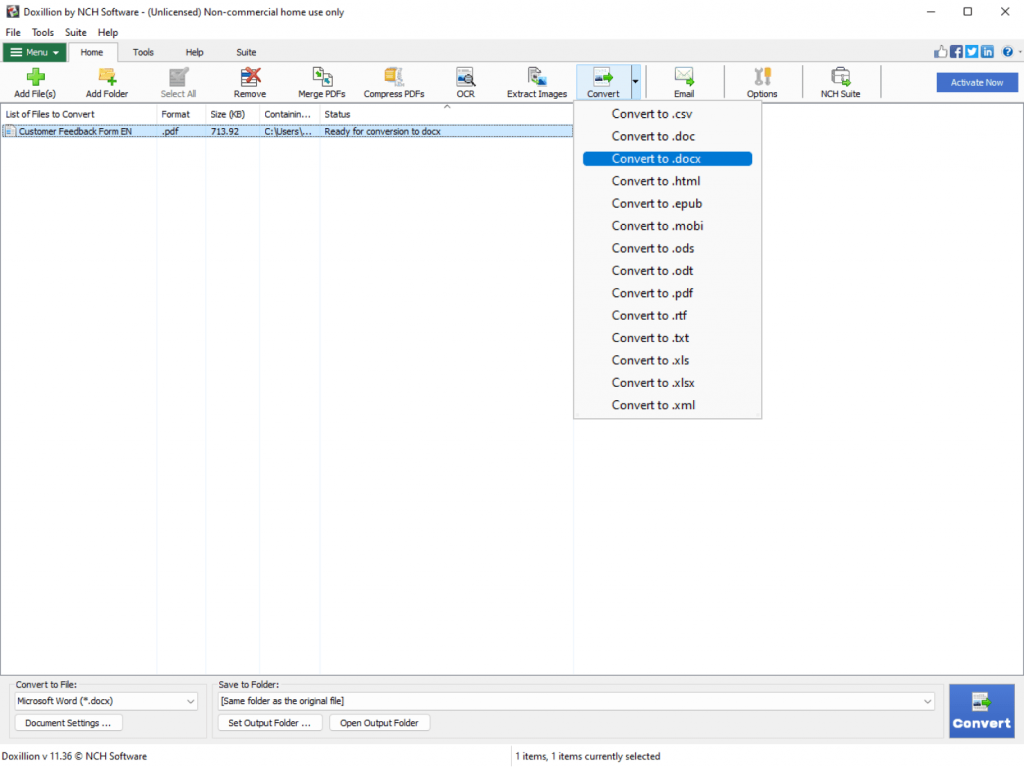
A lightweight, desktop-based converter from NCH Software that supports common document formats and basic batch conversions.
Key Strengths
Simplicity: Straightforward interface with clear conversion flow.
Speed: Fast processing for most small-to-medium documents.
Batch support: Allows converting multiple files at once, including text documents and some basic image-to-text conversions.
Typical Use-Cases: Suits individual users and small offices looking for a free, simple desktop solution for everyday document format switching. Conversion of small or moderate-sized document sets such as reports, letters, simple e-books.
Potential Limitations
Limited advanced formatting support: Might struggle with complex layouts, footnotes, or embedded images/tables.
Fewer export options compared to more powerful converters, limited customization of output (e.g. watermarks, security).
Not ideal for publishing: it can be necessary to correct formatting after the conversion so that the documents look professional.
Pricing: Free basic version with an option to upgrade to a paid version for additional features.
Converters At a Glance
| Tool | Strength | Best For |
| AVS Document Converter | Batch conversion + format flexibility + security | Large document sets, publishing, business archives |
| Zamzar | Fast & no-install, wide format support | Quick one-off conversions, cross-platform ease |
| Doxillion Document Converter | Lightweight and fast for simple docs | Home offices, small teams, basic needs |
Category 2: Best Document Editors
After converting a document to the right format, the next step is often editing, styling, or designing it. This section highlights tools that provide full editing capabilities, from simple changes to complex layouts.
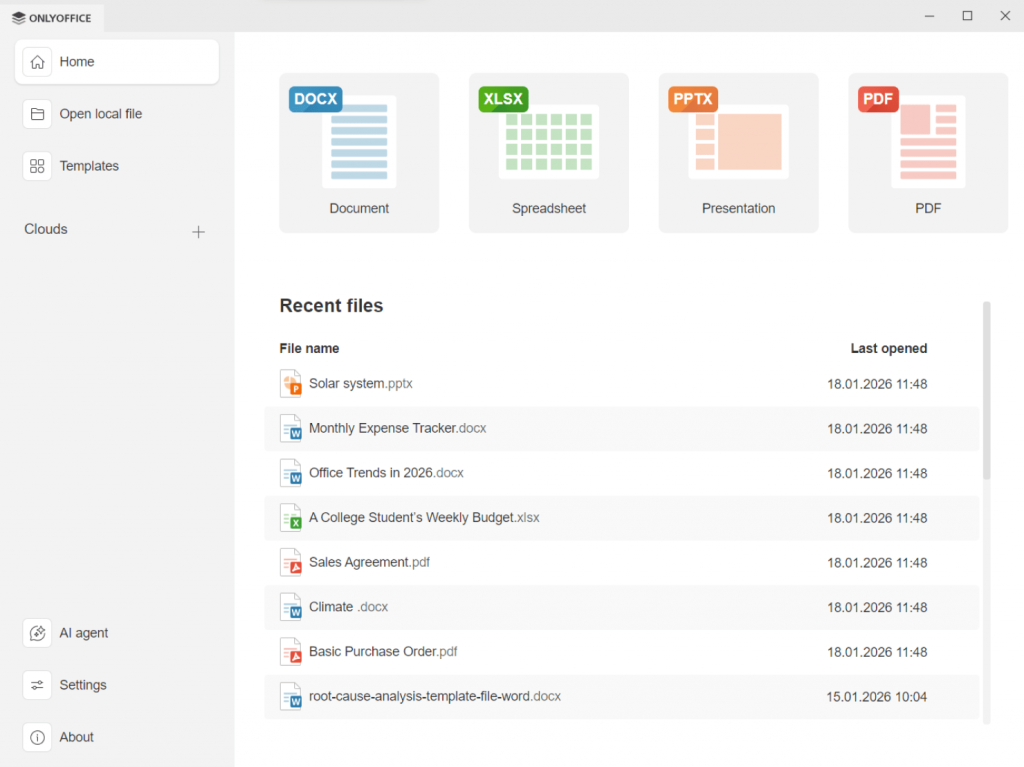
ONLYOFFICE Desktop Editors
A full-featured office suite compatible with major document formats (DOCX, XLSX, PPTX, PDF). It includes word processing, spreadsheets, and presentation tools, PDF editing and form creation in one package. It also features built-in AI assistants for text generation, proofreading, and translation.
Core Features
High compatibility with Microsoft Office formats: opens and saves DOCX, PPTX, XLSX without breaking layout or formatting.
Advanced layout and styling tools: tables, images, headers/footers, styles, footnotes — everything expected from a modern word processor.
Ability to create PDF forms and fillable documents: useful for creating surveys, registration forms, or templates.
Integration with cloud/storage: can link to cloud storage or collaboration platforms for seamless workflow.
Security features: allows setting edit/review permissions, password protection, and read-only modes.
Typical Use-Cases: Perfect for businesses and power users as well as individuals who need a robust, MS Office-compatible desktop suite that can also connect to collaborative cloud workspaces. It provides almost the same features as widely used office suits, but at no cost, making it ideal for personal use, education, or price-sensitive users.
- Writing research papers, essays, or reports
- Creating presentations for class or work
- Managing spreadsheets for personal budgeting, small business, or school projects
- Developing lesson plans, class materials, or collaborative documents when working offline
Potential Limitations
Advanced features sometimes require familiarity, less intuitive than minimal editors for new users.
Cloud integration may demand setup: for full value, linking to a server or storage is recommended.
Pricing: Completely free with all features and updates included.
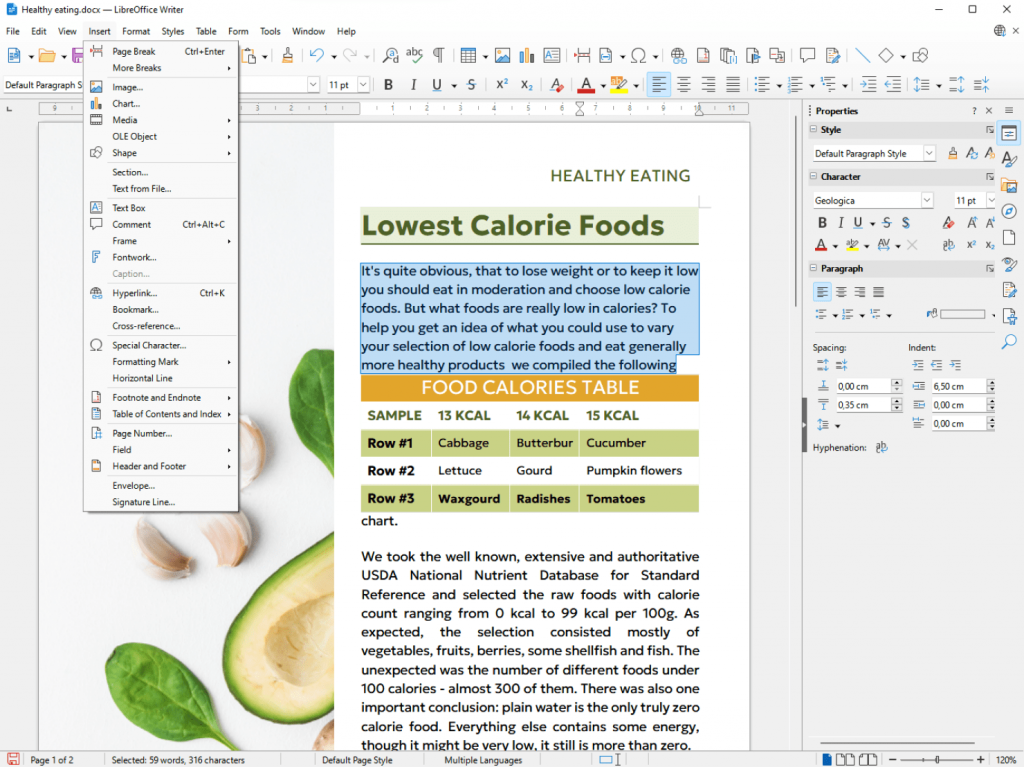
LibreOffice Writer
An open-source, free office suite (part of the LibreOffice suite) widely used as a free alternative to paid editors. It works well with both old and new document formats and lets you add extra features with plug-ins.
Core Features
Full-featured word processor with support for complex layouts, styles, footnotes, tables, images, and more.
Open-source formats – especially useful if you want to use ODT files or avoid being tied to one program.
Large community and plugin ecosystem: lots of people use it, share tips, and help each other. There are many extensions for templates, citations, bibliographies, and more.
No licensing cost — a good fit for users looking for affordable options, educational institutions, or open-source supporters.
Typical Use-Cases: Ideal for cost-conscious users, students, educational institutions, and anyone who values software flexibility and open standards. It’s a full-featured replacement for commercial office suites.
Best Use Cases
- Individual users who want a powerful editor at no cost.
- Organizations prioritizing open formats and long-term access over proprietary ones.
- Writers, students, or academics needing robust document features without budget constraints.
Limitations
Interface is less polished compared to modern commercial suites, as a result, some users find it clunky or outdated.
Occasional formatting issues when importing complex DOCX files. There may be layout shifts and style inconsistencies.
Performance may lag with very large documents or heavy image use.
Pricing: Completely free of charge.
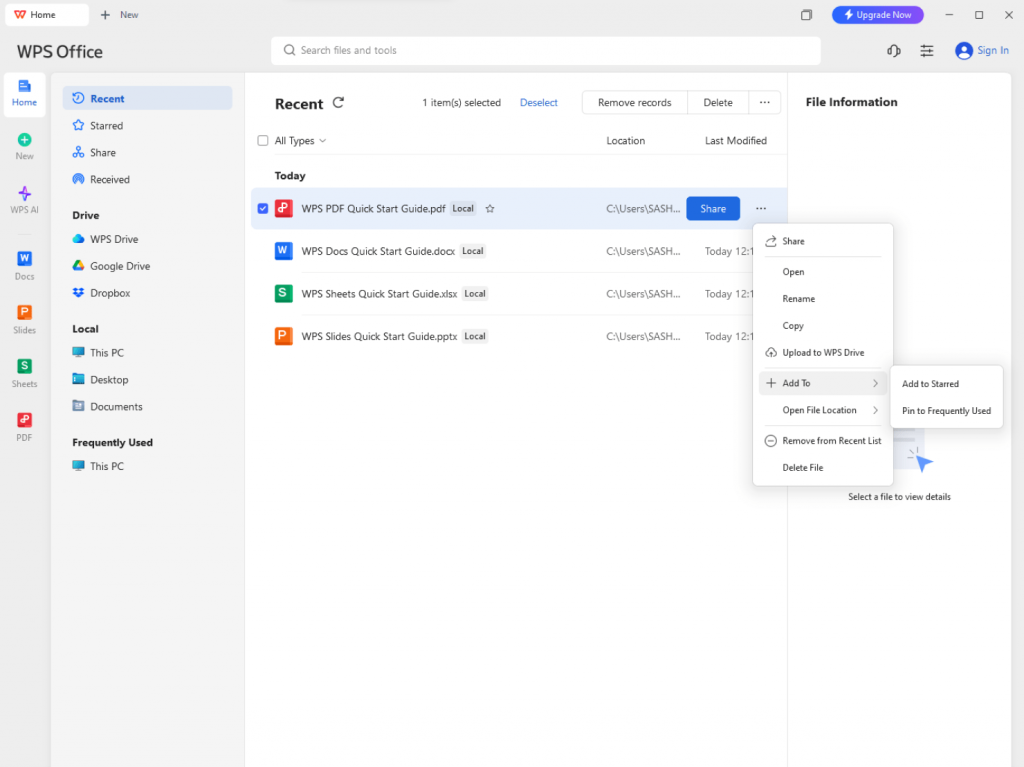
WPS Office Writer
A compact, user-friendly office suite with modern styling, offering word processing, spreadsheets, and presentations with strong mobile support. Its interface is similar to that of the latest Microsoft Office. The program boasts excellent MS Office format compatibility.
Core Features
Modern UI and templates: Attractive pre-made templates for letters, reports, resumes, helpful for users who want quick, professional-looking documents.
Good Microsoft format support: handles DOCX and other formats reasonably well.
Mobile and cross-platform versions: edit documents on laptops, tablets, or phones.
Lightweight and faster startup: runs quickly and starts fast, perfect for older computers.
Typical Use-Cases: Excellent for users who want a Microsoft Office-like experience without the subscription cost. Its mobile apps are also highly rated.
Best Use Cases
- Students, freelancers, or remote workers needing fast, easy editing across devices.
- People who work often on mobile devices or switch between desktop and mobile.
- Users who value convenience and simplicity over full advanced customization.
Limitations
Advanced featuresare locked: some premium templates or features require a subscription.
Less robust formatting controls compared to ONLYOFFICE or LibreOffice. There may be problems with very complex documents.
Occasional compatibility issues, especially with macros or advanced DOCX features.
Pricing: Freemium model with a paid Premium plan to remove ads and unlock advanced tools.
Editors Quick Reference
| Tool | Advantage | Best For |
| ONLYOFFICE for Desktop | Robust editing, compatibility, security | Students, educators, freelancers, small businesses, and anyone needing a free, professional-grade office suite |
| LibreOffice Writer | Free, open-source, long-term friendly | Budget users; open-format supporters |
| WPS Office Writer | Lightweight, easy, good for mobile | Students; freelancers; mobile-first users |
Category 3: Best Collaboration Platforms
In a world where remote teams and distributed workflows prevail, collaboration platforms are the backbone of productive document workflows. They combine editing, sharing, version control, and team collaboration into one environment. While Google Docs and Microsoft 365 dominate on the market, we have picked several other platforms that offer unique and powerful approaches to document collaboration.
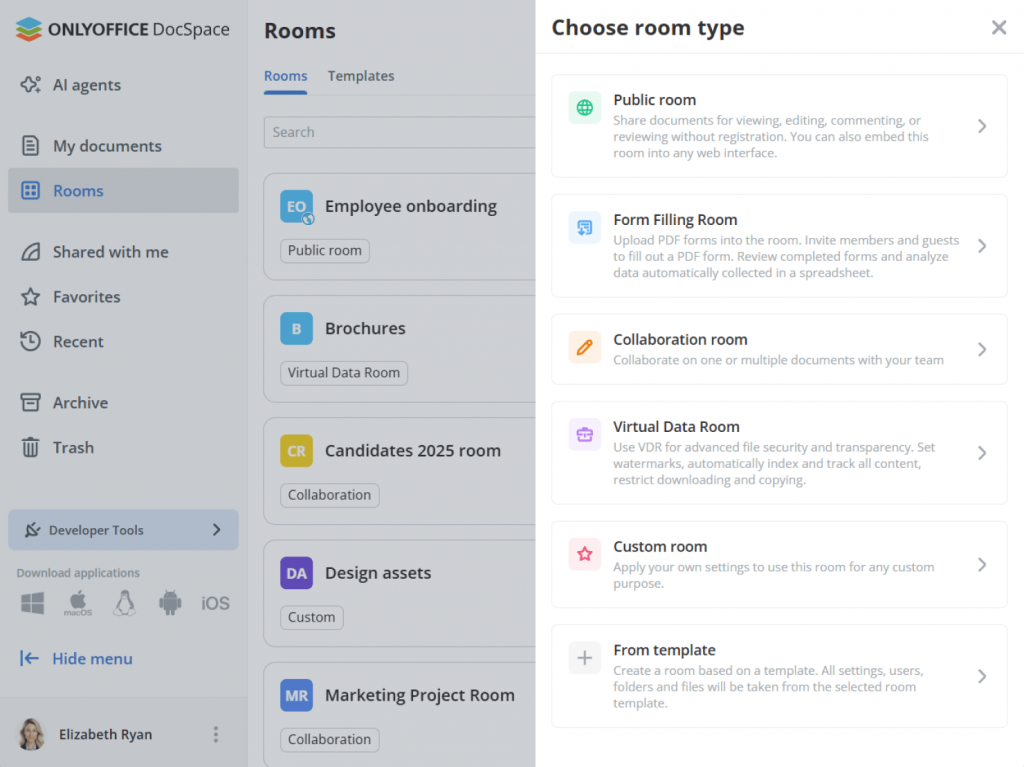
ONLYOFFICE DocSpace
A secure collaboration platform designed to integrate with ONLYOFFICE Desktop Editors, offering structured teamwork, document rooms, access rights, and more.
Key Features
Document Rooms: Organize projects into “rooms”, for example, “Marketing”, “Legal”, “Design”, each with its own files and permissions.
Granular access control: Define roles setting flexible access rights such as editors, reviewers, guests, etc. to ensure only authorized users can modify or view parts of your documents.
Version history and revisions: Track changes, restore older versions, and keep a full audit trail.
AI-powered content generation: Speeds up editing and ensures document quality.
Seamless integration with ONLYOFFICE Desktop Editors: Edit locally or in-browser while syncing with DocSpace.
Typical Use-Cases: teams and businesses that need secure, controlled document management. It works on private servers or in the cloud, making it easy to collaborate while keeping sensitive files safe and fully tracked.
Ideal For
- Small to medium-sized businesses needing secure collaboration without relying on large cloud ecosystems.
- Organizations handling confidential documents, contracts, or internal policies.
- Remote teams working across different time zones that need a unified central platform.
Considerations
Learning curve: Non-technical users may need time to adjust to rooms, permissions, and workflows.
Initial setup needed: For self-hosted deployments or private servers, setup may require IT involvement.
Dependence on underlying infrastructure: Performance and reliability depend on server/storage configuration.
Pricing includes three tiers: a free cloud plan for small teams, a paid Business plan billed per admin with unlimited users and extra features, and a custom Enterprise plan for self-hosted setups with full security and support.
Zoho WorkDrive
A cloud-based collaboration and file storage platform combining word processing, spreadsheets, and team workflows. It is part of the larger Zoho ecosystem.
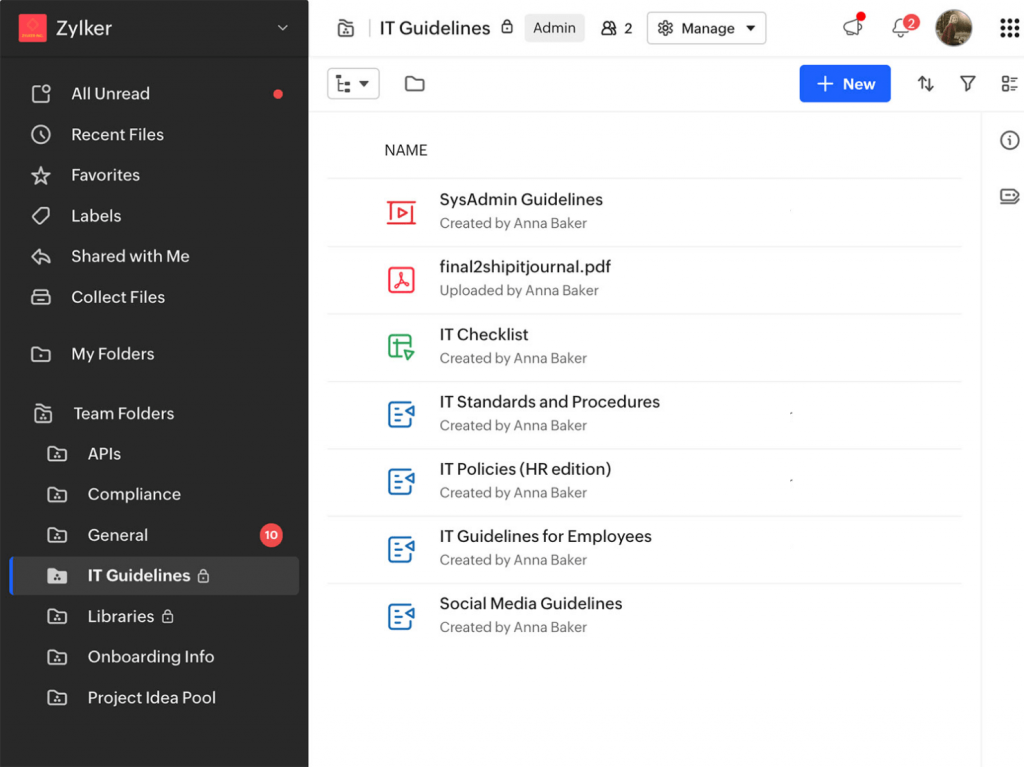
Key Features
File versioning and history: Easily recover old versions or track changes over time.
Team roles and permissions: Define who can view, edit, comment, or share files.
Workflow automation: Set up approval flows, document reviews, and automated triggers (e.g., notify team when document is updated).
Integration with other Zoho apps: If you use Zoho CRM, Zoho Projects, or Zoho Mail, WorkDrive fits naturally into that stack.
Cloud-based access from anywhere: No installation required, accessible from any device with internet.
Typical Use-Cases: An excellent choice for small to mid-sized businesses already using or considering the Zoho suite. Zoho WorkDrive lets teams manage documents in one consistent, unified way, without switching between tools or workflows.
Ideal For
- Businesses that already invested in Zoho’s ecosystem.
- Teams needing document workflows, for instance legal reviews, multi-person editing, approval loops.
- Organizations looking for an easy-to-use cloud solution that is simple to manage.
Considerations
Complex for small teams: Its extensive tools can seem overwhelming if you only need basic sharing.
Works best online: Offline use and editing are limited compared to desktop apps.
Subscription-based pricing: Some features or storage levels may require paid plans.
Pricing: Freemium model with affordable tiered plans based on storage and user count.
Notion (with collaborative documents)
A flexible, all-in-one workspace combining documents, databases, wikis, and task management with real-time collaboration and co-editing. It’s less like a traditional office suite and more like a customizable digital notebook that your whole team can build and edit together in real time.
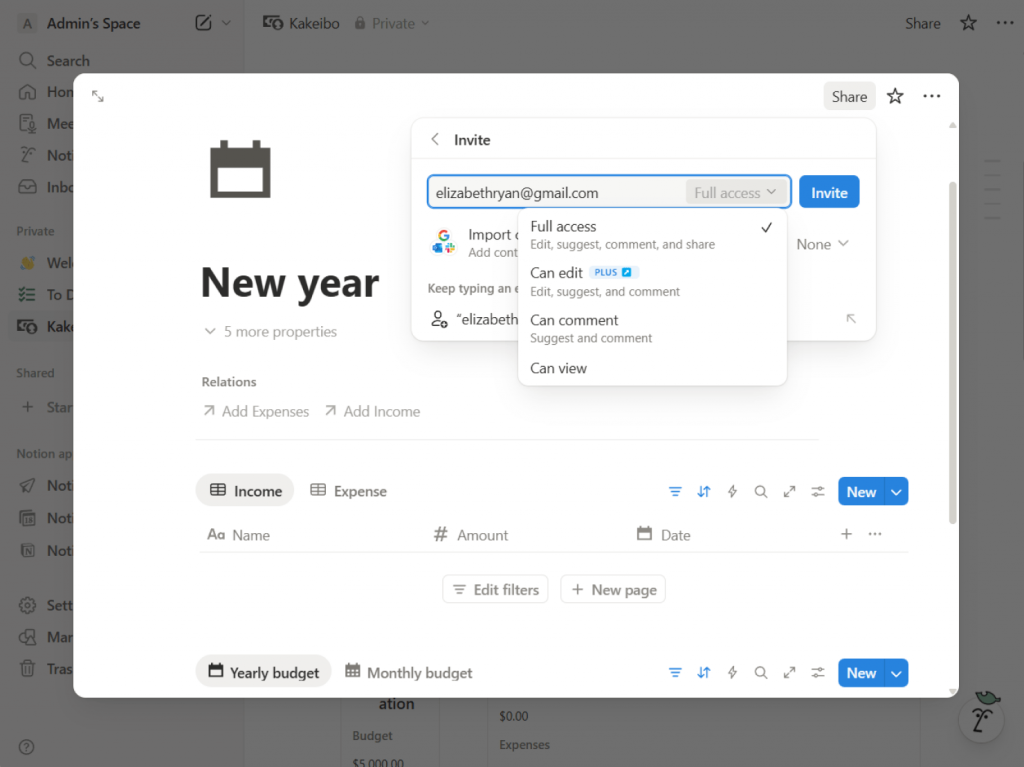
Key Features
Unified workspace: Mix documents, notes, tasks, tables, and databases in one interface.
Real-time collaborative editing: Multiple users can edit simultaneously; perfect for brainstorming and co-authoring.
Templates and workflows: Use built-in templates for docs, project plans, or knowledge bases.
Cross-platform support: Access and edit on web, desktop, or mobile.
Flexible structure: Organize content hierarchically or in dashboards, easily link documents and data.
Typical Use-Cases: An excellent choice for individuals, teams, and businesses looking for a flexible all-in-one workspace. It provides a unified platform for notes, project management, and team collaboration.
Ideal For
- Startups, creative teams, product teams — anyone who wants notes, docs, and project tracking intertwined.
- Teams that benefit from combining documents with task tracking and databases (e.g., content calendars, specs, planning).
- Organizations that prioritize connecting ideas and collaboration over perfect document formatting.
Considerations
Less “office-like” formatting: Not ideal for formal reports or print-ready layouts.
Limited advanced document features: No complex footnotes, advanced styling, or traditional formatting controls offered by word processors.
Not optimized for heavy document design or printing workflows.
Pricing: Freemium model with Free, Plus, and Business plans; advanced collaboration and admin tools available in paid tiers.
| Tool | Advantage | Best For |
| ONLYOFFICE DocSpace | Secure collaboration hubs, granular sharing, seamless document co-editing | Teams, client workspaces, partner portals, project collaboration |
| Zoho WorkDrive | Centralized file management with team workflows and organization tools | Small–mid teams, structured content libraries, distributed teams |
| Notion | Flexible docs, databases, wikis in a single workspace | Knowledge bases, project documentation, collaborative notes |
Decision Guide for 2026
To help you choose wisely, we’ve put together a set of practical recommendations. If you need to change file formats often, use a dedicated converter, for example, AVS Document Converter to swap formats easily without opening an editor.
When you work with complex layouts and formatting, pick a full-featured editor (ONLYOFFICE or LibreOffice) that gives you control over every margin and style.
In case collaboration is your daily routine, it is recommended using a platform built specially for teamwork which includes real-time co-editing, version history, and shared space (ONLYOFFICE DocSpace or Notion).
For those who prioritize privacy and offline work, the best solution would be desktop or self-hosted software (ONLYOFFICE Desktop + DocSpace) that keep your files under full control.
On a tight budget? Open-source tools such as ONLYOFFICE and LibreOffice offer powerful free options.
If you frequently switch between your phone, tablet, and computer, cloud-based or mobile-friendly solutions with reliable syncing, such as WPS Office, are a great fit.
Example Workflows — Which Tools for Which Scenario
Scenario 1: Publishing e-Book Series
- Write articles in DOCX or ODT using ONLYOFFICE or LibreOffice.
- Use AVS Document Converter to export to EPUB or MOBI in batch.
- Apply password protection / watermarking to final files if distributing privately.
Scenario 2: Business Team Collaborating on Reports
- Store documents and drafts in ONLYOFFICE DocSpace, assign editing rights, track versions.
- Edit drafts in ONLYOFFICE Desktop Editors to maintain accurate formatting.
- Once approved, save in PDF for distribution.
Scenario 3: Freelancers and Students on the Move
- Use WPS Office Writer on mobile for quick edits.
- Store in cloud (ONLYOFFICE DocSpace, Zoho WorkDrive) for access anywhere.
- If clients require PDF or different formats, use Zamzar for quick online conversion.
Scenario 4: Startup Running Projects + Docs + Planning
- Use Notion to combine specs, documentation, tasks, and meeting notes.
- For formal proposals or contracts, switch to ONLYOFFICE or LibreOffice for proper formatting.
Final Thoughts
There is no single “best” document software for everyone. The ideal tool depends on your needs: conversion, editing, collaboration, security, mobility, or cost.
For 2026, the combination of converter, editor, and collaboration platform provides a comprehensive ecosystem. Converters help you change file formats without losing layout or fidelity whereas editors let you create, refine, and style documents professionally. Ultimately, collaboration platforms keep teams organized thanks to shared access, version history, and real-time updates.
If you aim for reliability, flexibility, and long-term usefulness, consider combining tools across these categories, for example, using AVS Document Converter, ONLYOFFICE Desktop Editors, and ONLYOFFICE DocSpacefor a secure, fully controlled workflow.
Useful links

The end of the year is the busiest and brightest season. For creators, it is time to connect with viewers through cozy family videos, festive ads, New Year greetings and social media highlights. To make your projects shine, you need a complete creator kit that helps you produce professional-looking videos quickly and easily. Although there are plenty of online and offline tools, usually they handle a limited number of multimedia tasks. If you want to find cost-effective software without switching between multiple apps, AVS4YOU Multimedia Suite is a reliable solution. It gives you everything you need to edit, refine, and share stunning content, whatever your skill level is.
To make things even more easier and affordable, you can now get 30% off AVS4YOU Unlimited Subscription during the holidays! Find a special promotional coupon at the end of the article.
Plan your celebratory content
Before you dive into editing, take a moment to plan your content strategy. The celebrations move fast, and preparation is key to keeping your creative energy organized.
First of all, ask yourself the following questions:
What kind of content resonates most with your audience?
Which platforms will you focus on — YouTube, Instagram, TikTok, or all of them?
What visuals and sounds capture the festive spirit?
Here are a few festivity-inspired content ideas to spark inspiration:
- Countdown videos or “12 Days of Advent” challenges.
- Gift guides and product showcases.
- Behind-the-scenes clips of your creative or business process.
- Personal greeting videos or slideshows for followers and clients.
Once you’ve outlined your vision, AVS4YOU’s tools will help you bring them to life efficiently and beautifully.
Create eye-catching videos
Nothing conveys the holiday spirit like video. With AVS Video Editor, you can turn your footage into a magic story filled with color, music, and emotion.
Here are video effects and tools that work especially well for creating Christmas-themed videos, along with ideas on how to use them:
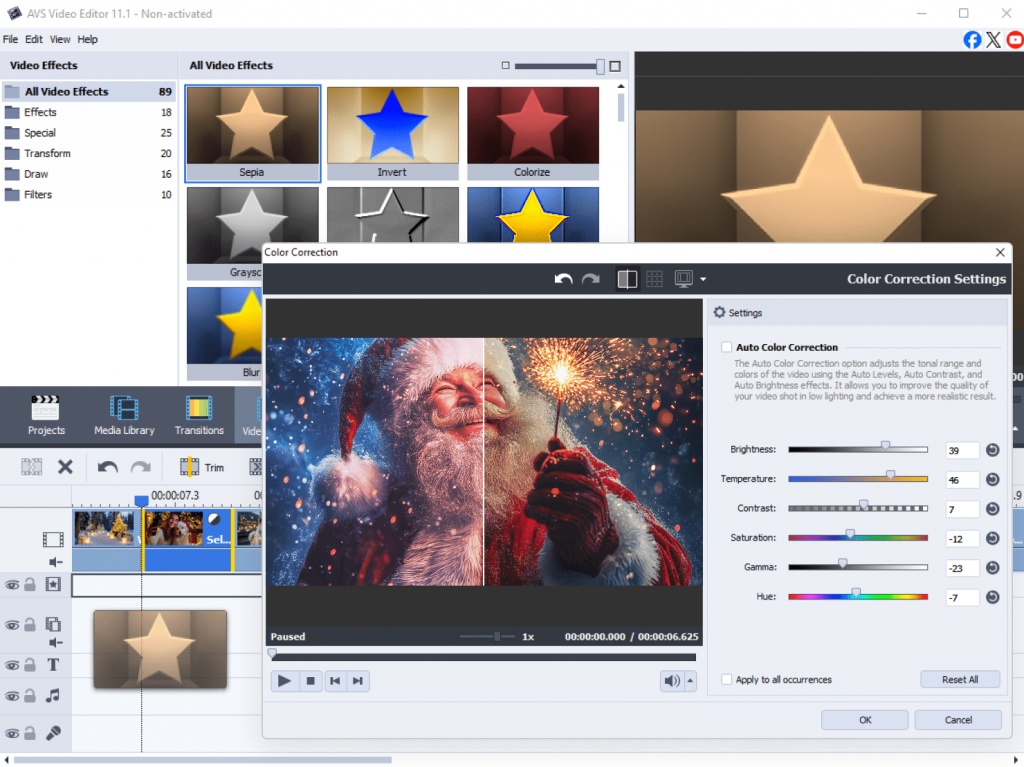
1. Color and lighting effects
Create a warm, cozy, or lively atmosphere.
- Warm Filter / Sepia / Soft Light – give footage a nostalgic glow.
- Brightness and Contrast / Gamma Correction – enhance twinkling lights or snowy scenes.
- White Balance – cool down tones for a “winter frost” effect.
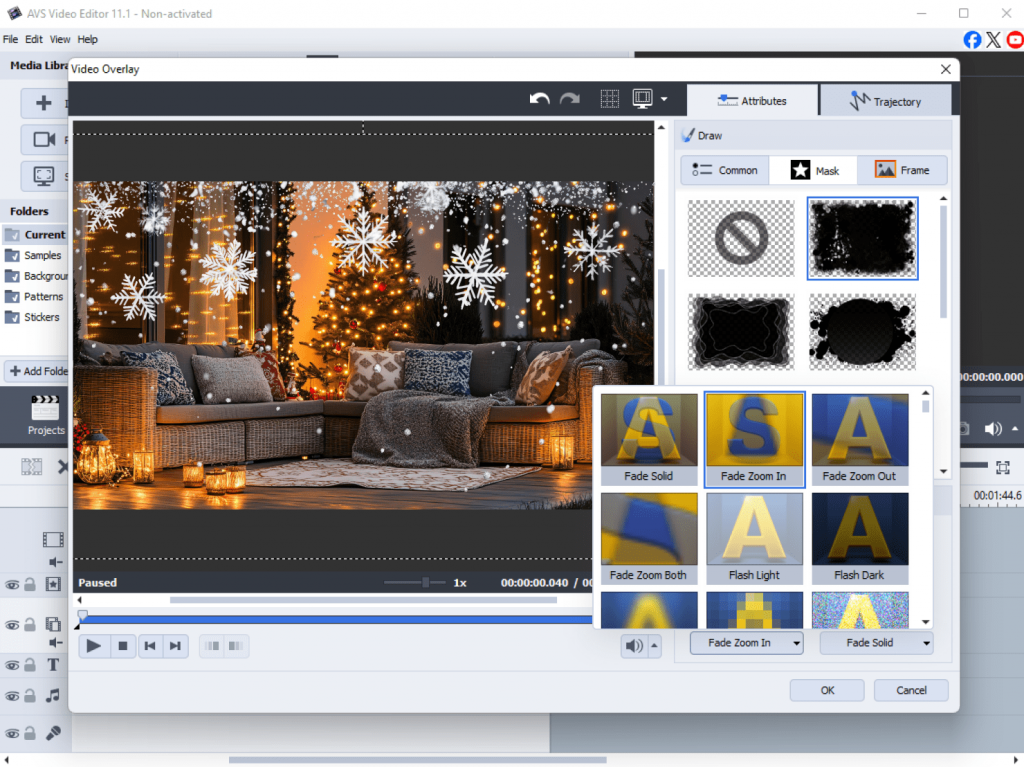
2. Overlay and particle effects
Add visual magic typical for Christmas.
- Snow Overlay – simulate falling snow (you can use built-in overlays or import a transparent snow video).
- Glow – imitate candlelight or Christmas tree sparkle.
- Warm glow – enhance the convival atmosphere with soft glowing circles.
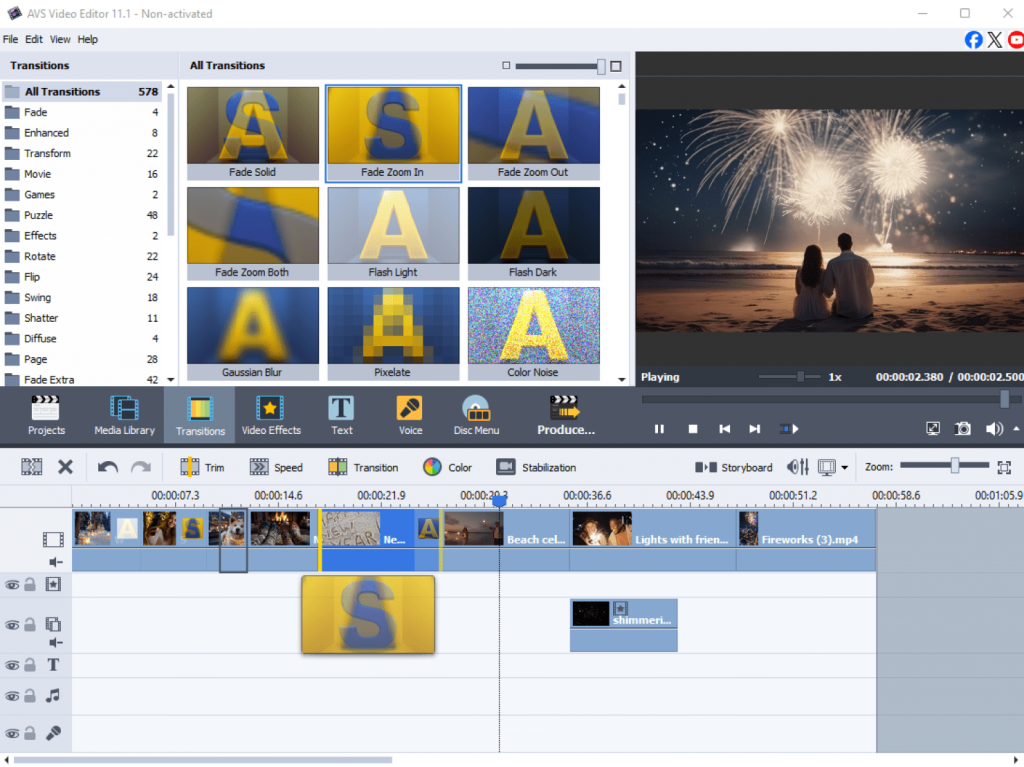
3. Transitions
Use themed transitions for smooth and decorative scene changes.
- Fade In/Out – works well for a gentle start or end.
- Wipe / Slide – imitate wrapping paper reveals.
- Puzzle / Mosaiccan be used creatively for a “gift reveal” or Advent-style effects.
- Clock – for more stylized or rhythmic transitions.
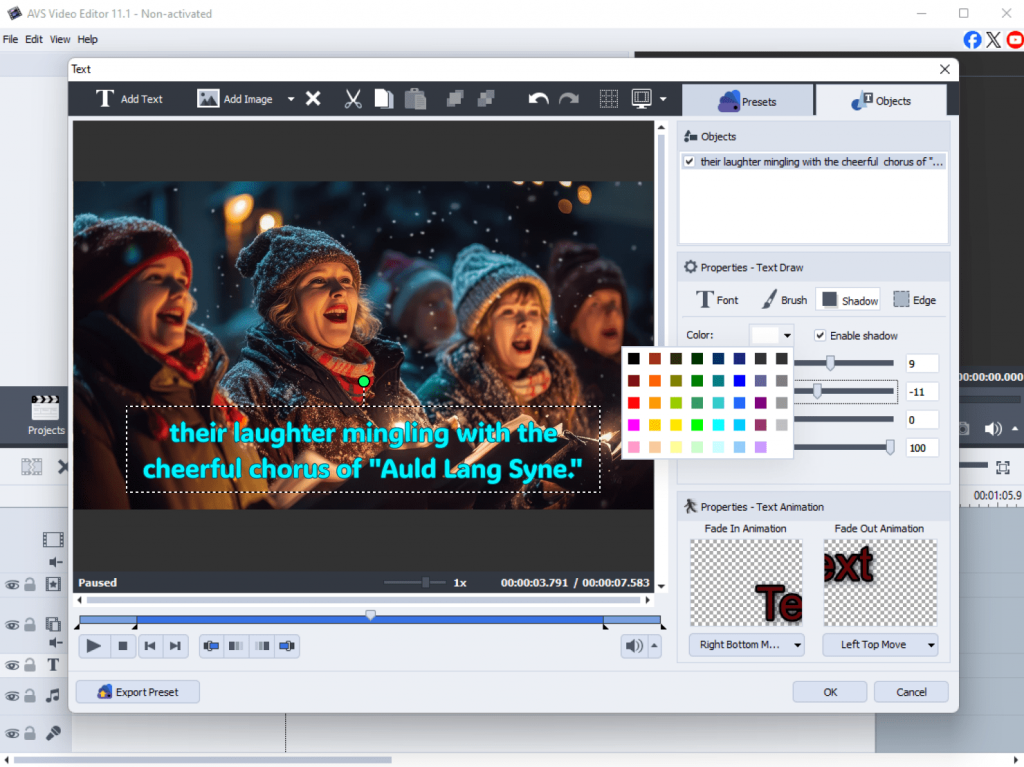
4. Text and titles
Make greeting messages or animated captions impressive.
- Add animated titles with glowing or sparkling text.
- Apply text shadow or glow for a frosty look.
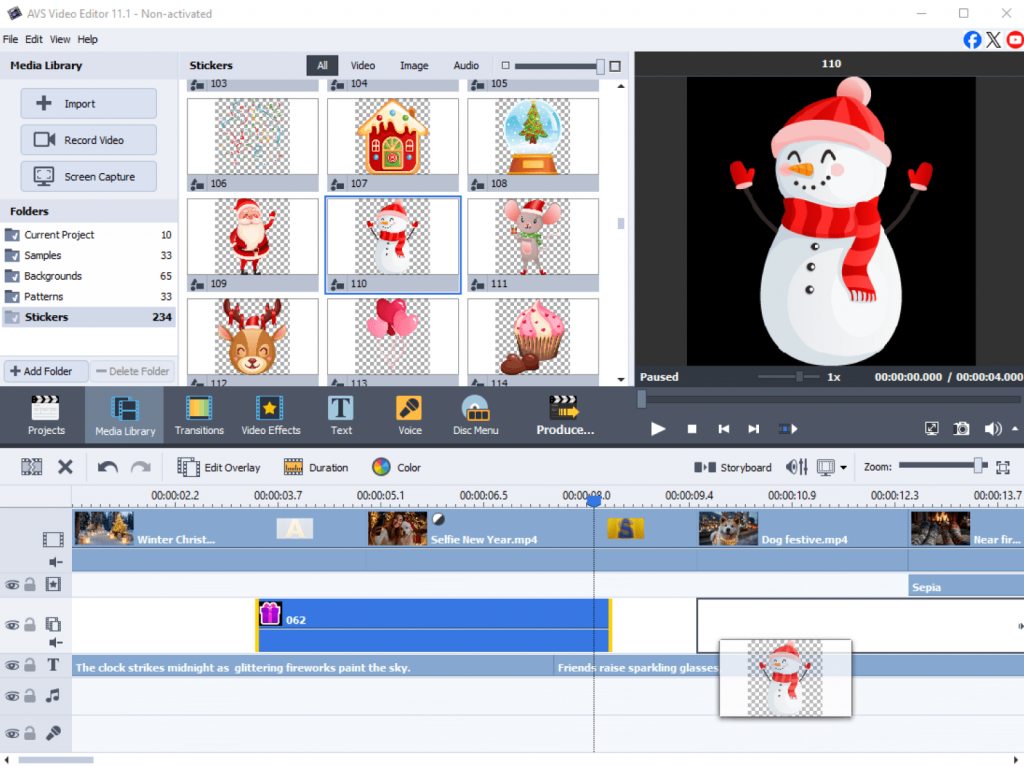
5. Picture-in-Picture
Decorate your video with beautiful borders or compositions.
- Insert photo frames with garlands, lights, or ornaments.
- Use PiP objects like bells, gifts, or snowmen (available in AVS4YOU library or add your own images in PNG).
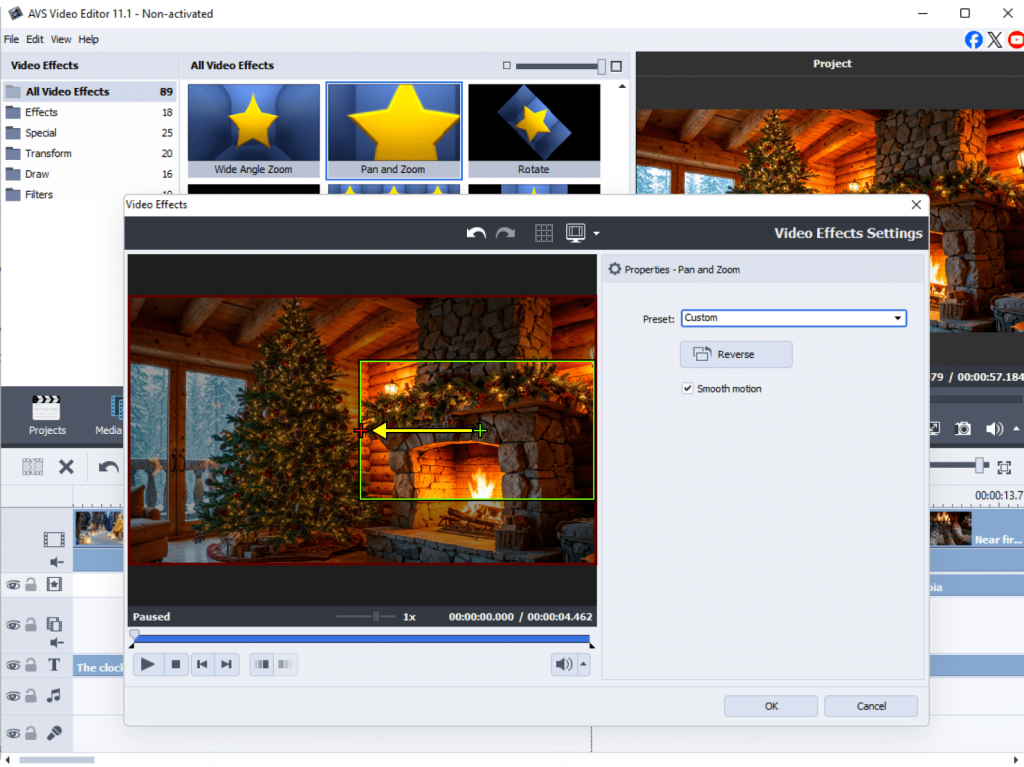
6. Motion and animation
Bring elements to life.
- Use Zoom & Pan (Ken Burns) for amazing photo slideshows.
- Add themed stickers (bells, snowflakes, sparkles).
When your video is ready, export it in the right format for your target platform, for example, YouTube, Instagram Reels, or TikTok. If you need to adjust resolution, aspect ratio, and size without compromising quality, use AVS Video Converter instead of AVS Video Editor.
Refine your audio
Adding a jolly soundtrack will enhance the overall cheerful tone of your promotional video, podcast episode, or a seasonal greeting.
Use AVS Audio Editor to:
- Clean up background noise for a crisp sound.
- Mix tracks or blend voiceovers with music.
- Add effects like reverb or echo for warmth and depth.
- Create your own jingles using royalty-free tracks and upbeat samples.
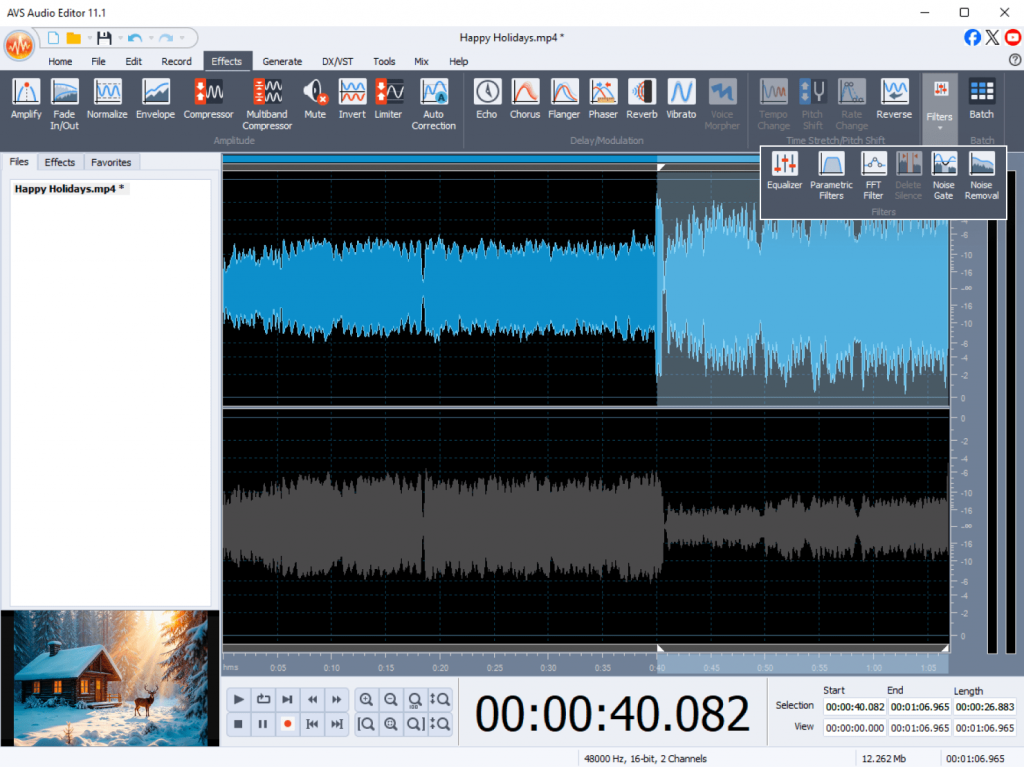
Pro tip: add subtle sound effects such as bells or snow falling to create a special atmosphere.
Design and enhance visuals
Transform ordinary photos into seasonal highlights
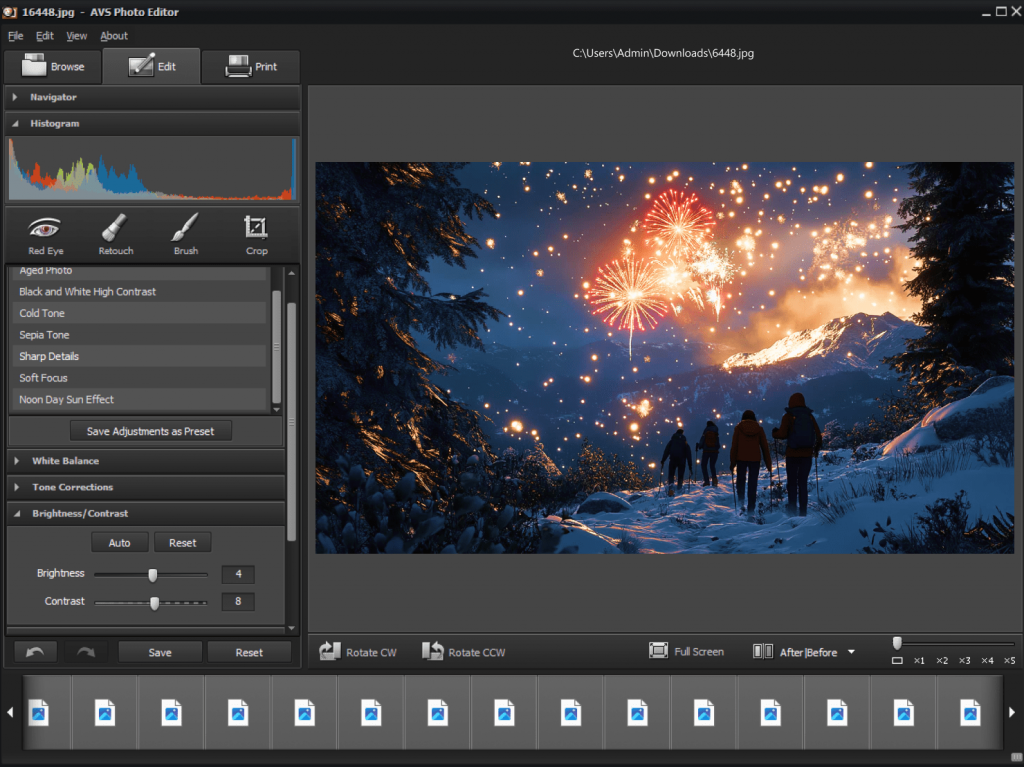
Your visuals set the mood before your audience even hits “play.” With AVS Photo Editor, you can make every image look mesmerizing and flawless.
Use it to:
- Adjust brightness and contrast for cozy tones.
- Apply creative filters to give photos a winter touch.
- Add frames, stickers, or text overlays for social posts.
- Create cohesive thumbnails and cover images for your holiday campaign.
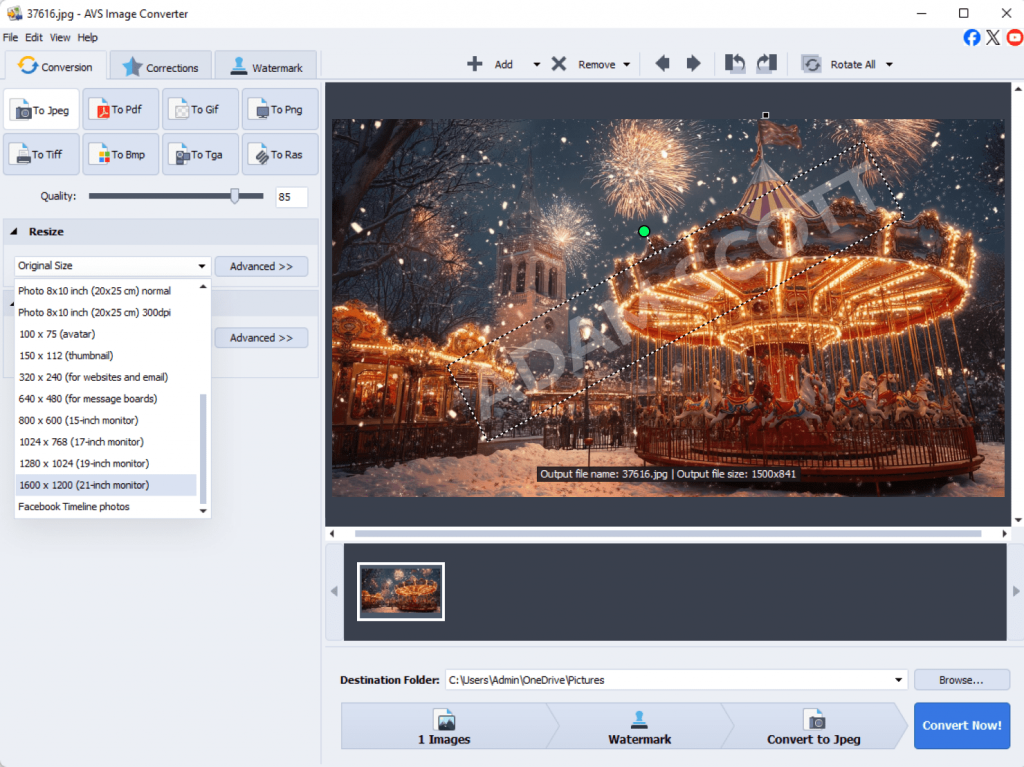
Batch-edit your photos in AVS Image Converter
Quickly resize, rotate, and convert hundreds of photos taken during wintertime. Apply filters or watermarks before sharing them online or creating a digital album.
If you’re making a slideshow or digital card, use AVS Video Editor to combine your photos with transitions and background music. It is a perfect way to share memories or send greetings.
A quick look at alternative options
While AVS4YOU provides a complete set of multimedia tools in one suite, here are a few alternatives worth mentioning:
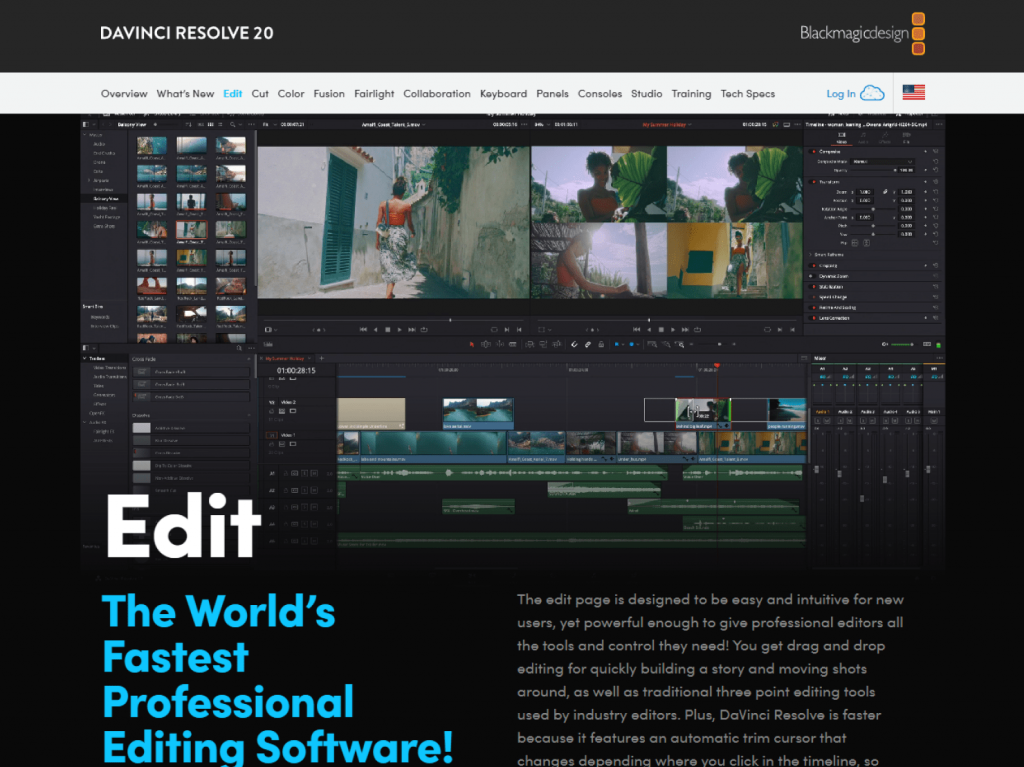
DaVinci Resolve (Free & Paid Versions)
A free version of this professional-grade video editor is incredibly robust, offering Hollywood-level color correction and audio post-production. The learning curve is steeper, making it better for creators who are ready to dive deep into advanced editing.
Canva (Free & Paid Versions)
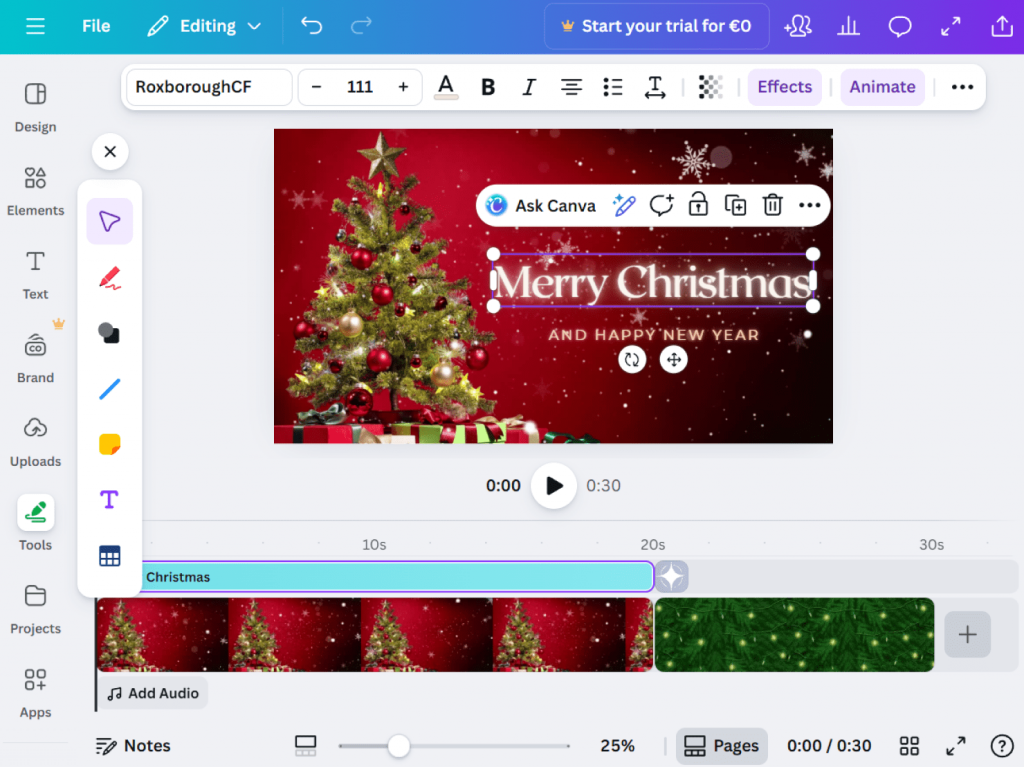
This graphic design platform suits best creators focused on static graphics and quick social media videos. Canva is unbeatable for designing bright YouTube thumbnails, Instagram stories, and digital cards with its drag-and-drop interface and vast template library.
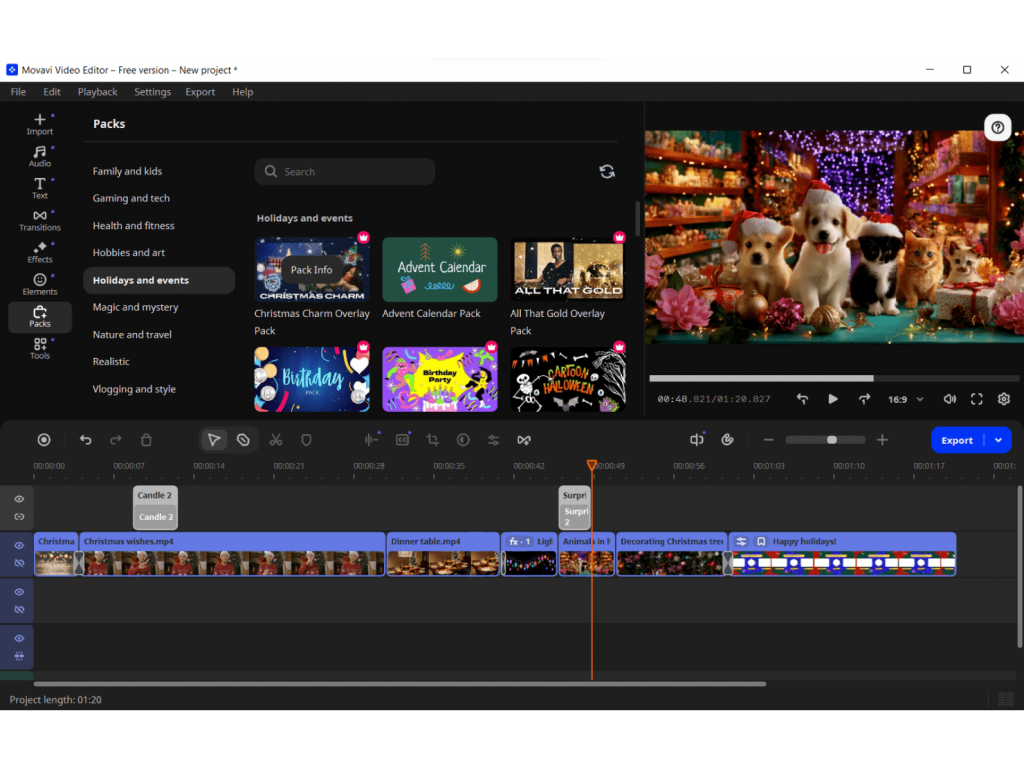
Movavi Video Suite has similar all-in-one capabilities for video, audio, and photo editing, but requires separate licenses for some tools.
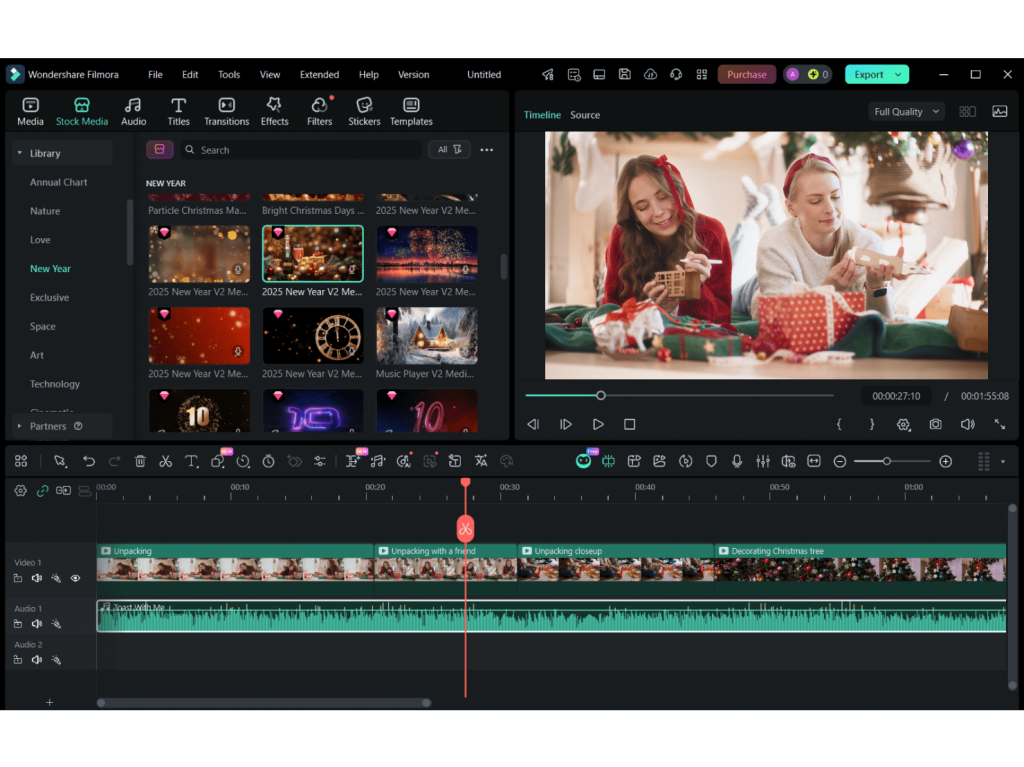
Filmora is a user-friendly video editor with a large library of effects and templates, though it lacks integrated audio and photo editing features.
These programs have their strengths, but AVS4YOU stands out for combining five multimedia programs in one, offering simplicity, flexibility, and excellent value.
Final touch: Make this holiday season shine
This winter, you’re not just a participant; you’re the director of your own festive special. With a well-thoughtplan and a powerful toolkit such as AVS4YOU Multimedia Suite at your fingertips, you’re all set to create content that will be cherished long after the last decorative elements are packed away.
Ready to create your own masterpiece? Explore versatile AVS4YOU software and create stunning projects with ease.
Get 30% off the AVS4YOU Unlimited Subscription to make the end of the year even brighter
Useful links

The holidays are the perfect time to create a buzz and attract more viewers online. Lights are sparkling, people are celebrating, and social media feeds are overflowing with festive videos. For creators, marketers, or small business owners, this is the golden opportunity to boost visibility and connect with the audience through short, engaging clips.
But how do you make your Reels and Shorts catchy and hook grab attention right away in a whirlwind of holiday videos? With feature-rich tools and a few creative tricks, it is not complicated . You don’t need a Hollywood budget or a professional editor to produce captivating clips. With AVS4YOU, you have a powerful toolset to create viral content in minutes.
To make things even more affordable and exciting, we’ve prepared an exclusive offer just for our readers. Enjoy a 30% discount on AVS4YOU Unlimited Subscription!
The coupon is waiting for you at the end of this post.
1. What makes a video go viral
Before you start editing, it’s important to know why certain videos skyrocket in views. Here are a few elements typical of visual hits.
First, it’s short and to the point. Most Reels and Shorts perform best when they’re no longer than 30 seconds.
Second, short-form content captures viewers’ attention within the first three seconds. Using animated elements, text, or a surprising visual can help spark immediate interest.
Reels and shorts often follow current trends and popular themes. They aim to provoke emotion, and during the holiday season humor, nostalgia, and surprise tend to resonate especially well with viewers.
Finally, atmosphere plays a key role in producing successful hits. Capture the warmth of decorations, laughter, sparkling lights, and other decorative elements, and keep your message simple.
2. Shoot and prepare your footage
You don’t need any special equipment — your phone camera is enough to create great videos. Pay attention to lighting, framing, and overall energy to make your shots stand out. Record in a vertical (9:16) format to fit Reels and Shorts perfectly, use natural or soft lighting to achieve a warm holiday feel, and keep your phone steady with a tripod or by placing it on a stable surface. Add some camera movement or simple gestures to keep the video lively and engaging.
Once you’ve captured your clips, import everything into AVS Video Editor. It supports all common formats and provides all the tools you need to shape your footage into a compelling story.
3. Edit like a pro with AVS Video Editor
Here’s where the magic happens. The right editing makes even simple footage look professional and fun.
With AVS Video Editor, you can:
- Trim and arrange clips for a snappy pace.
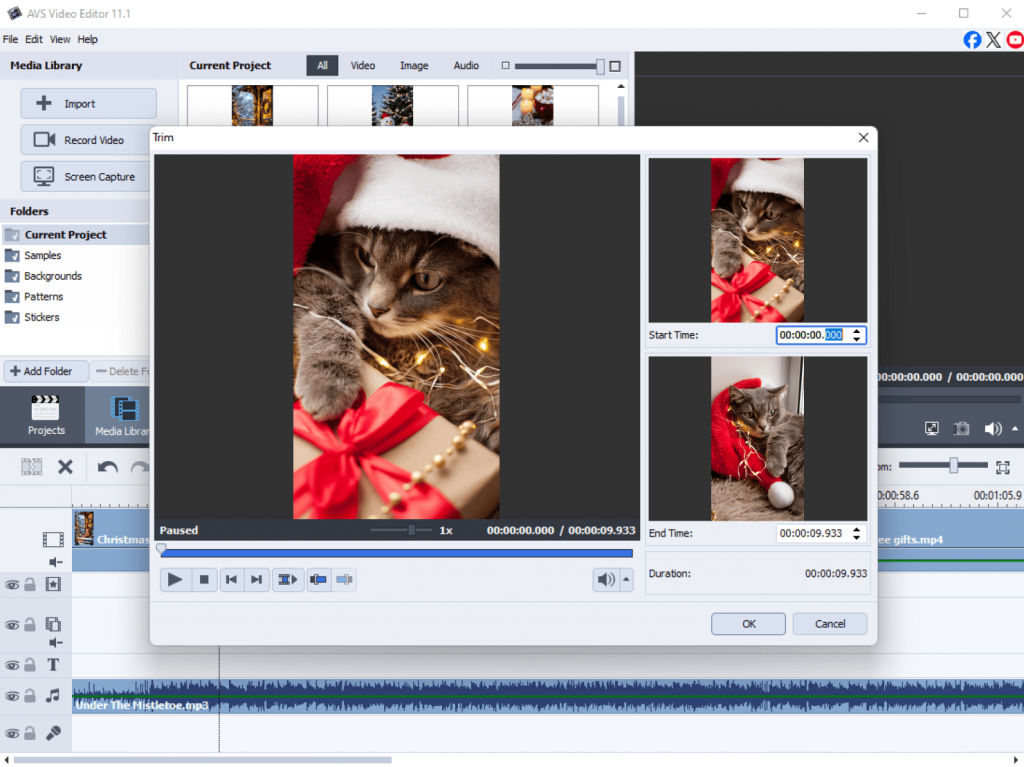
- Add transitions to match the beat of your soundtrack.
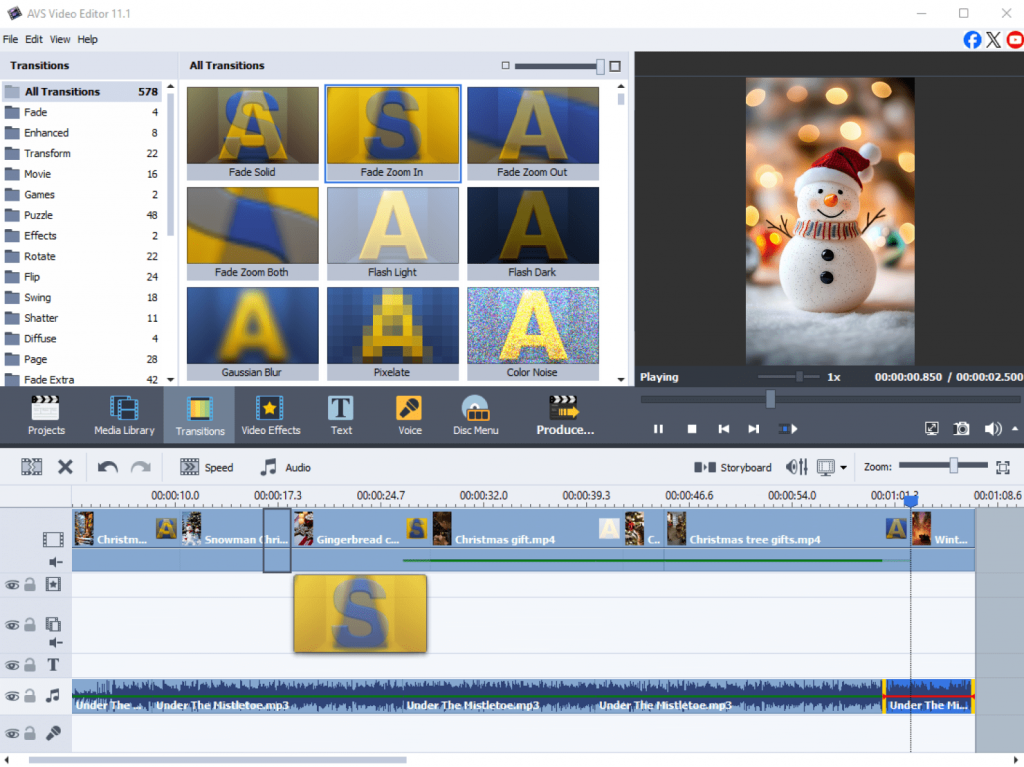
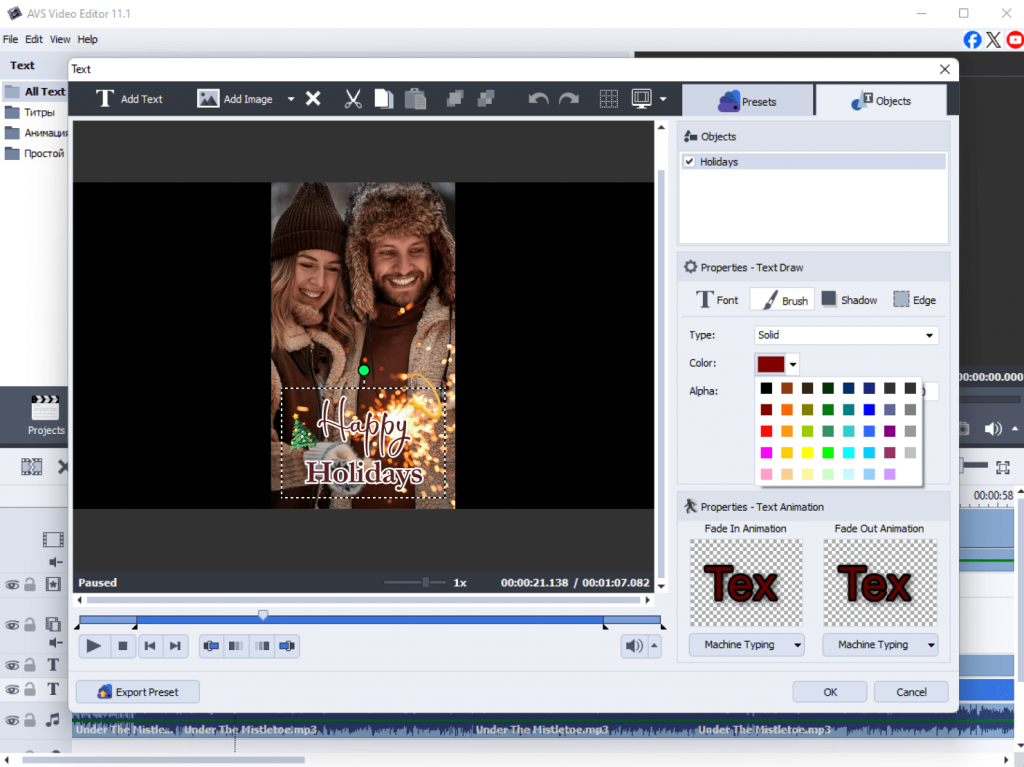
- Insert jolly titles and stickers such as “Happy Holidays!” or “Best Moments of 2025.”
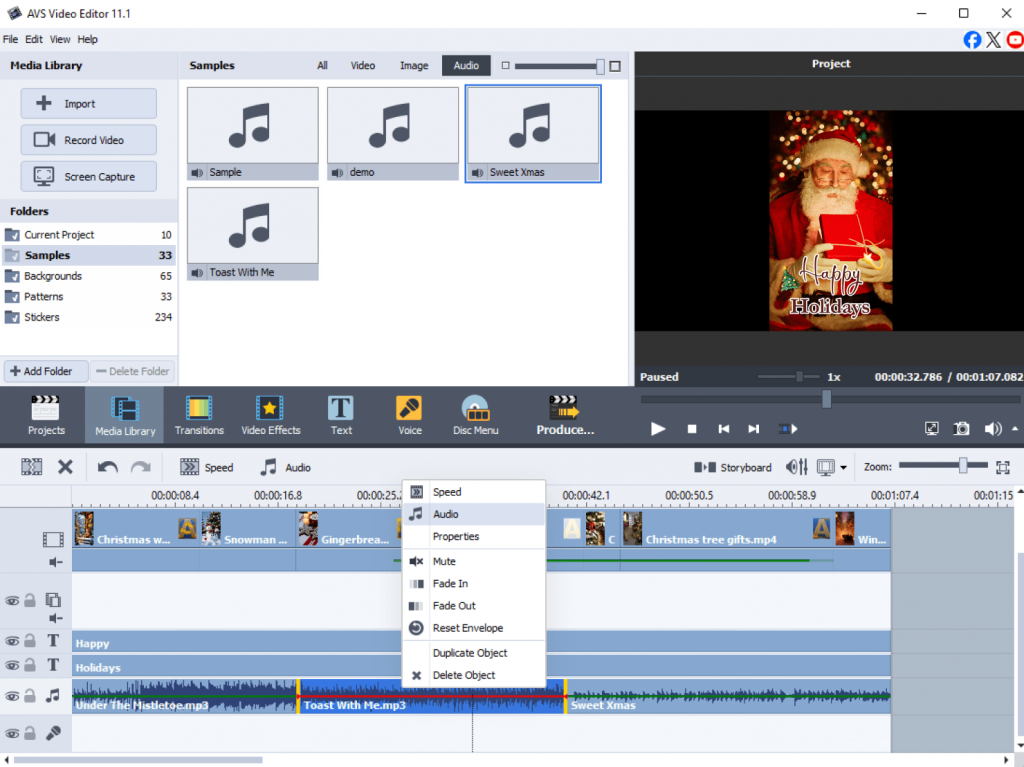
- Add background music from your collection or free tracks.
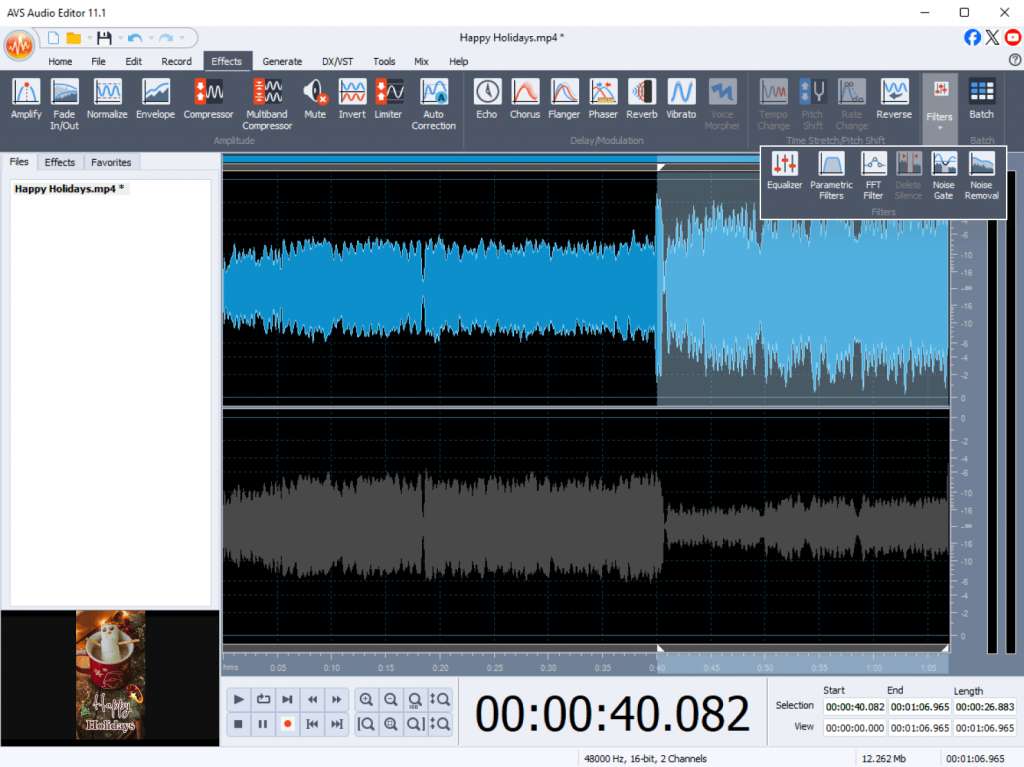
- Adjust audio using AVS Audio Editor for clean, balanced sound.
Pro tip: Keep cuts in sync with the rhythm of your soundtrack. This small detail can make your reels feel dynamic and well-crafted.
If you’re recreating a popular trend, trim clips precisely and adjust video speed for timing transitions perfectly with trending sounds.
4. Export and share for maximum reach
When your video is complete, export it in the recommended format for your target platform. AVS Video Editor offers a variety of presets for different devices, online platforms, and local storage. If you want to keep your video vertical, use AVS Video Converter and select MP4 format with these settings: 1080 × 1920 (vertical), H.264 codec, and 30 fps for a smooth, natural look.
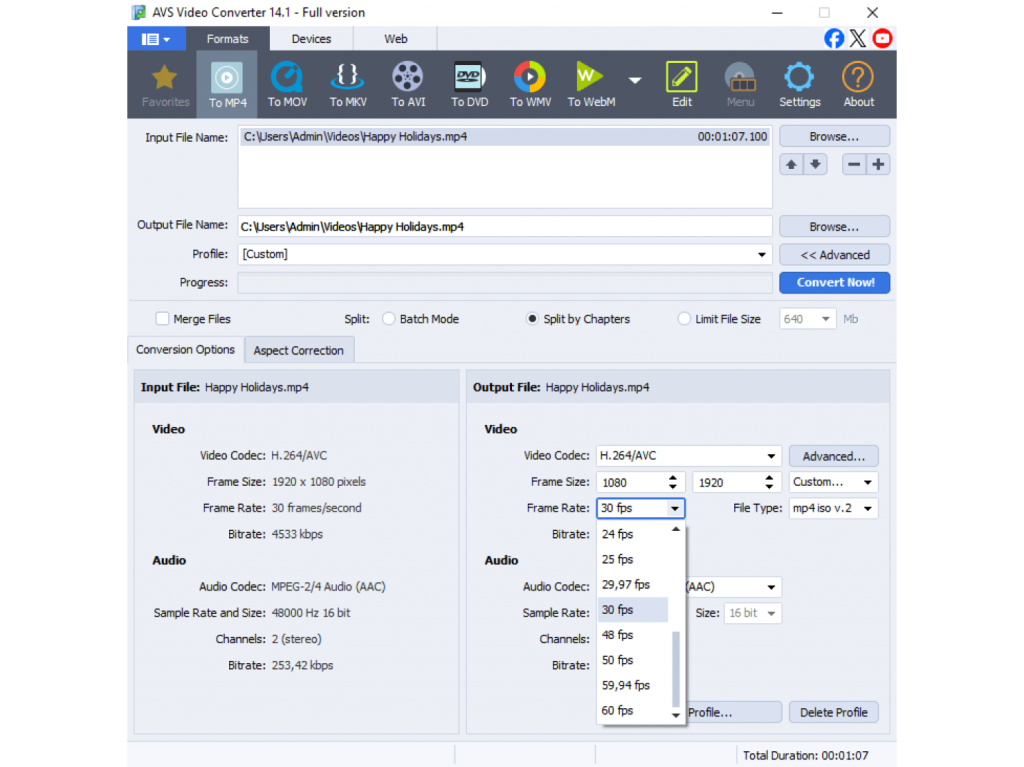
After exporting, upload the video to Instagram, YouTube Shorts, or TikTok. Add an magnetic caption, a few seasonal hashtags, for example, #HolidayReels, #ChristmasVibes, or #NewYearGlow, and a custom thumbnail to attract more viewers.
5. Quick tricks to level up your reels
To make your celebratory videos truly shine and raise visibility, follow these extra tips.
Join early trends
Use popular sounds or filters right when they start trending.
Tell a quick story
Even 15 seconds can show a transformation or surprise ending.
Get your viewers involved
Boost interaction by inviting viewers to tag their friends, share the post, or even try making their own version.
Add branding subtly
Include your logo or watermark using AVS Video Editor’s overlay feature.
Repurpose your content
Turn one great clip into a series for Reels, Shorts, and TikTok.
Little details can have a big impact on how shareable your content is. Thoughtful additions such as catchy captions, appealing visuals, or a fun challenge encourage viewers to engage, share with friends, and spread your video across various social platforms.
Make your Reels shine
During wintertime let your creativity flourish even brighter. Whether you’re filming family gatherings, outdoor activities, festive DIYs, or cheerful greetings, AVS4YOU offers you everything you need to make your stories glow. Capture, edit, and share the joy in just a few clicks, then watch your dazzling Reels and Shorts light up social feeds everywhere.
Useful links

The holiday season is all about sharing joy and exchanging gifts, and AVS4YOU Team has also prepared some special treats just for you!
Advent Countdown
Visit the AVS4YOU Advent Countdown to enjoy generous discounts, valuable gifts, and exciting offers from our partners.
12-Project Holiday Video Checklist
Looking for a fun way to spend your free time? We’ve made a 12-Project Holiday Video Checklist to keep you busy and inspired! These short, easy-to-complete projects using AVS4YOU software let you create a festive collection of shareable videos by the end of the season.
Here’s a sneak peek of what you can create:
1. Festive Intro Video: 5–10 seconds of snow, holiday colors, and music to kick off your clips.
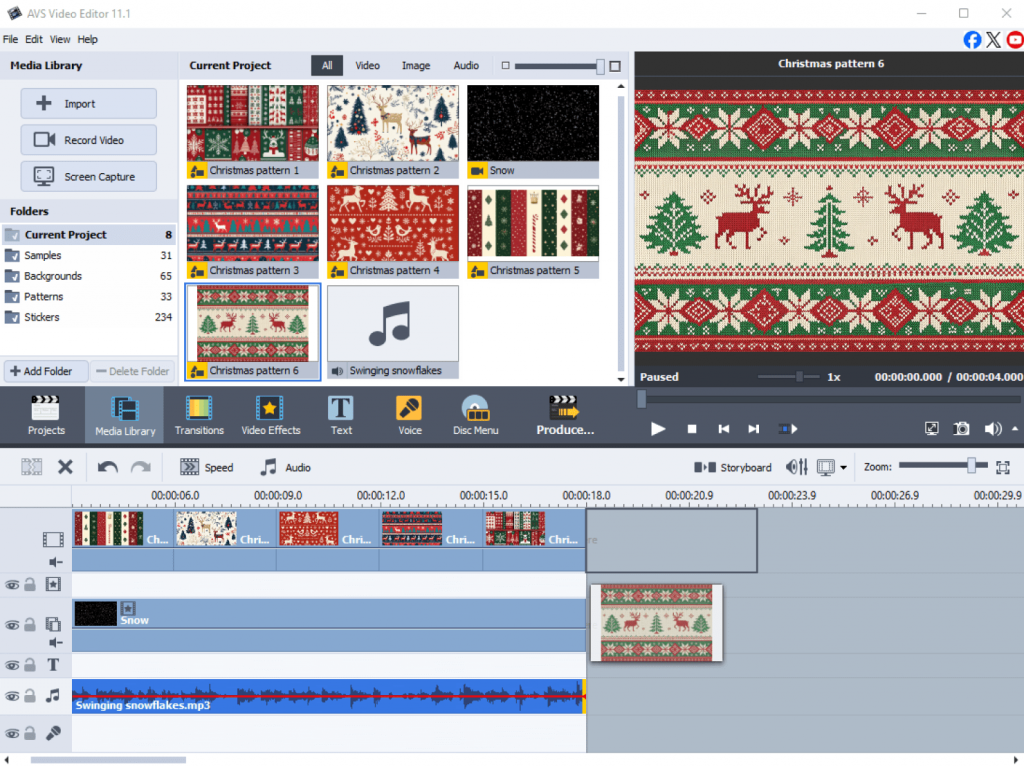
2. Holiday Slideshow: combine photos, smooth transitions, captions, and cheerful tunes.

3. Gift Wrapping Tutorial: record step-by-step tips with text overlays and fun effects.

4. Christmas Countdown: use animated numbers and icons for a fun pre-Christmas countdown.
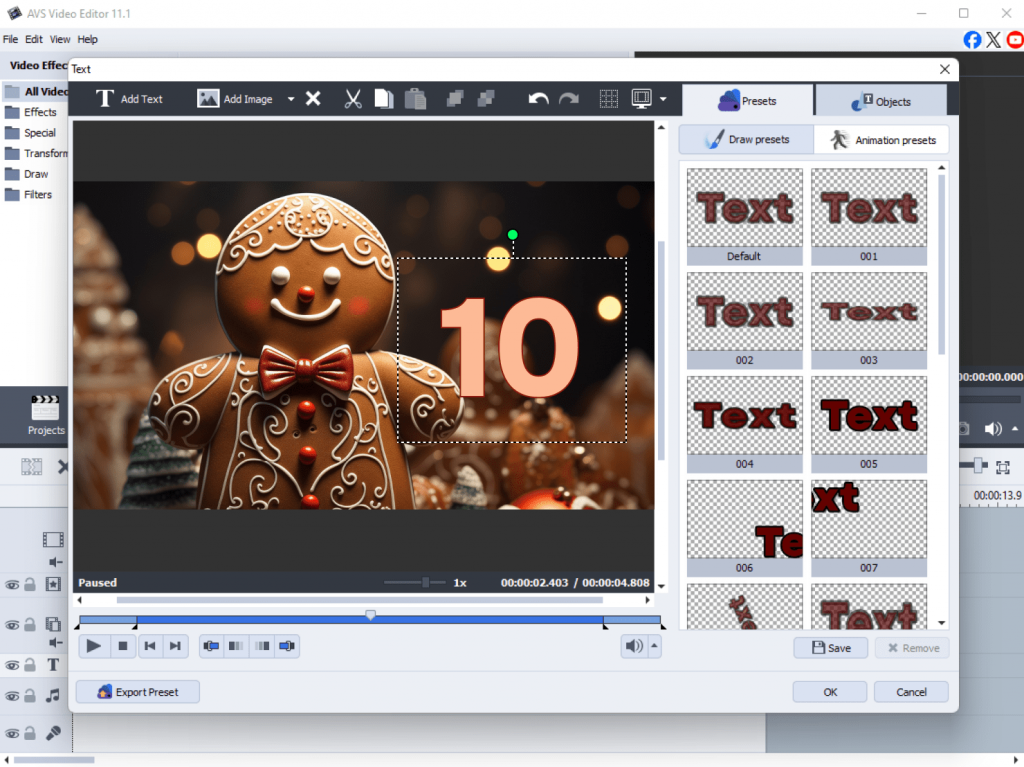
5. Festive Music Remix: layer and remix your favorite holiday songs.

6. Recipe Shorts: show how to make Christmas cookies, drinks, or treats.
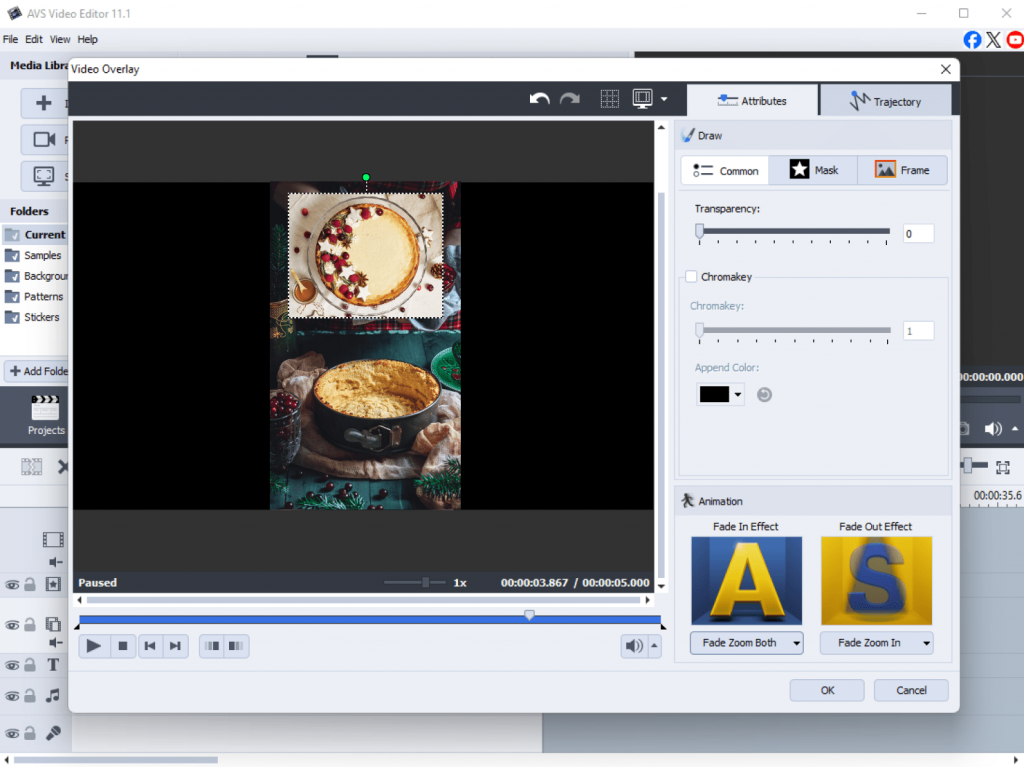
7. Holiday Greetings: personalized videos with images, text, and seasonal animations.
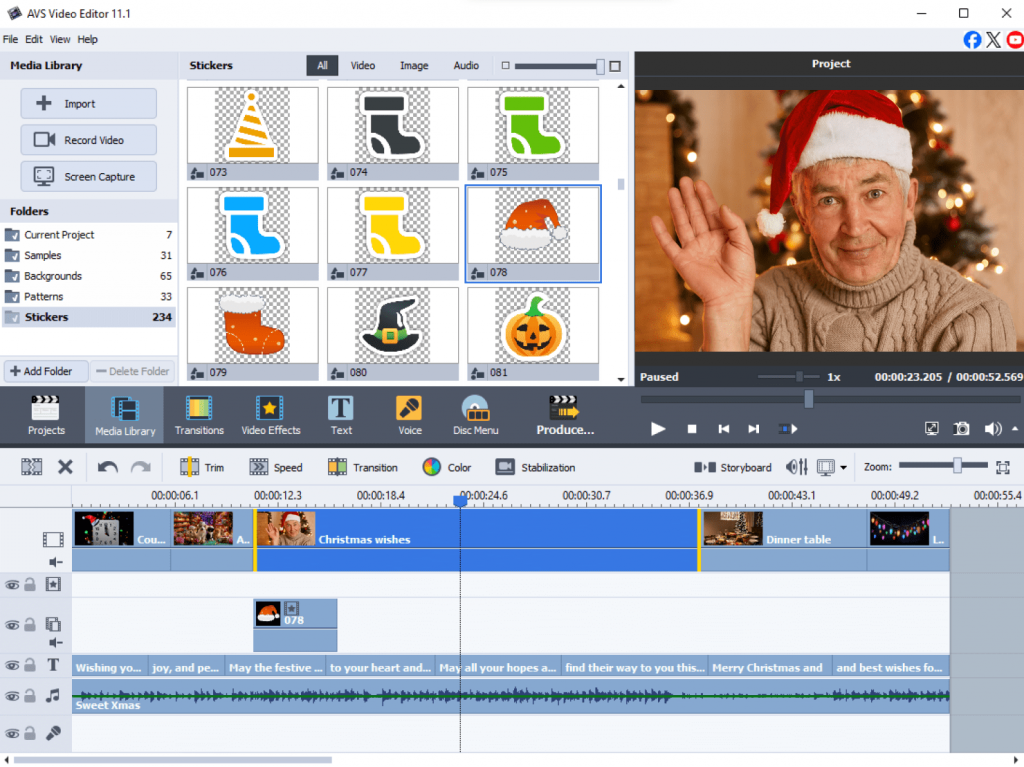
8. Winter Timelapse: capture snowfall, decorations, or winter scenes in fast-motion for a captivating effect.

9. DIY Decoration Tutorial: step-by-step guides for festive decorations.

10. Christmas Story Animation: 30–60 second animated stories with characters and music.
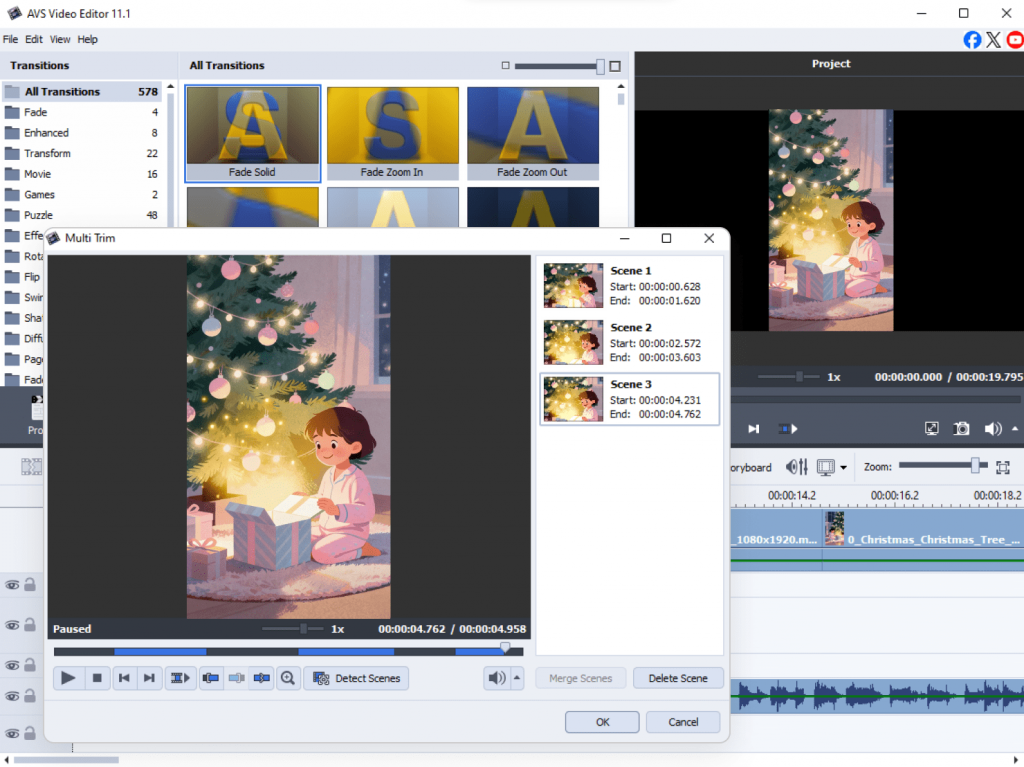
11. Gift Reveal Video: film unboxing or surprises with fun effects and transitions.
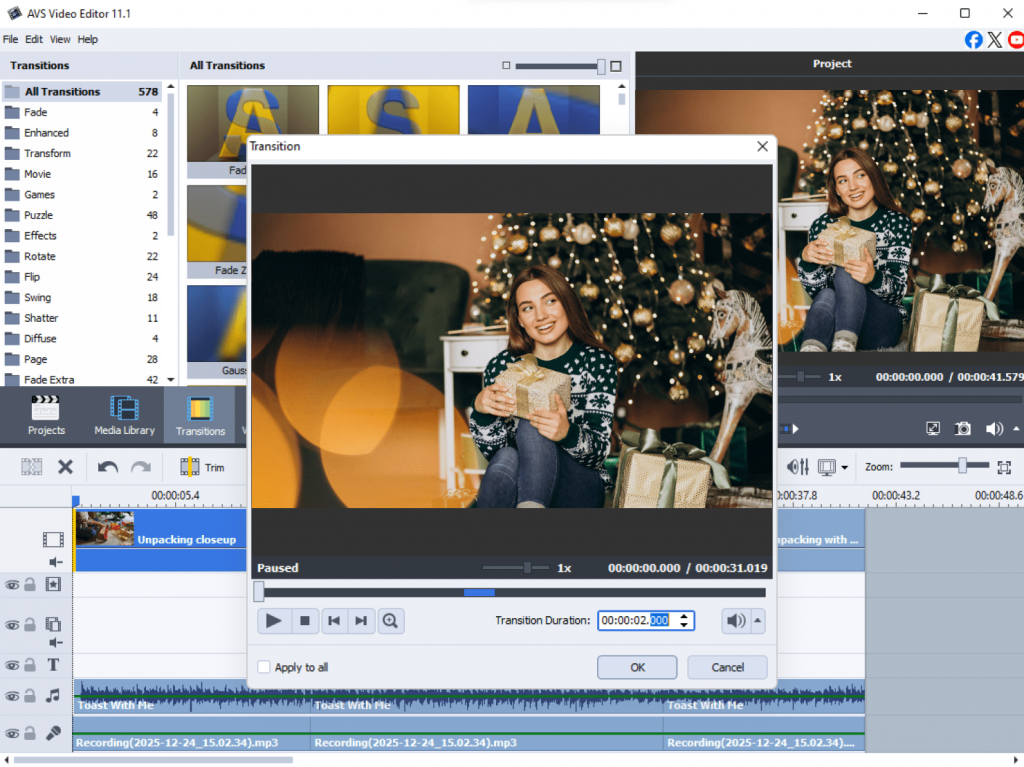
12. New Year Teaser: short social media clips to hype the upcoming year.
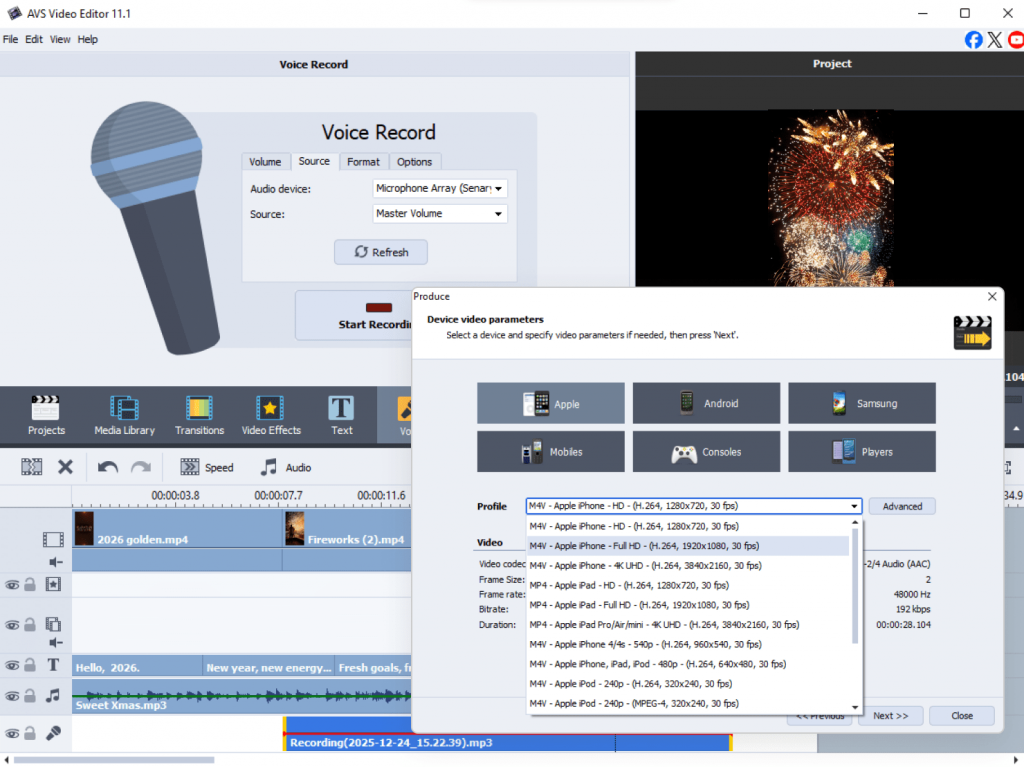
You can download the full Holiday Video Checklist here and start completing projects one by one. It’s a fun way to experiment, learn, and make your holidays more creative.
Tip: You can follow this checklist day by day, or pick and choose projects that match your mood and available time.
Don’t forget — sharing is part of the fun! Post your creations on social media, tag your friends, and encourage them to join the celebration. With AVS4YOU, you can make this New Year not just memorable, but truly magical.
AVS4YOU Exclusive Offer
As we welcome 2026, we want to thank you for your creativity, passion, and support throughout the year. Your incredible projects, from videos to music mixes, inspire us to keep improving our software.
May the new year be filled with fresh inspiration, unforgettable moments, and fantastic videos!
To celebrate, blog readers get 50% off AVS4YOU Unlimited Subscription. It’s our way of saying thank you and giving you an excellent opportunity to create without limits.
Merry Christmas, Happy New Year and happy creating!
AVS4YOU Team

Christmas is in the air, and nothing sets the mood better than joyful, uplifting music. While streaming platforms are full of ready-made playlists, there’s something magical about creating your own mix. Whether you’re planning a festive party, editing a Christmas video, or adding a soundtrack to your greetings, a personalized playlist makes your project stand out.
So, how do you turn a handful of songs into a smooth, professional-sounding mix? It’s easier than you might think! With AVS Audio Editor, you can seamlessly combine tracks, add special sound effects, and craft a winter masterpiece without any audio engineering skills.
Let’s explore how to create a stunning sound mix and spread some cheer!
Step 1: Pick audio files for your mix
The first step is to choose audio files you’d like to include in your mix. Pick jolly songs from your personal collection. Combine them with royalty-free tracks downloaded from websites such as Free Music Archive or Pixabay Music. Alternatively, you may use background instrumentals that fit your theme, for instance, jazz carols, lo-fi Christmas beats, or orchestral classics.
Just make sure that no authors’ rights are violated.
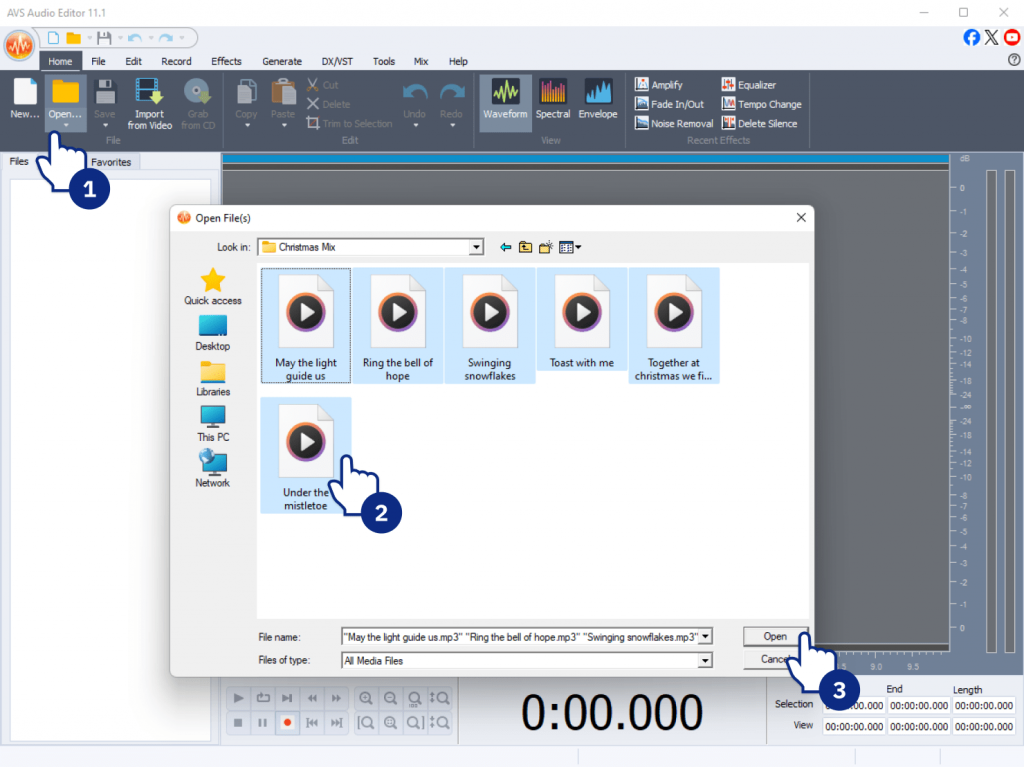
Tip: AVS Audio Editor supports a wide range of formats, including MP3, WAV, M4A, FLAC, WMA, and OGG, so you can easily work with multiple tracks in different formats.
Step 2: Mix and edit like a pro
Now the fun begins. The multi-track timeline in AVS Audio Editor is your canvas, and you’re the artist. Follow these simple steps to effortlessly mix various audio tracks.
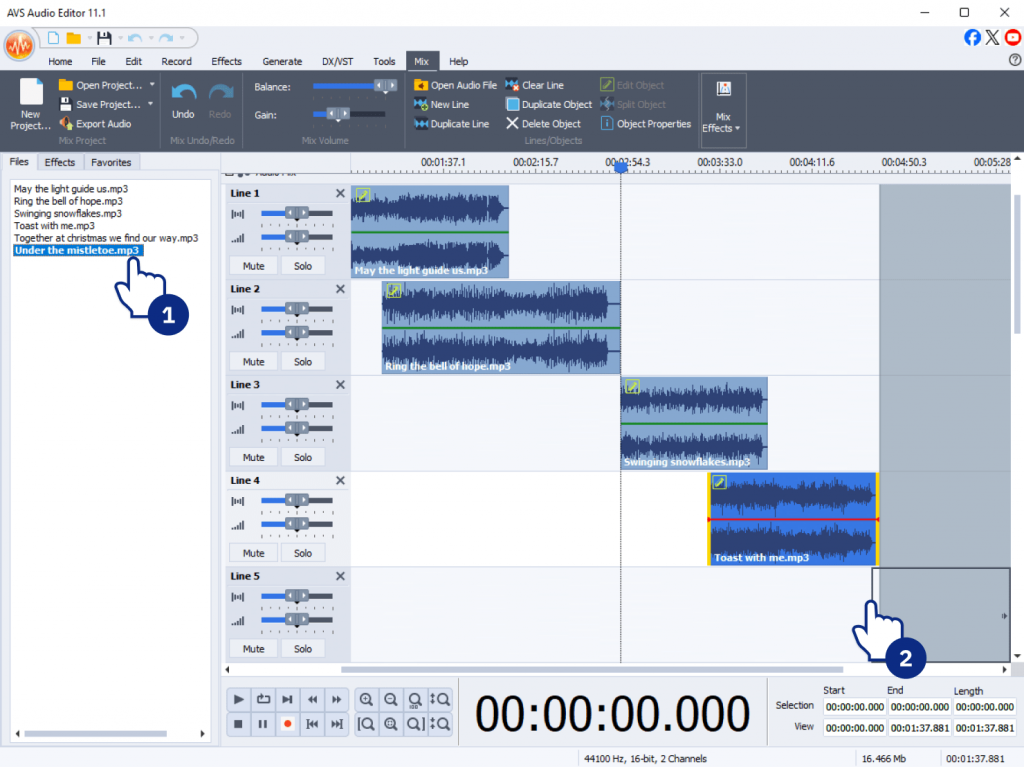
1. Arrange and balance your tracks
Drag the files to the timeline, placing them in the desired order. They may overlap each other or play one after the other. Keep the sound levels even so that all tracks play smoothly together.
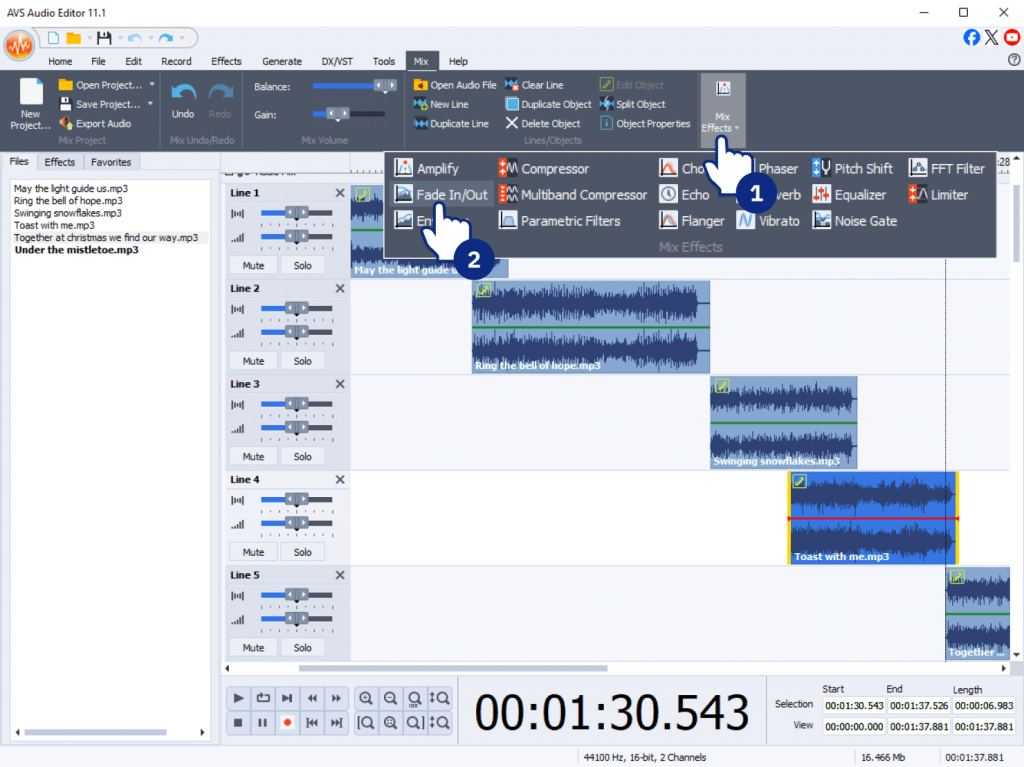
2. Add smooth transitions between songs
Use fade-in and fade-out effects to link songs naturally and keep the energy steady. They’re available in Effects → Fade In/Fade Out.
3. Polish your sound with equalizer and filters
Use the Equalizer to adjust bass and treble for a richer, warmer tone. Apply noise reduction or normalization to maintain the volume even across all songs.
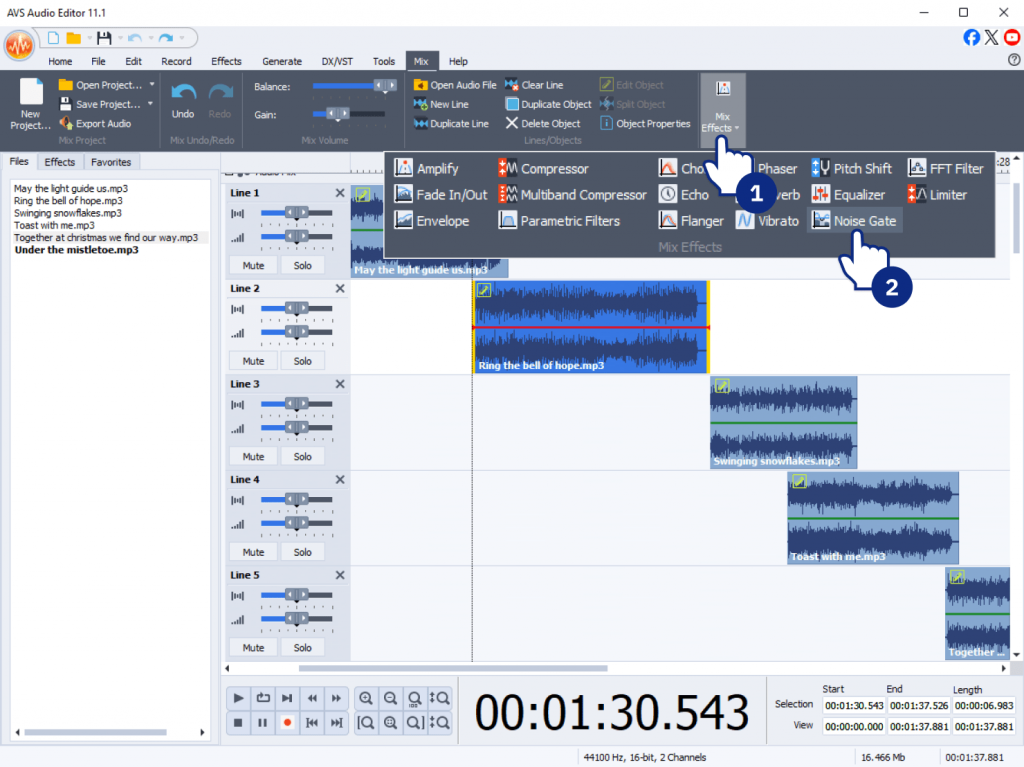
4. Edit with precision
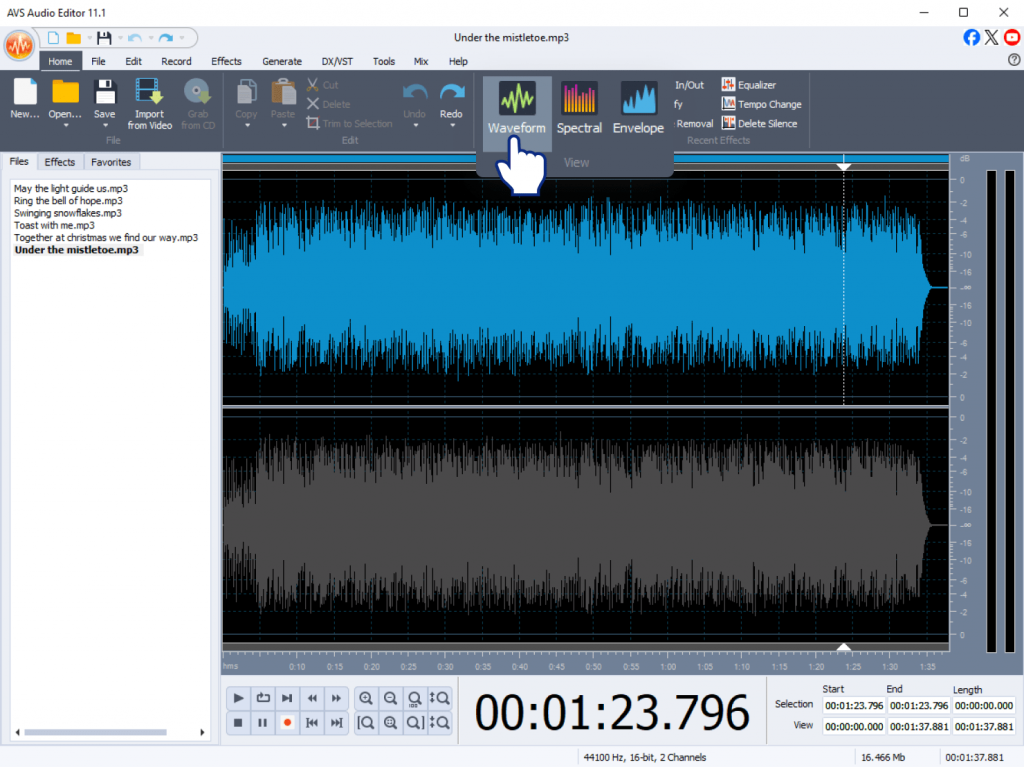
The visual waveform display in AVS Audio Editor helps you see every beat and cut precisely where needed. You can remove silences, split tracks, or synchronize beats visually.
Step 3: Add a festive touch
To make your mix sparkle with holiday spirit, experiment with a few creative effects:
- Sound effects – add gentle bells, jingles, or chimes between transitions to highlight the cheerful mood.
- Ambient sounds –include background fireplace crackles, snowstorm wind, or crowd cheer for atmosphere.
- Echo and reverb give your songs a warm, spacious sound, great for carols or instrumental versions.
- Voice greetingsare a short personalized message such as “Merry Christmas from our team!” or “Happy Holidays!”. Record and overlay it on your mix.
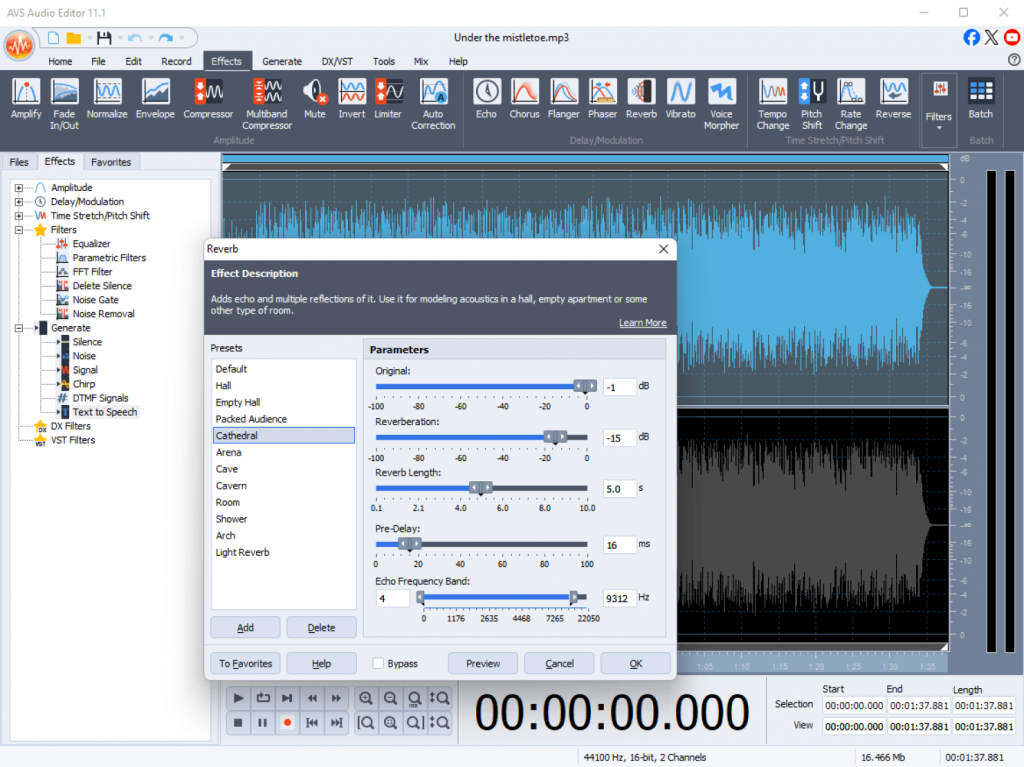
All these options can be applied directly within AVS Audio Editor using the Effects and Mix panels.
Step 4: Save and share your mix
Once you’re satisfied with the result, it’s time to export your mix and share it with the world. Go to File → Save As, and choose your preferred format. MP3 is best for sharing online or sending by email, whereas WAV or FLAC ensures maximum sound quality. Export in M4A for mobile-friendly playback.
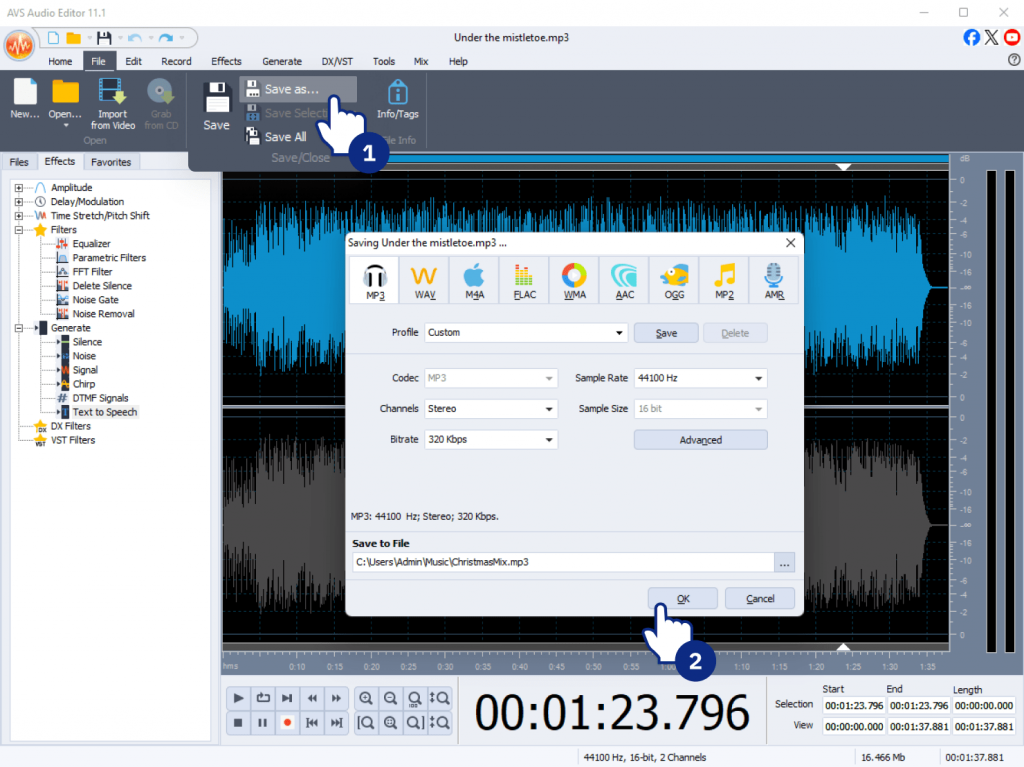
If you want to convert your output file into different formats, use AVS Audio Converter.
The final step is to share your ready mix on YouTube, social media, or attach it to your digital greeting cards.
Your custom soundtrack is now ready to bring joy wherever it plays!
Bonus tips for creating exceptional mixes
1. Kick off with a mood-setter
Start with a track that hooks your audience from the very first note.
2. Create a narrative
Arrange songs to tell a story or follow the energy arc of a celebratory event.
3. Use themed loops
Short loops of bells, choirs, or jingles can punctuate your mix and make it more dynamic.
4. Experiment with mashups
Combine elements from two songs to create your own unique versions of beloved melodies.
5. Keep it concise
A 20–30 minute mix is ideal for most parties or online playlists.
Alternative mixing software options
If you want to explore other tools alongside AVS Audio Editor, here are some worthy alternatives:
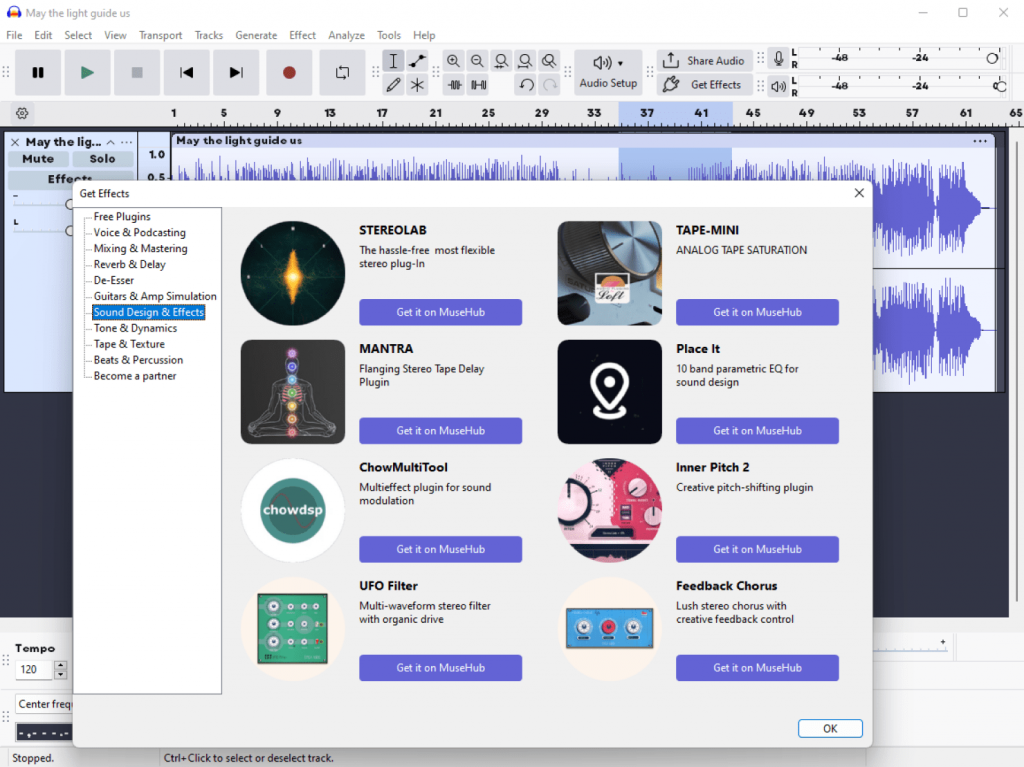
- Audacity, a free, open-source, versatile audio editor with a strong plugin library.
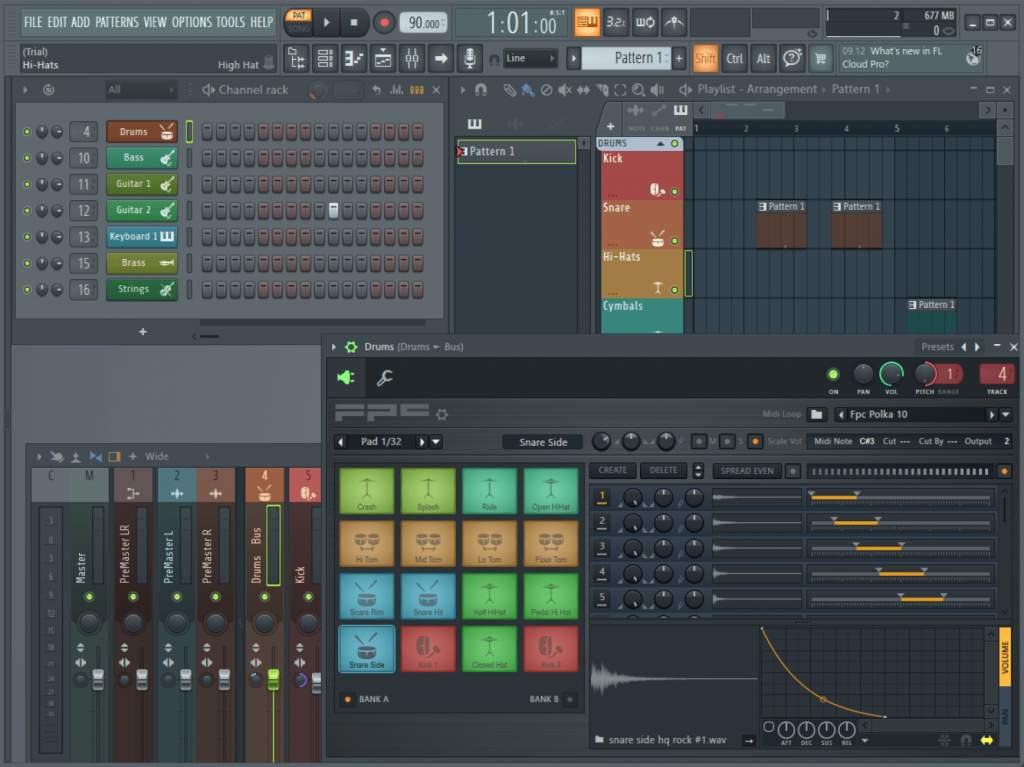
- FL Studio, a professional-grade software for advanced music production and remixing.
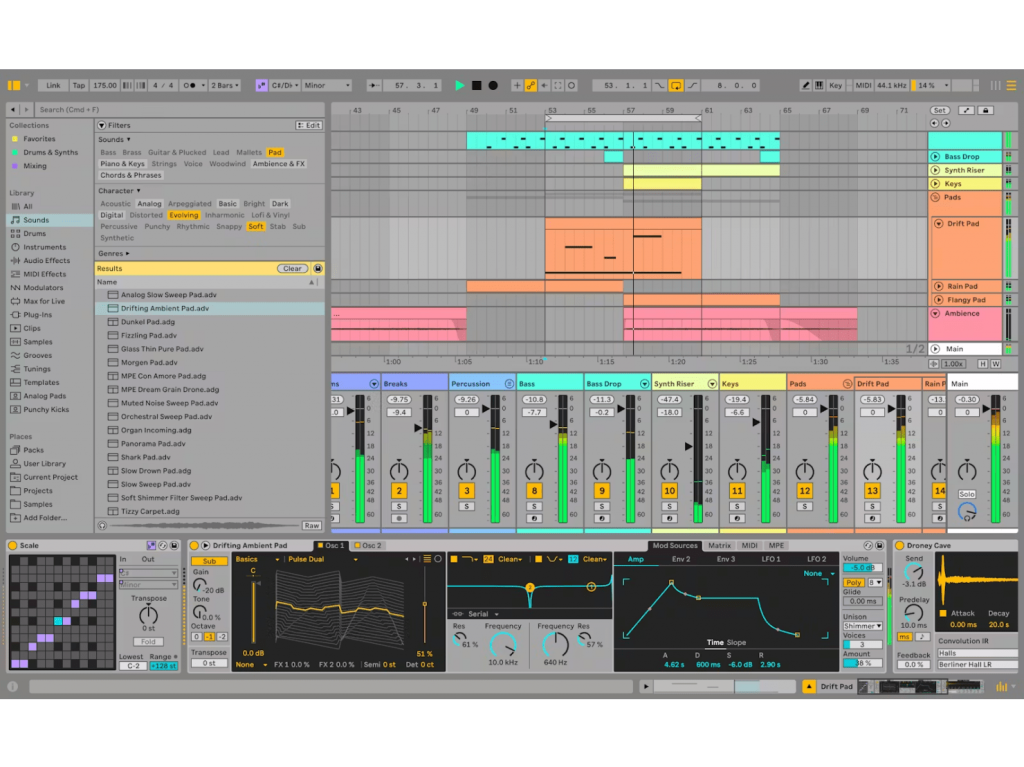
- Ableton Live, an intuitive platform perfect for layering instruments, vocals, and creating dynamic mixes.
While these tools are excellent, AVS Audio Editor stands out for its simplicity, intuitive interface, and the ability to quickly create polished mixes without a steep learning curve.
Start mixing today
Bring your holiday music to life and make every celebration shine. With AVS Audio Editor, you can craft mixes that capture the magic, layering your favorite songs, adding jingles, and tweaking every beat to match the spirit of the season. Whether you’re creating custom Christmas playlists, remixes for a party, or background tracks for your online content, your mixes will fill every moment with warmth, energy, and joy.
Make this end-of-year season truly unforgettable! Start crafting your joyful mixes now and enjoy 30% off AVS4YOU Unlimited Subscription!