



Most people don’t think about photo file sizes until they become a problem. A bounced email, a slow-loading web page, or a hard drive that suddenly fills up completely. When you’re working with hundreds of images, resizing them one by one is impractical.
To solve this, you don’t need an expensive subscription or spend hours watching tutorials. Batch resizing tools have made the process fast, accessible, and often completely free. In this guide, we’ll highlight what makes a good bulk image resizer, walk you through the process step by step with AVS Image Converter, and compare a handful of strong alternatives so you can choose the one that works best for you.
Why batch resize your photos?
By resizing all the images in a folder at once, you spare yourself a tedious task that quickly begins to feel overwhelming. For anyone managing product photos, travel shots, or social media content, it’s not a convenience, but a necessity.
Here’s what you stand to gain:
- Faster uploads to websites and social media platforms
- Smaller files that are easy to email and quicker to store
- Uniform dimensions for a neat and professional look for your images
- More space freed up on your hard drive and in the cloud
Whether you’re preparing an online store’s product gallery or trimming down a holiday photo album, batch resizing turns a long job into a short one.
Is Photoshop worth it for batch image resizing?
Any comparison of batch image resizers has to start with Photoshop. As the industry standard for photo editing, it offers an impressive range of professional tools and sets the benchmark for image quality and editing precision.
Its key advantages include:
Professional-grade editing: A comprehensive toolkit that goes far beyond simple image resizing.
Precise control: Fine-tune image dimensions, resolution, compression, and export settings.
Broad format support: Works with JPG, PNG, TIFF, PSD, RAW, and many other file formats.
Powerful automation: Actions and the Image Processor let experienced users batch resize entire folders using custom workflows.
Photoshop delivers outstanding results, but it isn’t the right choice for everyone. If your goal is simply to resize a large collection of photos for email, websites, or social media, its subscription cost and extensive feature set may be difficult to justify. The software also has a steeper learning curve than most dedicated batch resizers.
For users who want fast, straightforward batch resizing without investing time in mastering professional editing software, a simpler tool is typically a better choice.
Popular image batch converters
Now let’s take a closer look at several free user-friendly alternatives to Photoshop. Each of the following tools offers batch resizing. Generally, the differences lie in platform, complexity, and who they’re built for.
AVS Image Converter (Windows)
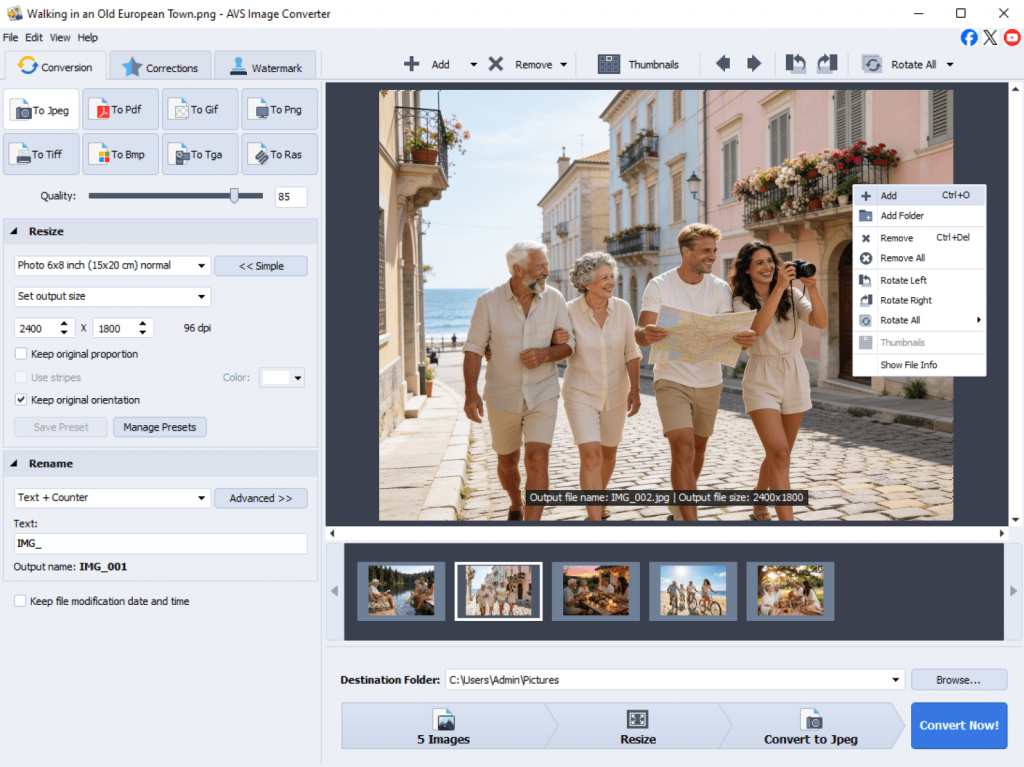
AVS Image Converter is a free simple application that lets you resize, convert, and enhance entire folders of photos in just a few clicks. It’s designed with the average user in mind: no technical expertise is required to use it, and there are no unnecessary complexities. The only limitation is that it’s Windows-only.
IrfanView (Windows)
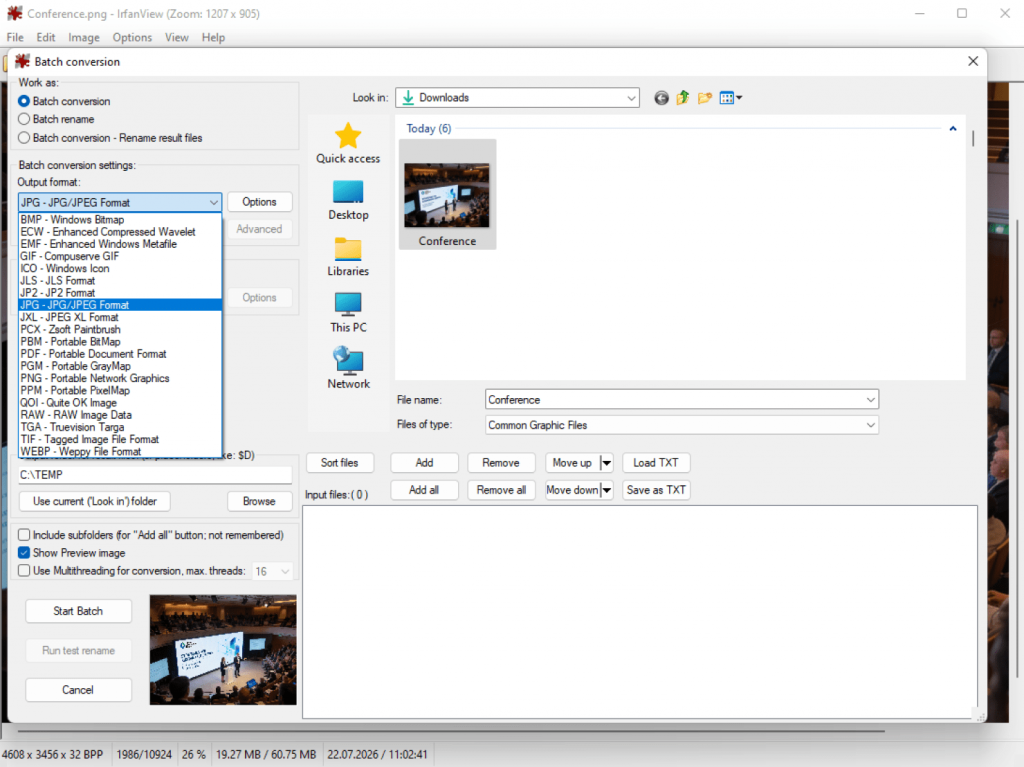
IrfanView has been a trusted free tool for batch photo processing for decades, and it remains a solid choice today. It’s particularly well suited to users who are comfortable navigating menus and working with a straightforward, no-frills interface. However, its outdated design and menu-heavy layout may feel overwhelming to beginners who prefer a more modern and intuitive experience.
XnConvert (Windows, Mac, Linux)
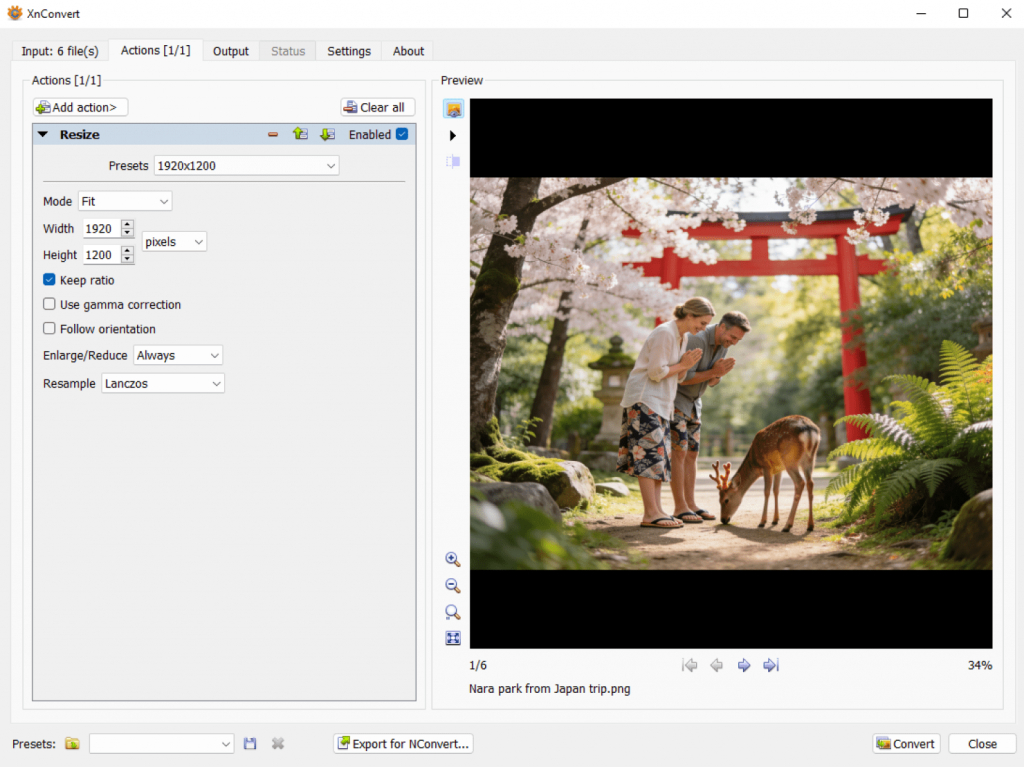
XnConvert stands out for its flexibility. Available for Windows, Mac, and Linux, it supports a wide range of image formats and lets you combine resizing, cropping, renaming, and other tasks into a single batch operation. It’s an excellent choice for confident beginners and intermediate users who want greater control over their workflow. However, the extensive range of options may require some time to get used to, especially for those new to batch image processing.
GIMP (Windows, Mac, Linux)
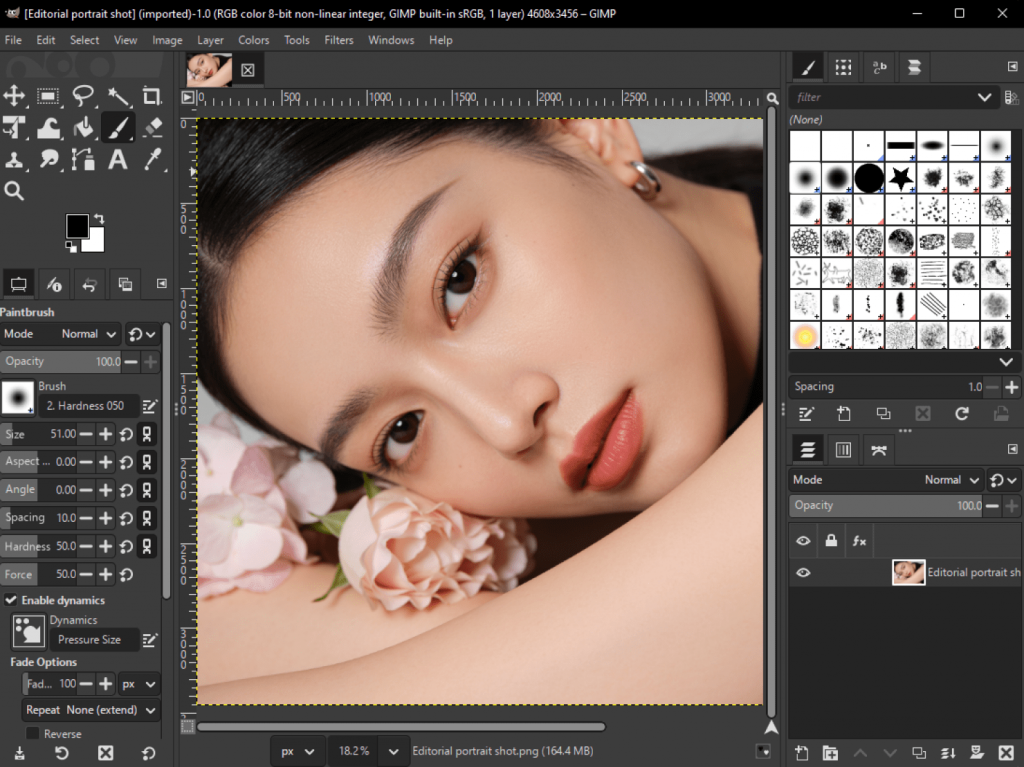
GIMP is a powerful, completely free image editor available for Windows, Mac, and Linux. It supports batch resizing through built-in scripting tools, but they require some setup and a bit of learning. It’s a great option for users who already work with GIMP, while those looking for a quick and simple way to resize photos may find a dedicated app more convenient.
Online image resizers
Browser-based image resizes such as BIRME and Bulk Resize Photos don’t need any installation. They are ideal for occasional, small-scale resizing tasks. However, processing large collections usually takes longer, and some users may prefer not to upload personal photos to an online service for privacy concerns.
Quick comparison table
| Tool | Platform | Ease of Use | Batch Support | Price |
| AVS Image Converter | Windows | Very easy | Yes | Free |
| IrfanView | Windows | Moderate | Yes | Free |
| XnConvert | Win, Mac, Linux | Moderate | Yes | Free |
| GIMP | Win, Mac, Linux | Harder | Yes (extra steps) | Free |
| Online Tools | Any browser | Easy | Yes (limited) | Free |
How to batch resize photos with AVS Image Converter
Of the options above, AVS Image Converter offers the most direct path from start to finish. Here’s exactly how to use it.
Step 1. Download and install AVS Image Converter
Visit the AVS4YOU website and download the installer. Follow the on-screen steps and you’ll be ready to go within a few minutes.
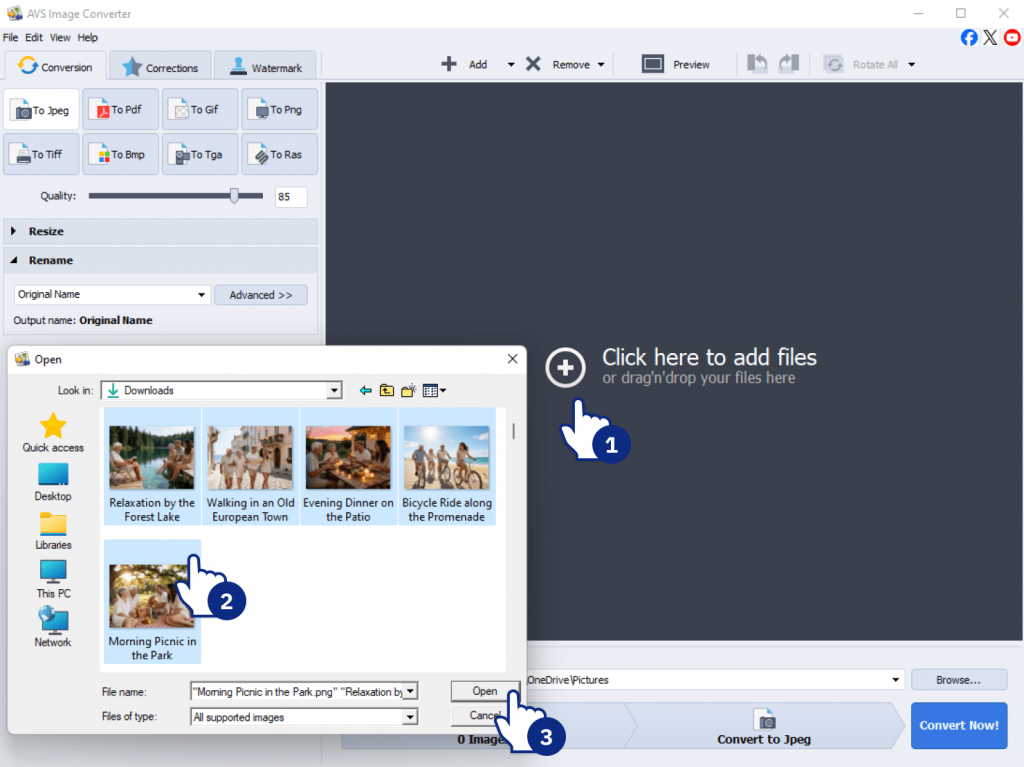
Step 2. Add your photos
Launch the program and import your images. You may select individual files or load an entire folder at once.
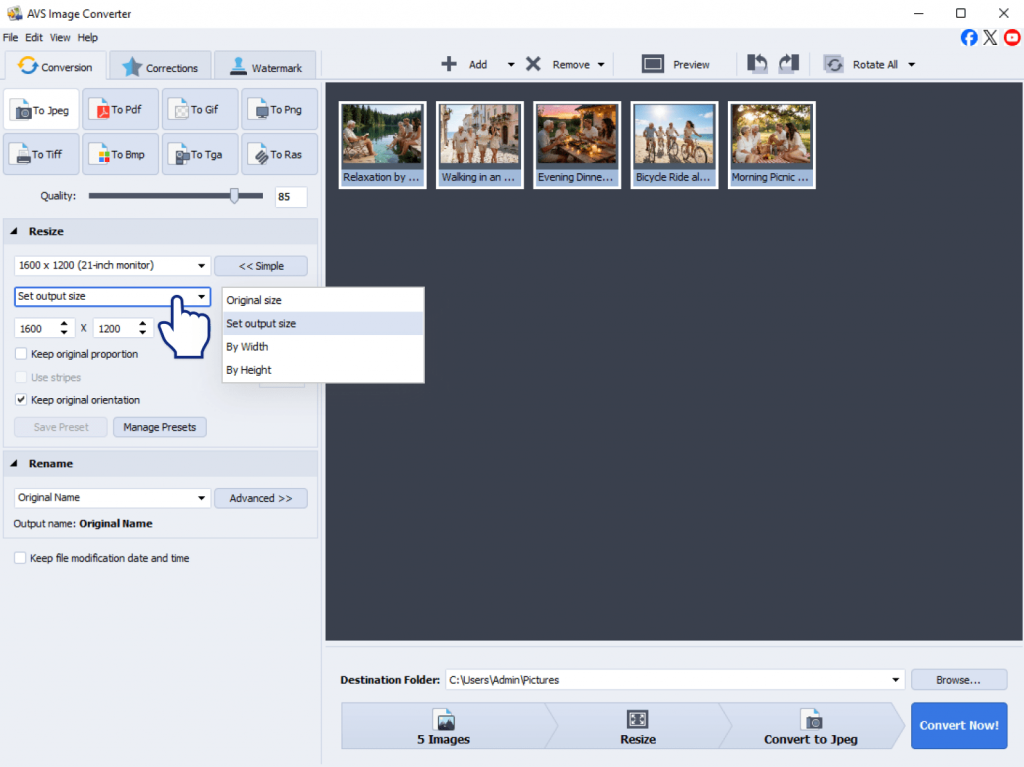
Step 3. Choose the right image size
Set your target dimensions by entering a specific width and height in pixels, selecting from built-in presets. The best method depends on what you need the images for, whether it’s uploading them to a website or sending them by email.
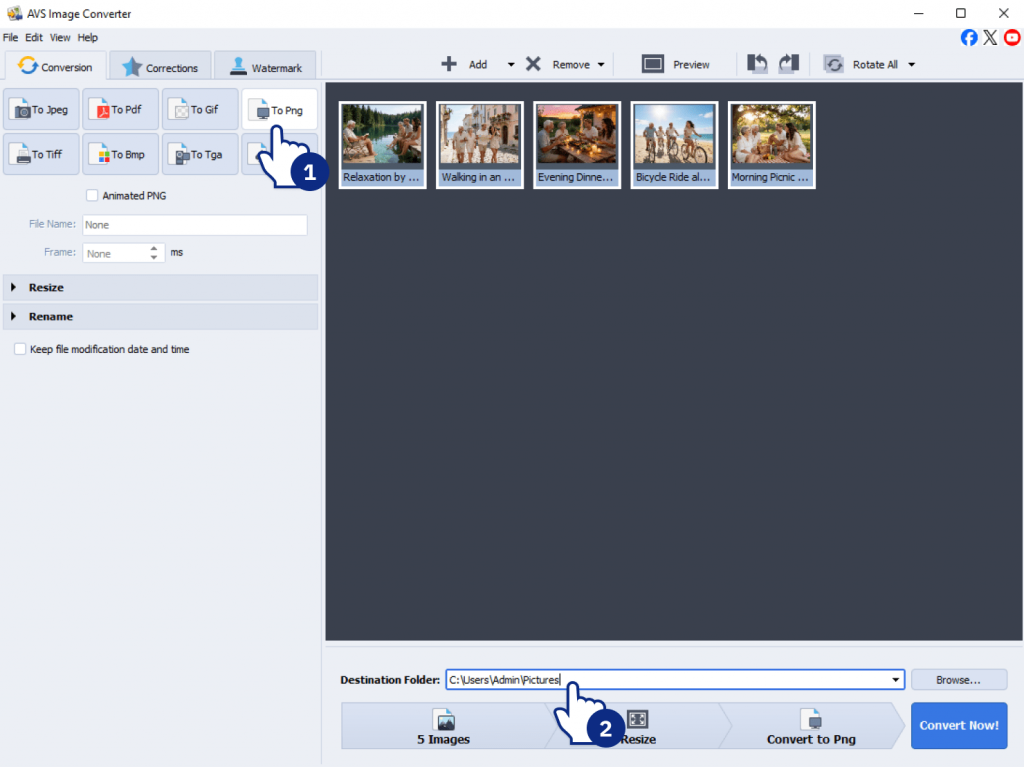
Step 4. Pick an output format and folder
Choose your preferred output format, JPG and PNG are the most common, and specify a destination folder.
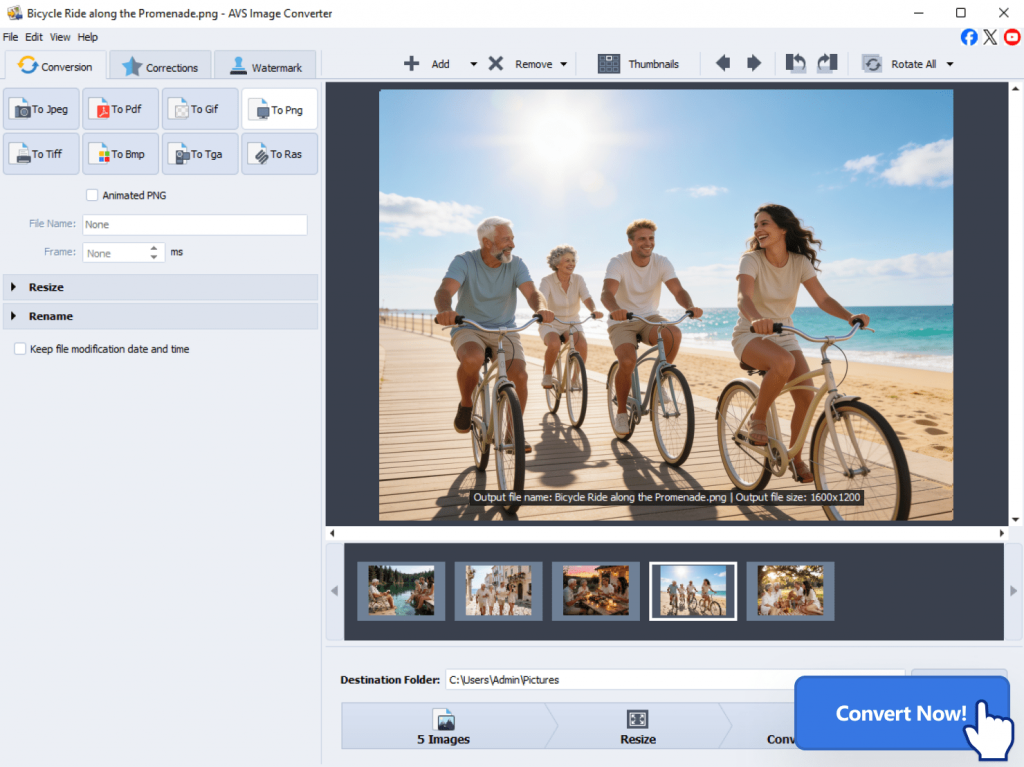
Step 5. Start the batch conversion
Click Convert and the program does the rest. Your entire batch is processed in moments, without any manual intervention.
Bonus tips
AVS Image Converter goes beyond basic resizing. In the same session, you can alsorename files in bulk to keep your library organized, add watermarks to protect your work, or apply quick effects for a polished finish.
It’s a capable all-in-one solution for routine photo preparation.
Which image resizer you should choose
Batch resizing images doesn’t have to be complicated. There are plenty of free, capable alternatives to Photoshop, and the right one depends on your operating system, experience, and how often you work with images.
For Windows users, AVS Image Converter is a free, easy-to-use program that includes all the essential features for batch resizing. XnConvert and GIMP, recommended for Mac and Linux users, offer powerful batch processing, but they take a little more time to learn. If you only resize images from time to time, an online tool should be enough.
In the end, the best batch image resizer is the one that helps you get the job done quickly and without unnecessary complexity. If all you need is to resize a large number of photos, there’s no reason to pay for professional editing software when a free app can do the job just as well.
Download AVS Image Converter and resize your photos for free today.