Creating videos with artificial intelligence is becoming an increasingly popular way to produce visual content quickly. The Sora2 plugin integrated into AVS Video Editor allows you to generate short AI-powered video clips directly inside the program using simple text prompts.
Instead of searching for stock footage or creating animations manually, you can describe the scene you want and let the AI generate the video for you. The resulting clip can then be added to your project and edited just like any other media file in the editor.
Before you begin, make sure the Sora2 plugin is installed and activated in the application. If you have not done this yet, please refer to this guide: How to install and activate AI plugins in AVS4YOU software.
Open the File tab located in the top menu of the application and select the  Sora2 option.
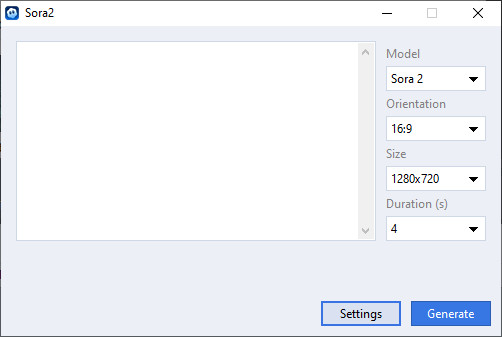
This will open the Sora2 plugin window, where you can configure the parameters for AI video generation.
[Back to the Top]
In the Prompt field, enter a description of the scene you would like the AI to generate.
The more detailed your prompt is, the more accurate the resulting video will be. For example, instead of writing simply ”a sunset”, you might describe the scene in more detail: ”a cinematic view of ocean waves at sunset, warm lighting, soft camera movement, realistic style”.
 Note
Note: clear and descriptive prompts usually produce better results.
The Sora2 service will analyze your description and use it to generate a video that matches the provided prompt.
[Back to the Top]
Before starting the generation process, you can configure additional parameters available in the plugin.
These options include:
- Model version,
- type of Orientation,
- output Size (resolution),
- video Duration (in seconds).
Higher quality or resolution settings may produce more detailed videos, but they may also increase the generation time.
[Back to the Top]
Once the prompt and settings are configured, press the Generate button.
The plugin will send your request to the Sora2 AI service using the OpenAI API key configured earlier in the plugin settings.
The generation process may take some time depending on the selected parameters and server load. The approximate progress of video generation is displayed in a status bar:
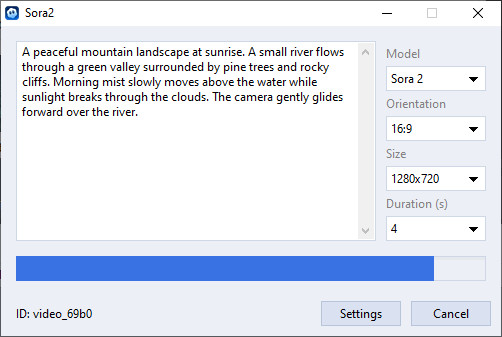
If necessary, you can stop the video generation by pressing the Cancel button.
[Back to the Top]
Once the video is generated, it will appear in the Media Library with the creation date and time as its title. If you are satisfied with the result, drag the generated clip to your project timeline.
When added, the video behaves like any other media file in AVS Video Editor. You can apply effects, add transitions, or combine it with other clips.
[Back to the Top]
Version: 9.1.1.336Size: 155.45 MBPlatforms: Windows 10, 8.1, 8, 7, XP, 2003, Vista
(no Mac OS/Linux support)
Download
AVS Video Editor
Registration on AVS4YOU is like buying a single product listed on
www.AVS4YOU.com and getting all other products from our site as a gift. That means you can install and use
ALL OTHER software with the same serial number without additional fees and limitations.
Please note that AVS4YOU programs do not allow you to copy protected material. You may use this software in copying material in which you own the copyright or have obtained permission to copy from the copyright owner.