The HeyGen plugin integrated into AVS Video Editor allows you to create presenter-style videos using AI-generated avatars. Instead of recording yourself on camera, you can generate a video where a virtual presenter delivers your message based on the text you provide.
This feature can be useful for creating presentations, tutorials, marketing videos, or social media content. The generated avatar video can then be added directly to your project and edited just like any other clip in the editor.
Before you begin, make sure the HeyGen plugin is installed and activated in the application. If you have not done this yet, please refer to this guide: How to install and activate AI plugins in AVS4YOU software.
Open the File tab located in the top menu of the application and select the  Generate avatar video option.
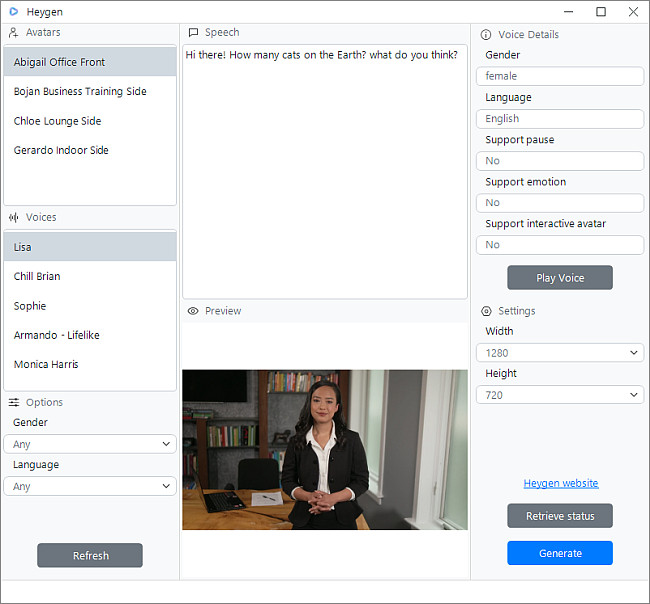
This will open the HeyGen plugin window, where you can configure the parameters for your presenter-style video.
[Back to the Top]
On the left side of the plugin window, you will see the Avatars panel.
Select the avatar that will appear in your presenter-style video. Each avatar represents a different virtual presenter and visual style.
 Note
Note: the list of available avatars may change depending on the HeyGen service.
Below the Avatars panel, locates the Voices section. Here you can choose the voice that will be used to narrate the script in your video. Each voice may have different characteristics such as tone, accent, or speaking style. The selected voice is described in the Voice Details section, including supported features such as pauses or emotional expressions.
After selecting a voice, you can press the Play Voice button to preview how the narration will sound.
The Options section contains options that allow you to select the narrator’s Gender and Language.
Press the Refresh button to update the list of available voices according to your plan.
[Back to the Top]
In the Speech field placed in the center of the plugin window, type the text that you want the presenter to speak.
For example: ”Hi there! How many cats are on the Earth? What do you think?”
The HeyGen service will convert this text into speech and synchronize it with the selected avatar.
Note: clear and well-structured sentences usually produce more natural results.
In the Settings section on the right, you can specify the output video resolution by selecting the Width and Height values. The values are correlated with each other and will have a ratio of 16:9.
[Back to the Top]
After configuring the avatar, voice, and script, press the Generate button situated at the bottom of the plugin window. The plugin will send your request to the HeyGen service and start generating the video. The generation time depends on the length of your script and the selected video settings.
If necessary, you can use the Retrieve status button to check the current generation status.
[Back to the Top]
Once the video is generated, it will appear in the Media Library with the creation date and time as its title. If you are satisfied with the result, drag the generated clip to your project timeline.
When added, the video behaves like any other media file in AVS Video Editor. You can apply effects, add transitions, or combine it with other clips.
[Back to the Top]
Version: 9.1.1.336Size: 155.45 MBPlatforms: Windows 10, 8.1, 8, 7, XP, 2003, Vista
(no Mac OS/Linux support)
Download
AVS Video Editor
Registration on AVS4YOU is like buying a single product listed on
www.AVS4YOU.com and getting all other products from our site as a gift. That means you can install and use
ALL OTHER software with the same serial number without additional fees and limitations.
Please note that AVS4YOU programs do not allow you to copy protected material. You may use this software in copying material in which you own the copyright or have obtained permission to copy from the copyright owner.