In AVS Video Editor, AI plugins such as Sora2 and HeyGen can be used within the same project to create more advanced and engaging videos. By combining these tools, you can generate different types of content. Generate scenes with Sora2 and presenter-style videos with HeyGen and then merge them into a single project on the timeline.
This approach allows you to create structured videos that include both visual content and narration without recording footage manually.
Open the File tab in AVS Video Editor and select  Sora2. In the plugin window, enter a prompt describing the scene you want to create and adjust the available settings if needed. If you want to find out more about Sora2, please refer to the How to generate AI videos using the Sora2 plugin? guide.
Press the Generate button and wait for the video to be created. Once the process is complete, add the generated clip to the Timeline.
This clip can be used as a background scene, intro, or visual segment in your project.
 Note
Note: Sora2 works best for creating environment shots, animations, or abstract visuals.
[Back to the Top]
Open the File tab again and select  Generate avatar video to launch the HeyGen plugin. Enter the script in the Speech field, then choose an avatar and a voice from the available options. If you want to find out more about HeyGen, please refer to the How to create presenter-style videos with the HeyGen plugin? guide.
Press the Generate button to create the presenter-style video. After the generation is complete, add the video to the Timeline.
This clip can be used as narration or explanation for the scenes generated with Sora2.
[Back to the Top]
Once both videos are added to the Timeline, arrange them in the desired order. You can place a Sora2 scene at the beginning as an intro and follow it with a HeyGen presenter explaining the content.
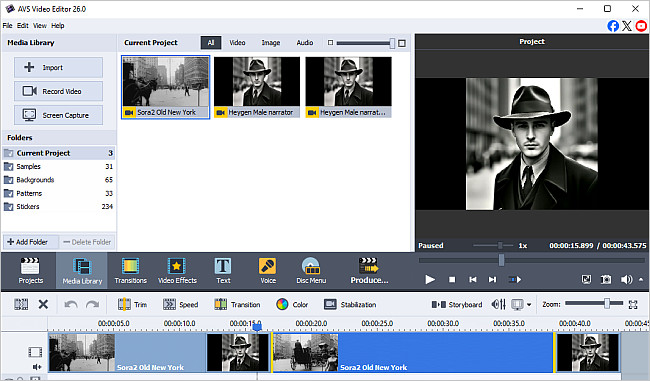
You can trim AI-generated clips like regular video files, adjust their duration, and align them to create a smooth flow.
Confirm you are satisfied with the result in the Preview Area, make adjustments if necessary, save and export the final version of your video.
[Back to the Top]
Version: 9.1.1.336Size: 155.45 MBPlatforms: Windows 10, 8.1, 8, 7, XP, 2003, Vista
(no Mac OS/Linux support)
Download
AVS Video Editor
Registration on AVS4YOU is like buying a single product listed on
www.AVS4YOU.com and getting all other products from our site as a gift. That means you can install and use
ALL OTHER software with the same serial number without additional fees and limitations.
Please note that AVS4YOU programs do not allow you to copy protected material. You may use this software in copying material in which you own the copyright or have obtained permission to copy from the copyright owner.