Using a single video effect can enhance your footage, but combining multiple effects allows you to achieve more advanced and cinematic results. In AVS Video Editor, you can apply several effects sequentially to the same video clip to create a unique visual style.
The effects used in this article must be added via plugins. For more information, please refer to How to install and activate AI plugins in AVS4YOU software guide.
Open your project and press the Video Effects button in the main window of AVS Video Editor. Select the Plugins effect group and choose the effect you want to use. For example, use Gaterv3 to improve the base quality before adding creative effects. You can add effect to a Timeline either by using the Add or Replace Video Effect context menu button or manually dragging it.
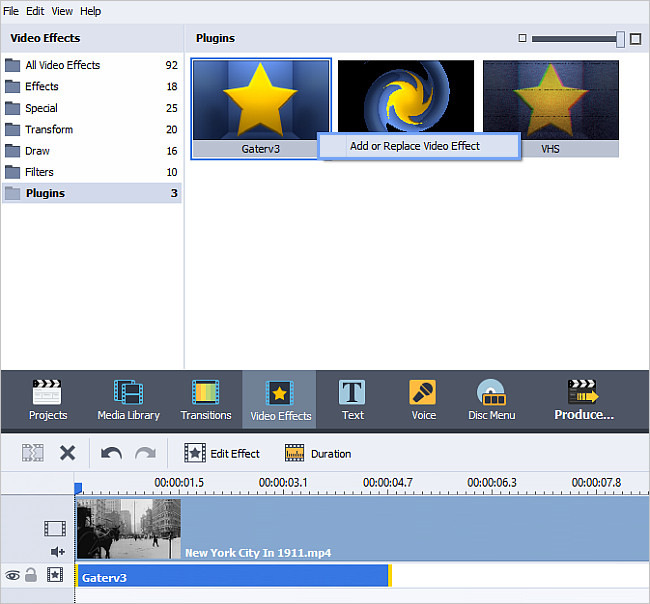
If necessary, adjust the duration of the effect by dragging its edges so that it covers the desired part of the clip. Then, export the video by pressing the Produce button. To learn more about it, read the How to save the project and the video in AVS Video Editor? guide.
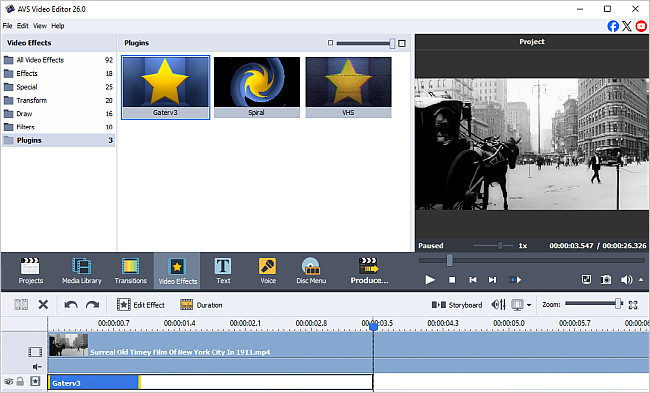
This will create a new video file with the first effect applied.
[Back to the Top]
After exporting, import the newly created video file back into your project, add it to the Timeline, and open the Video Effects panel again. Apply the next effect, for example, VHS, using the same method.
You can repeat this process to gradually build your visual style:
- first pass: improve quality (Gaterv3)
- second pass: apply visual style(VHS),
- third pass: add motion or creative effects(Spiral).
 Note
Note: each export slightly re-encodes the video, so avoid unnecessary passes to preserve quality.
[Back to the Top]
After applying all desired effects, preview the final video in the Preview Area.
Carefully check how the combined effects look together, paying attention to image quality, color, and overall visual style. Once you are satisfied, save and export the final version of your video.
[Back to the Top]
Version: 9.1.1.336Size: 155.45 MBPlatforms: Windows 10, 8.1, 8, 7, XP, 2003, Vista
(no Mac OS/Linux support)
Download
AVS Video Editor
Registration on AVS4YOU is like buying a single product listed on
www.AVS4YOU.com and getting all other products from our site as a gift. That means you can install and use
ALL OTHER software with the same serial number without additional fees and limitations.
Please note that AVS4YOU programs do not allow you to copy protected material. You may use this software in copying material in which you own the copyright or have obtained permission to copy from the copyright owner.