


Introduction
AI video tools are transforming the way content is created. RunwayML, Pika, and Sora are widely used to generate videos from text, images, or reference clips. However, raw AI-generated videos rarely meet professional standards. Flickering backgrounds, jittery motion, inconsistent colors, and weak audio are still common challenges.
The secret to producing high-quality AI videos lies in a hybrid workflow which combines AI generation with professional post-production. AVS4YOU Multimedia Suite offers all the necessary features to turn AI content into publish-ready videos.
In this guide, you’ll learn practical tips and best practices for generating and optimizing AI videos so that they look professional with minimal effort.
Generating AI videos the right way
Define your purpose and platform
One of the most common mistakes when creating AI videos is skipping the planning stage. It’s easy to jump straight in, but without a clear goal, the result often doesn’t fit the platform you’re publishing on.
For instance, a horizontal video won’t perform well on TikTok or Instagram Reels, where vertical format works best. The same goes for technical settings. Even a good-looking clip can appear poor after upload if the resolution or frame rate isn’t correct.
A better approach is to decide upfront where your video will be used. Then set the right aspect ratio, resolution, and frame rate before generating anything. It’s a small step, but it saves time and helps you create excellent video right from the start.
How to write AI prompts
Many users feel desperate because it is not easy to get the desired result with AI. Most of the time, the problem isn’t the tool, but the prompt.
As simple prompts, for example, “a city at night” are too vague, the AI fills in the gaps. In many cases the result leaves much to be desired. The more clearly you describe the scene (lighting, mood, movement, style), the better the output will match your idea.
It also recommended using higher-quality settings if possible. Faster modes save time, but they require more fine-tuning later.
If you want to improve your prompts, you can read our complete guide here.
Use the best setup for AI video generation
A well-written prompt alone cannot guarantee results because they depend greatly on the quality of the input. Low-resolution or highly compressed images give the AI less detail to work with, making it difficult or sometimes impossible, to remove all imperfections. To avoid this, use top-notch images or reference clips whenever possible.
Review AI generated videos before optimization
After generating your video, don’t jump straight into editing. AI clips may have subtle issues such as flickering, jitter, or awkward frame transitions affecting quality.
Take time to review each clip. Decide what’s usable, what needs trimming, enhancement, or replacement. This quick check saves time and makes your final video cleaner and more polished.
Optimize AI generated videos
Once your AI video is generated, the next step is optimization. Most AI tools don’t produce perfect footage, so post-production is essential for enhancing video quality.
Stabilize motion
From time to time AI struggles with smooth movement, which leads to creating jittery clips or unnatural camera pans. This is especially noticeable in fast-moving scenes or complex camera angles. Video Stabilization in AVS Video Editor smoothes out micro-jitters so that the footage will appear more natural.
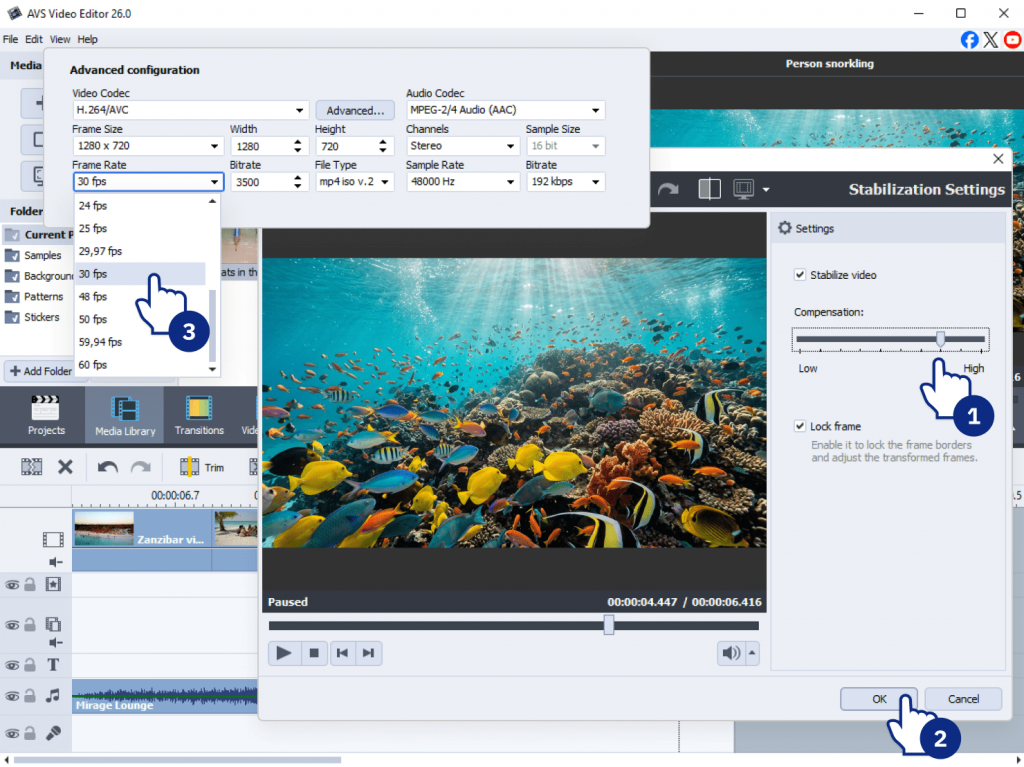
Another helpful technique is frame rate conversion. If your clip was generated at a low frame rate, for example, 12 fps, converting it to 24, 30, or even 60 fps interpolates missing frames, giving the motion a stable, realistic look.
Clean up AI video
AI-generated videos sometimes produce small glitches such as flickering backgrounds, distorted objects, or “melting” textures. These little errors can distract viewers, but you don’t have to delete the whole clip.
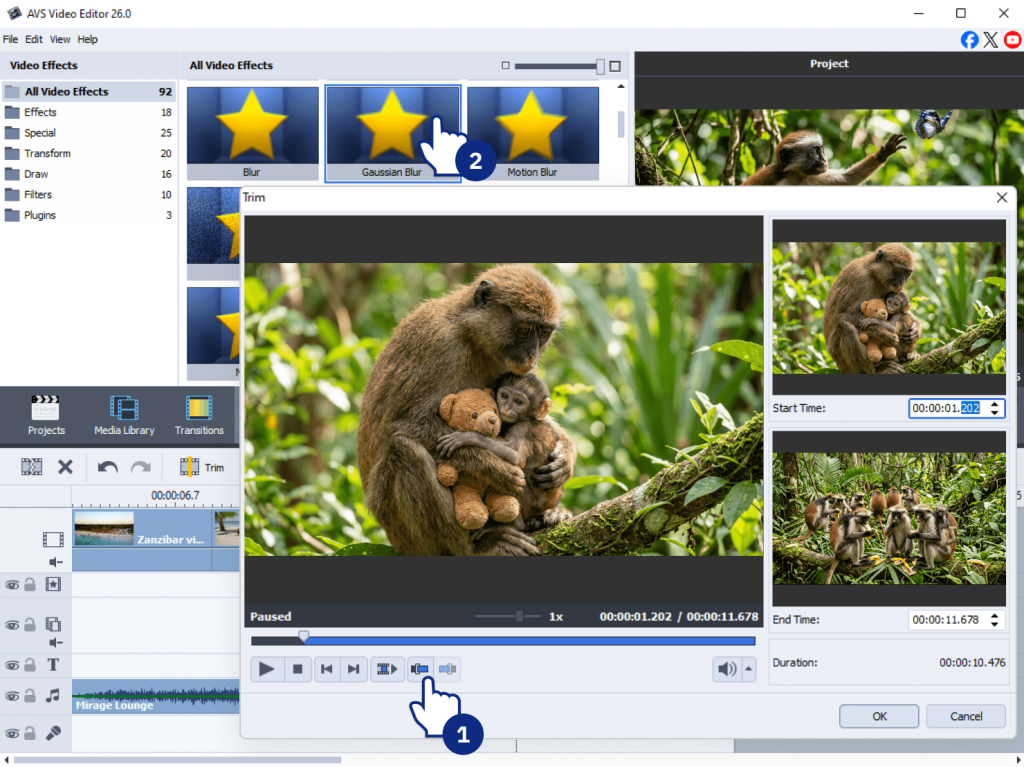
A practical approach is to use the Cut and Cover technique:
- Trim the 1–2 seconds where the artifact appears.
- Overlay graphics or B-roll to cover problem areas.
- Apply subtle blur effects (Mosaic or Gaussian) to hide distorted faces, logos, or backgrounds.
These steps let you fix the parts that could spoil the viewer experience.
Master color correction
In many cases AI-generated clips have uneven colors. You might see washed-out blacks, overexposed highlights, or sudden shifts in color between shots.
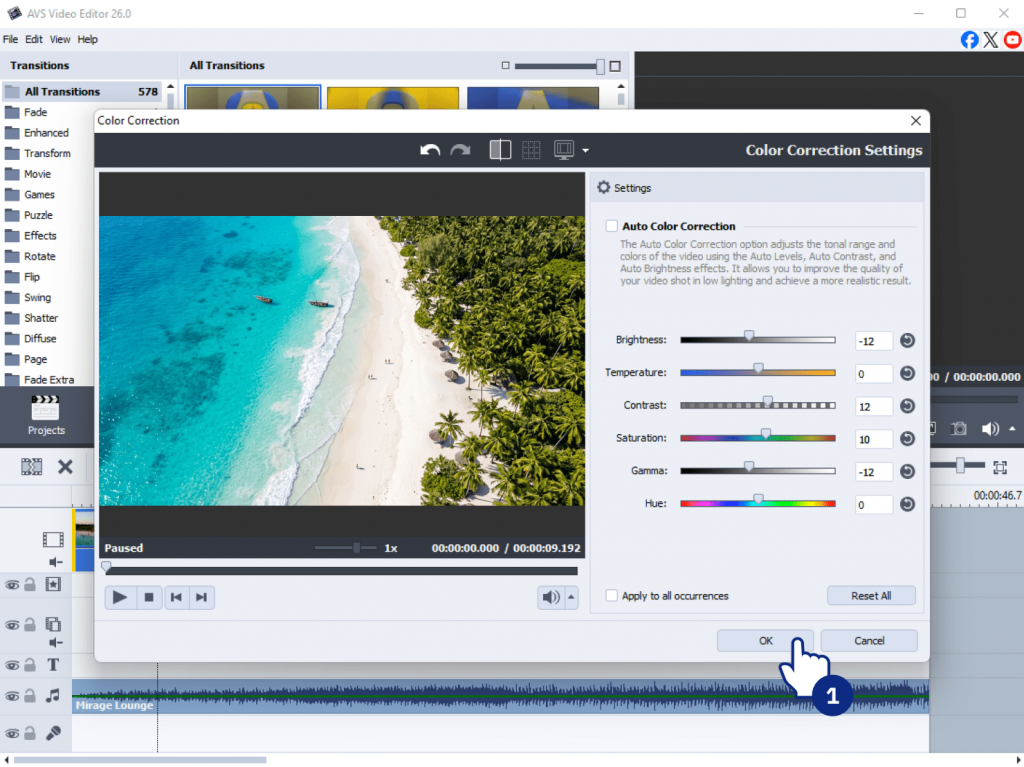
Here are color correction tips:
- Adjust black and white levels using the Histogram.
- Slightly increase saturation to enhance the natural feel of the footage.
- Match color tones between clips for a well-balanced look.
A few minutes of careful grading will turn flat AI footage into first-rate video.
Optimize audio
No matter how good your visuals are, poor audio can ruin everything. AI-generated voiceover may sound robotic, or have unwanted background hiss.
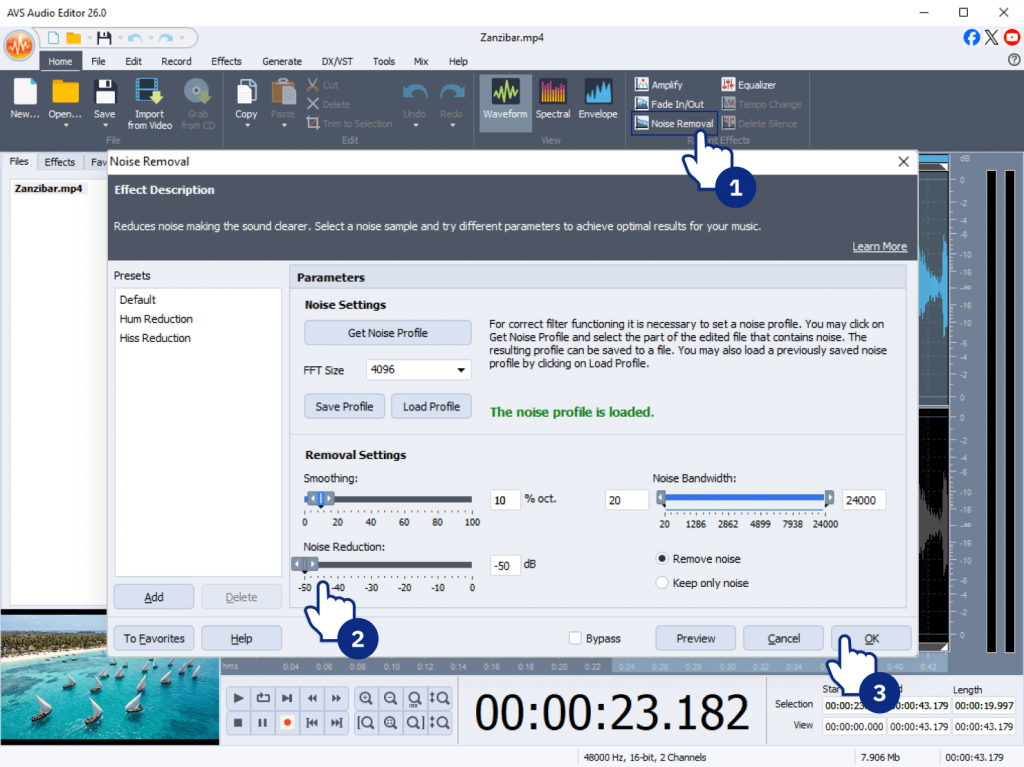
Here’s how to fix it:
- Use the Noise Removal feature in AVS Audio Editor to clean up background hiss.
- Replace the audio with a clear voice recording, if needed, for better clarity.
- Normalize volume to keep the sound balanced from start to finish.
Optimized audio not only improves the quality of your AI-generated music video but also makes the entire clip more enjoyable to watch.
Final tips and takeaways
Creating exceptional AI videos demands a blend of creative vision, meticulous planning, and professional post-production. A reliable workflow is as follows:
- Plan the content and where it will be shared
- Generate AI video using detailed prompts and flawless inputs
- Review clips for artifacts or inconsistencies
- Optimize motion, visuals, color, and audio
- Export the created video file
Experimenting with different prompts, AI settings, and effects helps you discover the best approach for your content. By combining AI generation with professional editing tools, you can turn raw footage into polished, engaging videos suitable for any platform.
Try AVS4YOU yourself
If you want to see the difference, try using AVS Video Editor to refine AI-generated videos. With the right workflow, you will improve video quality, stabilize motion, clean up visual glitches, and craft highly compelling content.
Explore tutorials, test different prompts, and start creating AI videos to engage your audience today.