


PDFs are popular because they look the same on every screen and printer. They are easy to share, print, and archive, which is why they remain a common format for contracts, reports, applications, invoices, forms, and other documents.
A PDF made on Windows opens identically on a Mac, a phone, or a tablet, with fonts, images, and layout intact. That reliability is what makes them hard to edit. A PDF behaves more like a printed page than a working document.
A PDF converter solves this. It turns a PDF into an editable format such as Word, or turns your own files into PDFs that are ready to share. Here are the most common use cases:
At work: updating a contract, reusing text from an old report, or sending a polished presentation to a client.
At home: editing a scanned school form, saving a recipe collection as an e-book, or preparing documents for a rental application.
On the go: signing a form from your phone or sharing a file before a meeting.
This blog post compares the best PDF converters in three groups: desktop programs, online tools, and mobile apps. For each one, you’ll see what it does well, who it suits, and what it costs, so you can choose the right tool quickly.
Best desktop PDF converters
A desktop converter is a program you install on your computer. It works without an internet connection, converts large files easily, and keeps your documents off third-party servers because it runs on your own device. If you convert files every week or handle private paperwork, this is usually the best solution.
1. AVS Document Converter
AVS Document Converter is a free Windows program, part of AVS4YOU Multimedia Suite, that reads documents and converts them between popular formats, including PDF, DOC, DOCX, RTF, TXT, ODT, HTML, EPUB, JPEG, and TIFF. Its biggest time-saver is batch conversion, which means converting many files at once.
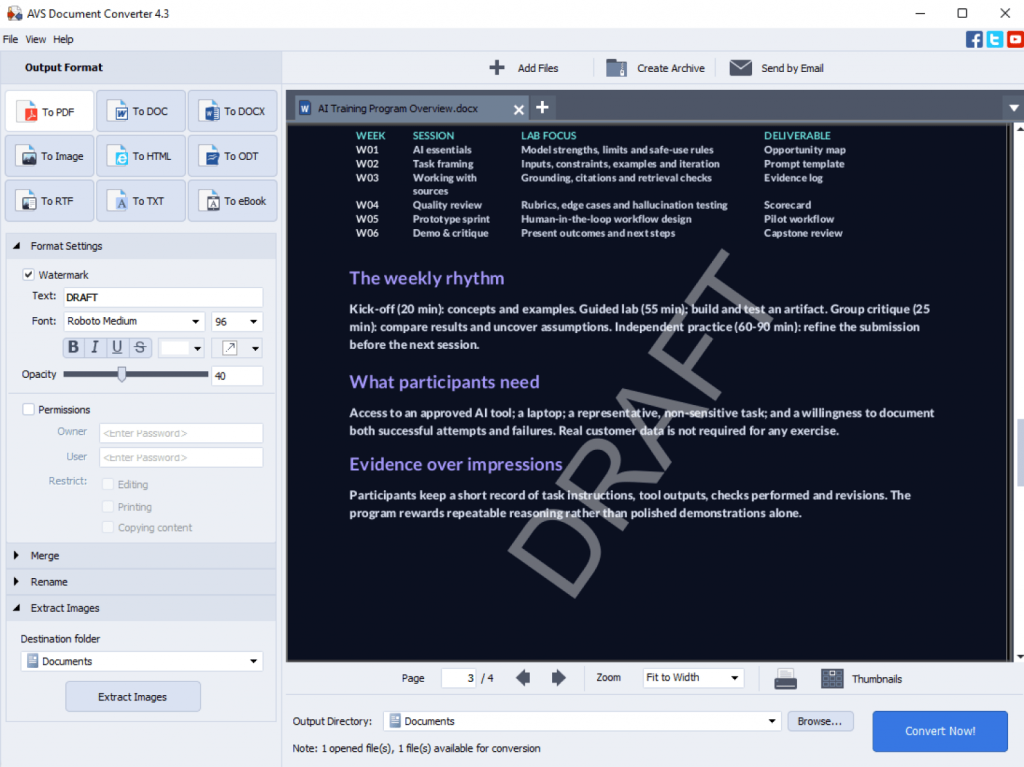
It also covers the tasks that usually force people into looking for extra software:
- Merge several files into one document
- Add a text watermark before saving to PDF or an image format, which helps protect your work from being copied
- Set a password and access permissions on PDFs before you email or publish them
- Rename a batch of files at once to keep them organized
- Create e-books from your documents
- Email files or pack them into an archive straight from the program
The interface is simple and clear, so you don’t need any technical background to get started. Everything happens offline on your computer, which is a real plus for contracts, invoices, or personal records you’d rather not upload anywhere.
Best for: Windows users who convert documents regularly, work with lots of files at once, or handle sensitive paperwork.
Platform: Windows 11, 10, 8.1, 8, 7
Price: Free
2. PDF24 Creator
PDF24 Creator is a free Windows program from the German company Geek Software GmbH, and conversion works in both directions. You can turn Word, Excel, PowerPoint, and image files into PDFs, or change PDFs back into editable formats such as DOCX. It handles a long list of common file types: DOC, DOCX, XLS, XLSX, PPT, PPTX, ODT, ODS, ODP, JPG, PNG, and TIFF.
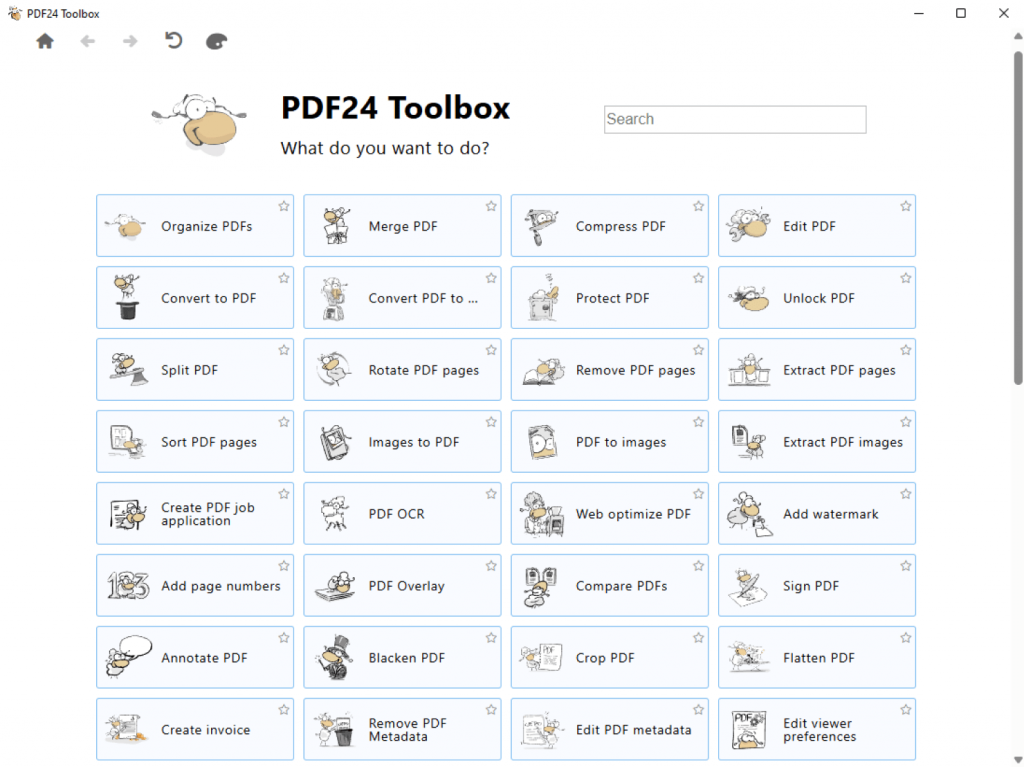
Here’s what makes it so handy:
- Two-way conversion: create PDFs from your files, or turn PDFs into Word, Excel, PowerPoint, images, text, and more
- Virtual PDF printer: choose “PDF24” in any print window, and whatever you were printing (a web page, a spreadsheet, an email) is saved as a PDF instead
PDF24 Creator is completely free, with no watermarks stamped on your files and no file-size caps.
Best for: Windows users who want a free, no-fuss converter for everyday jobs, in both directions, without a subscription.
Platform: Windows (online version works in any browser)
Price: Free
3. Adobe Acrobat
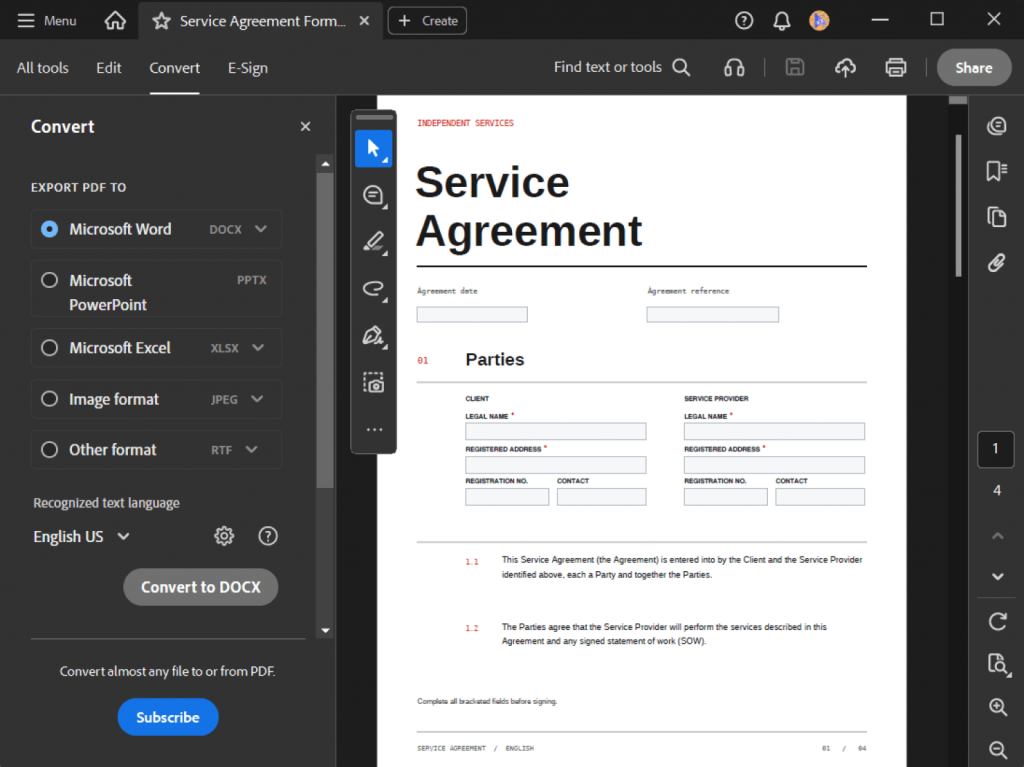
Adobe created the PDF format, so it’s no surprise that Acrobat is one of the most reliable desktop converters available. Installed on Windows or macOS, it converts files to and from PDF, including Word, Excel, PowerPoint, JPG, and PNG, and handles complex layouts, consistently delivering good results. Formatting, fonts, images, tables, and page structure are all preserved during conversion, though such elements as macros, embedded media, or unusual fonts may not always transfer perfectly. An online converter is also available for quick, one-off jobs in a browser, but the desktop app is where Acrobat truly stands out.
Best for: Professionals who convert PDFs regularly on a desktop and need high-quality results with elaborate layouts, fonts, and formatting.
Platform: Windows, macOS (online converter works in any browser)
Price: Acrobat Standard costs about $12.99/month and Acrobat Pro about $19.99/month. Exact prices vary by region and billing plan.
Best online PDF converters
Online converters work right in your web browser, so there’s nothing to install. Upload a file, choose a format, and download the result. They’re perfect for quick, one-off jobs on any device. One tip: stick with well-known services, and think twice before uploading anything highly confidential.
1. ONLYOFFICE PDF Converter
ONLYOFFICE PDF Converter is a free, standalone tool. You don’t need to install anything, create an account, or register. It goes well beyond Word-to-PDF conversion and supports 50+ formats, including PDF, DOCX, XLSX, PPTX, ODT, TXT, CSV, EPUB, and common image formats, all converted in a few clicks.
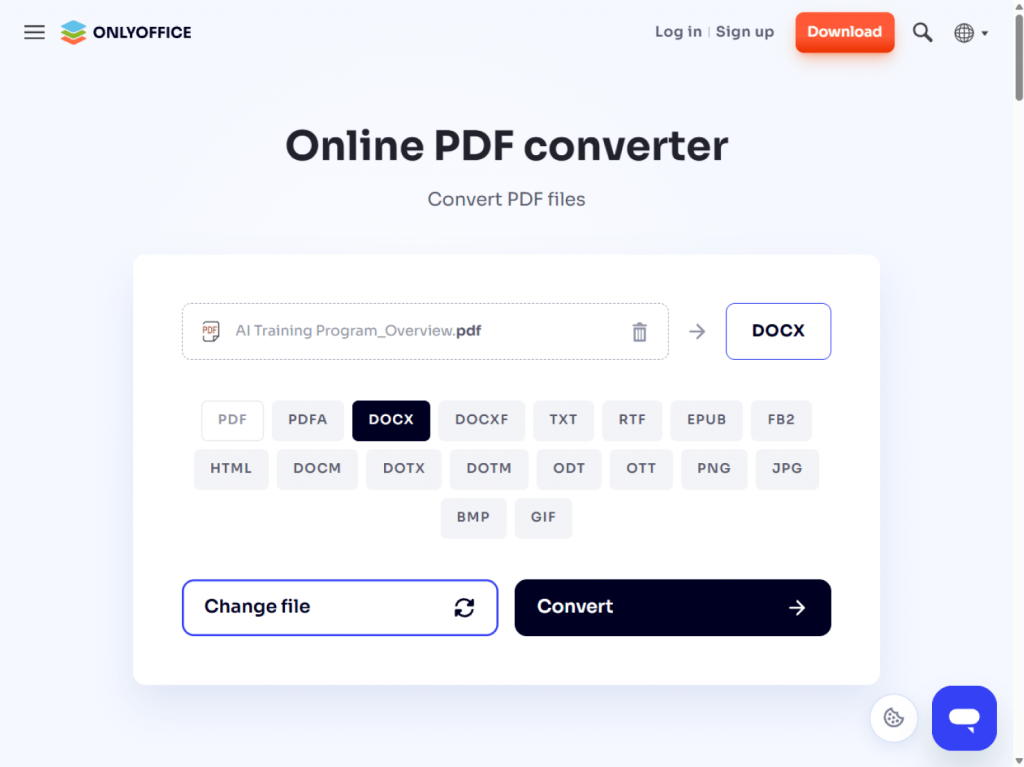
Privacy is a strong point. Uploaded files are encrypted, deleted from the server automatically after conversion, and no personal data is tracked. The tool is also built on open-source code, which means its workings are publicly available for anyone to check.
The main limit is that files are processed up to 5 MB without registration. For bigger files, you’ll need to use the desktop app.
Best for: Anyone who wants to convert a PDF online in seconds, with no sign-up and support for a wide range of file types.
Platform: Any browser
Price: Free
2. Smallpdf
Smallpdf keeps conversion fast and simple. It converts PDFs to and from Word, Excel, PowerPoint, and JPG. You can turn a report into an editable document or save a slide deck as a PDF in moments. The process takes three steps: drag in a file, click convert, and download.
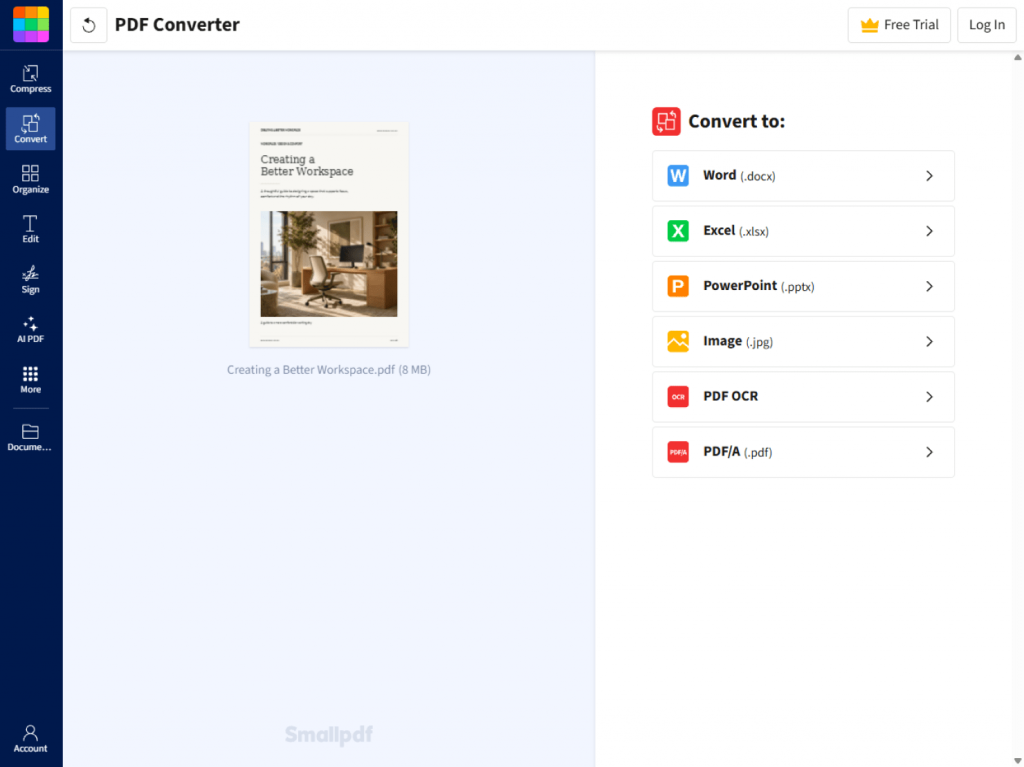
The clean, beginner-friendly layout makes it easy to find the right converter on your first visit. Due to the daily limits of the free version, you may quickly exhaust them if you perform conversions frequently.
Best for: Casual users who need an occasional PDF to Word converter without installing software.
Platform: Any browser
Price: Free with daily limits; paid plans start at about $9/month.
3. iLovePDF
iLovePDF offers a dedicated converter for each common task. You can convert PDFs to Word, Excel, PowerPoint, and JPG, or turn Word, Excel, PowerPoint, JPG, and web pages into PDFs. It also converts PDFs to PDF/A, a version made for long-term storage and archiving.
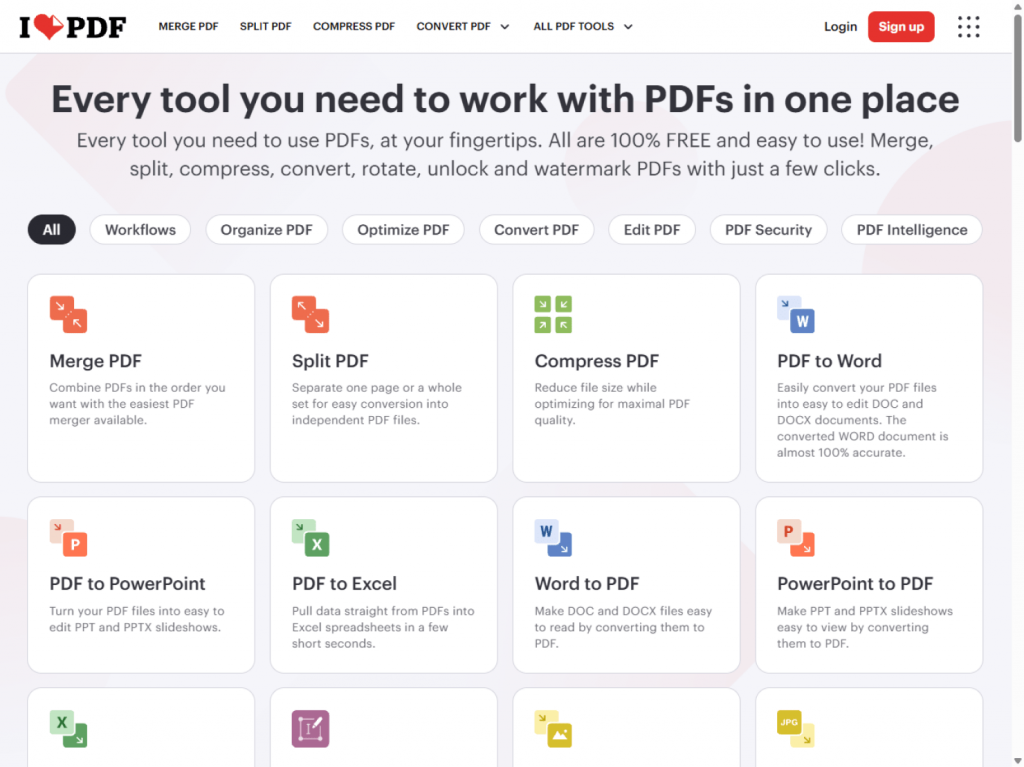
Each converter is dedicated to one task, for example, PDF to Word, PDF to EXCEL, PDF to JPEG, etc. Naturally, even first-timers find the right converter instantly. Batch processing, which allows to process several files at once, is available on paid plans.
Best for: Users who want a clear menu of converters for different formats, all in one browser-based spot.
Platform: Any browser
Price: Free with limits; paid plans available.
Best mobile PDF converter apps
A good PDF converter app lets you change file formats right from your phone or tablet. That’s ideal when a client needs a Word version of a contract while you’re on the train, or when you want to turn photos of receipts into a PDF before you reach your desk.
1. Foxit PDF Editor
Foxit PDF Editor brings desktop-style conversion to iOS and Android. With a paid plan, you can convert PDFs into Microsoft Office formats such as Word, Excel, and PowerPoint, or into images. Alternatively, it is possible to create PDFs from documents and photos stored on your device.
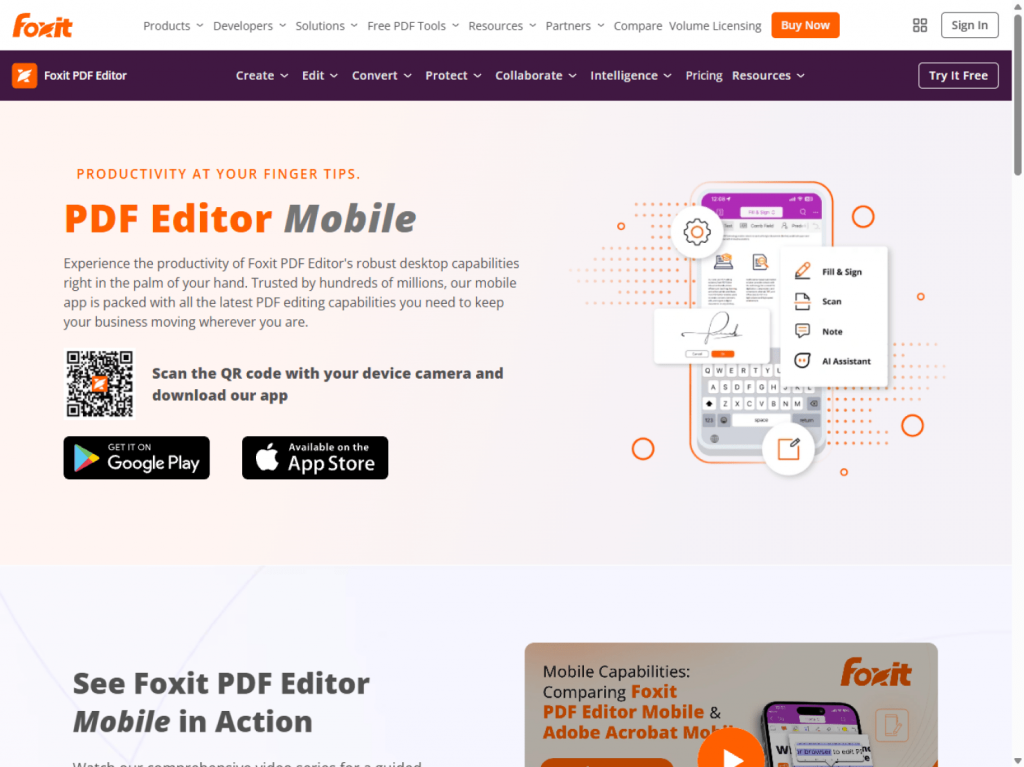
The app connects to popular cloud storage services, so you may upload a file from the cloud, convert it, and send it on without switching apps. Keep in mind that the free version focuses on viewing, while conversion is part of the paid tier.
Best for: Mobile users who need dependable Office-to-PDF and PDF-to-Office conversion and don’t mind paying for it.
Platform: iOS, Android
Price: Free basic version; conversion requires a paid subscription.
2. PDF Expert
PDF Expert is made specifically for iPhone and iPad. Its conversion tools let you turn PDFs into Word, Excel, PowerPoint, and image files, and create PDFs from photos, scans, and other files. Conversion features vary by plan.
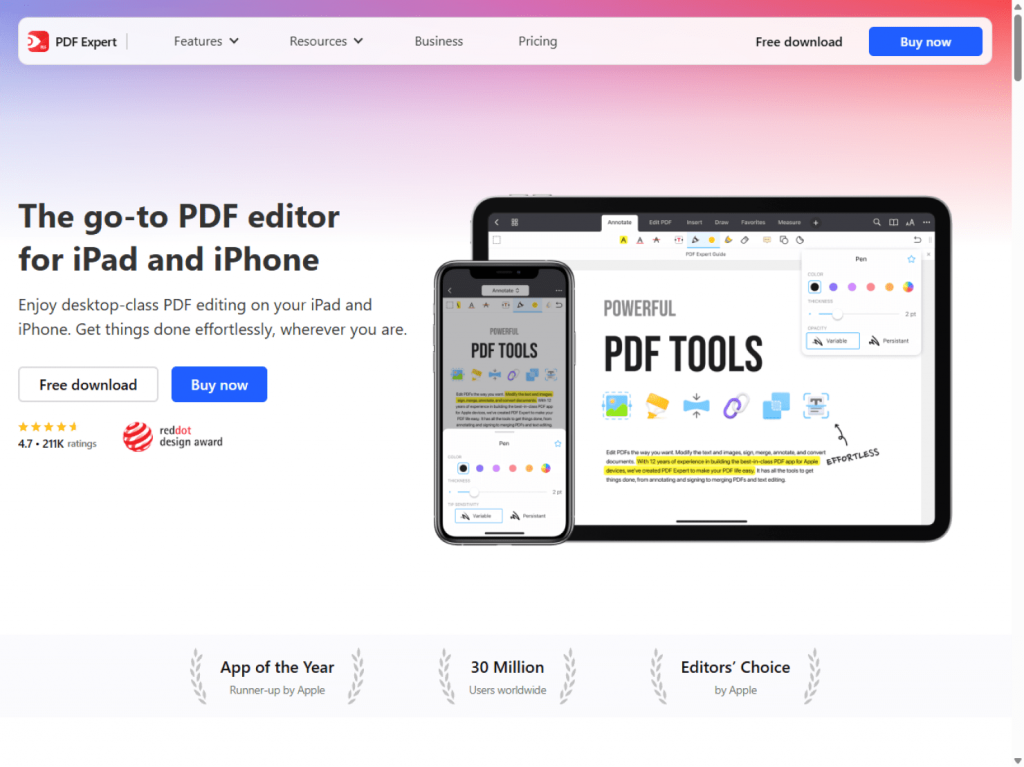
The clean, intuitive design feels natural on Apple devices, so finding the conversion option takes only a few taps. It also works with files from iCloud and other storage services.
Best for: iPhone and iPad users who want a polished app for converting documents on the go.
Platform: iOS
Price: Free version available; conversion features require a paid subscription.
3. Xodo
Xodo turns your phone into a pocket-sized PDF converter. It converts PDFs to Word, Excel, PowerPoint, JPG, PNG, HTML, and PDF/A, and it turns images and Office files into PDFs. All of this happens inside the app, that’s why you don’t have to switch between tools.
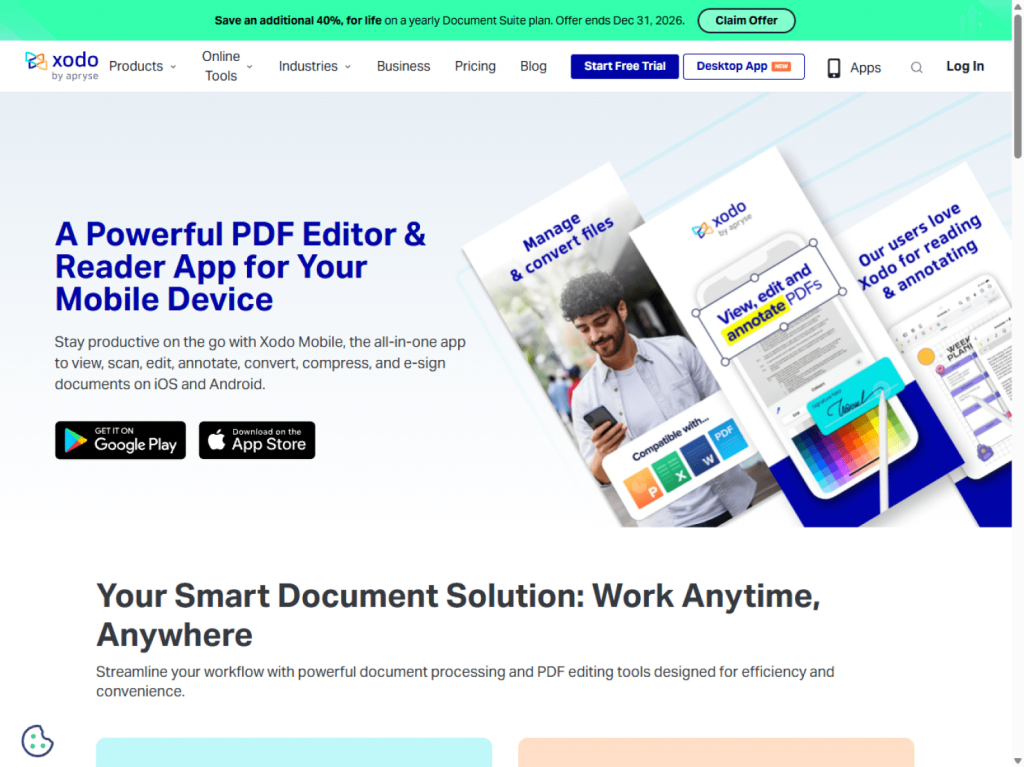
Xodo also has a built-in document scanner. Snap a photo of a paper contract or receipt, and the app turns itinto a PDF. Thanks to built-in text recognition (OCR), it can even make scanned pages searchable. It syncs with cloud services, making your converted files available on any device.
Best for: Android and iOS users who want a wide range of conversion formats, plus scan-to-PDF, on their phone or tablet.
Platform: Android, iOS
Price: Free version with limits; more features on paid plans.
Comparison table: PDF converters at a glance
| Tool | Category | Platform | Convert to PDF | Convert from PDF | Works Offline | Price/ Limits |
| AVS Document Converter | Desktop | Windows | ✅ Yes | ✅ Yes (DOC, DOCX, RTF, TXT, ODT, HTML, EPUB, JPEG, TIFF) | ✅ Yes | Free; batch conversion included |
| PDF24 Creator | Desktop | Windows (+ online) | ✅ Yes | ✅ Yes (Word, Excel, PowerPoint, images, and more) | ✅ Yes | Free; no watermark or file-size caps |
| Adobe Acrobat | Desktop | Windows, macOS (+ online) | ✅ Yes | ✅ Yes (Word, Excel, PowerPoint, JPG, PNG) | ✅ Yes (desktop app) | Free online converter; desktop from ~$12.99 per month |
| ONLYOFFICE Online Converter | Online | Any browser | ✅ Yes | ✅ Yes (50+ formats) | ❌ No | Free; 5 MB limit without registration |
| Smallpdf | Online | Any browser | ✅ Yes | ✅ Yes (Word, Excel, PowerPoint, JPG) | ❌ No | Free with daily limits; paid from ~$9/mo |
| iLovePDF | Online | Any browser | ✅ Yes | ✅ Yes (Word, Excel, PowerPoint, JPG, PDF/A) | ❌ No | Free with limits; batch processing on paid plans |
| Foxit PDF Editor | Mobile | iOS, Android | ✅ Yes | ✅ Yes (Office formats, images) | ✅ Yes | Free basic version; conversion on paid plans |
| PDF Expert | Mobile | iOS | ✅ Yes | ✅ Yes (Word, Excel, PowerPoint, images) | ✅ Yes | Free basic version; conversion on paid plans |
| Xodo | Mobile | Android, iOS | ✅ Yes | ✅ Yes (Word, Excel, PowerPoint, JPG, PNG, HTML, PDF/A) | ✅ Yes | Free with limits; more on paid plans |
Which PDF converter is right for you?
The best PDF converter is the one that gets your files ready to use without creating more work. Start with what you actually need rather than paying for features you may never use.
For quick online conversions, ONLYOFFICE PDF Converter is a practical starting point: it’s free, requires no installation or sign-up, and supports more than 50 formats. If you need to preserve complex formatting after conversion, consider a broader solution such as Adobe Acrobat. For regular batch conversion on Windows, AVS Document Converter brings conversion, merging, watermarks, and password protection together in one offline program.
Before choosing, try a few documents you work with regularly, including one with tables, images, or an elaborate layout. Check the results, not just the feature list. The right tool is the one that gets your documents ready to use with the least extra effort.
Try AVS Document Converter or download AVS4YOU Multimedia Suite to explore the full range of editing and conversion features.