



Teaching has changed a lot over the past decade. Where lesson planning once meant a textbook and a notebook, today it involves learning management systems, group work in shared documents, parent messages, video lessons, and a growing number of AI-powered platforms, often all in the same day.
To cope with multitasking, a wave of new digital tools evolved, from AI-powered educational platforms to collaborative document editors and video creation apps. Some genuinely make everyday tasks easier, while others make things more complicated. Knowing the difference makes it easier to build a practical digital toolkit that fits your classroom.
This guide explores several categories of digital tools to support everyday classroom work and e-learning, with practical options to consider in each one.
Why digital tools matter for modern teaching
Technology has reshaped the classroom. Digital tools help teachers save time, engage students, and keep everyone connected in the classroom, remotely, or in hybrid settings.
Let’s look at three major benefits.
More time for teaching, less time on busywork
Grading quizzes, collecting forms, sharing handouts and other repetitive tasks eat up hours. When you automate them, you free up real time to focus on your students.
Stronger student engagement
Students light up when lessons feel alive. Dynamic presentations, shared documents, and educational videos become parts of learning. This interactive approach keeps students engaged and turns passive listening into active participation.
Better collaboration and accessibility
The best classroom technology works everywhere — on desktops, laptops, and mobile devices. Students can join from the classroom or home, discuss ideas, work on projects, and learn together in real time.
Key features to look for in educational tools
Not every tool is worth your time. Before you sign up for anything, run it through a quick mental checklist. Here’s what actually matters for a busy teacher.
Ease of use
Look for an intuitive interface with minimal setup. If you can start using it in minutes without a manual, it’s a great sign.
Integration with e-learning platforms
Your tools should connect smoothly with systems you already use, such as Moodle or OpenOlat. Good e-learning tools must easily integrate into your workflow.
Cost-effectiveness
School budgets are tight. Free apps, affordable plans, and education-friendly pricing give teachers more affordable options. Never pay for features you won’t use.
Collaboration features
Real-time co-editing, comments, and easy sharing power group projects and teamwork. These features turn a solo document into a shared workspace.
Content creation capabilities
The best content creation tools let you build documents, presentations, forms, and course materials in one place. Fewer apps mean fewer headaches.
Categories of digital tools for teachers
Digital tools for teachers cover several key areas. Here’s a quick look at the main categories.
- Document creation and collaboration for lesson plans, handouts, and group work with shared editing.
- Presentation tools for building interactive, visual lessons that hold attention.
- Form and assessment tools for quizzes, surveys, permission slips, and collecting student responses.
- E-book and course material creation for turning lessons into readable, shareable materials.
- Video editing tools for trimming recordings and building engaging class videos.
- LMS integrations for connecting your tools directly to Moodle, OpenOlat, and other platforms.
Best digital tools for teachers
Below, we’ve grouped reliable solutions into six practical categories. Each category includes three recommended apps with a practical value for teachers. Use it to build a toolkit that fits your style and budget.
Document creation and collaboration
From lesson plans and worksheets to group assignments, these tools make it easier to create and work on documents together. Real-time editing, comments, and file sharing help teachers collaborate with students and colleagues, review work, and keep track of changes without passing files back and forth.
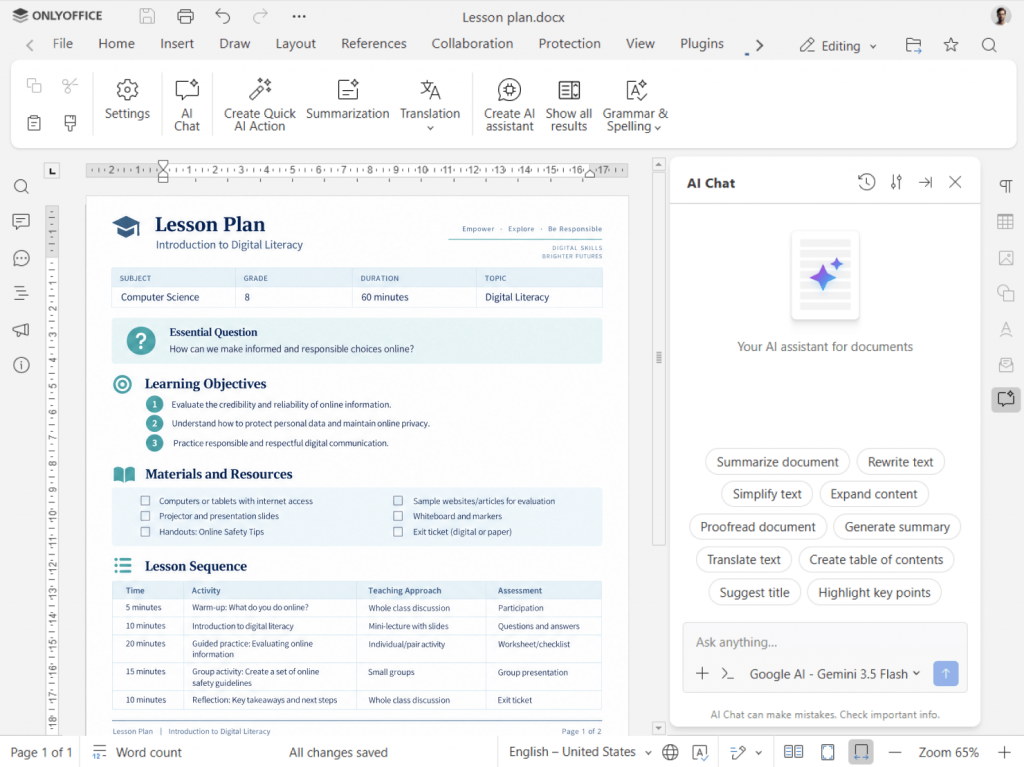
ONLYOFFICE Document Editor
Create and edit documents with students in real time using a powerful online document editor. With high compatibility with Microsoft Office formats, AI writing tools, support for 50+ text formats, and cross-platform access, it allows teachers to work with documents across different devices and software environments. Comments and version history make it easy to review changes and keep lesson plans, worksheets, and group projects organized.
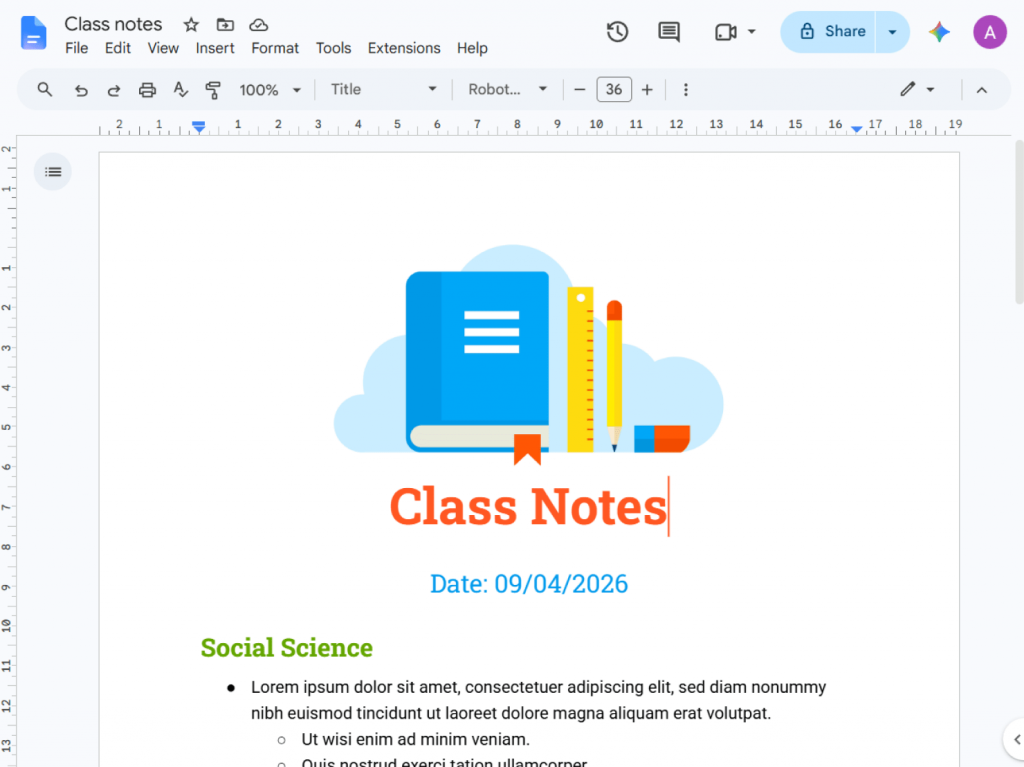
Google Docs
Fast, browser-based document editing allows to create, share, and update lesson plans, handouts, worksheets, and assignments. Teachers may collaborate with colleagues or students in real time, leave comments, and collect feedback without installing desktop software. For schools built around Google Workspace, it fits naturally into the existing setup.
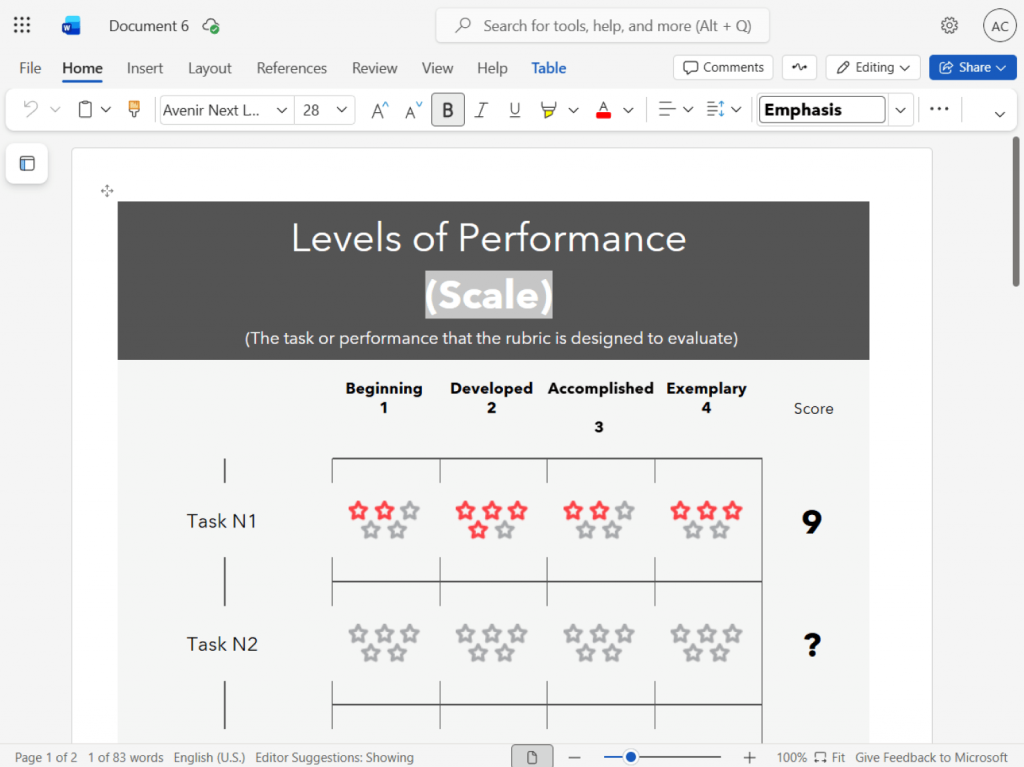
Microsoft Word
Create polished worksheets, lesson plans, reports, and other educational documents with familiar formatting and editing tools. Microsoft Word supports a wide range of document formats and offers features for reviewing, commenting, and collaborating on shared files. Schools already using Microsoft Office can easily add it to their current workflow.
Presentation software
Presentation tools let teachers explain ideas visually, structure lessons clearly, and keep students engaged during class or online sessions. Slides can combine text, images, charts, video, and animations to present ideas effectively and make key points easier to remember.
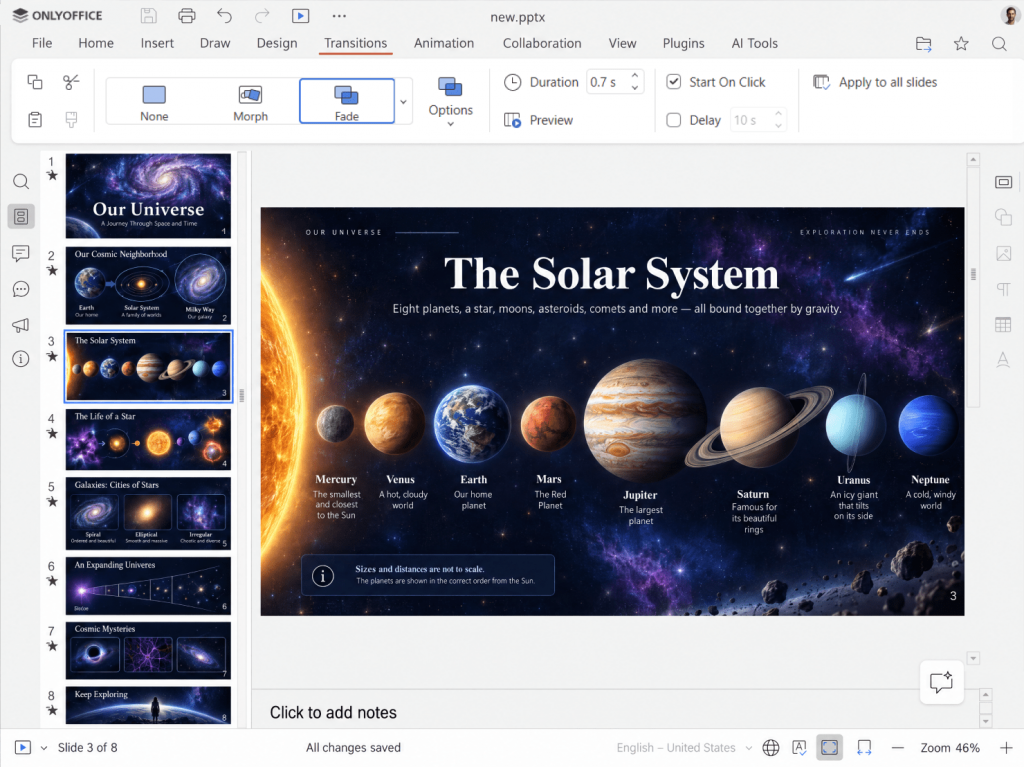
ONLYOFFICE Presentation Editor
Create engaging slides with transitions, animations, charts, and SmartArt to bring any lesson to life or generate slides with AI. Add videos, images, and interactive elements to illustrate ideas and keep students engaged. Collaborative editing also supports teamwork when preparing presentations.
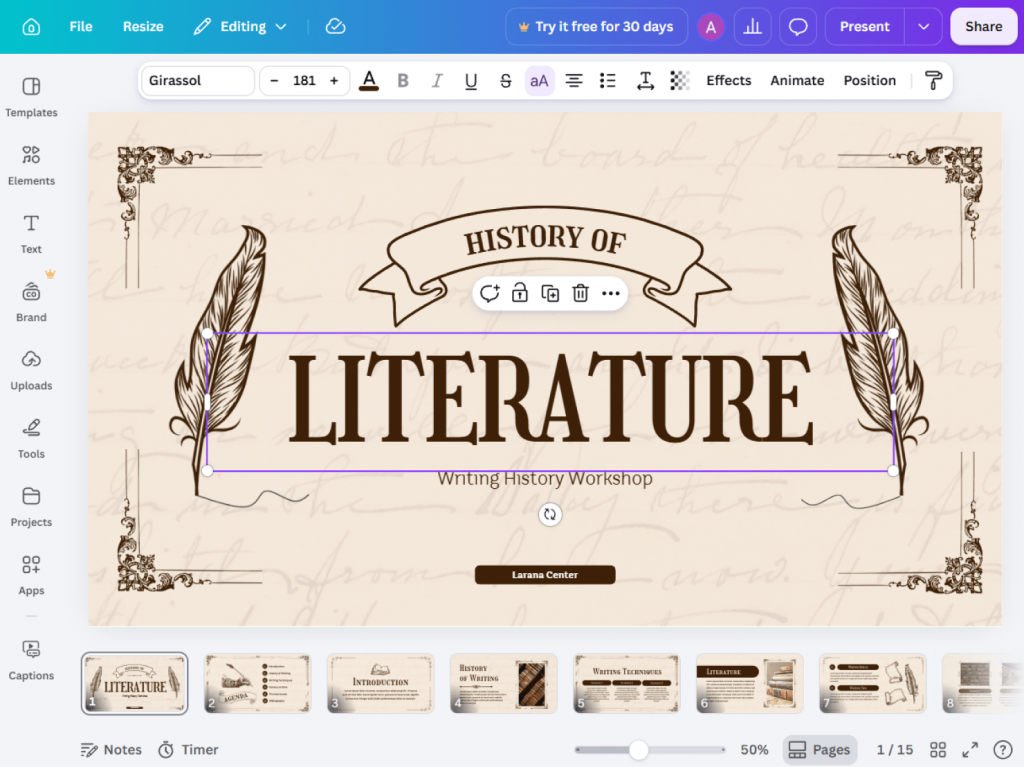
Canva
Ready-made templates and drag-and-drop design let even non-designers make eye-catching lessons quickly. Add images, graphics, videos, animations, and other visual elements to create presentations that capture students’ attention. It’s also useful for worksheets, posters, infographics, and other classroom materials.
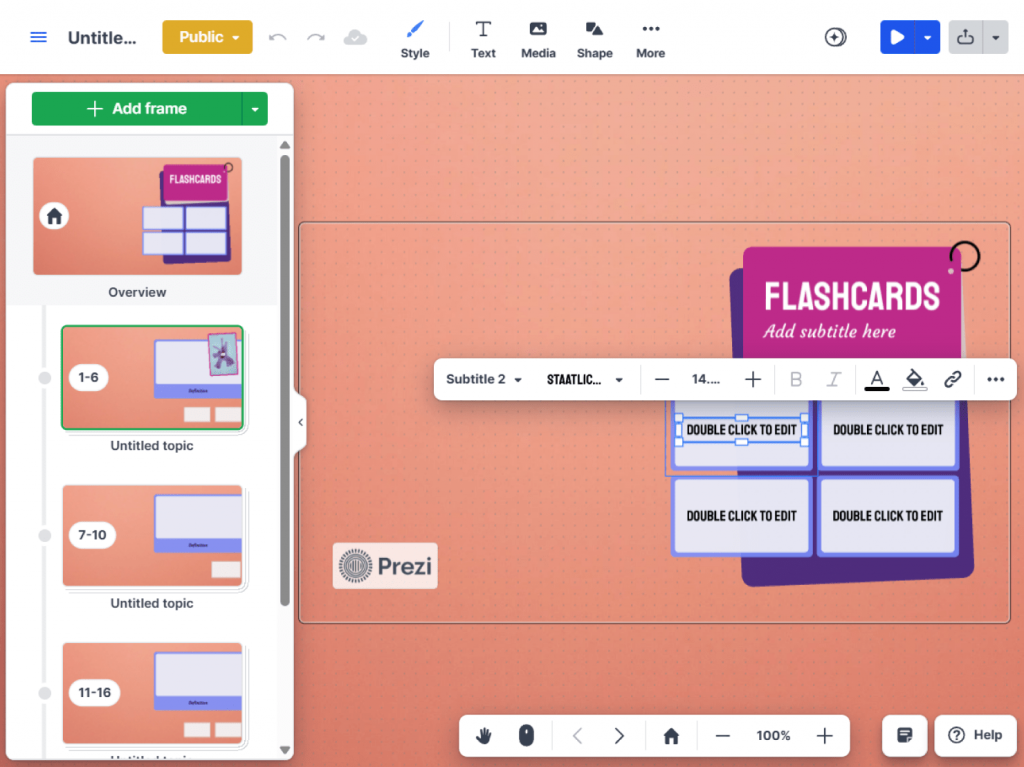
Prezi
Zoomable, non-linear slides keep students curious and make complex topics easier to follow. It works especially well for lessons built around storytelling, concepts, and visual relationships.
Form and assessment apps
These tools allow to collect information, check student understanding, and handle routine paperwork without printed forms or manually sorting responses. Teachers use them for quick quizzes, surveys, feedback, permission slips, and other classroom tasks, while digital responses streamline data collection and review.
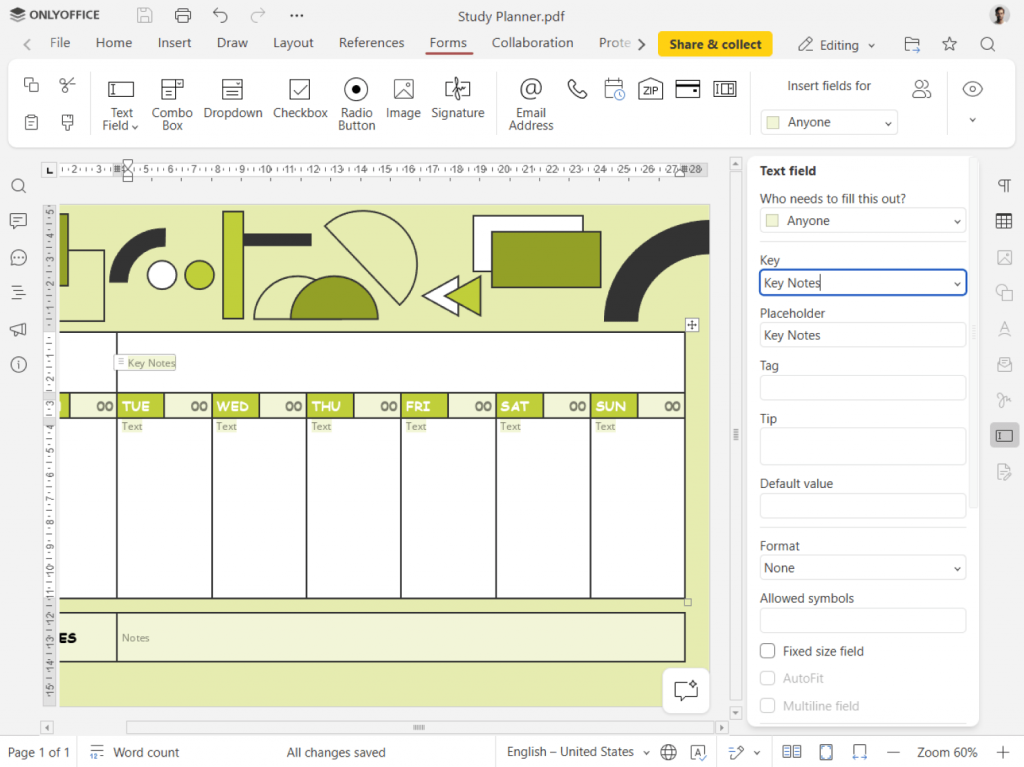
ONLYOFFICE Form Creator
Create fillable PDF forms from scratch or turn existing documents into interactive forms with an easy-to-use form creator. Build quizzes, tests, permission slips, applications, and other classroom documents, then save them as PDF forms for digital sharing and completion. Built-in AI tools speed up form creation and help you prepare polished forms with less manual work. There is also a rich library of ready forms and templates.
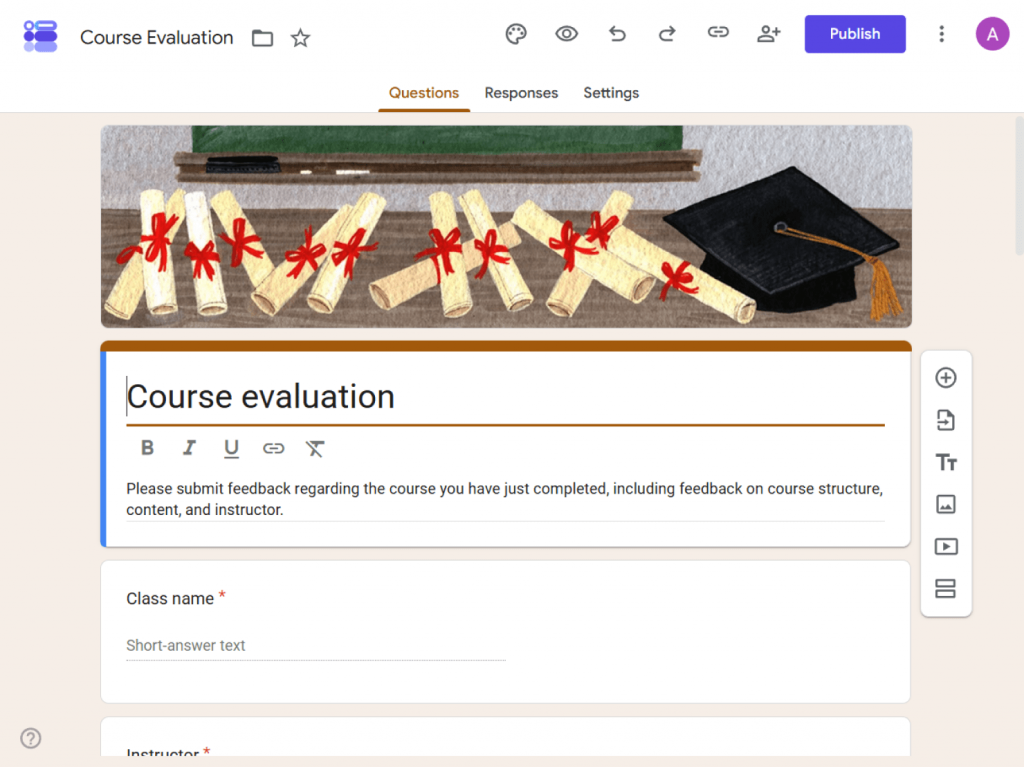
Google Forms
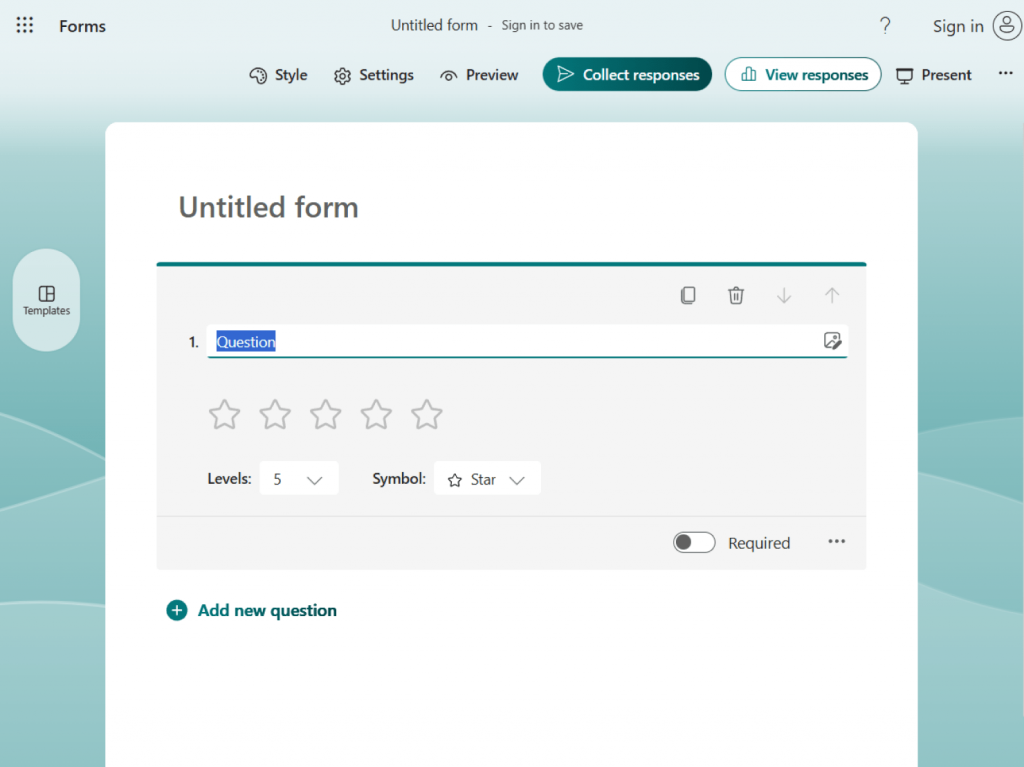
Create online quizzes, surveys, questionnaires, and classroom assessments in just a few clicks. Automatic response collection and built-in charts simplify reviewing answers, tracking feedback, and checking understanding. Its simple interface is especially useful for quick digital assessments and surveys.
Microsoft Forms
Create polls, quizzes, surveys, and assessments with a familiar Microsoft interface. Automatic response collection and real-time charts provide instant insights into answers and student responses. It’s a practical option for schools already using Microsoft 365 for classroom work.
E-book and course material creation
These tools empower teachers to turn lessons into well-structured learning materials that are easy to read and navigate. They include text, images, diagrams, and other content to explain topics clearly and give students resources they can use during and after class.
ONLYOFFICE E-book Creator
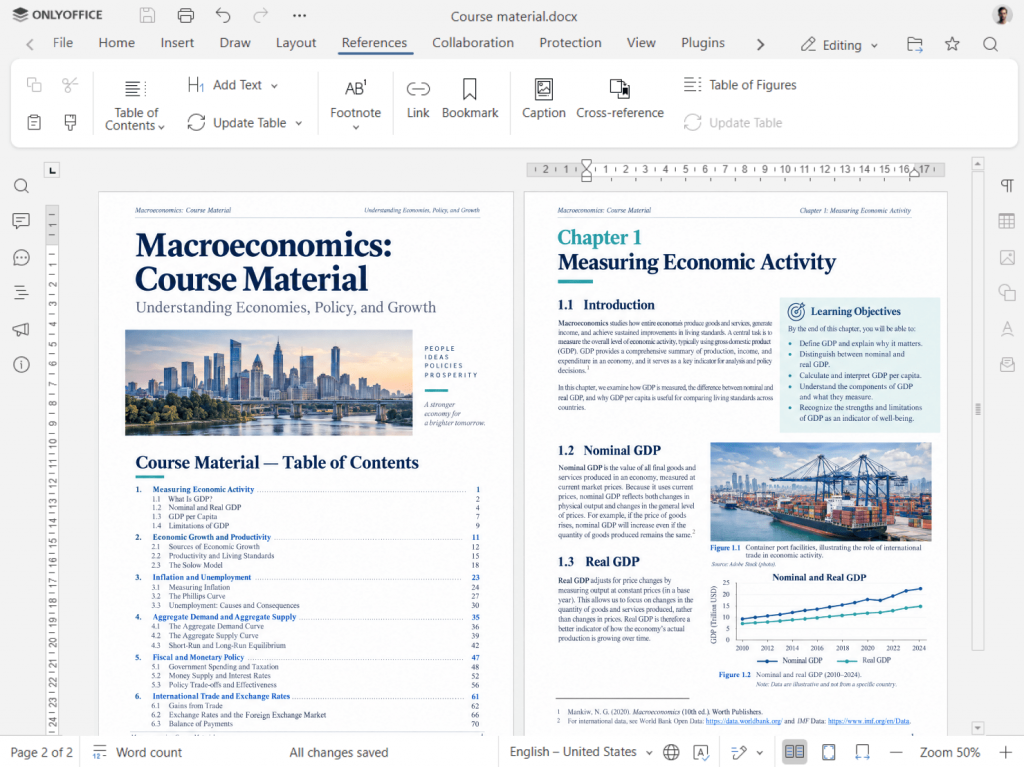
Create course materials in DOCX and export them to EPUB, FB2, or PDF for convenient reading on different devices. Structure longer documents with a table of contents, images, charts, footnotes, and hyperlinks. It is useful for creating digital textbooks, course guides, and revision materials.
Calibre
Manage a growing collection of e-books and convert materials between different formats. Its conversion tools can also create a table of contents from document headings, adding clear navigation to existing Word documents and other files used as reading materials.
Kotobee
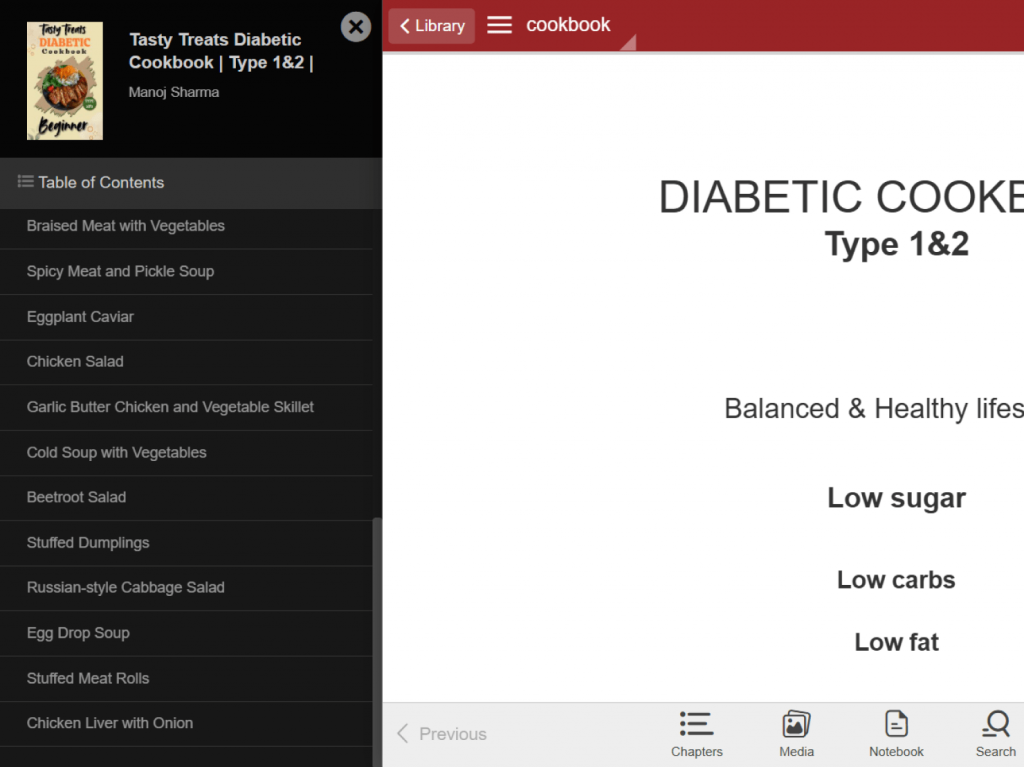
Create interactive e-books that combine regular text with videos, audio, images, animations, and interactive questions. Teachers may add auto-graded assessments and integrate course materials with LMS platforms. It works well for self-paced courses and interactive digital textbooks.
Video editing tools
Video editors enable teachers to turn recorded lessons, demonstrations, and classroom activities into well-organized videos. Trim unnecessary parts, add titles and captions, combine clips, and highlight key information to create engaging lessons that students can watch or revisit at their own pace.
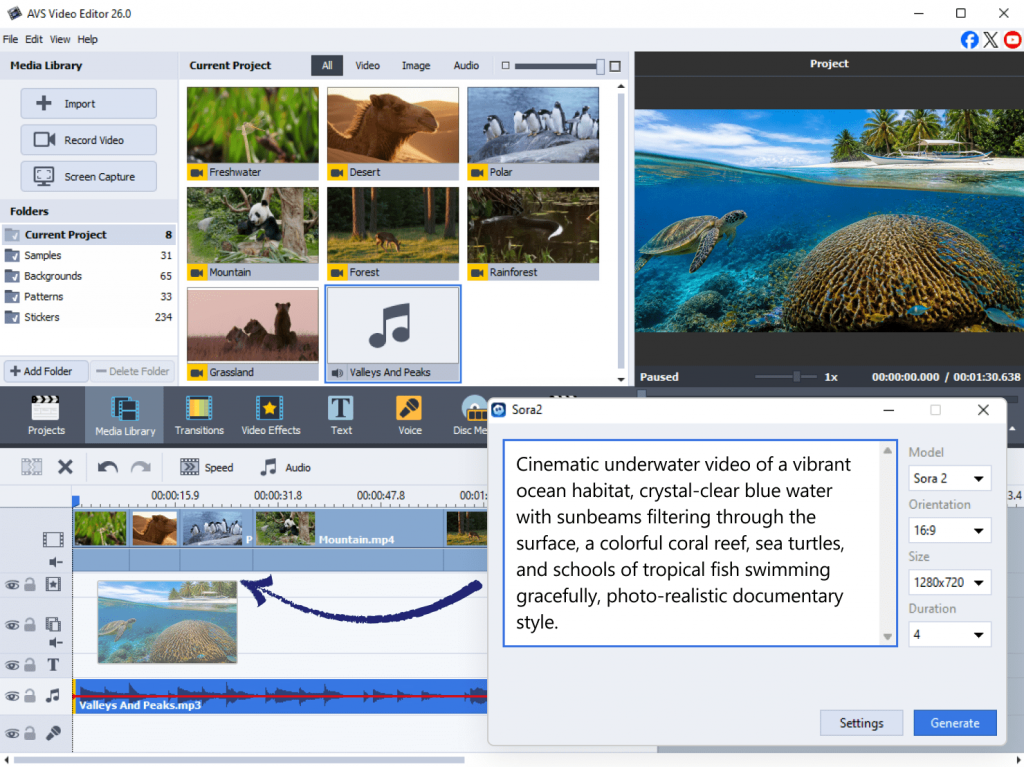
AVS Video Editor
A beginner-friendly Windows editor with no steep learning curve. It handles all key formats up to 8K, offers 300+ effects, transitions, animated text, and built-in screen recording. AI plugins can generate short clips from text, enhance video quality, and apply AI-powered effects.
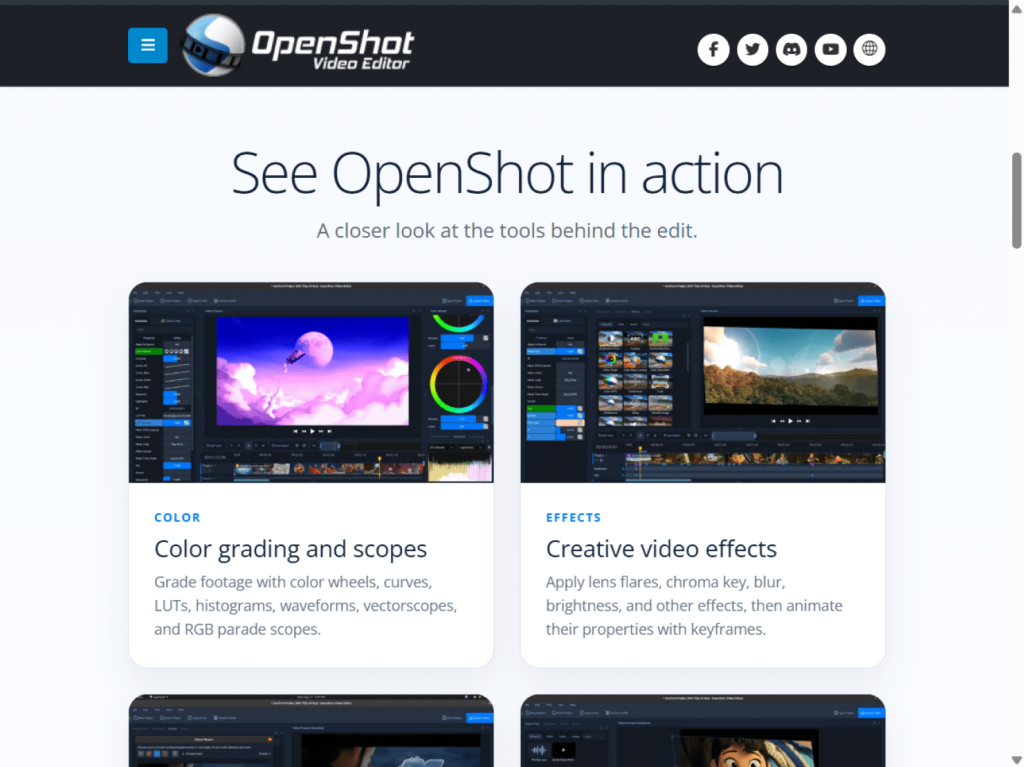
OpenShot
A free, open-source editor for Windows, Mac, and Linux. It offers unlimited tracks, 400+ transitions, keyframe animation, and built-in screen and webcam recording with no watermark.
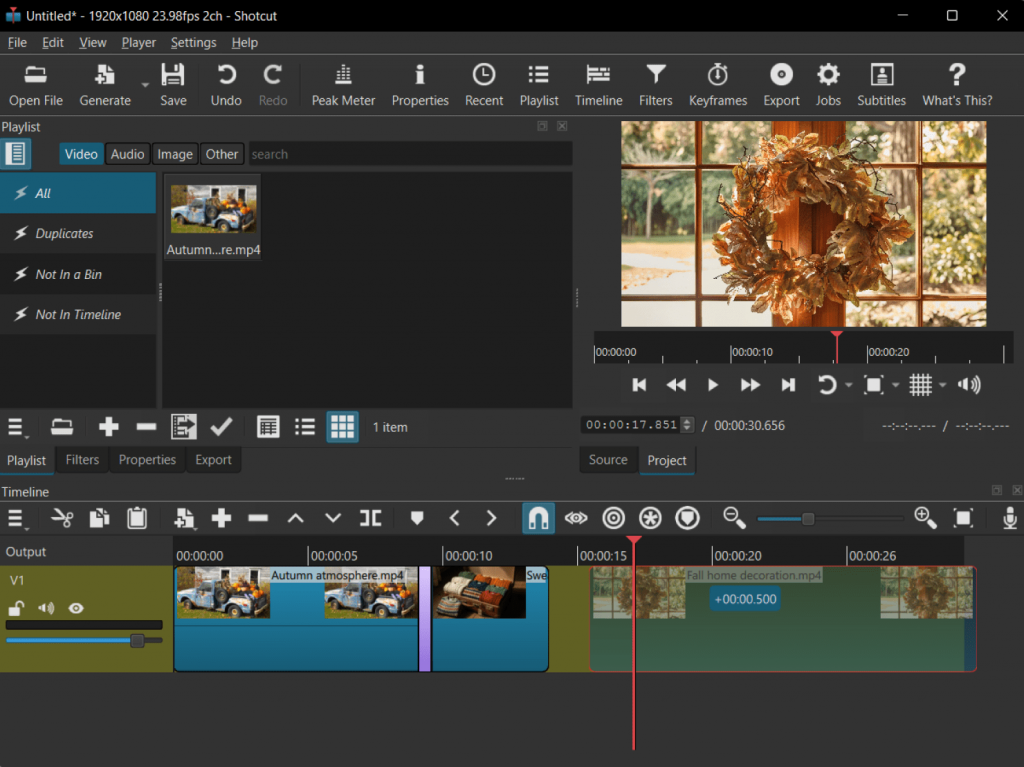
Shotcut
Another free, open-source editor for Windows, Mac, and Linux, supporting formats up to 8K. Its rich filters and multitrack timeline make it a capable pick for bigger projects, watermark-free.
LMS Integrations
LMS integrations connect teaching tools with Moodle and OpenOlat platforms. Teachers share materials, manage assignments, and track learning progress without moving information between different systems. Students get a simpler experience too, with course content and activities easier to find and access from one place.
ONLYOFFICE
Integrate document editing directly into Moodle and OpenOlat to create, edit, and co-author course materials without leaving your learning platform. Students and teachers work on documents together, add comments, and keep course content organized in one place.
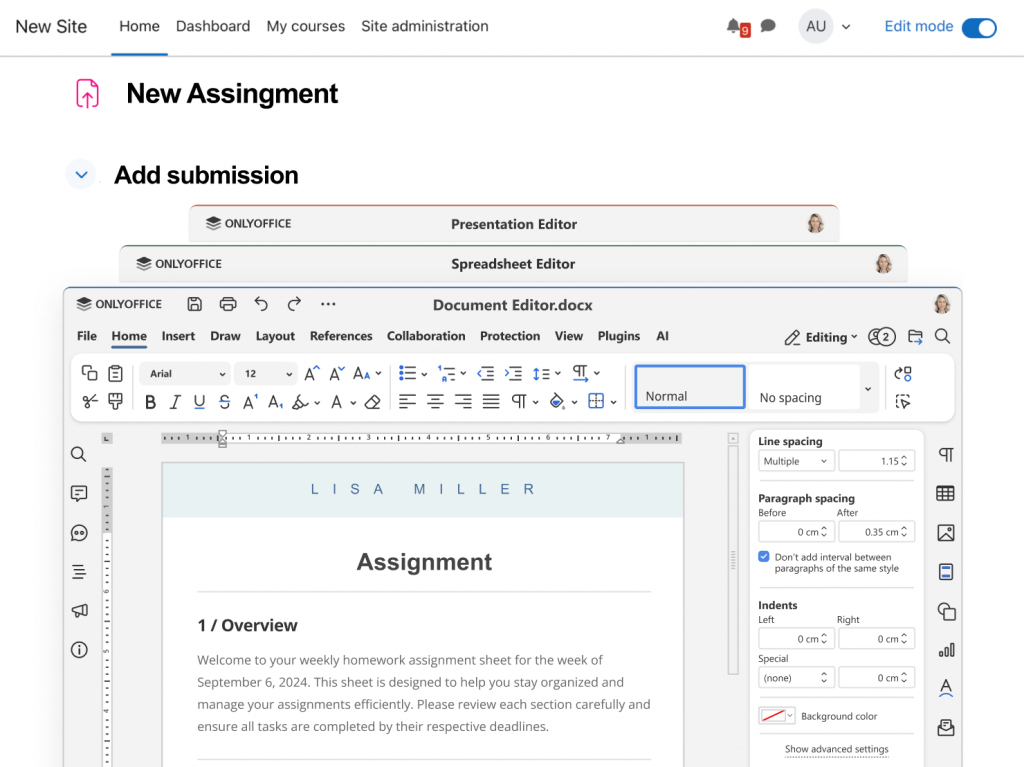
Moodle
Build and manage online courses with an open-source learning platform for assignments, quizzes, grades, discussions, and course materials. Its flexible setup supports everything from individual learning activities to full online and blended courses.
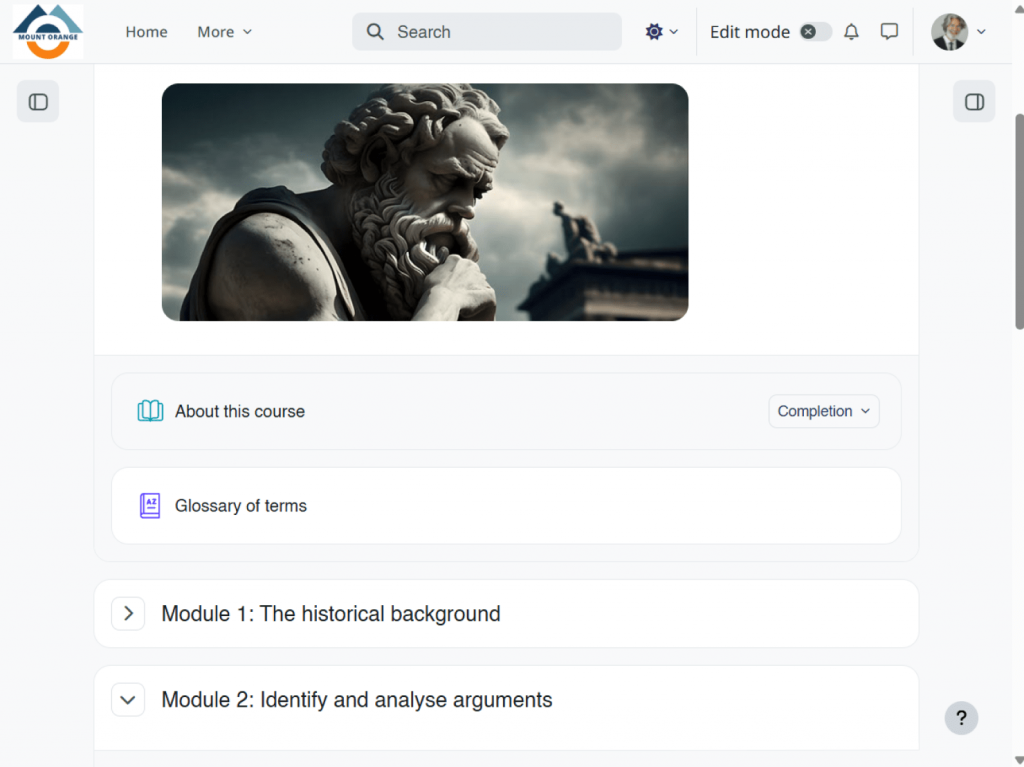
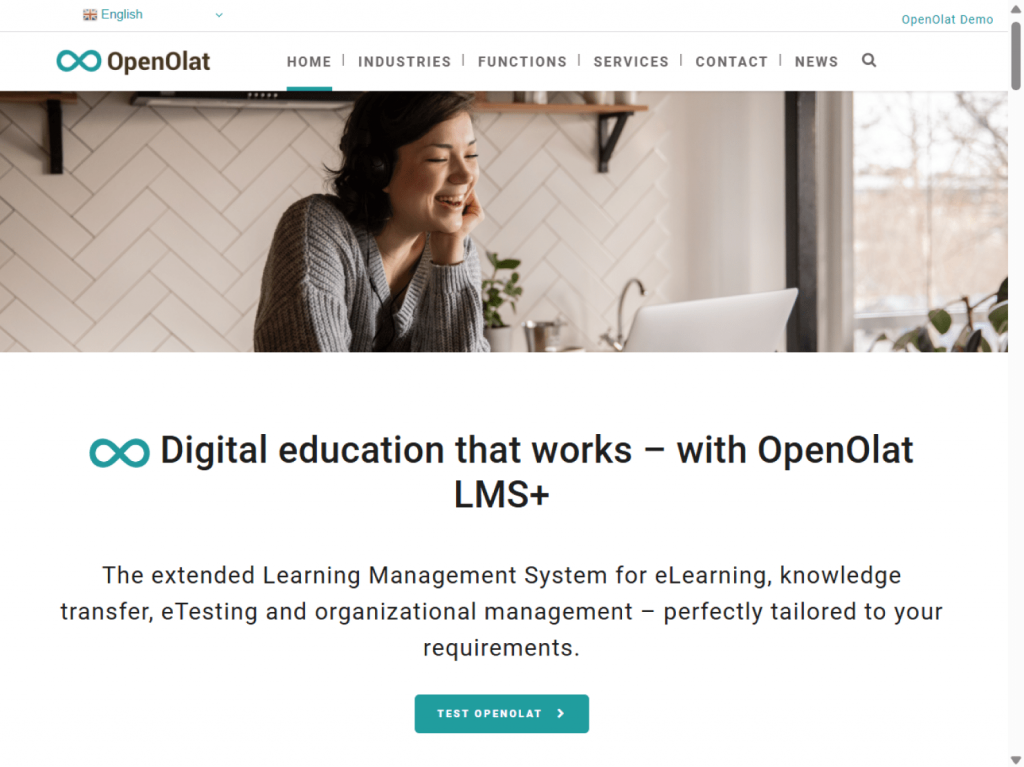
OpenOlat
Create structured online courses with tools for content management, collaboration, assessments, and communication. Its collaborative features support shared note-taking, paper writing, and group work within the course environment.
Quick takeaway: If you want one versatile tool that covers documents, presentations, forms, e-books, and LMS integration, ONLYOFFICE shows up across every category — a smart starting point for a simpler classroom toolkit.
Education simplified
Today, teaching involves far more than delivering lessons. There are materials to prepare, assignments to review, feedback to give, and course content to share with students and colleagues. Digital tools can take some of this routine work off educators’ shoulders while adding new ways to present ideas and engage learners.
Technology doesn’t have to change the way teachers work. Used thoughtfully, even a few simple tools willreduce routine tasks, streamline lesson preparation and collaboration, and give teachers more time to communicate with their students.
The best digital tools are the ones that address a real need. Whether they help teachers prepare learning materials faster, collaborate more easily, or make lessons more interactive, they should support the work rather than complicate it.
Useful links