



When you create videos, it is extremely useful to insert text on the screen. This move will make your video look appealing, along with improving its overall effectiveness. You can use captions to point out important information in the videos. Subtitles are equally useful as they help viewers understand the spoken content, regardless of different languages. Moreover, you can show your brand’s name or logo on the video to make sure your brand becomes more memorable and recognizable to viewers.
Overlays with a professional design are pivotal for viewer engagement, ensuring the video is merely available to everyone, and giving it a clean and stunning final touch.
Adding text overlays is not about setting words on the screen. It includes placing them with care, choosing the right fonts, and using animations that smoothly blend with your video’s theme. AVS Video Editor makes it easy to apply caption effects, select fonts, and adjust timing for a smooth, professional look.
This guide explores how to add video overlays in AVS Video Editor, allowing you to make your content neat, compelling, and visually appealing to viewers.
Basics of video text overlays
On-screen phrases are shown on a video to give extra information or clarify the message. They are common in videos on platforms like YouTube, social media, and educational materials.
Overlays are useful tools in many ways. They play a significant role in guiding users to understand the video clearly by providing more information, such as subtitles. This added context enhances the clarity and accessibility of the content.
Different types of text overlays
- Static Caption: This is the most straightforward form where the text stays in one position for a fixed duration. This kind of caption is used when movement isn’t required. It aligns well with things like titles, captions, or adding notes to a video.
- Dynamic Overlays: This refers to captions that change in appearance over time, such as by changing size or content. You can use it to display information that can be combined with the timing of the video. For example, showing what people are saying or giving live commentary while the video plays.
- Animated Titles: This text adds motion to the overlay, such as sliding, fading, or bouncing. Additionally, it can draw attention or anticipate emotions, mainly during transitions or key moments. It may include the beginning of a video or the conclusion, keeping viewers engaged.
How text overlays enhance storytelling and engagement
On-screen captions are very useful for storytelling. They display important information or clarify parts of a video, making the message clear to the audience even when they cannot hear anything. In general, overlays make the content easier to watch and understand.
They are also important for educational or tutorial videos. On social media, animated and dynamic elements help people stay engaged and watch videos for a longer time.
Additionally, these animations show what kind of mood the video depicts, whether it is emotional, formal, or casual, which makes the story better and keeps viewers engaged.
Text in videos makes the message more understandable. It is especially helpful for people who have hearing difficulties or following what is being said. Some viewers may miss parts of the dialogue or find it difficult to follow. By including text, everyone can understand the whole message easily without problems.
How to add text overlays in AVS Video Editor
1. Make a new project and add your video
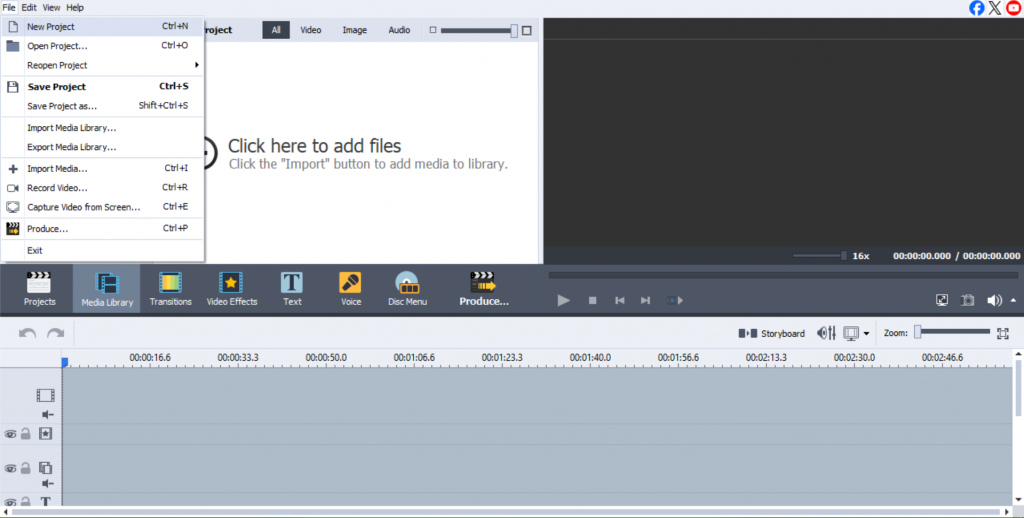
- Launch the AVS Video Editor and select “New Project” or “Open Project” from the interface.
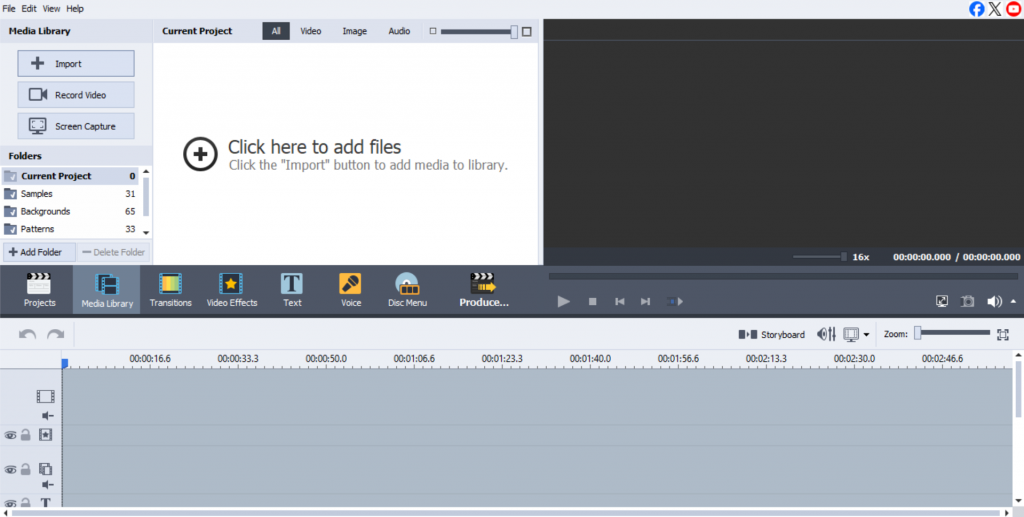
- Import your video by clicking the “Import” button and selecting the video file you want to edit.
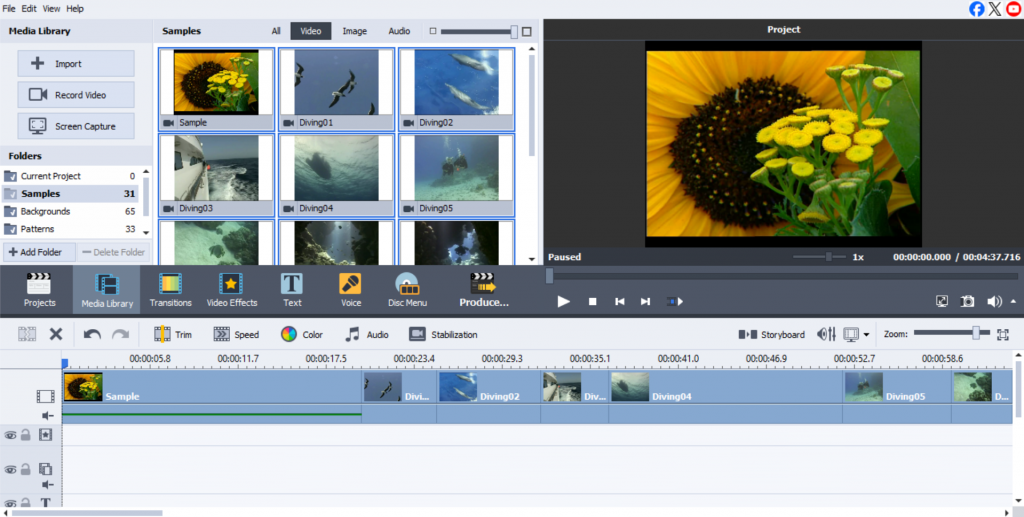
- Once the file is uploaded, drag it to the timeline to begin editing.
2. Choose the overlay tool
- After uploading the video, find the text tool in the toolbar, marked with a “T”. Upon clicking, a box appears on the video preview window.
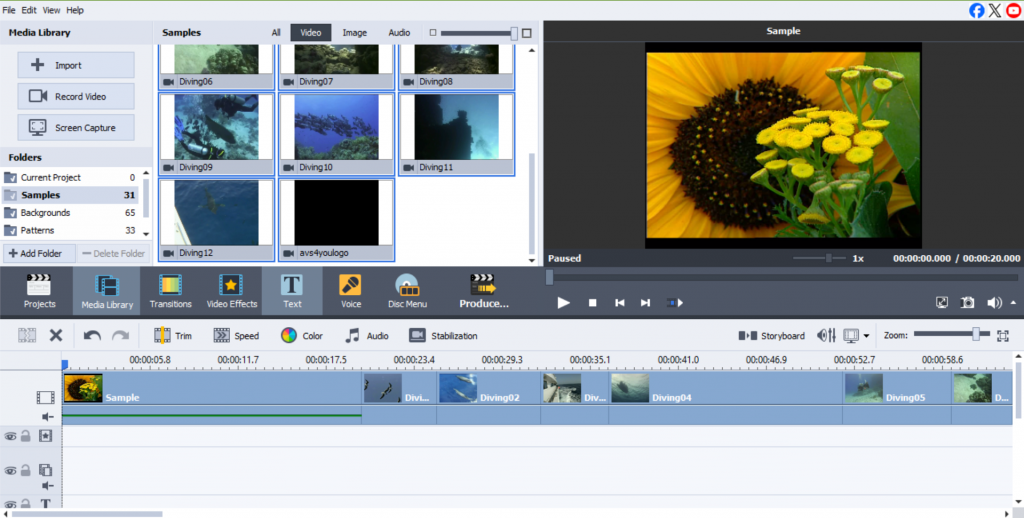
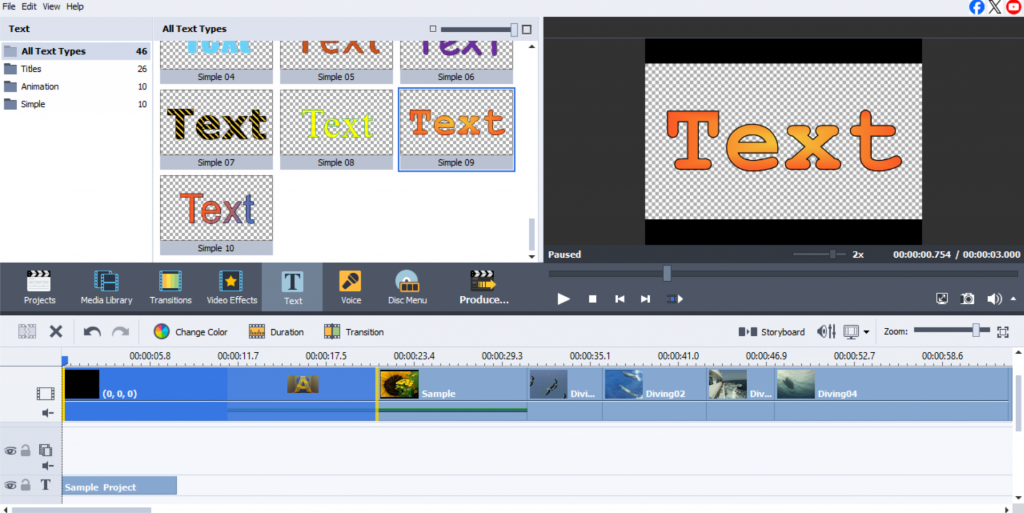
- Here, you can type the desired content and place it wherever you like on the screen.
3. How to add static captions
To add, type directly into the text box and customize it using the font options in the editor toolbar. Choose a font that fits your video’s tone and audience, whether formal or casual. Ensure the caption size is appropriate for readability. Put it on the screen, like the top or bottom, while avoiding the main subject or important visual elements to maintain balance.
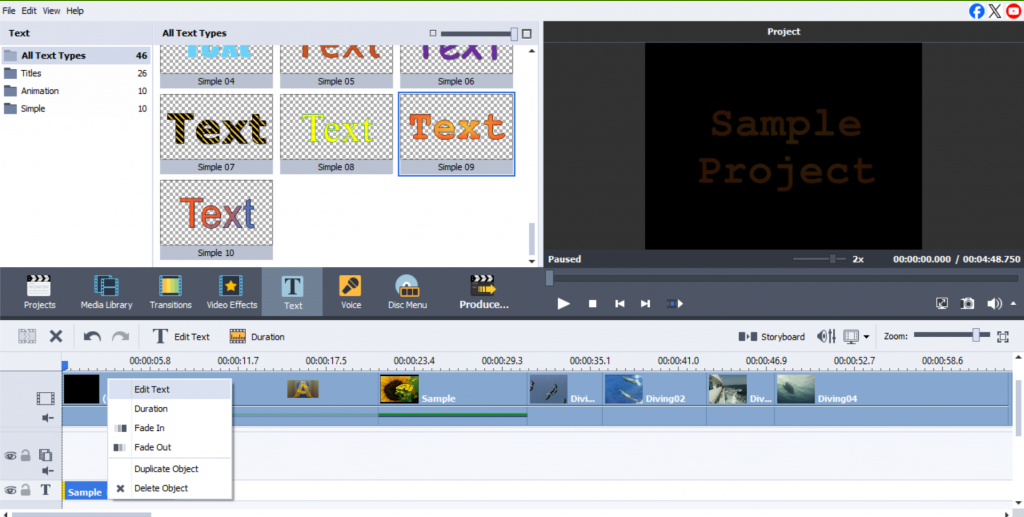
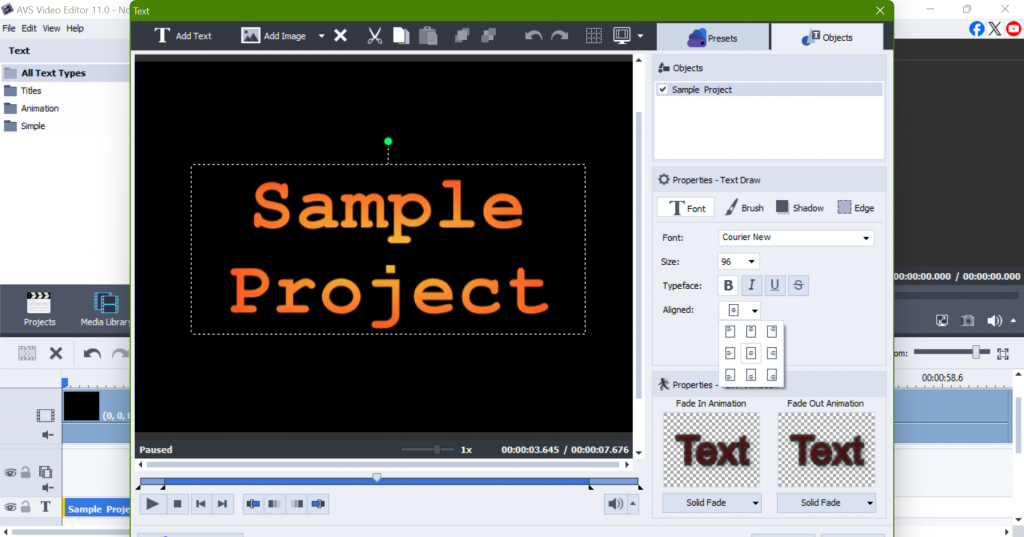
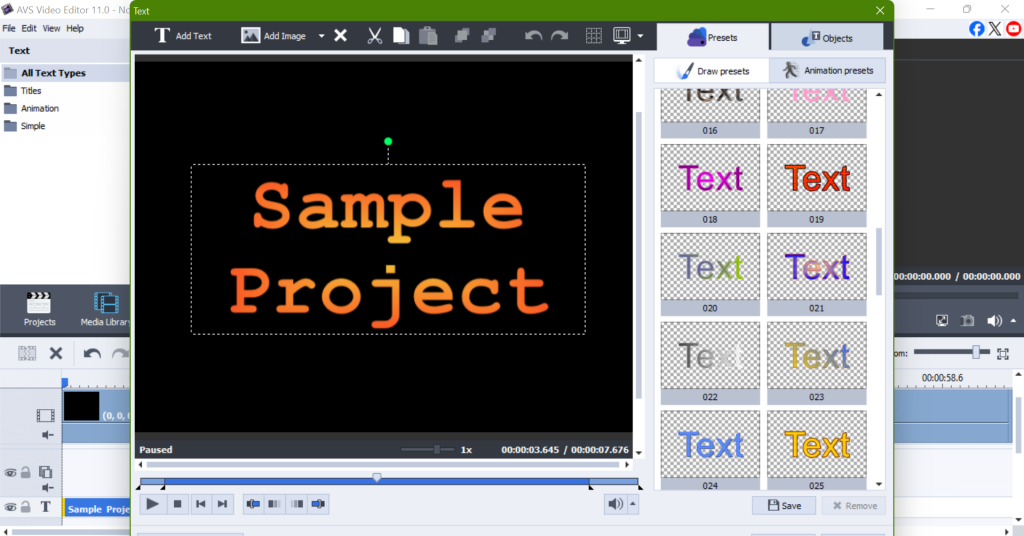
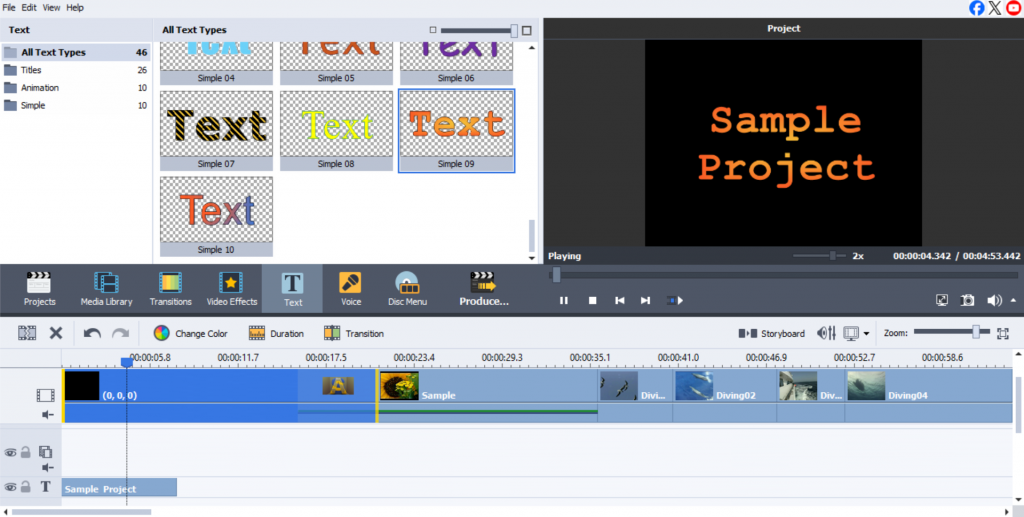
4. Add animated titles with fades in/out
- To do this, select the “Animation” tab within the text editor.
You can use different effects here, such as fading, sliding, or zooming. These effects could make your presentation more interesting. Adding animated titles can capture people’s attention and highlight important points. This can be convenient when you switch from one scene to another or want to focus on key announcements. By using these concepts, your content can become more visible and easier for people to remember.
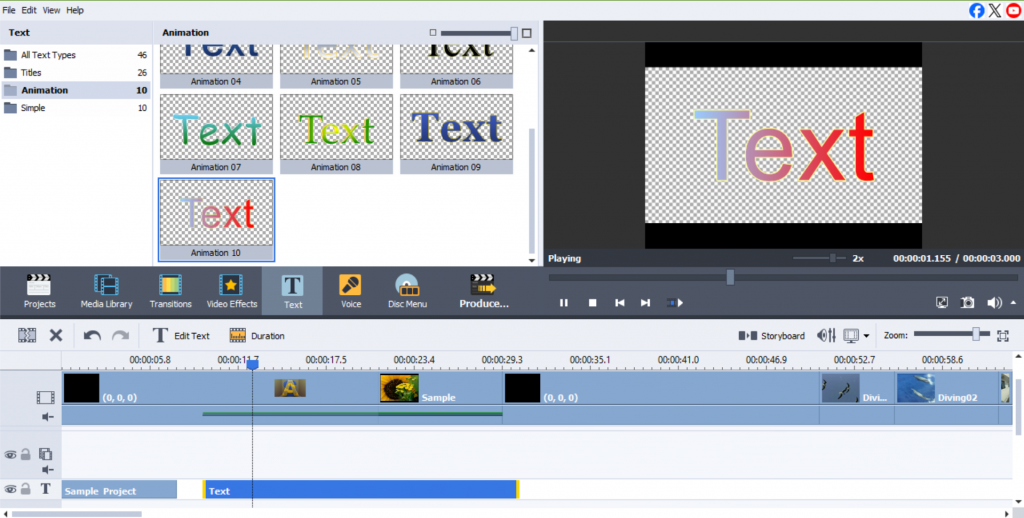
5. Customize style and effects
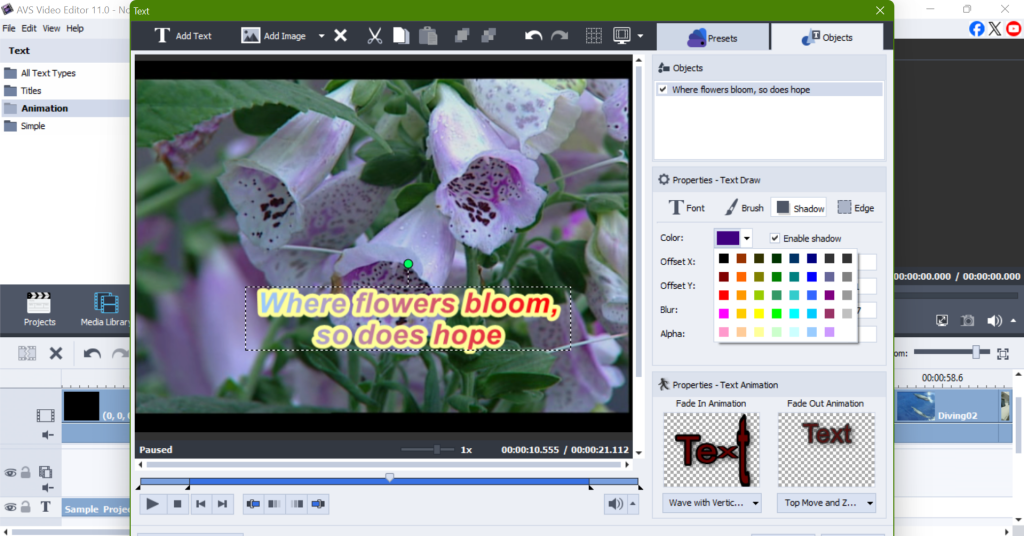
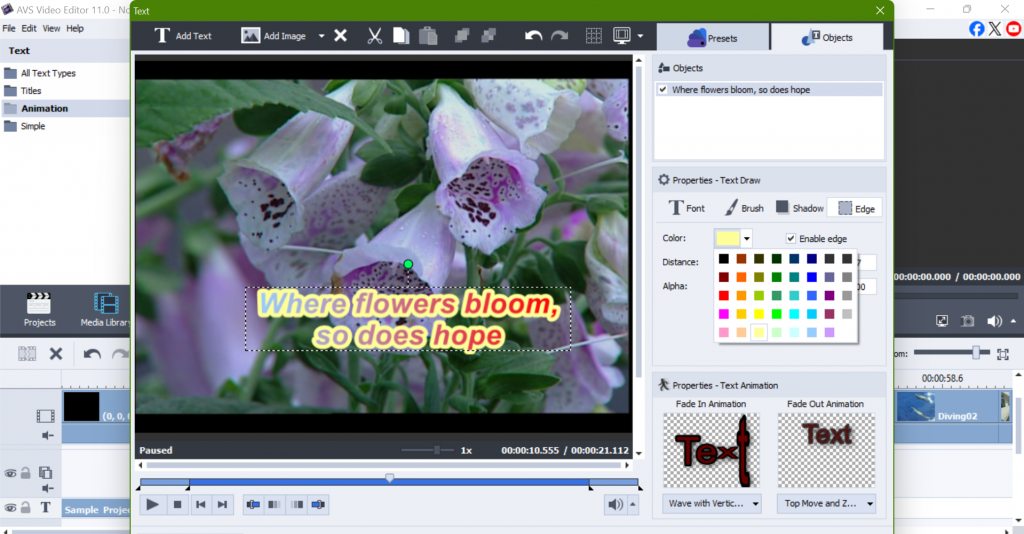
- Customize the look of your captions by using the text toolbar to adjust the font, size, color, and style.
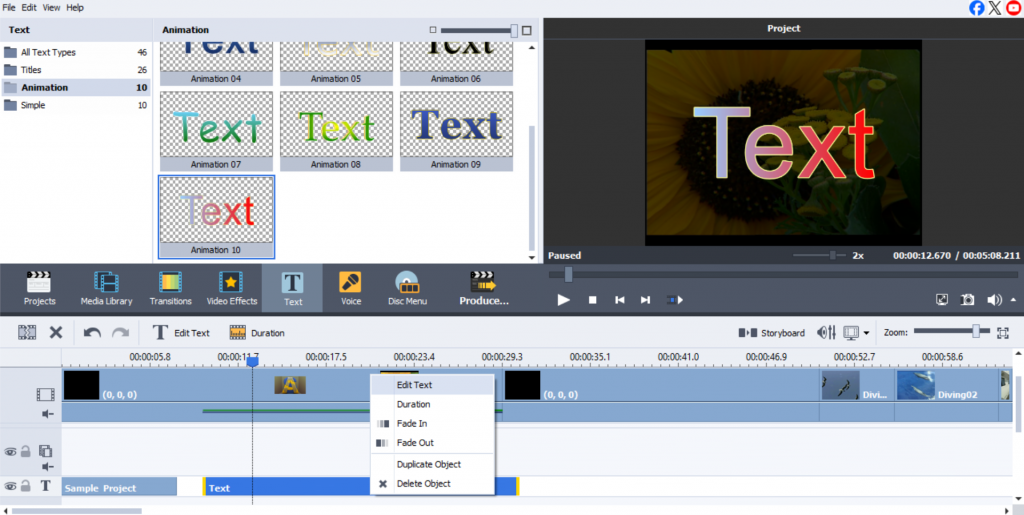
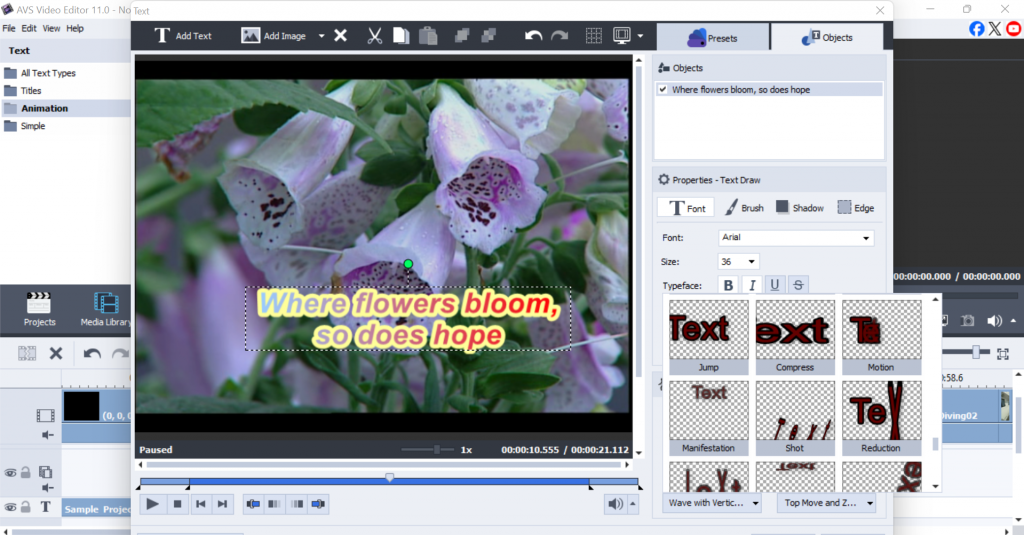
- Consider adding a shadow to make the caption stand out against the video background. You can also apply a background color behind it to improve legibility, especially when the video’s background is complex or busy.
6. How to adjust text timing on screen
- Add it in a key area where it won’t block important images.
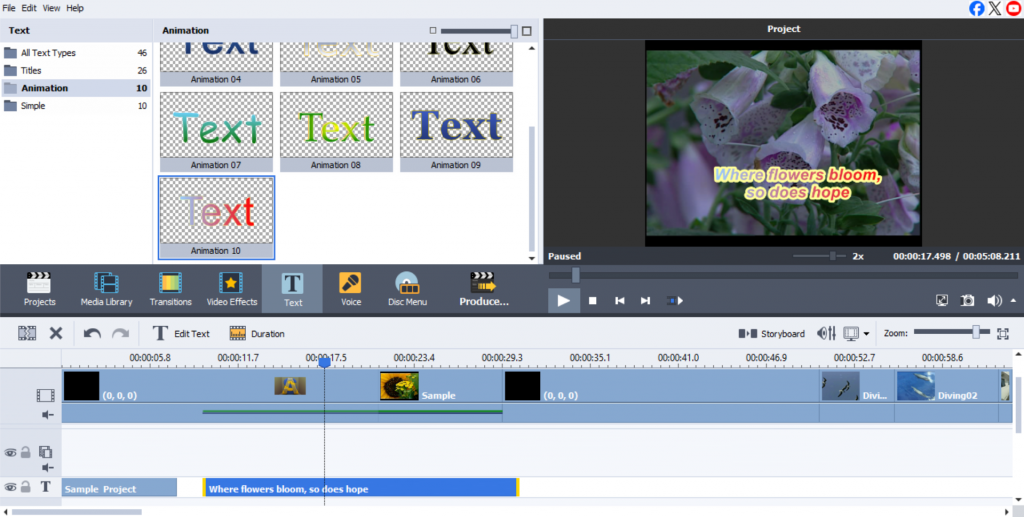
- Move the sides of the text box on the timeline to adjust when it appears. Sync it with key moments in the video for perfect timing.
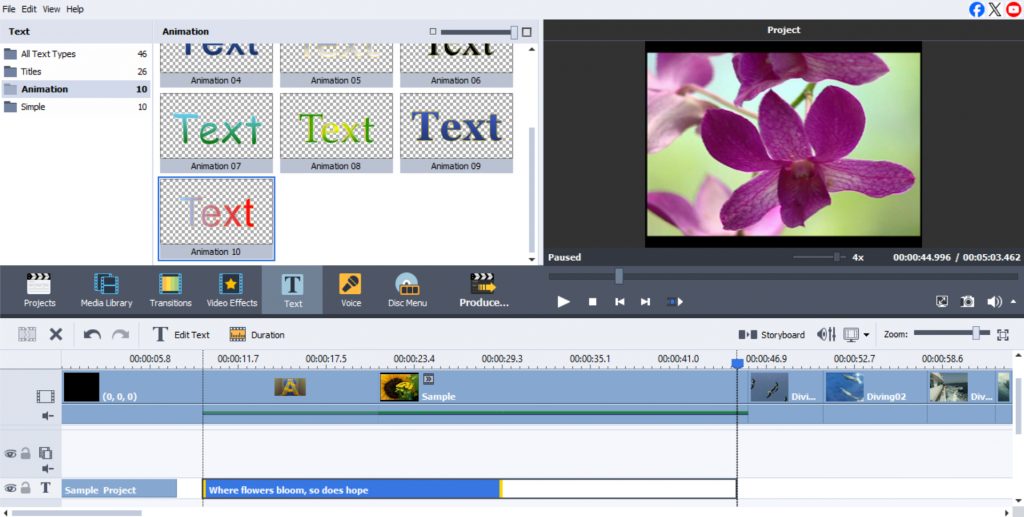
7. Preview and refine overlays
- After placing all elements, preview the video by clicking “Play” in the timeline.
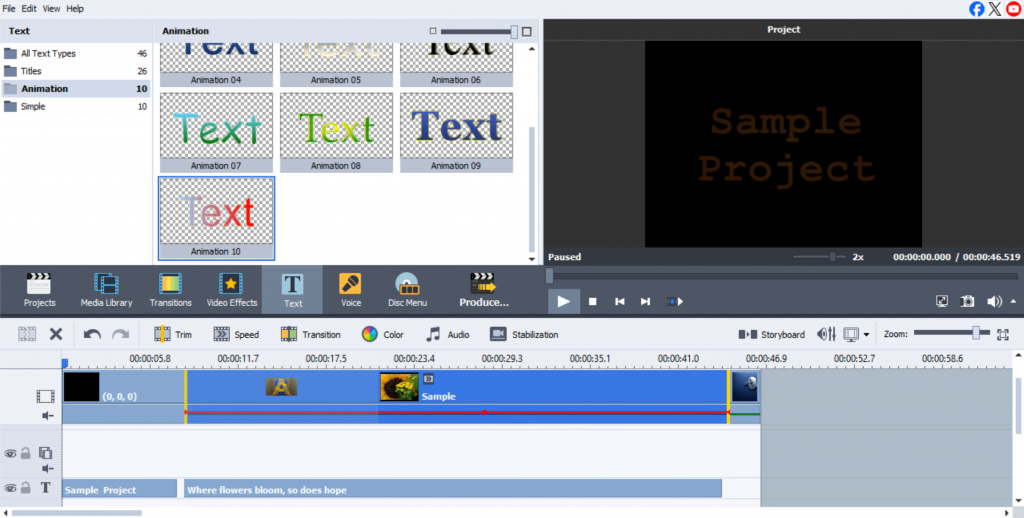
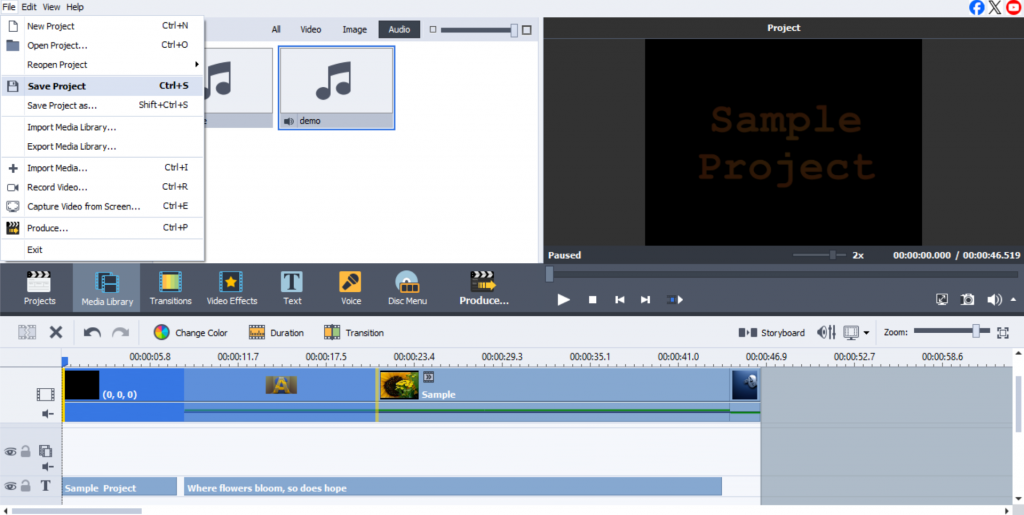
- This helps in assessing the flow of the text with the video’s content. If it overlaps too much with other visual elements or if it’s hard to read, make adjustments. Once satisfied with the placement, timing, and style, save the project.
Tips for creating pro-level text overlays
- Use of typography
Select fonts that meet the style and mood of your video. If the video is formal, pick elegant serif fonts. If your video is natural and fun, select playful sans-serif fonts. Choosing the right font can help set the overall feel of your content.
- Best practices for placement
When placing text, ensure the screen isn’t filled with too much information. Keep it clear and to the point. It should be placed where it is easily readable, without obstructing key visual elements. Ensuring proper placement and timing will enhance the video’s professional appearance.
- Use color and contrast
Ensure there is enough contrast between the caption and the background so that it is easy to read. Usually a dark caption on a light background or a light caption on a dark background makes it simpler to see and understand what is written. If effective contrast is used, it makes reading easier and comfortable for the viewer’s eyes. Consider this when you are designing materials that include text, such as posters, websites, or presentations. A well-done contrast allows the audience to read the information clearly without any discomfort.
- Integrate branding
If creating branded content, consider adding a logo or website to the overlay. It can be discreetly placed in a corner or used as a call to action at the video’s closing.
- Create accessible captions
Make your captions easy for everyone to read by using clear and simple fonts. The letters should be large and clearly visible from the background so that everyone, including those with vision problems, can easily read them. Keep the text evident on the screen long enough for people to read it fully. Do not use fancy fonts that will make the video difficult to understand.
With the help of these tips, you can make your on-screen captions look neat and professional, which will help you reach your video goals and keep viewers entertained. Text overlays, such as subtitles, titles, or captions, are important because they clearly communicate your message while keeping the audience engaged.
Final touch: perfecting your text overlays
When written elements are added to your video, your story becomes clearer and keeps viewers occupied, allowing them to understand the message. You can use a variety of text types, for example, still, moving, or animated. It is essential to put the text correctly and to time it well.
What can further make the text look appealing is using the right font, color, and effects. This makes the text stand out without distracting from the video. Test different styles, animations and effects so that you can bring more creativity to your videos.
AVS Video Editor has the best tools to enhance text overlays and improve your video editing abilities.
Start adding overlays to your videos today and share your creations on social media!
Useful links
How to create a picture-in picture video
How to create a voiceover for your videos