


Introduction
There’s nothing more disappointing than capturing a perfect moment on video, only to discover it’s playing sideways or upside down. This is a frequent headache for creators recording video on a phone, an action cam, or a webcam. Before you consider that moment lost, know that the solution is easier than you think. Modern tools make it simple to rotate your video, restoring it to a professional, shareable format, ensuring smooth playback on any screen.
In this article, we’ll explore the root causes of flipped footage, provide step-by-step fixes for every skill level, and share key prevention strategies to keep your future videos right-side up.
Why is my video upside down? Common causes
First of all, let’s explore why this happens. When video files appear flipped, the problem is usually dogged by how the recording device captured the footage or how the playback software reads it. Here are some typical reasons why filmed video ends up upside down:
- Orientation metadata issues
Most smartphones and cameras save an orientation tag that tells media players how to display the video. If a player or platform ignores this tag, the clip may appear rotated or completely flipped. - Enabled rotation lock
To avoid upside-down videos on your phone, always disable rotation lock before you hit record. When this setting is active, it locks the camera’s orientation, which can cause your footage to play back upside down. - Unusual camera mounts
Action cams strapped to helmets, bikes, drones, or even mounted on tripods at unusual angles may record footage in the wrong orientation depending on the position of the lens. - Software or OS bugs
Occasionally, glitches in the camera app, or even the operating system can lead to incorrect orientation data being saved with the video file. - Import or editing software issues
Sometimes, there are no problems with the video itself, but a video editor, converter, or player misreads the orientation settings, causing the clip to look flipped. - Cross-platform playback differences
A video that looks correct on your phone may be displayed upside down on a computer or when uploaded to certain platforms, due to differences in how devices read orientation tags.
Understanding the cause makes it easier to choose the right fix: either rotate the video in an editor, adjust device settings, or convert the file for correct playback.
How to fix upside-down videos
1. Temporary fixes in video players
If you just need to watch your video in the correct orientation without making permanent changes, several media players offer quick rotation tools:
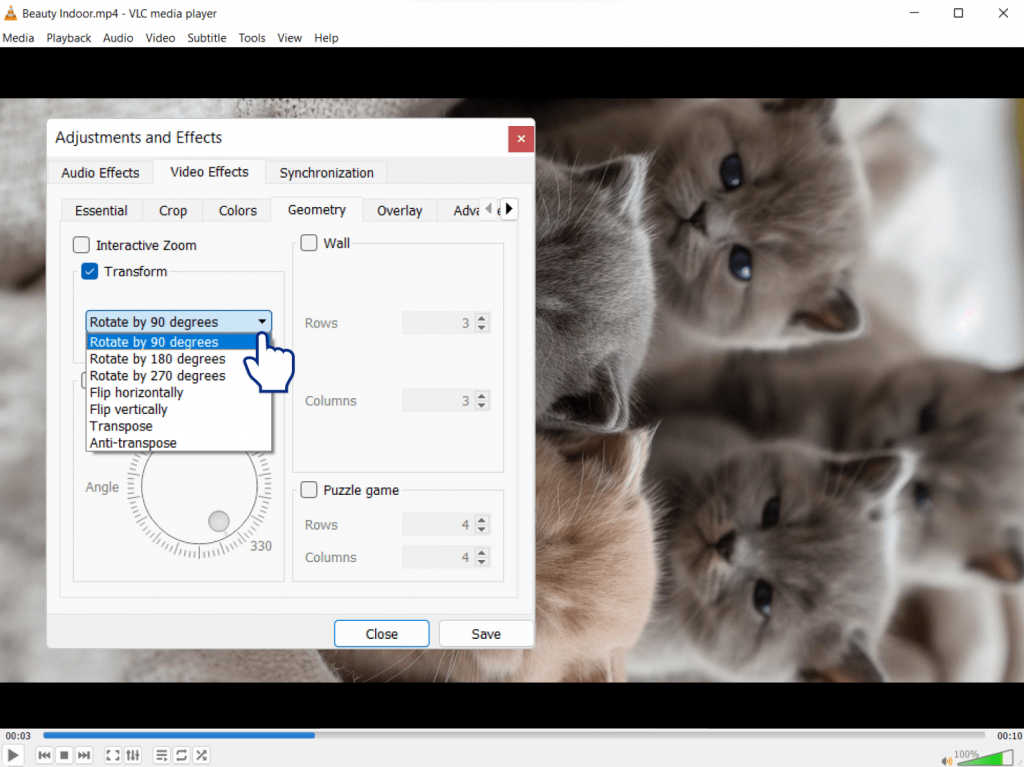
- VLC Media Player (Windows/Mac/Linux) – A versatile, free player that lets you rotate or flip during playback using the “Rotate” or “Transform” features. The video displays correctly as you watch, but the file remains unmodified.
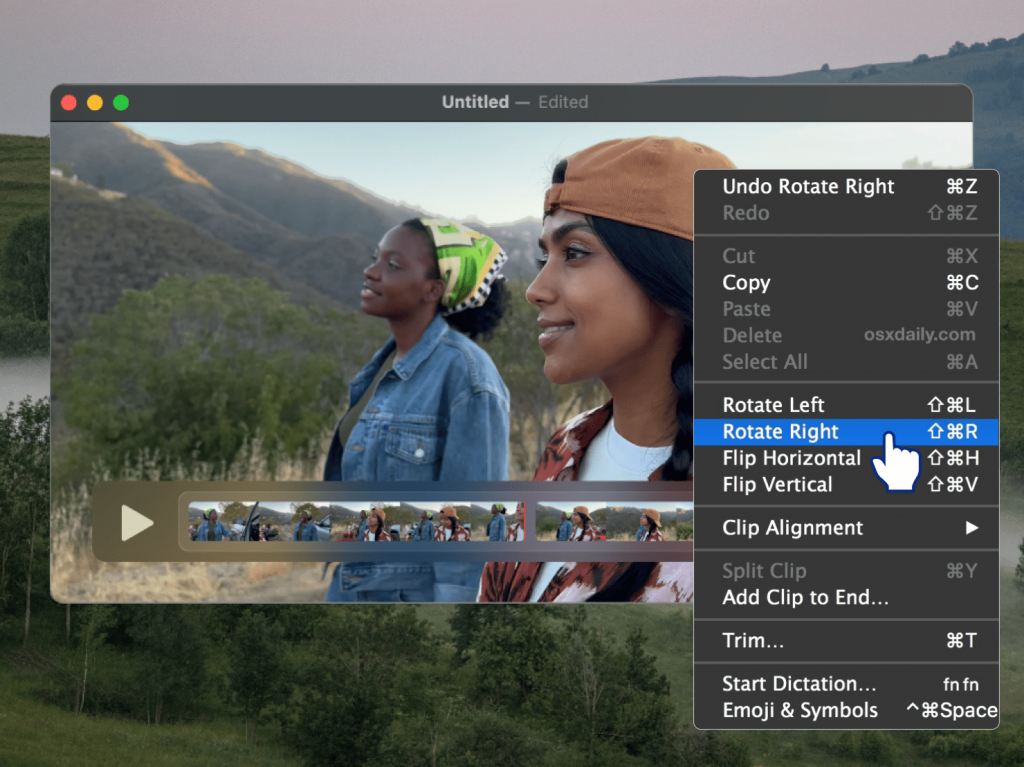
- QuickTime (Mac) – Apple’s built-in player includes simple rotation controls so you can adjust orientation while the video plays.
- KMPlayer or PotPlayer (Windows) – Popular alternatives that provide on-the-fly rotation and flipping options during playback.
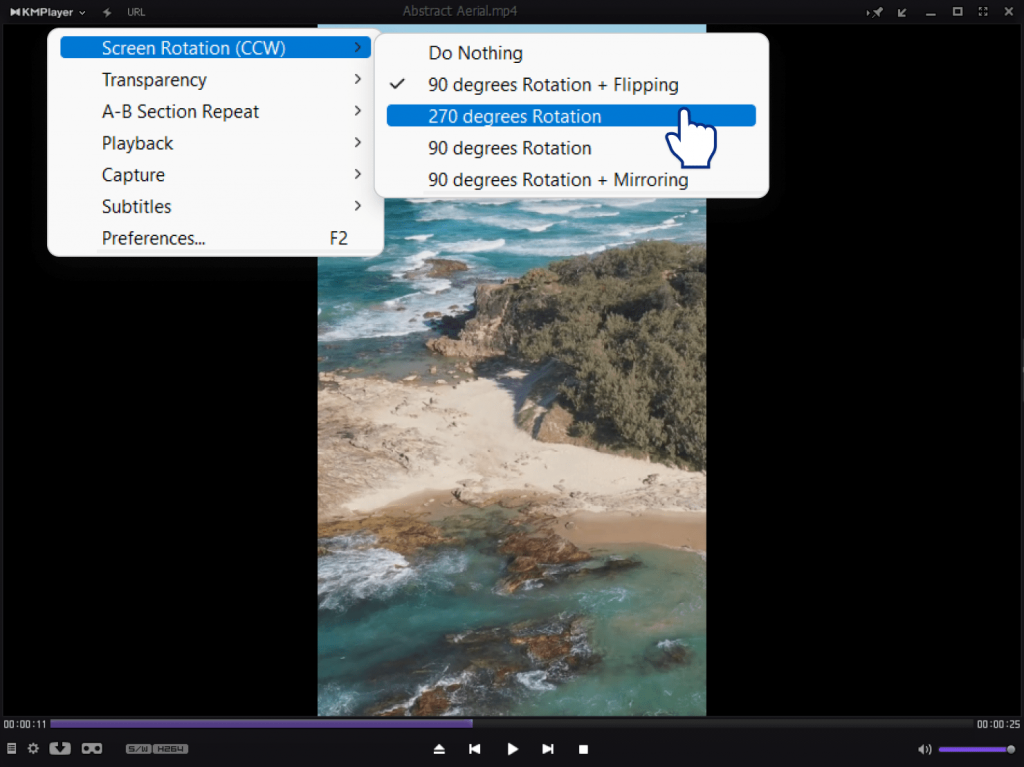
These fixes are convenient, but temporary. The orientation resets once you close the file. To make the change fixed, you’ll need metadata adjustment tools or video editing software.
2. Permanent fixes with video editing software
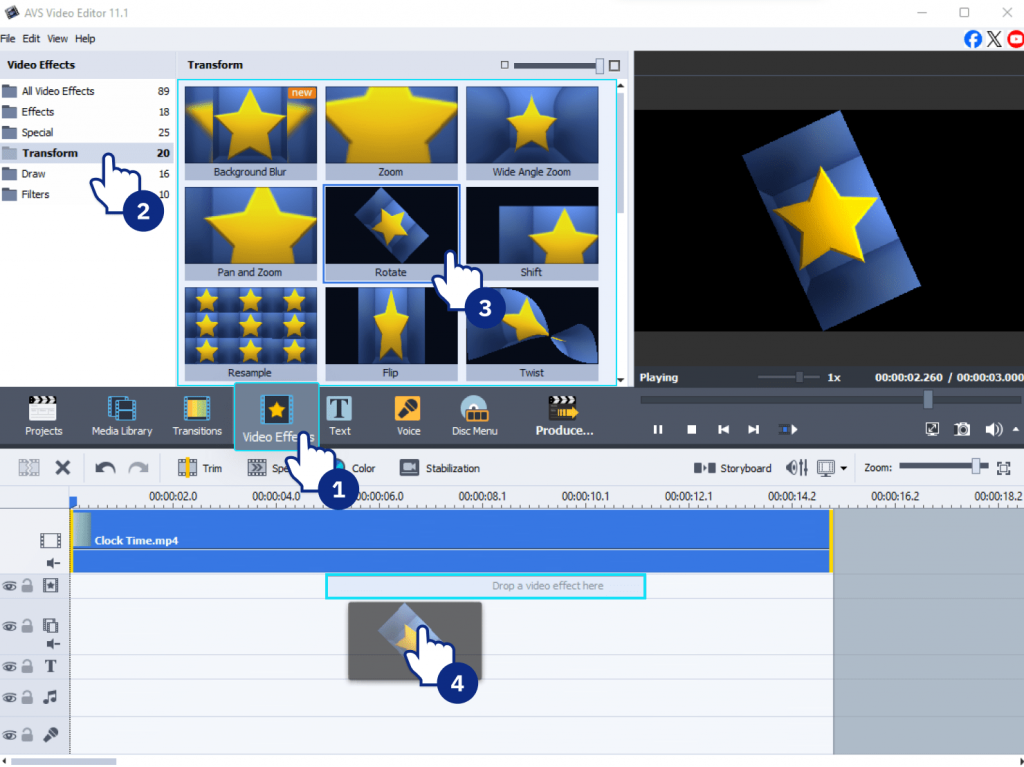
The most reliable method for permanently saving your video in the right orientation is to use a dedicated video editor. We recommend these options based on your operating system and skill level:
- AVS Video Editor (Windows) is the ideal choice. It’s designed for beginners, making rotating or flipping clips a quick and straightforward process with virtually no learning curve.
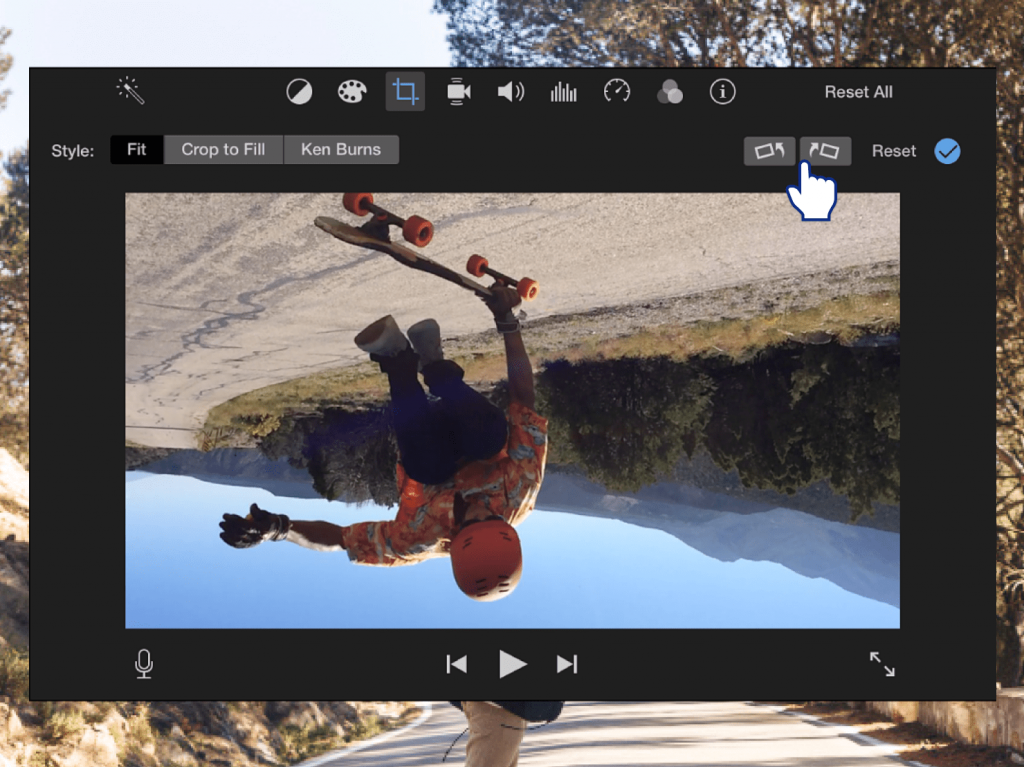
- iMovie (Mac): The fastest and most accessible option for Apple users. This pre-installed app provides an intuitive way to correct orientation for casual projects and instant corrections.
- Adobe Premiere Pro (Windows/Mac): A professional-grade editor for sophisticated projects that require precise adjustments and a comprehensive editing toolkit beyond just rotation.
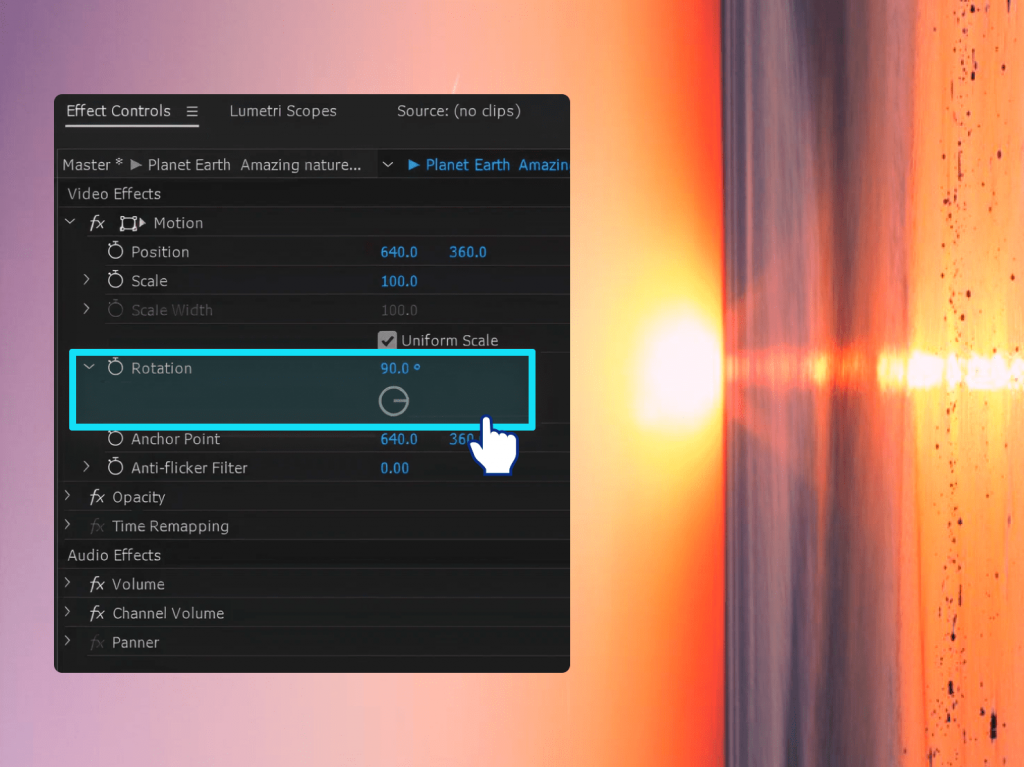
Explore our step-by-step guides to learn how to use each of these tools to correct your video’s orientation perfectly, without any loss in quality.
3. Online video rotators
Online video editors, for example Kapwing, Clideo, and Clipchamp allow you to rotate uploaded video files directly in your browser. These tools are convenient for rapid fixes and don’t require any technical skills. Preview the changes instantly and export the corrected files within a few minutes.
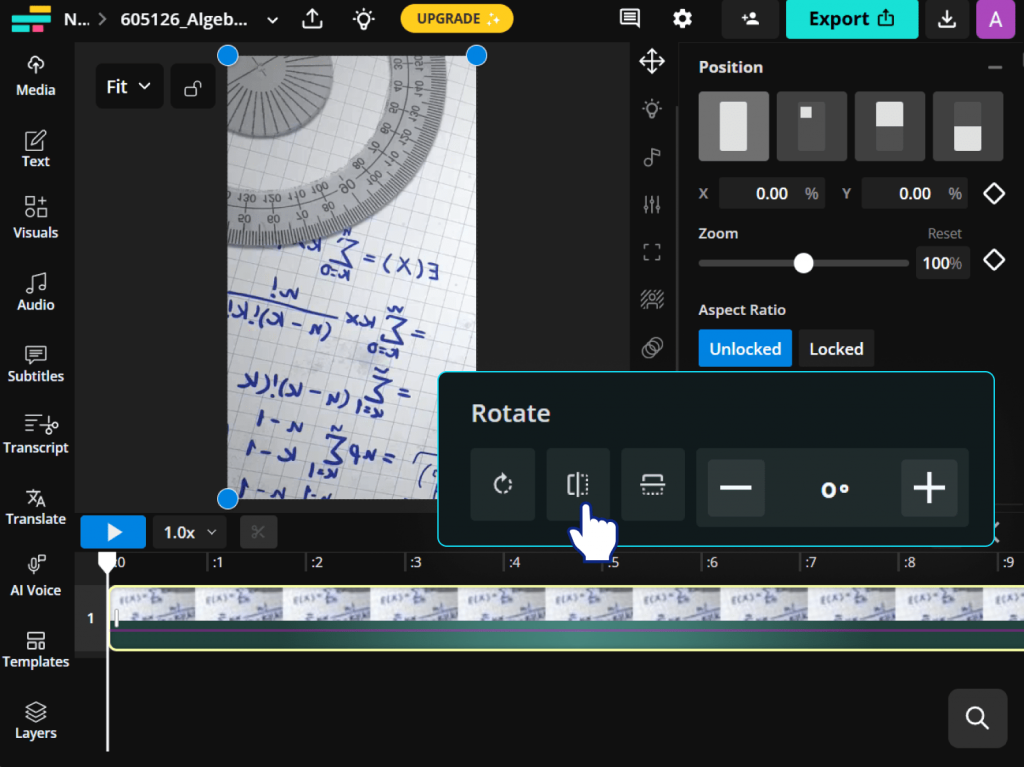
Pros: They are fast, easy to use, and accessible from any device with an internet connection, best for occasional or small-scale video edits.
Cons: Most online editors have file size limits, thus, they don’t support high-resolution videos. Furthermore, uploading and downloading large files is significantly slower than working with local files. Additionally, it is not recommended to upload sensitve content online for privacy or security concerns.
4. Metadata correction tools
For a faster fix that keeps original video quality, you can change a simple setting in the video’s information tag instead of processing the whole file again. For example, free FFmpeg can do this instantly with just one command, telling players how to rotate the video. However, this method requires using a command prompt, which can be tricky if you’re not experienced with advanced computer tools.
How to prevent upside-down videos
A few simple habits during recording will save you from the tedious and annoying work of fixing mistakes later. Have a look at the list below:
Enable auto-rotate on your phone before recording. Most smartphones automatically detect orientation changes and set the correct rotation flag, reducing the chances of upside-down footage.
Hold your device steady using a landscape or portrait mode for a moment before pressing record. This helps the camera accurately register the orientation and prevents sudden rotation errors during capture.
Test mounts on action cameras. After attaching the camera to any mount, physically look at the camera from the front and side to check that it’s filming in the right direction.
In addition, record a short 10-second clip. Play it back immediately to confirm the orientation is perfect.
The best way to save editing time is to fix orientation problems while you’re still filming. A quick check lets you adjust the camera immediately. Make the mentioned tips a regular habit, and you’ll be sure your videos look right straight out of the camera, with very little fixing needed afterwards.
Fix video orientationonce, watch it right every time
The bottom line is that upside-down videos happen to everyone, but they don’t have to ruin your project. Now you understand the simple reasons why it happens, be it a camera setting, a mount, or a simple filming mistake. More importantly, you know how to solve it.
Thankfully, if you need a permanent fix with video editing software, a metadata adjustment, or just a simple rotation during playback, you can choose the right method for you. You’re all set to confidently correct any orientation issue, finish your video project, and finally share it with the world!
Download AVS Video Editor today and make sure your videos always play the right way up.