



Introduction
Sometimes a video plays upside down or sideways because it was recorded in the wrong orientation. This can happen if the camera wasn’t held straight during filming, or if you deliberately want to add a creative rotationeffect. The good news is that you can rotate video files easily on any platform, using a variety of methods, from quick online tools and built-in phone features to powerful desktop software. It is a basic technique included in most current video editing programs. Rotation is widely used to fix a clip shot in portrait mode, correct vintage footage, or add a unique visual style.
This comprehensive guide will walk you through the best techniques for every device and need, covering options for Windows, Mac, iPhone, Android, online tools, and even professional editing software.
How video rotation works
Rotating a video means changing its orientation. You can turn a video:
- 90° clockwise or counterclockwise
- 180° upside down
- 270° (three-quarter turn)
- Flip horizontally or vertically
When you rotate, the change can be permanent (saved into the video file) or temporary (applies only during playback). Rotation is supported for MP4, AVI, MOV, MKV, and other video formats. Some older players may not handle rotation metadata properly, so the rotated video should be saved to keep the necessary changes.
Rotate video on PC (Windows)
If you’re a Windows user, there are several reliable programs for video rotation, from a user-friendly editor to a free open-source alternative:
1. AVS Video Editor (Recommended)
AVS Video Editor is a powerful yet beginner-friendly tool to rotate videos permanently. It supports MP4, AVI, MOV, and all key video formats. Here’s how to do it:
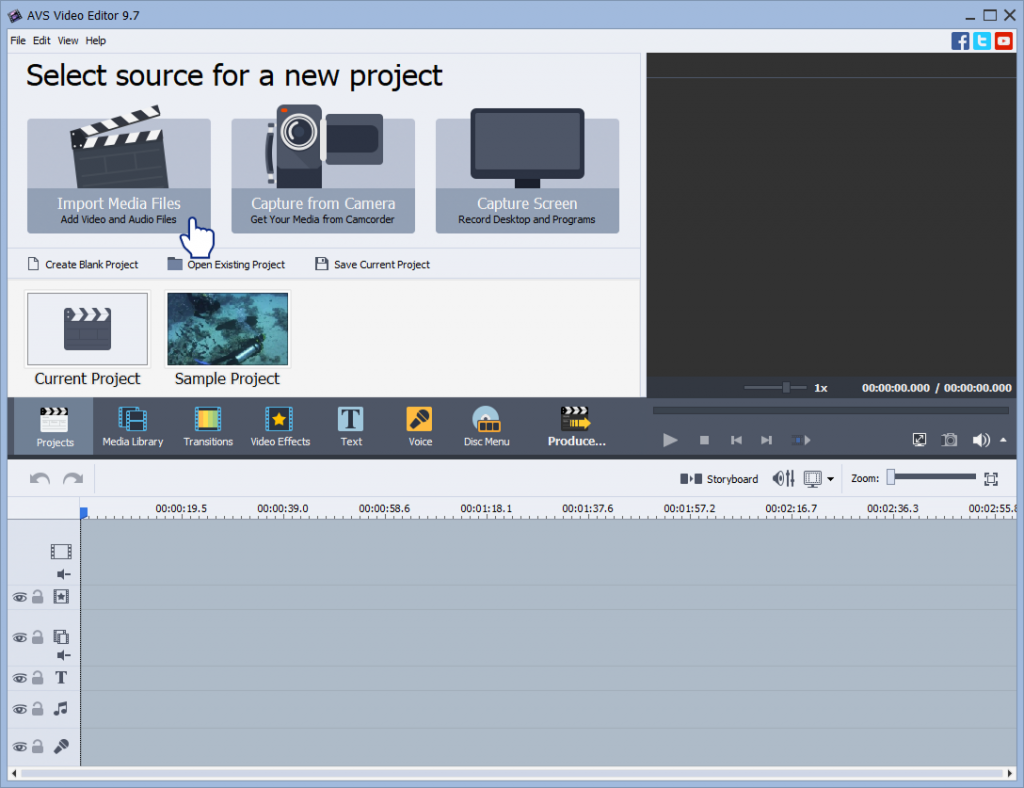
Step 1. Open your video in AVS Video Editor.
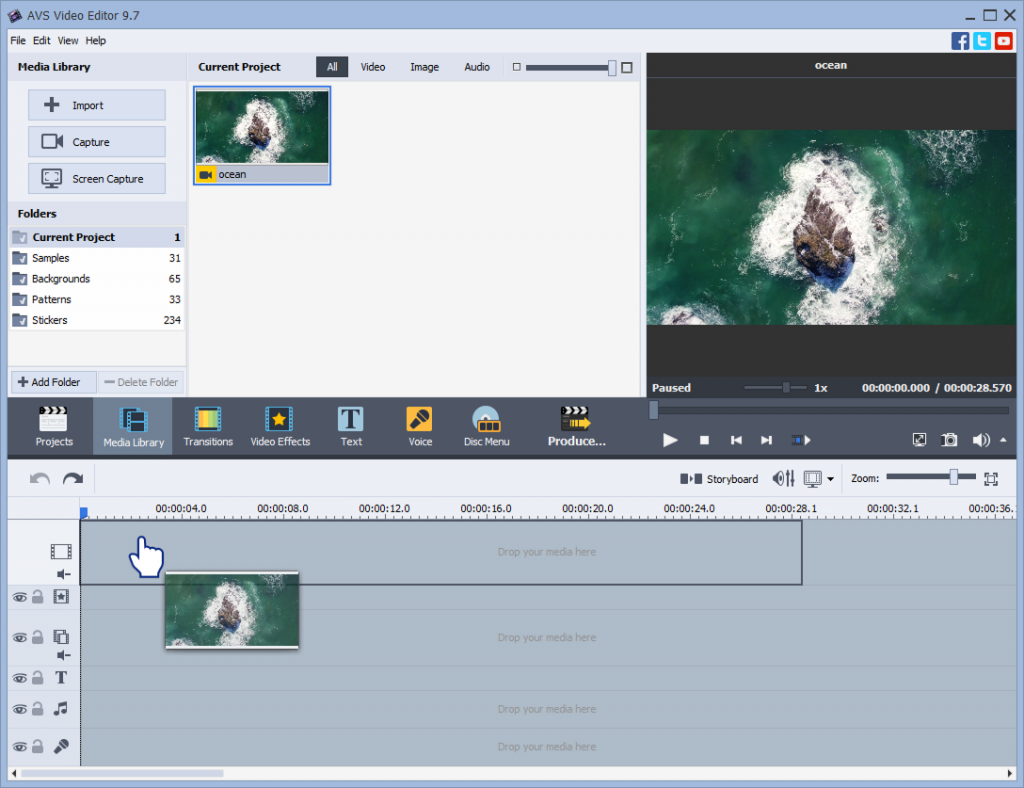
Step 2. Drag it to the timeline.
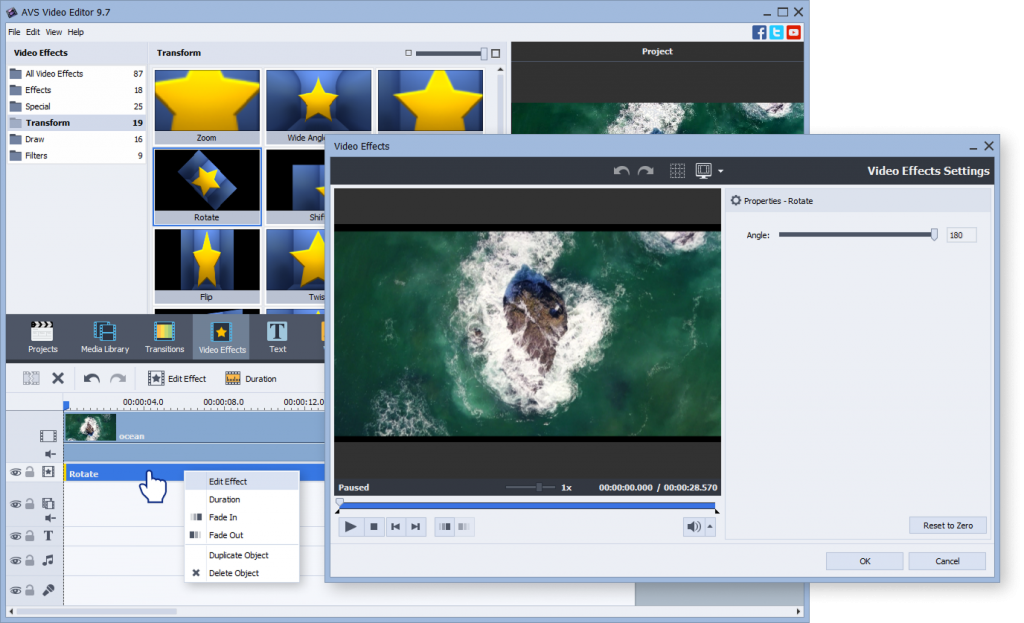
Step 3. Go to Effects >> Transform and select “Rotate“. Right click the button >> Edit effect and change the rotation angle (90°, 180°, 270°) until your video is oriented correctly. Alternatively, you may use Flip options.
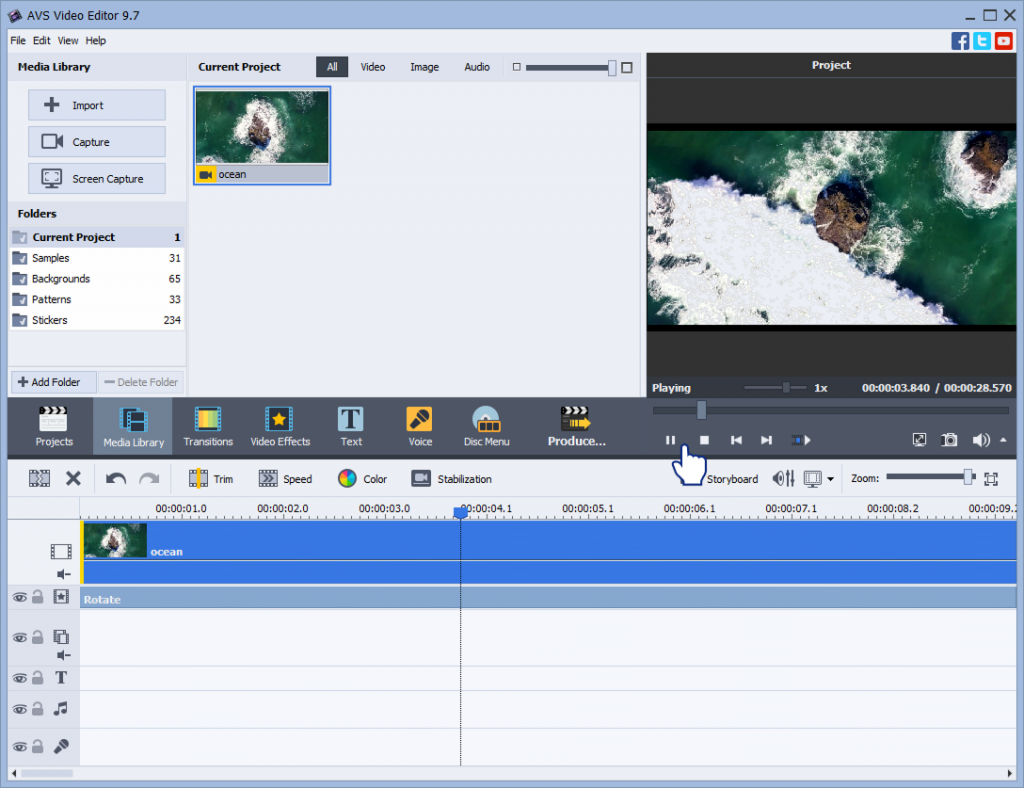
Step 4. Play a preview to check the result. When you’re happy, click “Produce”and save your newly rotated video in the preferred format.
AVS Video Editor’s functionality is not limited to video rotation, it also allows to trim, crop, add text overlays and a wide range of effects. It’s the best choice if you want more than just a basic video rotator for PC.
2. VLC Media Player
VLC is primarily a free media player, but it can perform a temporary rotation for quick fixes. Please, bear in mind that this method doesn’t permanently save the rotated video.
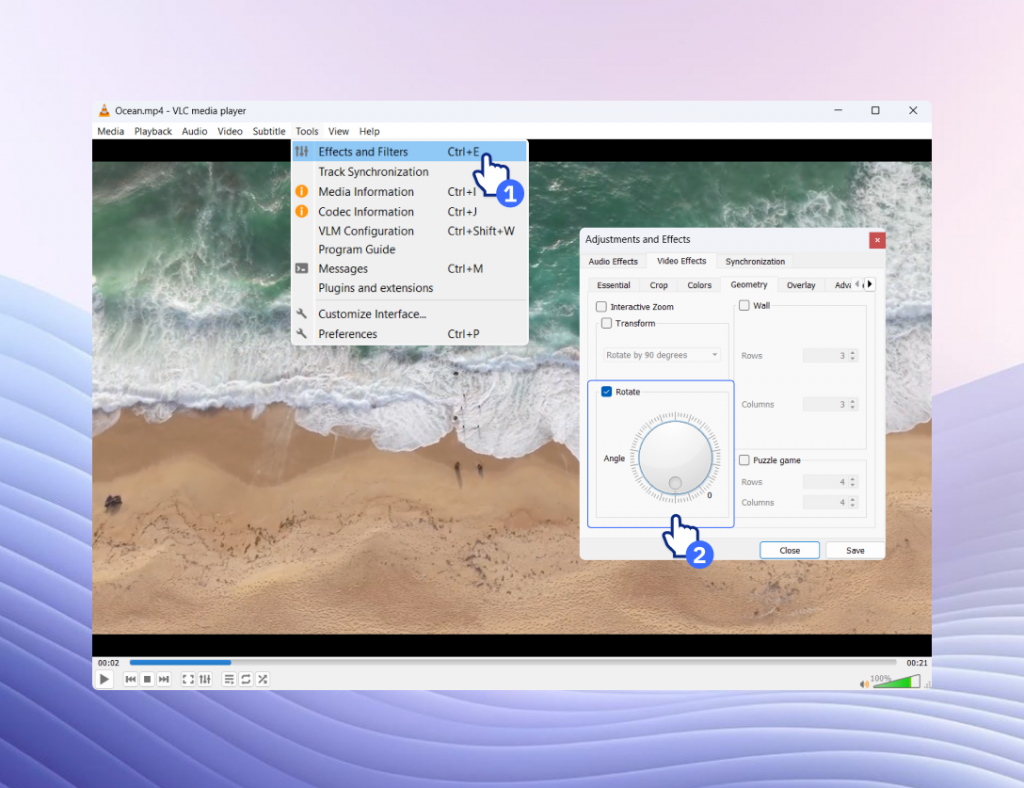
- Go to Tools > Effects and Filters > Video Effects > Geometry.
- Enable Transform, then choose rotation angle from the dropdown menu.
The rotation is only for this playback session. To save it, you need to use VLC’s “Convert / Save” feature with advanced settings, which is less intuitive than using a dedicated editor.
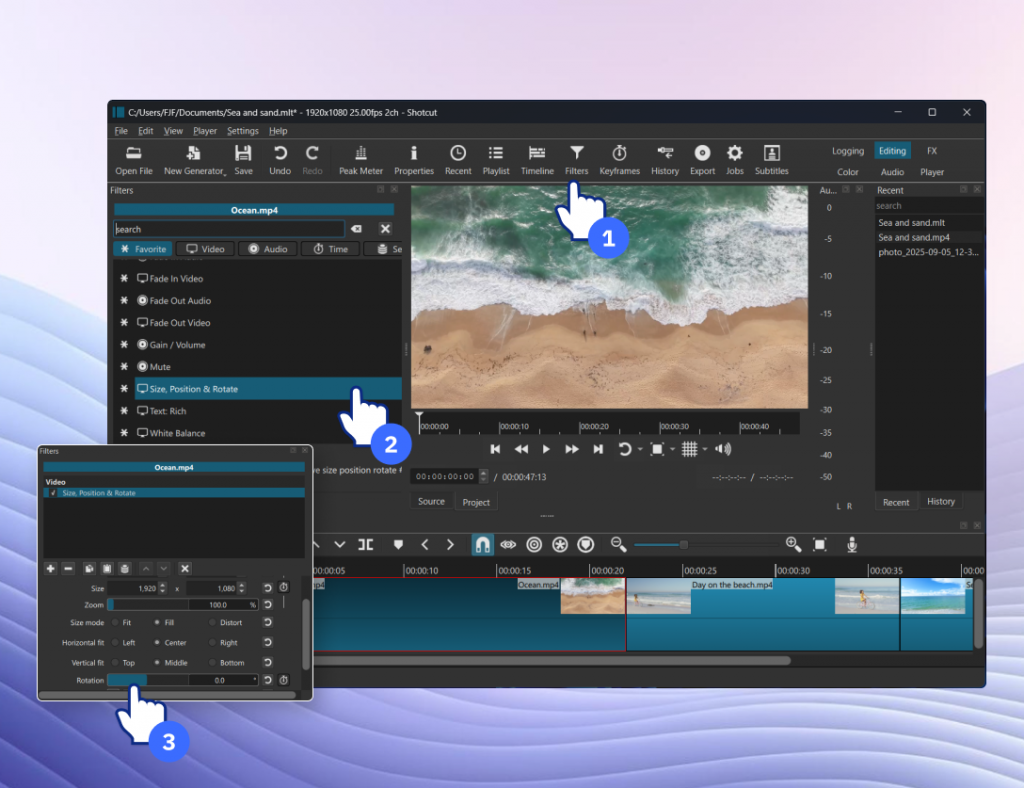
3. Shotcut (Free)
Shotcut is an open-source editor, ideal for those who need robust features.Simply import your video, apply the Rotate and Scale filter, and export the file. It’s a bit more advanced than VLC, but fully free.
Rotate video on Mac
Mac users can rely on built-in or third-party tools:
iMovie
iMovie provides a straightforward way to correct your video’s orientation.
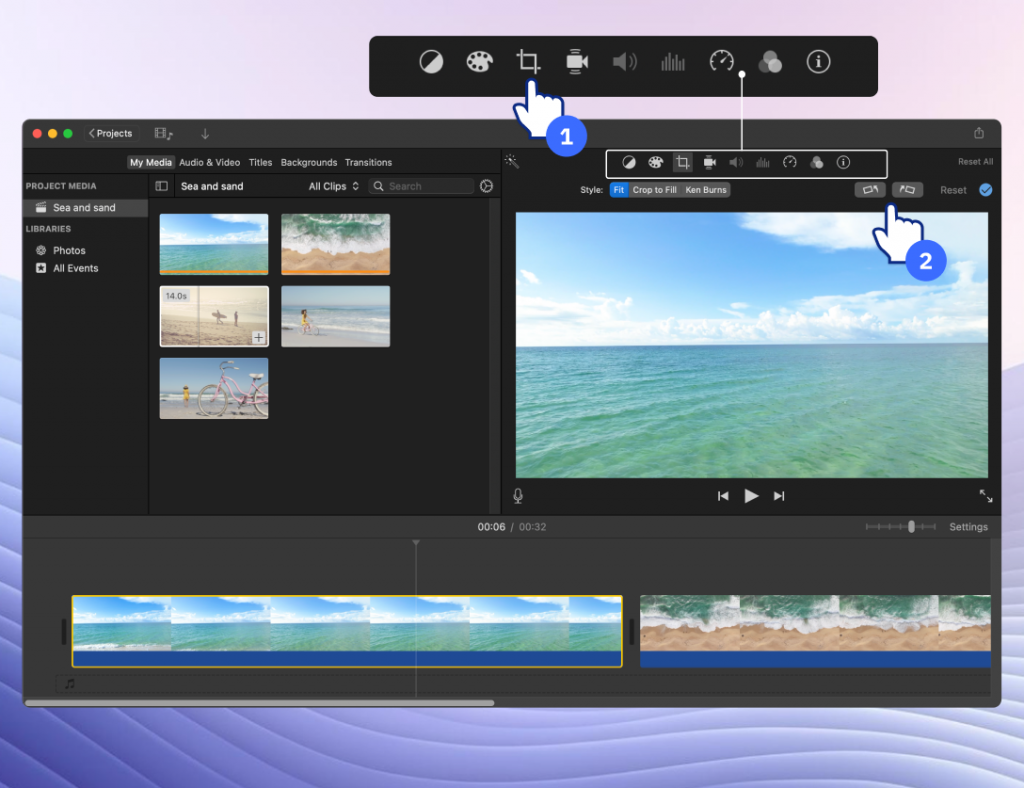
Learn how to rotate the video in iMovie:
- Import your video into the program.
- Drag it to the timeline.
- Click the Crop icon, then rotate left/right.
- Export the rotated video.
Other Mac options include QuickTime Player, suitable for basic rotation, or more advanced editors like Final Cut Pro. If you just need a quick rotation, iMovie is usually enough.
Rotate Video on iPhone & Android
Fixing a video directly on your mobile device is often the fastest solution.
On iPhone
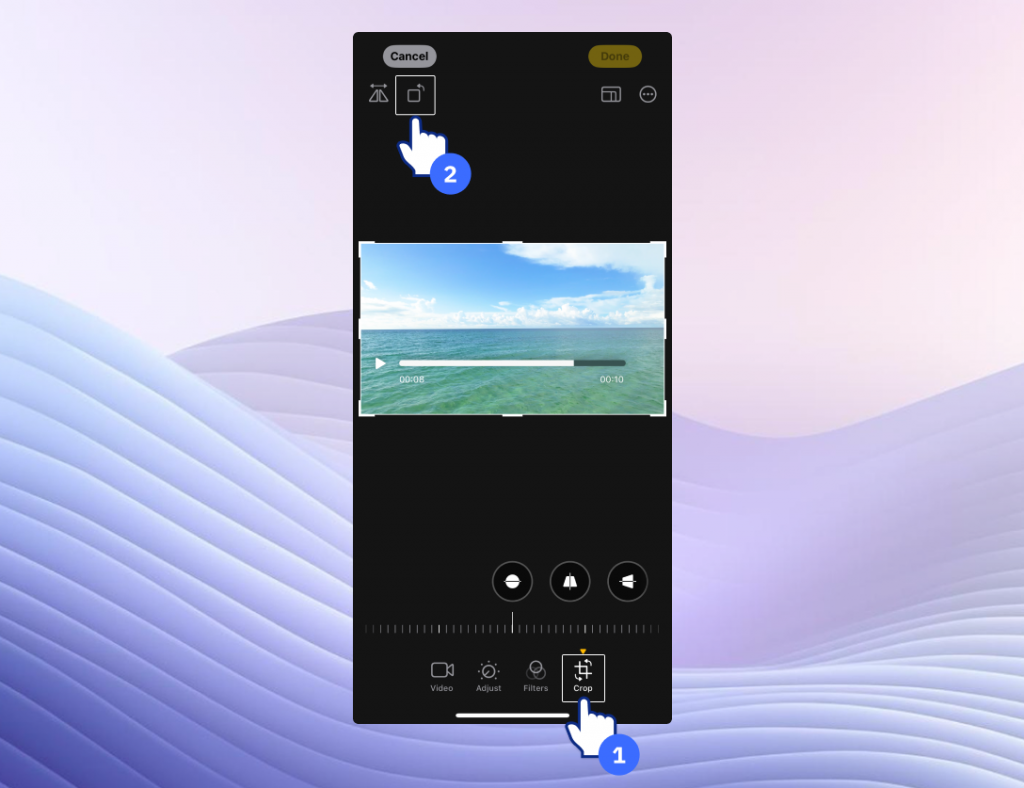
The native Photos app is the easiest way to rotate video on iPhone:
- Open your video in Photos.
- Tap Edit > Crop & Rotate.
- Tap the Rotate button until the orientation looks correct.
- Save.
On Android
Most Android phones allow rotation directly in the gallery or Google Photos:
- Open the video.
- Tap Edit > Crop/Rotate.
- Adjust orientation and save.
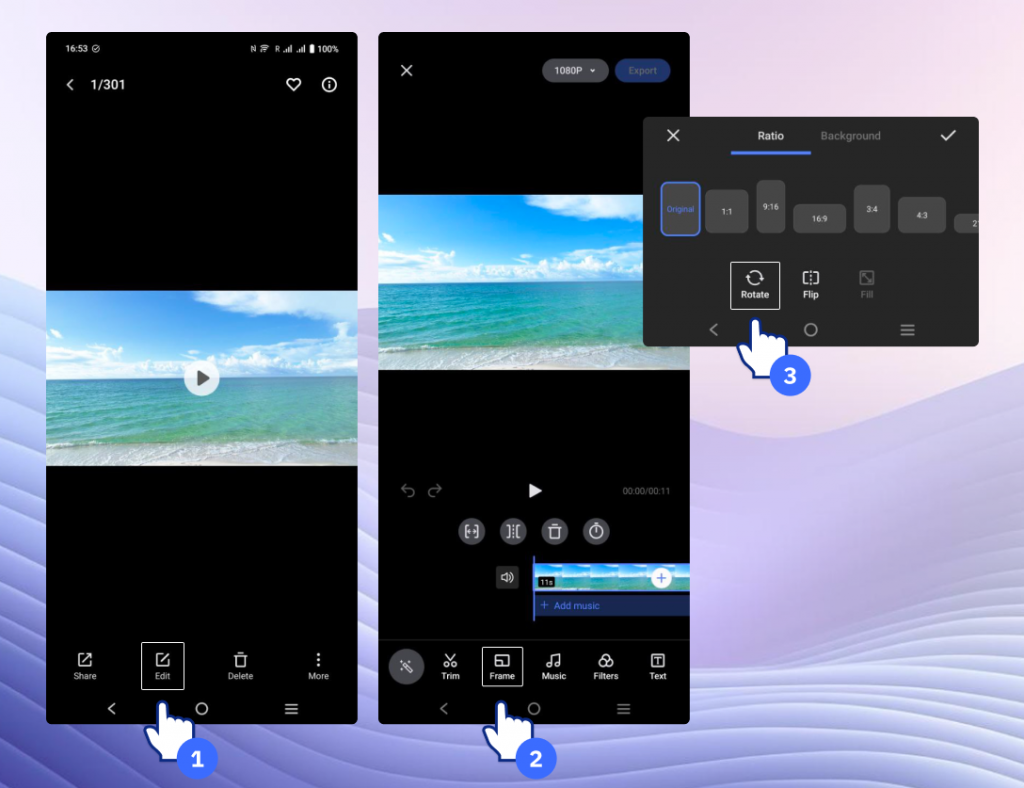
Both methods are free and quick, perfect for casual use.
Rotate video online
If you don’t want to download and install software on your computer, you can rotate video online using web-based tools. You may consider using one of these 3 popular online video rotators:
- Clideo – Free and simple, supports MP4, MOV, AVI.
- Kapwing – Easy to use, with additional editing features.
- Online Video Cutter – Lightweight online rotator.
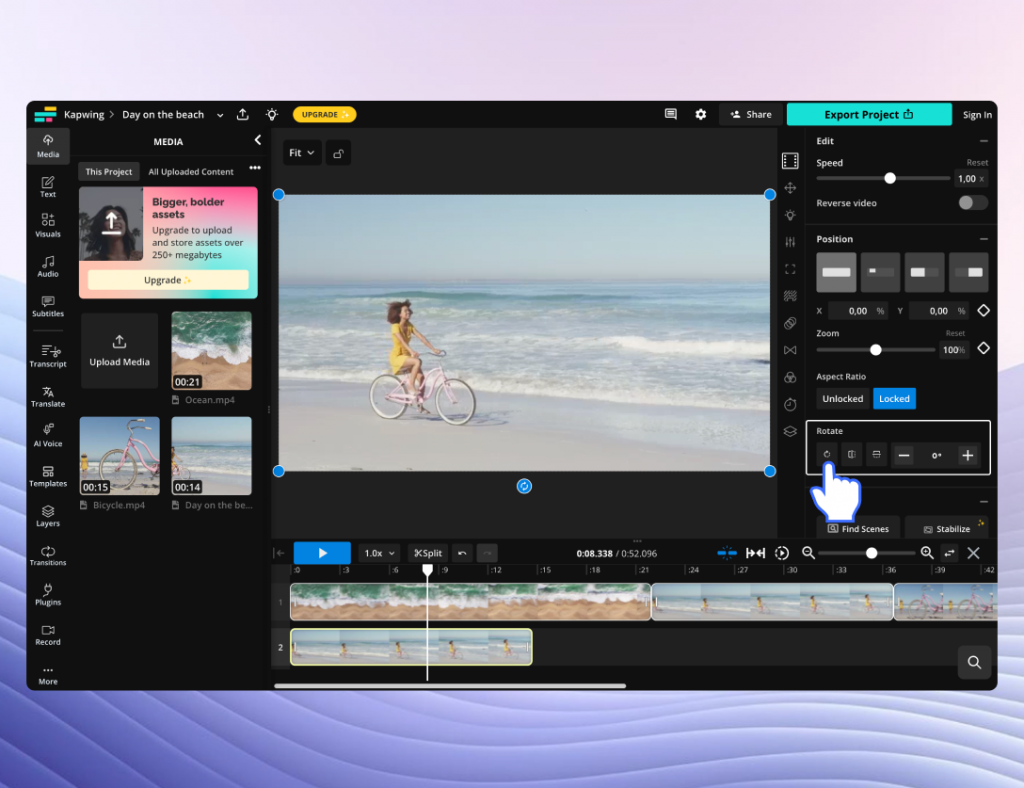
These sites usually offer free video rotation services but may have:
- File size limits
- Watermarks on free exports
- Privacy concerns (avoid uploading sensitive videos)
They’re ideal for quick fixes on the go when you’re away from your main editing suite.
Rotate video using professional tools
Professional editors and command-line utilities offer maximum flexibility to advanced users. These tools not only let you rotate a video but also fine-tune angles, add animated motion, and apply rotation as part of a larger editing workflow.
Adobe Premiere Pro
If you’re working with professional editing software, Adobe Premiere Pro gives you full control over video rotation. Here’s how to do it:
- Import your video into the timeline.
- Select the clip and open Effect Controls.
- Under Motion > Rotation, set the angle.
- Export.
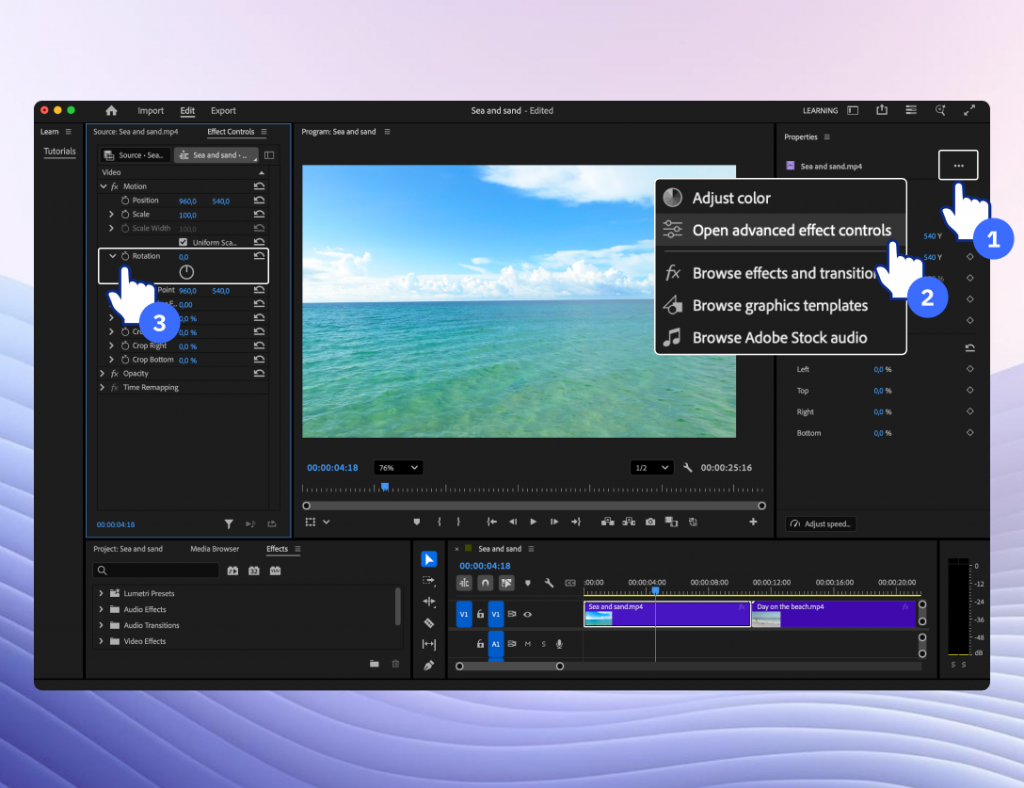
Premiere Pro offers precise adjustments and keyframe-based rotation for creative effects.
FFmpeg
For users comfortable with the command line, FFmpeg is a powerful tool for video editing. With FFmpeg, you can rotate a video with just one command:
ffmpeg -i input.mp4 -vf “transpose=1” output.mp4
In this example, transpose=1 rotates the video 90° clockwise. Other values let you flip or rotate in different directions. Once you run the command, FFmpeg saves the new file with the corrected orientation.
How to rotate YouTube videos
If you uploaded a video in the wrong orientation, you might wonder how to rotate YouTube video. Unfortunately, YouTube removed its built-in rotation tool. Instead, you can:
- rotate the video before uploading using one of the methods above.
- re-upload the corrected version.
YouTube Studio only allows trimming and cropping, no rotation is available. Always check orientation before publishing.
The best ways to rotate a video: A quick recap
Video rotation fixes awkward orientations or adds creative effects. You can do it on Windows, Mac, iPhone, Android, or online. The best method for you depends on your device, the required output quality, and how often you need to perform this task.
For quick, one-time fixes, your phone’s native editor or a free online tool may be enough. Advanced users are more likely to choose professional software like Premiere Pro offering granular control. However, for Windows users seeking a perfect balance of power and simplicity, AVS Video Editor is an excellent choice. It’s a versatile, full-featured video editor that doesn’t just rotate videos but also lets you to crop, trim, enhance, and create stunning projects with ease.
Try AVS Video Editor today to rotate, crop, trim, and polish your videos effortlessly.