


The rise of AI video generation
AI is transforming the way we create content. What once required advanced editing skills, expensive equipment, and hours of manual work can now begin with a simple prompt. Usually, an AI video generator analyzes a description and automatically creates visuals to match the request. As a result, text is transformed into a ready-to-edit video clip in minutes.
The latest version of AVS Video Editor offers new capabilities. With built-in AI tools and a user-friendly interface, it works as an AI video maker and editing studio in one.
In this post, you’ll learn how to create video with AI plugins inside AVS Video Editor, from writing your first prompt to exporting your final project.
Create your AI video from a text
AI Video Features
AVS Video Editor combines AI-powered generation with traditional editing in one workspace. You don’t need to switch between programs or rely on third-party services.
Key features include:
- Multiple video durations (e.g., 4s, 8s, 12s depending on the selected settings)
- Vertical (9:16) and horizontal (16:9) formats for social media or YouTube
- Preview before export to refine your results
- Integrated timeline editing
- Built-in filters, transitions, and audio effects
Unlike standalone online tools, AVS Video Editor combines video creation and further enhancement within the same interface. It is very convenient for all users regardless of their editing skills.
If you haven’t installed the AI plugins yet, follow the setup instructions in the blog guide. Alternatively, you can download them from the AVS4YOU Plugins Marketplace.
How to turn text to AI video
Let’s create a video using the Sora 2 plugin.
1. Define video settings
First of all, launch AVS Video Editor, click File in the left-hand upper corner and choose Sora 2 from the dropdown menu. In the opened window select duration (for example: 4, 8, or 12 seconds), aspect ratio, and set resolution (e.g., 1920×1080 for Full HD). Use 16:9 for YouTube or presentations, 9:16 for Reels, Shorts, or TikTok.
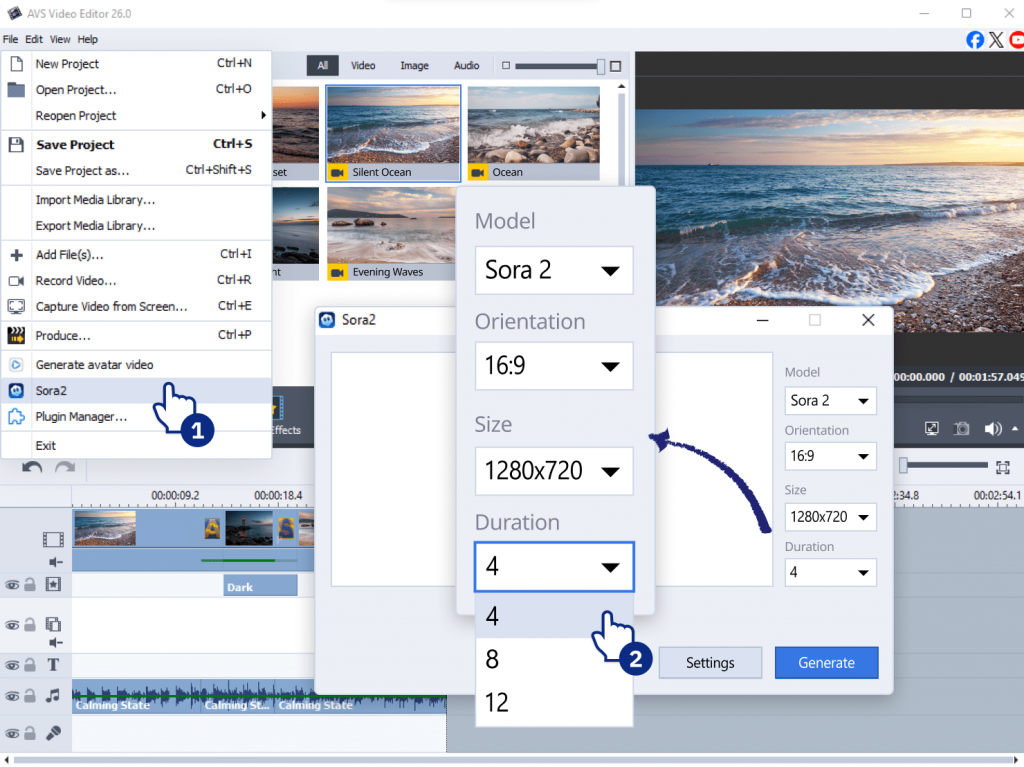
This ensures your AI-generated clip matches your final platform requirements.
2. Write a prompt
To create AI video from text, you have to type a description of the video you want to produce. For example: “Cinematic sunset over a calm ocean, golden light, slow camera movement.”
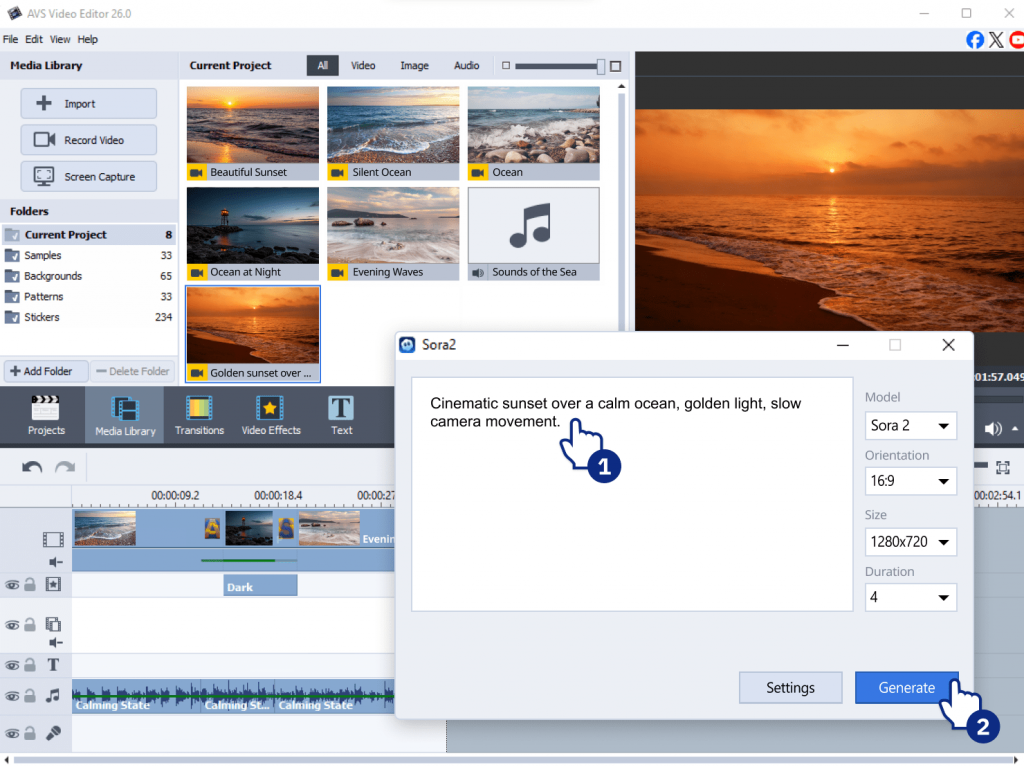
Once generated, the clip appears directly in your media library and can be dragged onto the timeline.
3. Customize AI-generated content
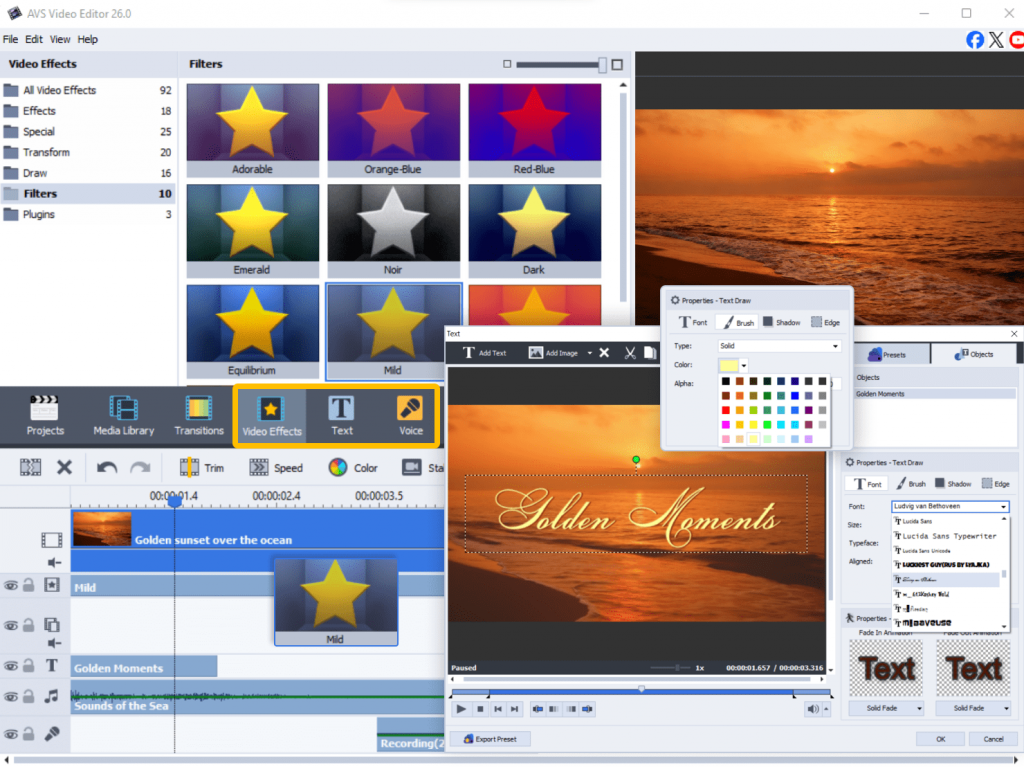
When the video is generated with the AI plugin, you can refine it using built-in tools. Apply color filters and effects, insert background music, record or add voiceover, insert text overlays or captions.
4. Preview and export
Before exporting, use the preview window to check visual consistency, timing, audio levels, transitions. After that click Produce selecting MP4 as an output format because it fits many platforms.
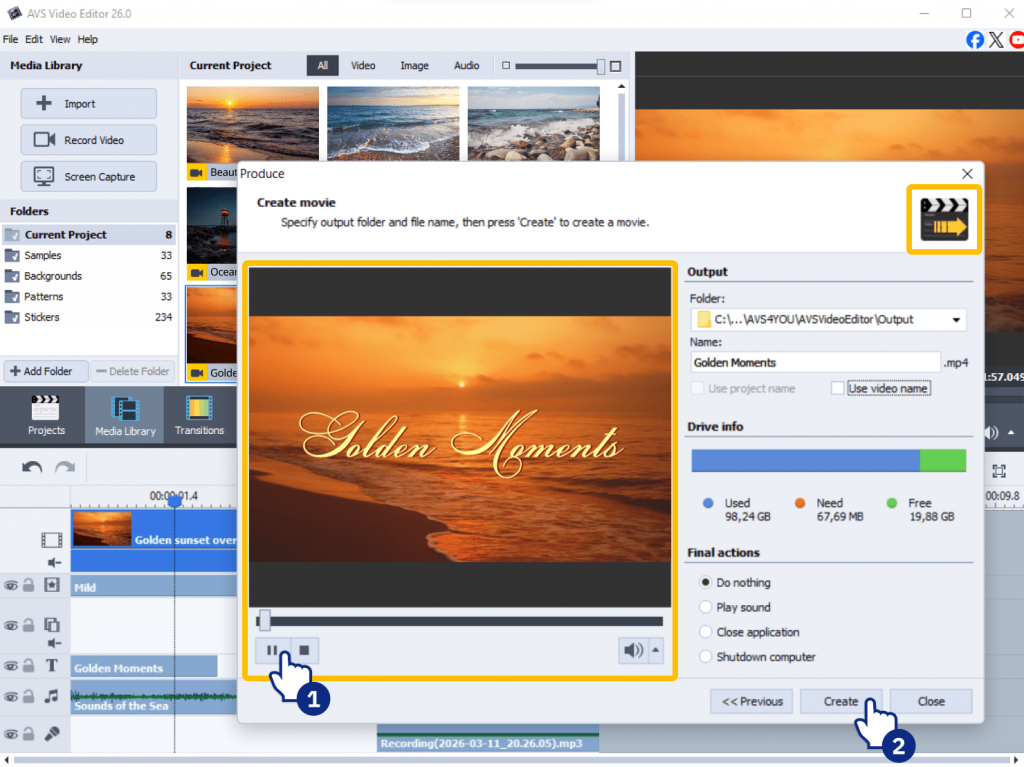
Finally, your AI-generated project is ready to share.
Tips for writing prompts
Even the best AI video maker can fail to perform tasks if the prompt is not up to the mark. To get better results, follow these best practices:
- be specific
Instead of typing “A beautiful landscape.”, describe your idea in detail, for example,
“A wide cinematic shot of snowy mountains at sunrise, soft pink sky, slow camera pan.”
- keep sentences short
AI responds better to clear, direct instructions.
- describe scene, mood, and action
- avoid vague phrases
As a rule, adjectives such as “nice,” “cool,” or “interesting” don’t give clear direction because everybody has a different perception of things. Try to be specific as much as possible.
Here are a few ideas to help you create AI videos from text:
- “Modern office workspace, bright natural light, person typing on laptop, smooth camera zoom.”
- “Futuristic city at night, neon lights, flying cars, cinematic atmosphere.”
- “Minimal white background, rotating 3D product, soft studio lighting.”
Conclusion: Start creating AI videos today
Thanks to AI plugins implemented in AVS4YOU software, you can create short clips for a wide range of purposes faster and with less effort. The possibilities are endless, from a vertical video for social media to a product teaser and animated presentation visuals. The best results often come from mixing AI clips with manual edits such as adding branded intros, custom transitions, inserting logos and animated titles. This hybrid approach turns AVS Video Editor into a full AI filmmaking tool, not just a video generator. Experiment with different prompts, mix scenes, refine your edits, and share videos.
Useful Links
Getting Started with AI Plugins in AVS4YOU: Installation and Setup Guide