


Creating engaging video content involves more than just recording footage. It is about mastering the art of cutting and trimming to craft compelling content. One way to enhance your video footage is by perfecting your cuts. Cutting tools are indispensable for many purposes such as trimming away unwanted scenes, slicing clips to keep the narrative crisp, or cropping visuals for a more impressive look. We’ve rounded up the top 10 apps that specialize in cutting and trimming features, helping you achieve seamless, professional-grade edits.
1. AVS Video Editor

AVS Video Editor’s drag-and-drop timeline simplifies cutting tasks and makes editing fun and easy. Its multi-trim option allows users to cut multiple sections simultaneously, perfect for editing lengthy videos. The program also allows to crop video easily. By cropping we mean removal of unwanted outer areas from video footage or changing its dimensions to fit within a certain area. The frame-by-frame playback makes trimming complex sequences easy and accurate.
Pros
- Clean, user-friendly interface, ideal for beginners.
- Fast video processing and rendering, even with HD and 4K videos.
- Affordable subscription model that includes access to the whole AVS4YOU Multimedia Suite
Cons
- Limited advanced features for high-end projects.
- Built exclusively for Windows OS.
2. Adobe Premiere Pro

Adobe Premiere Pro brings a set of professional cutting features. The Ripple Edit lets you trim clips quickly without shifting the entire timeline, while the Rolling Edit enables smooth transitions between scenes. The Razor tool makes cutting specific sections of footage effortless, even in complex multi-track projects.
Pros
- Powerful software with a vast array of trimming tools.
- Perfect for both short clips and full-scale projects.
- Seamlessly integrates with other Adobe Creative Cloud apps.
Cons
- A steep learning curve, especially for beginners.
- High subscription costs can be a barrier for some users.
3. Final Cut Pro
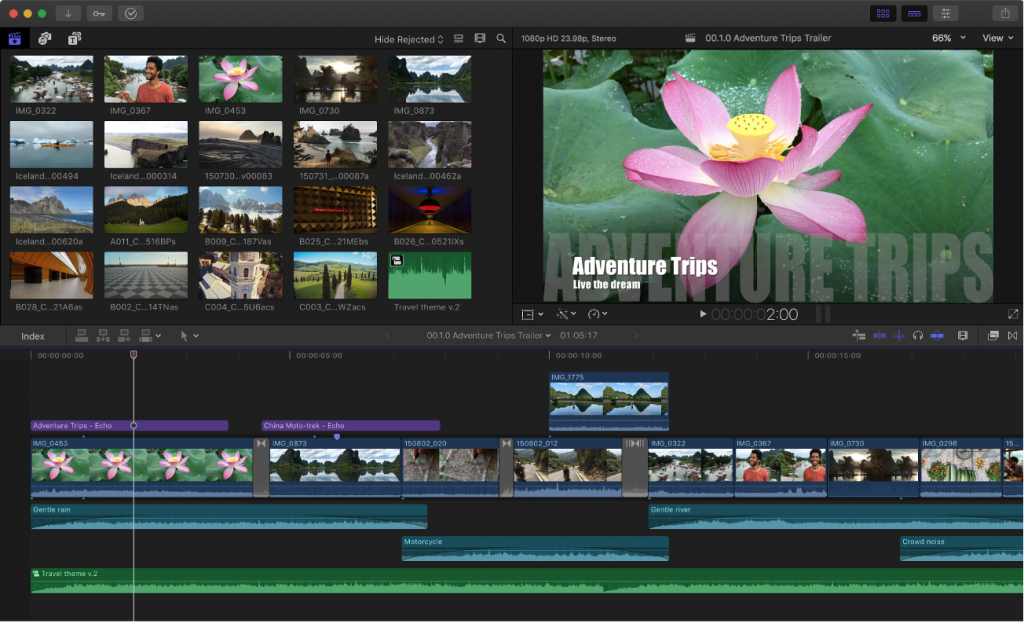
Final Cut Pro’s cutting tools stand out for precision and creative control. The Magnetic Timeline automatically snaps clips together and closes gaps when unnecessary segments are removed. It keeps video sequences clean and organized without the need for manual adjustments. The Blade Tool lets users make precise cuts at any point in a clip, even during playback, so that it is easy to rearrange sections. Trimming tools, which include ripple, roll, slip, and slide edits, offer complete control over timing. As a result, accurate adjustments are made while adding smooth transitions or syncing visuals with audio. Final Cut Pro is a favorite among professionals thanks to its effectiveness and flexibility.
Pros
- Exceptional rendering speed for large projects.
- Intuitive and efficient timeline management.
- One-time purchase with no ongoing subscription costs.
Cons
- Only available for macOS users.
- The advanced features could be hard to use.
4. DaVinci Resolve
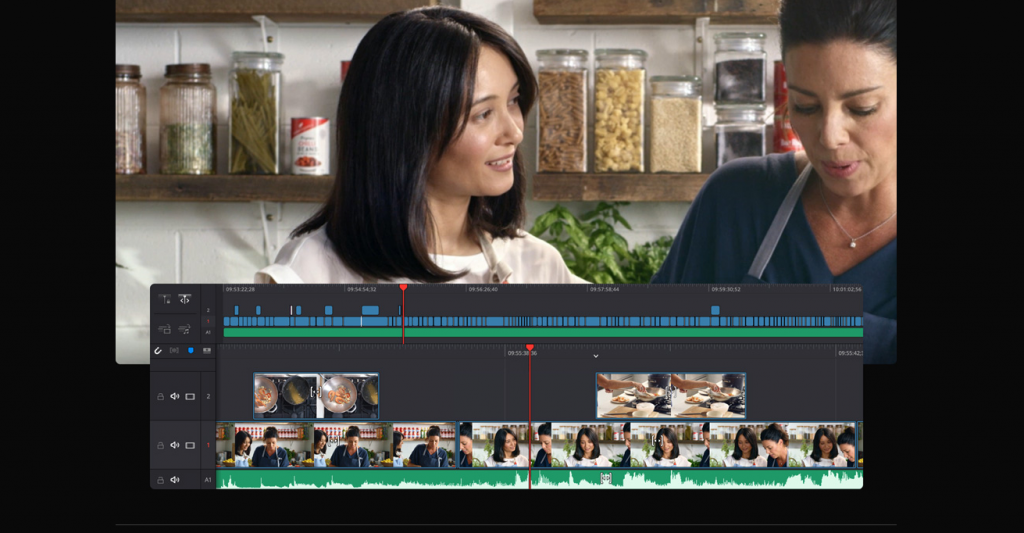
DaVinci Resolve makes cutting video easy with its special Cut Page, designed to help you edit quickly and clearly. It has two timelines, one of which displays the whole project, and the other zooms in so you can make detailed edits without losing your place. You can trim clips using simple drag handles, and the ripple trim tool automatically moves other clips to keep everything in sync. There’s also a Source Tape view that shows all footage in one scrollable strip, so you can find and cut what you need fast. These tools will suit beginners who want a smooth editing experience with high-level precision.
Pros
- Free version includes professional-grade trimming tools.
- Popular in the film industry due to its precise work processes.
- Combines cutting, color grading, and audio editing in one app.
Cons
- High hardware requirements for optimal performance.
- Steep learning curve for novices in video editing.
5. iMovie
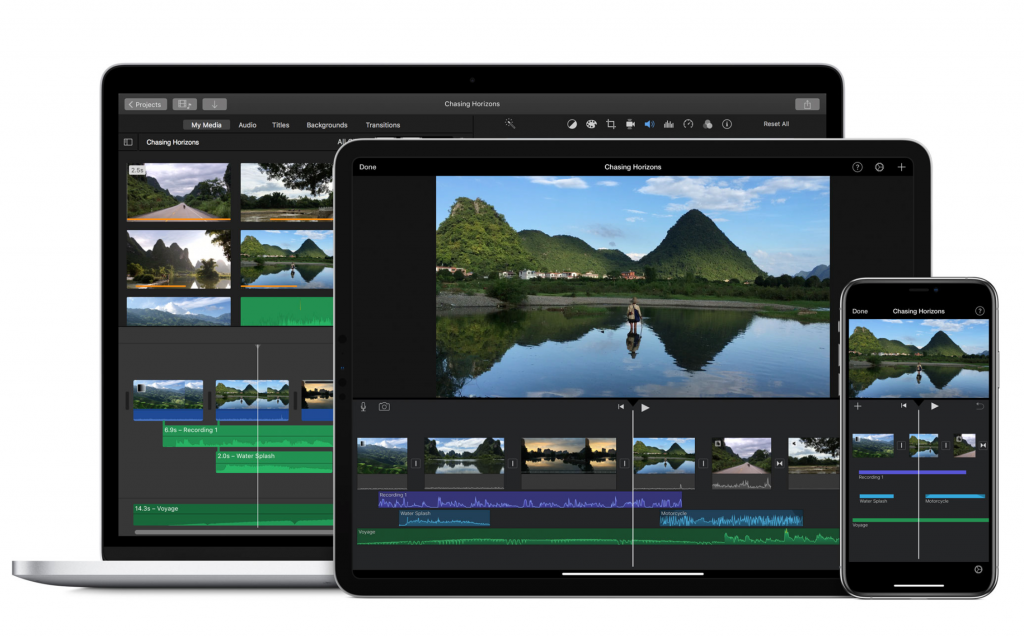
iMovie offers all necessary cutting tools: cutting, trimming, cropping and splitting. With drag-and-drop functionality it is easy to adjust start and end points of clips. There are several options for cropping:
Fit shows the entire image without cropping,
Crop to Fill manually crops video by adjusting the frame,
Ken Burns adds a panning and zooming effect between start and end points.
At the same time, iMovie automatically adjusts the video to maintain aspect ratios, which can limit custom framing. Additionally, it doesn’t support animated cropping or keyframes for dynamic crop transitions.
Pros
- Free for macOS and iOS users.
- Accessible for beginners.
- Creates polished videos for smaller-scale projects.
Cons
- Limited advanced functions for professionals.
- Only available on Apple devices.
6. Filmora
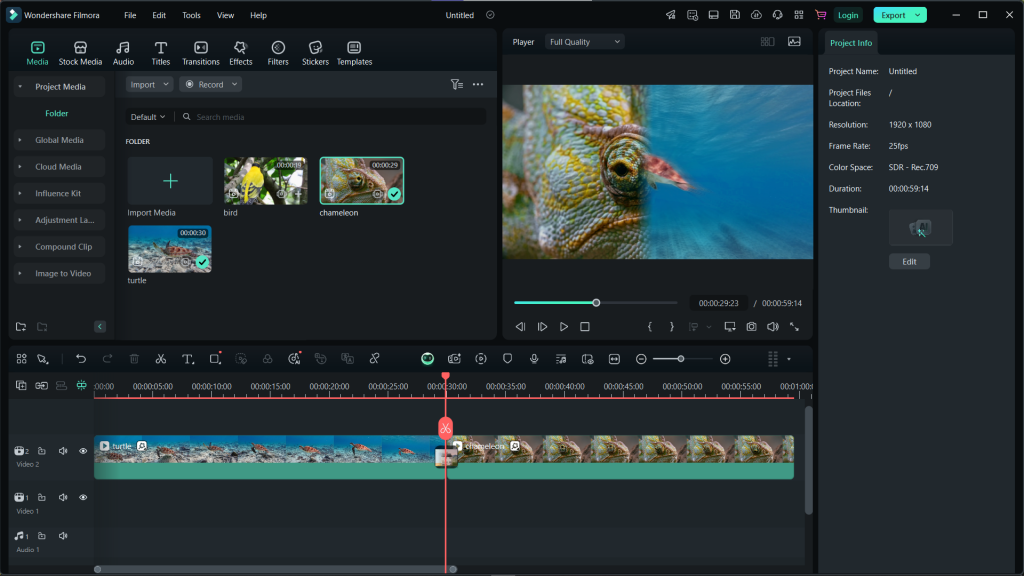
Filmora combines powerful features with intuitive usability. The basic Trim tool lets you quickly shorten or lengthen clips by dragging the edges. It is very useful for removing mistakes or extra footage. For more detailed edits use the Multi-Trim feature allowing you to cut out multiple unwanted parts from the video at once. With an easy-to-use timeline, visual cues, and one-click options, Filmora makes cutting video simple, creative, and beginner-friendly.
Pros
- Affordable compared to other professional tools.
- Regular updates with fresh effects and templates.
- Offers comprehensive tutorials to assist new users.
Cons
- Free version includes watermarks.
- Lacks some advanced tools found in professional software.
7. VSDC Free Video Editor
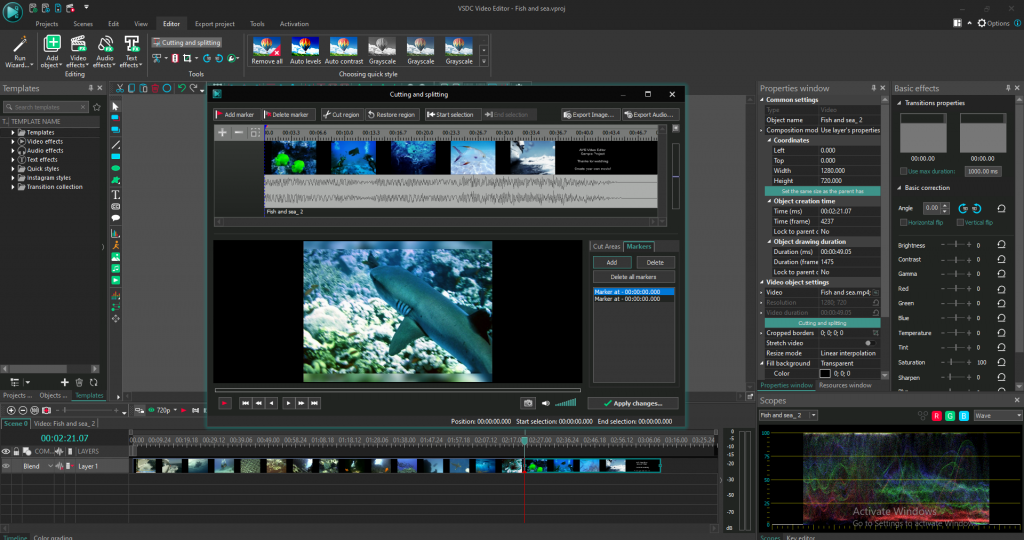
VSDC includes user-friendly cutting tools like Split and Multitrim, allowing beginners to easily edit longer videos. The Split tool divides footage into smaller parts, while the Multitrim option helps remove multiple unwanted segments in one session. If you want even quicker editing, there is Scene Detection feature. It automatically breaks the video into separate scenes based on content changes, making it simpler to trim and organize.
Pros
- Completely free with no watermarks.
- Offers advanced trimming options without extensive system requirements.
- Compatible with older PCs.
Cons
- Less intuitive design for beginners.
- Limited to Windows users.
8. Shotcut
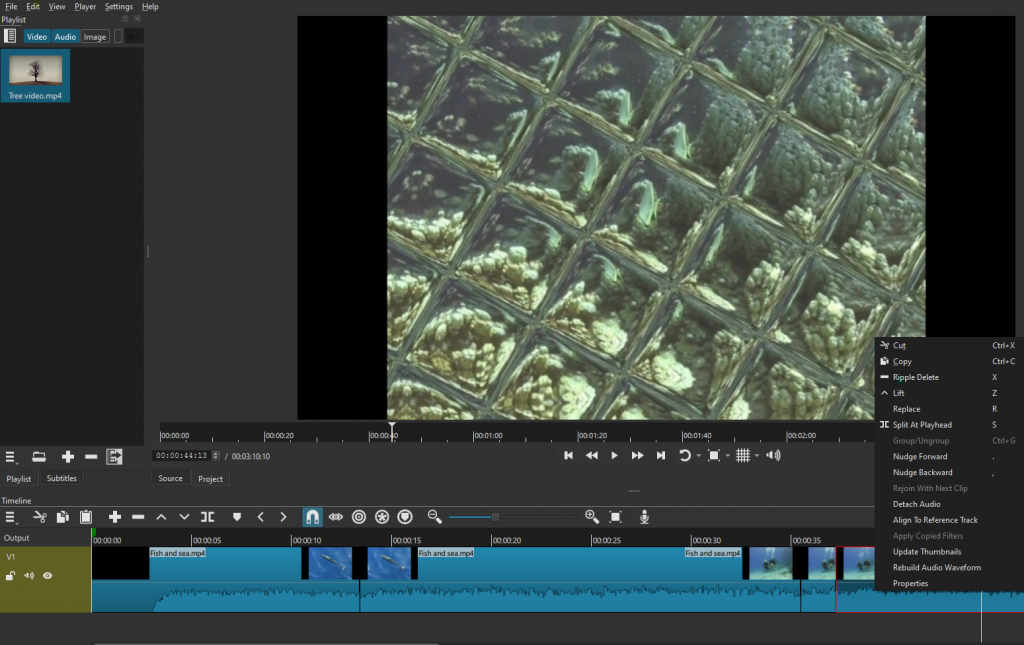
Shotcut offers a precise Trim mode that lets you cut clips accurately. You can easily set in and out points, split clips, and remove unwanted sections without affecting the rest of your project. The ripple editing feature helps maintain timing by automatically shifting clips when you make cuts. For those who want more control, Shotcut also supports codec customization, giving flexibility over formats and export settings during the trimming process.
Pros
- Free and open-source with regular updates.
- No watermarks regardless of export resolution.
- Extensive tutorials available for intermediate users.
Cons
- Slightly outdated design compared to competitors.
- Steeper learning curve for beginners.
9. KineMaster
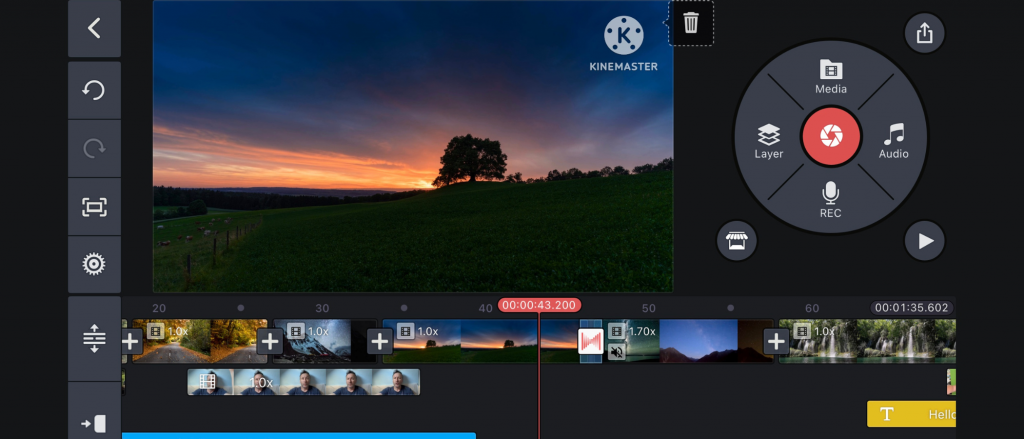
KineMaster offers powerful and intuitive cutting tools designed specifically for mobile devices. With the Clip Trimmer, you can precisely adjust the start and end points of any clip by dragging handles or setting exact timecodes. The ‘Split at Playhead’ tool lets you instantly divide a clip at the current playhead position which is especially useful for removing sections or inserting transitions. KineMaster also includes a built-in crop tool, allowing users to quickly resize or reframe video content to focus on key visuals. These tools make editing smooth and easy right on your phone or tablet.
Pros
- Perfect for fast on-the-go edits.
- User-friendly with desktop-like trimming features.
- Free version includes basic editing tools.
Cons
- Watermarks in free version.
- Limited advanced customization options
10. PowerDirector
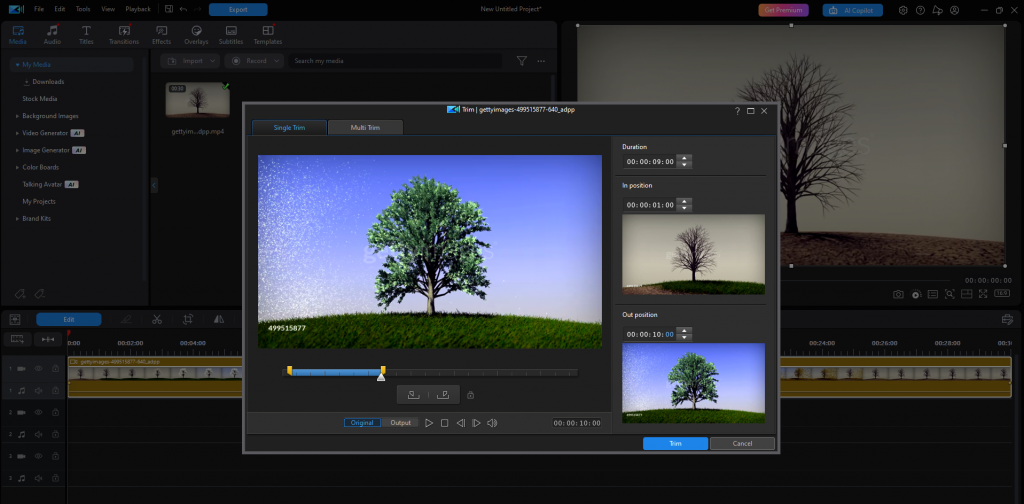
PowerDirector can boast of versatile and efficient cutting tools. The Multi-Trim feature allows users to set multiple in and out points and remove several unwanted sections all at once, ideal for editing bulky videos. For making precise edits PowerDirector is packed with the Precision Trimmer ensuring frame-by-frame control. It is easy to fine-tune the exact start and end points of each cut. Additionally, extra movement can be added to static shots using the Pan and Zoom Cropping tool. As a result, the final video files are given more dynamic, cinematic feel.
Pros
- Offers premium cutting features on both PC and mobile.
- Frame-accurate trimming and robust cropping tools.
- Reasonably priced with regular updates.
Cons
- Editing complex projects can be tricky on small screens.
Choose the best video cutter for your needs
Video cutting is an essential part of the editing process, used both for quick edits and creating complex high-quality projects. If you’re new to editing, try beginner-friendly options like AVS Video Editor, iMovie, or KineMaster. For professionals, Adobe Premiere Pro, Final Cut Pro, or DaVinci Resolve might be the better fit. Finally, budget-conscious creators can take advantage of free alternatives like VSDC and Shotcut, which offer powerful editing at no cost. Master the art of cutting with any of these tools and easily enhance your storytelling.