



Introduction
In our digital era, AI is conquering the whole world and penetrating into a wide variety of fields. Unsurprisingly, all modern video suites implement various AI features designed to simplify video editing and creation workflows. In winter release, AVS4YOU team rolled out AI plugins which allow users to generate video and apply advanced effects using artificial intelligence, directly within their favorite AVS applications. In a nutshell, now it is possible to create a short video from a simple text description, apply studio-quality visual effects, or enhance old footage with intelligent restoration.
In this guide you’ll learn how to install AI plugins, activate them with an API key, and start generating content.
Installing AI Plugins in AVS4YOU
Before you start, make sure that you are using the latest versions of your AVS4YOU software. If you have a previous version, please update it at the Download page. To do it, you don’t have to uninstall the software completely, just download a new version from the official website and install it on your PC. What’s more, a stable internet connection is required, not only for the plugin installation, but for smooth AI processing as well.
Please note that AI plugins are available only in AVS Video Editor, AVS Video Converter, and AVS Image Converter.
Step 1: Open one of the AVS programs with AI plugins
Launch the program where you want to use AI features: AVS Video Editor and AVS Video Converter for AI video generation and AI-assisted video enhancements; AVS Image Converter for AI image effects.
Step 2: Navigate to the Plugin Manager
- Go to the Tools or Settings menu.
- Select the Plugin Manager. This is where all supported AI plugins are listed.
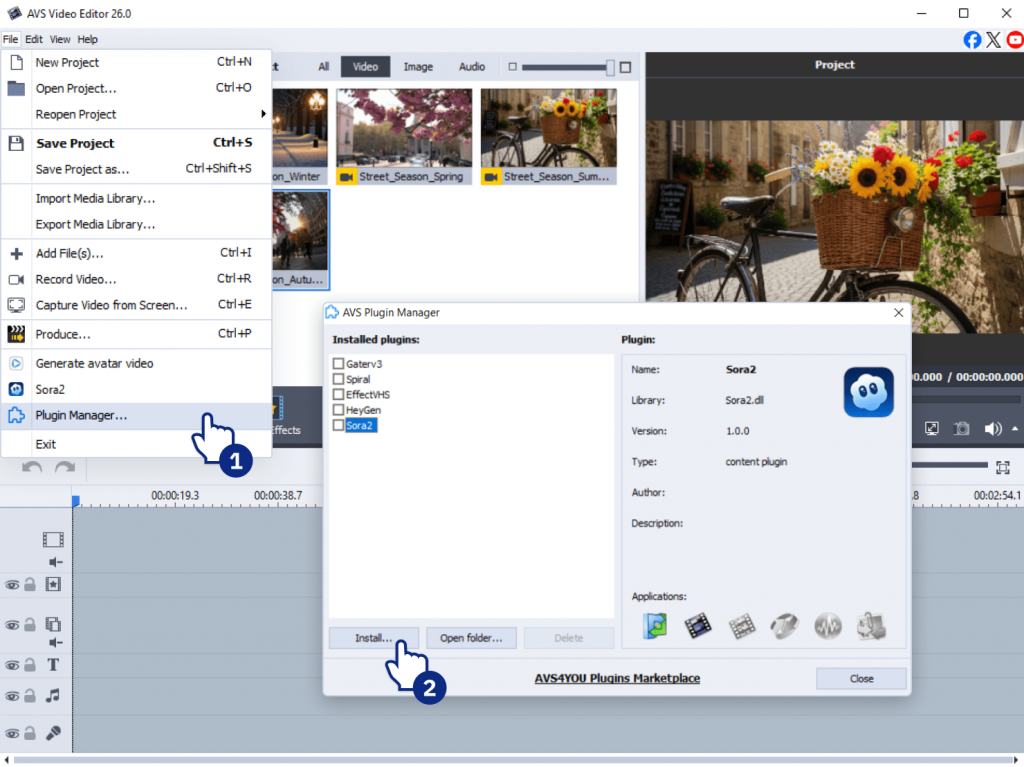
Step 3: Select and install plugins
You can choose to install individual AI plugins or install all available plugins at once at the AVS4YOU Plugin Marketplace. Each plugin includes its description, supported features, and compatible programs. Confirm installation and wait for the process to complete.
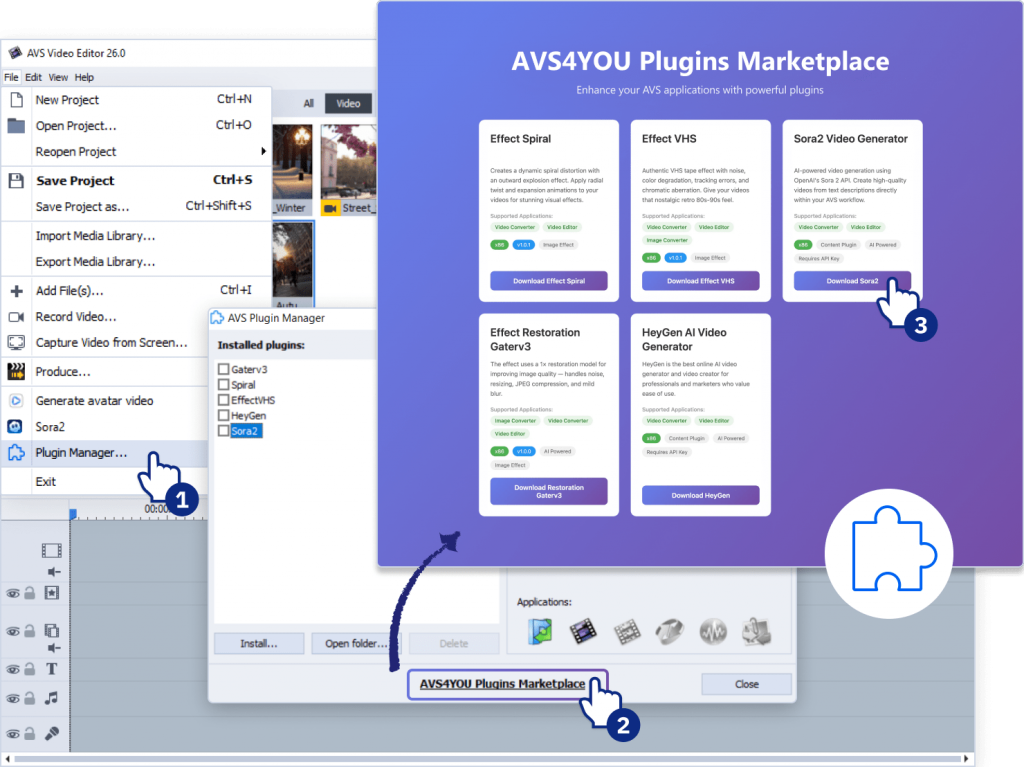
Step 4: Activate content generation plugins with an API Key
The plugins are free and open-source, however, Sora 2 and Heygen require an API key from the AI provider. You’ll need to visit the website of each AI service and sign up for an API key. Many services offer free credits to start.
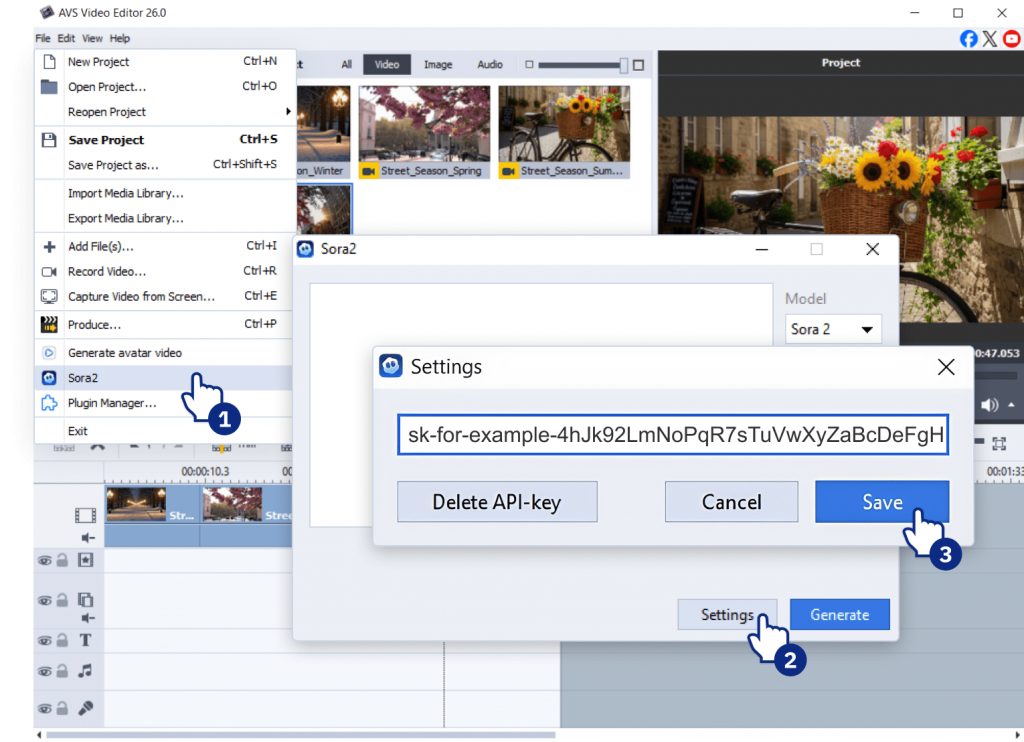
Copy your API key into the corresponding field in the plugin activation window. Once it is activated, you can start using the plugin without restrictions.
Step 5: Test AI Plugins
Video plugins
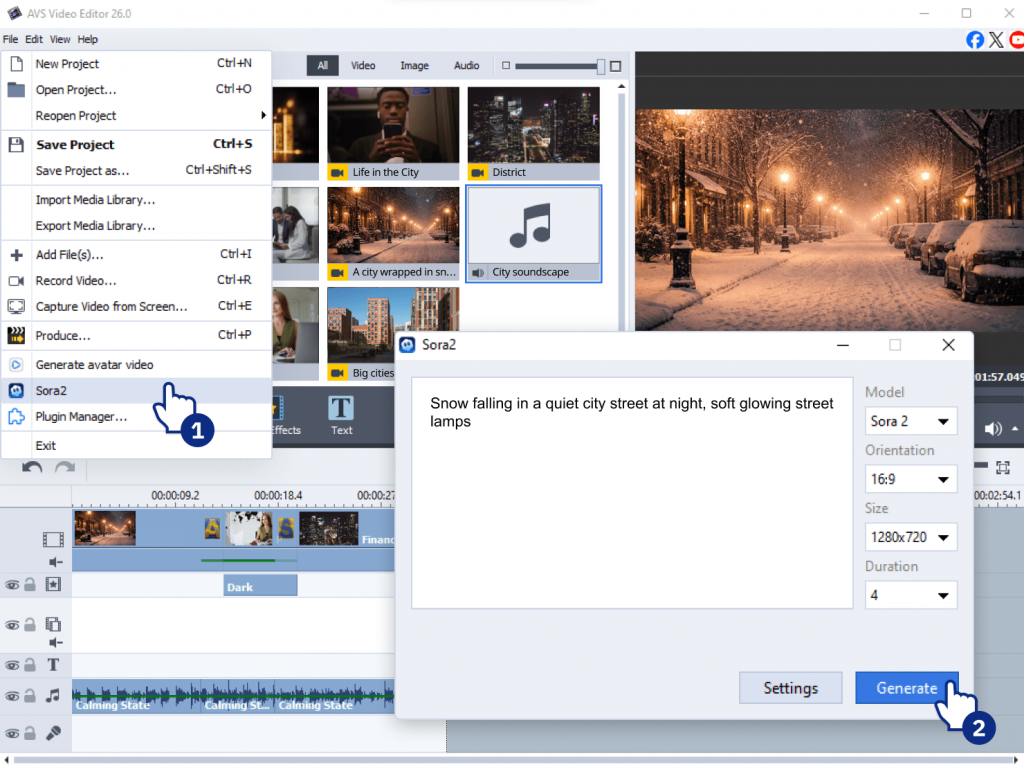
- Write a prompt in the plugin’s text window (for example, “Snow falling in a quiet city street at night, soft glowing street lamps” for Sora 2 plugin).
- Check video settings such as resolution, format, or duration.
- Click Generate to create your first AI video.
AI-based effects
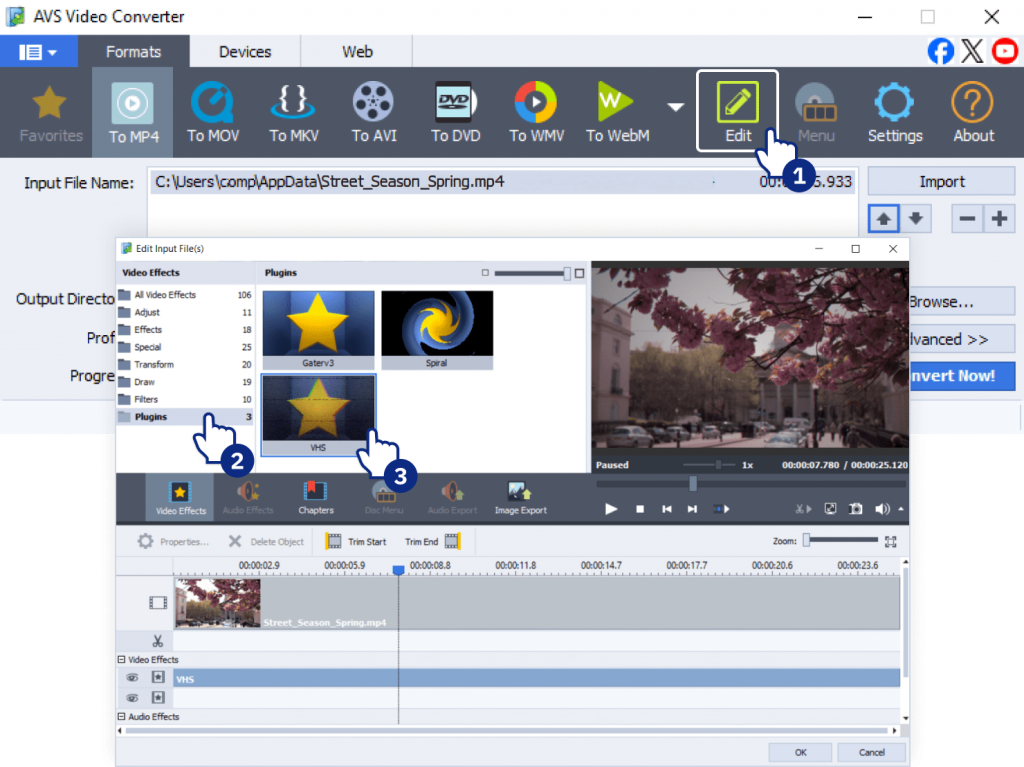
In AVS Video Editor AI image effects are in the Video effects>>Plugins tab. In AVS Video Converter, go to Edit>> Video Effects>>Plugins. AI-based effects are applied in the same way as other effects without any pritfalls.
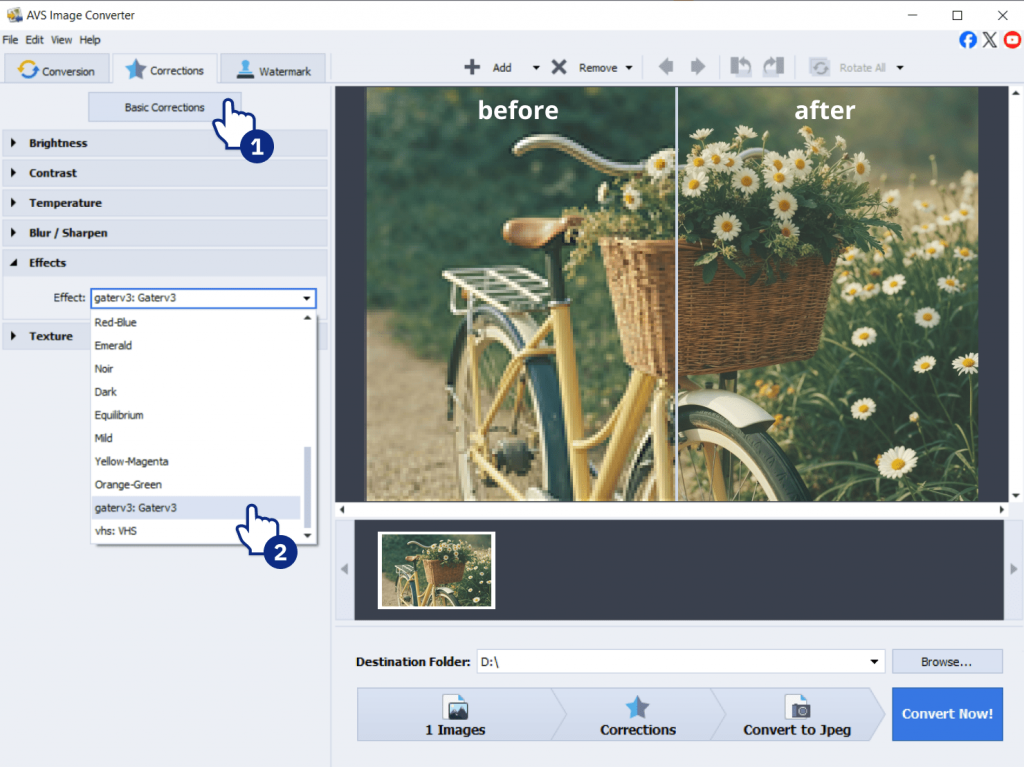
To apply new AI-powered image effects in AVS Image Converter, go to Corrections>>Basic Corrections>>Effects and select the desired effect from the dropdown list. AI effects are located at the bottom.
File locations:
- In AVS Video Editor, AI-generated files are saved in in the following directory c:\Users\[user name]\AppData\Local\avs_plugin_sora2 and displayed in the Current Project section.
- In AVS Video Converter, AI-generated videos appear in the main window automatically—no need to import them manually.
- In AVS Image Converter converted images are saved by default in the folder C:\Users\User_name\Picture, but you can change the destination folder before the conversion.
Common issues and solutions
Even with a smooth setup, you may encounter minor issues. Here’s how to resolve them:
| Issue | Solution |
| Plugin does not appear after installation | Restart the program. Check Plugin Manager to ensure the plugin is installed for that program. |
| Installation stuck or failed | Check your internet connection and make sure it is stable and you have the latest program version. Try reinstalling. |
| Activation failed | Verify your API key is entered correctly and hasn’t expired. |
| Network-related issues | Confirm your firewall or antivirus isn’t blocking access to AI services. |
Note: Each AVS program has access to specific plugins. For example, there are no video plugins in AVS Image Converter. Always check the Plugin Manager for compatibility.
Tips for Beginners
To get the best experience with AI tools for content creation, follow these tips:
- Start with default plugin settings to understand the workflow.
- Use short and clear prompts for more accurate AI results.
- Make small changes to prompts instead of rewriting them completely.
- Watch progress indicators and wait until processing finishes.
- Restart the program if a plugin becomes unresponsive.
- Keep a stable internet connection during AI processing.
- Review plugin settings after updates to ensure consistency.
- Start with lower resolution or shorter video clips to test results faster.
- Always preview AI-generated content before exporting the final file.
Conclusion
The new AI plugins represent a major step forward for the AVS4YOU suite. They can help you generate, restore, and transform your media faster and easier. Now that you are familiar with the AI Plugins, the next step is to try different prompts and resolutions to see what works for you. The best way to learn is by doing!
We encourage you to check our marketplace from time to time because we are constantly expanding the current collection of plugins. Tech-savvy users can create their own plugins to integrate them into AVS4YOU software. Please find the full documentation with examples here.
Can’t find what you’re looking for? Let us know in the comments.
FAQ
1. Are the video plugins AI free to use?
Yes, they are free and open source. However, your AI provider might charge you for using its AI models in AVS4YOU software. To learn more, visit the website of your provider.
2. How do I get an API key for generating AI video?
AVS4YOU doesn’t provide API keys. You should get them from your AI provider. Here are the pages where you can find more information about how to get API keys:
https://docs.heygen.com/docs/quick-start
https://platform.openai.com/api-keys
3. How do AVS4YOU plugins work?
The plugins integrate external AI services directly into your AVS programs. The plugins are installed additionally to the software package and are part of AVS4YOU workflow.
4. Do I need to have an Internet connection to use AI?
Yes, you need a stable Internet connection to generate video using AI video content plugins. But is is not necessary for the use of AI-based image effects.
5. What is an API key, and why is it required for content generation plugins in AVS4YOU?
An API key is a unique code that identifies you to a service such as OpenAI or HeyGen. It’s required for the generator plugins because AVS4YOU software does not perform AI video creation.
When you use the plugin, your request (a text prompt) is sent to the external service’s servers. The API key acts as both your authentication (“this request comes from a valid user”) and your billing identifier, allowing the external service to track your usage and potentially charge you based on your plan with them. The AVS4YOU plugin simply allows to connect AI video generators with AVS programs within their interface.
6. Are there any usage limits for the AI image effects?
No, there are no limits. You can apply AI-based image effects as often as you need.
7. What are the usage limits for Sora2 and Heygen Video Generators?
It depends entirely on your API key plan. AVS4YOU plugins do not impose any usage limits on video generation.