 Note
Note: this guide shows how to burn pre-made home video DVD folder (VIDEO_TS) to DVD. If you want to burn video files (AVI, DivX, Xvid, MPEG, WMV, RM, etc.) to DVD please read this one: "
How to burn video to DVD?"
For burning DVD folders you will use
AVS Disc Creator. The program interface is very simple. You can make all actions in the same window: select an output drive, add files and folders to be written to DVD or CD and erase data from not-empty discs. As soon as you are ready just click the
Start Burning! button to write files to DVD.
Click here to download it. After the download is finished, run the AVSDiscCreator.exe file and follow the installation wizard instructions.
[Back to the Top]
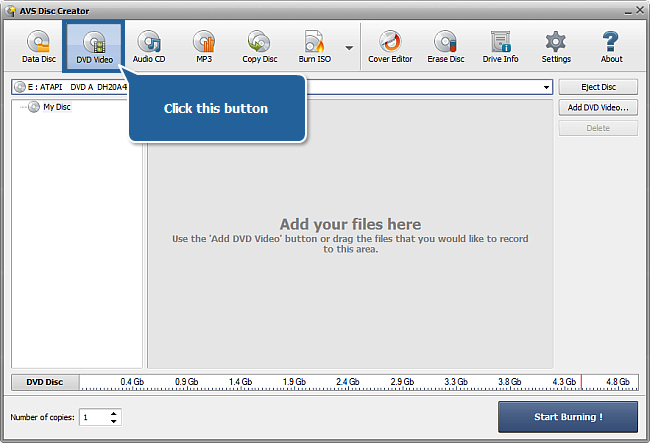
Click the DVD Video button at the top of the main window to create a DVD disc with your video DVD folder.
[Back to the Top]
Click Add DVD Video... button. In the opened Select DVD Video Folder window select a VIDEO_TS folder you want to write.
Now to add the folder you can:
- drag-and-drop it to the main window,
- OR click the right mouse button and select the Add option from the menu,
- OR just click the Add button.
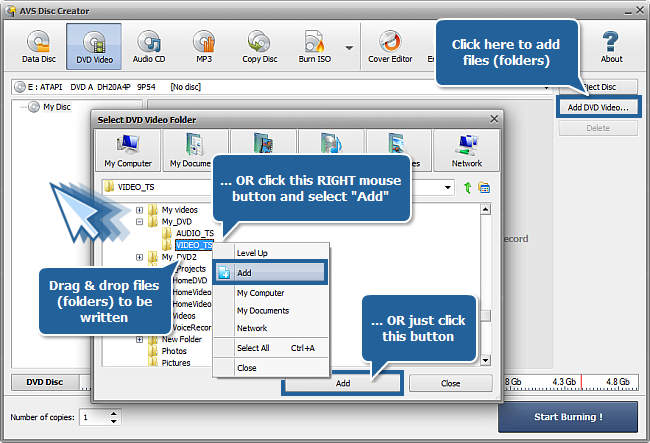
Note: on the disc size meter along the bottom of the interface you can see the size of added files.
[Back to the Top]
Select the necessary disc drive if you have several from the drop-down box. Then insert a DVD disc into the drive.
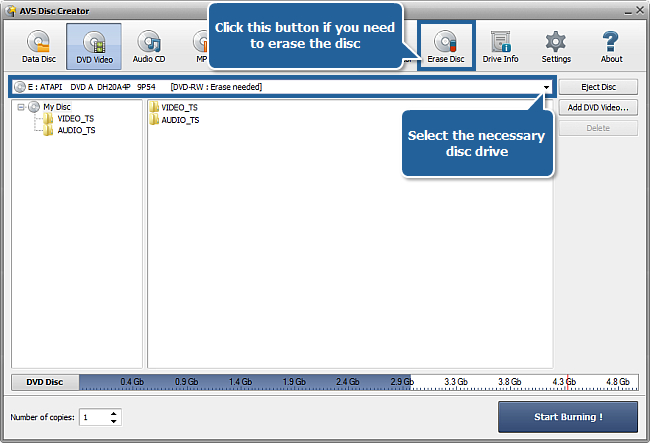
If it is not empty, click the Erase Disc button at the top of the main window. Select "Quick erase", then click the Erase button in the new window. Wait a minute to complete erasing. Close this window.
Note: if you do not erase a not-empty disc,
AVS Disc Creator will delete all files from this disc before writing DVD folder to this disc.
[Back to the Top]
Now click the Start Burning! button in the right bottom corner of the interface.
Note: before you start burning you can also specify the amount of disc copies, which you want to create, using the arrows in the
Number of copies field.
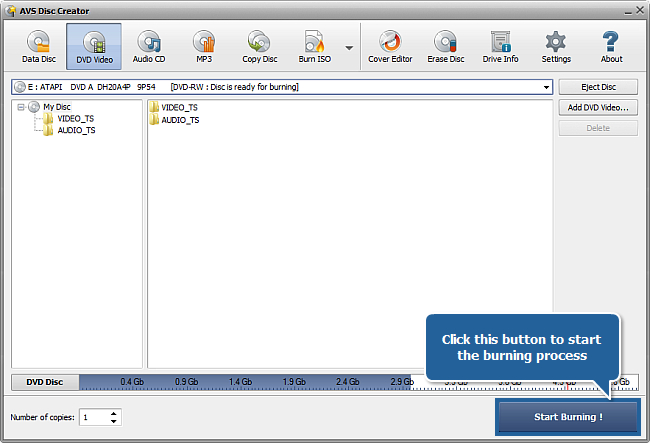
That's all. Your DVD will be ready in several minutes!
[Back to the Top]
Version: 6.1.7.557Size: 112.71 MBPlatforms: Windows 10, 8.1, 8, 7, XP, 2003, Vista
(no Mac OS/Linux support)
Download
AVS Disc Creator
Registration on AVS4YOU is like buying a single product listed on
www.AVS4YOU.com and getting all other products from our site as a gift. That means you can install and use
ALL OTHER software with the same serial number without additional fees and limitations.
Please note that AVS4YOU programs do not allow you to copy protected material. You may use this software in copying material in which you own the copyright or have obtained permission to copy from the copyright owner.