You would like to watch your favorite home video using a mobile phone? AVS Video Converter enables you to convert your home video to a necessary format and then upload it to the mobile phone using special application.
What you need:
All you need to transfer your home video files to your mobile phone is:
- AVS Video Converter
- A mobile phone capable of video playback with Infrared, Bluetooth or USB
Now AVS Video Converter uses AVS Mobile Uploader included in the AVS Video Converter installation package to upload the files to your mobile phone.
Click here to download it. After the download is finished, run the AVSVideoConverter.exe file and follow the installation wizard instructions.
[Back to the Top]
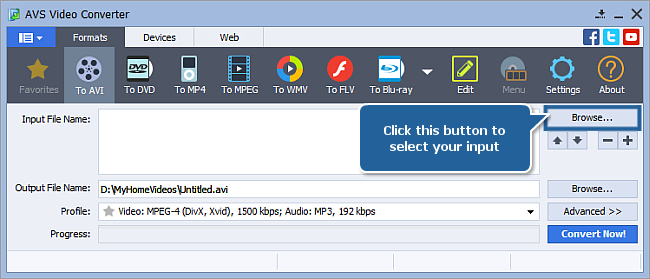
To select a video you would like to convert hit the Browse... button next to the Input File Name field. In the opened Windows Explorer window browse for the necessary video file:
 Note
Note: when your input is a DVD disc, you will need to select the path to your source file: X:\Video_TS\Video_TS.IFO. "X" stands for your DVD-ROM or the hard disk drive folder where your DVD is stored. Please see the
online help section to find more on how to convert your home DVDs to other video formats.
[Back to the Top]
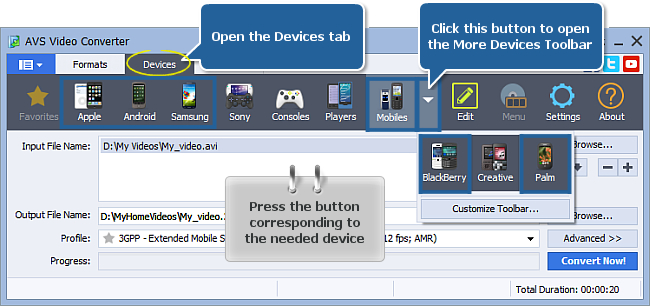
After you have selected the video input file, open the Devices tab of the Main Toolbar and select the needed type of device between the following buttons (click the More Devices button to open the More Devices Toolbar, if needed):
- Apple for Apple iPhone;
- Android for HTC Hero, Motorola Droid/ Milestone and other mobile phones running under Android OS;
- Samsung for Samsung Galaxy S3/S4, Samsung Galaxy Note 3 smartphones;
- Mobiles for mobile phones with 3GPP and 3GP2 video support;
- BlackBerry for your BlackBerry mobile phone;
- Palm for Palm Pre, Palm Pixi, Palm Treo.
The full list of supported devices you can see here.
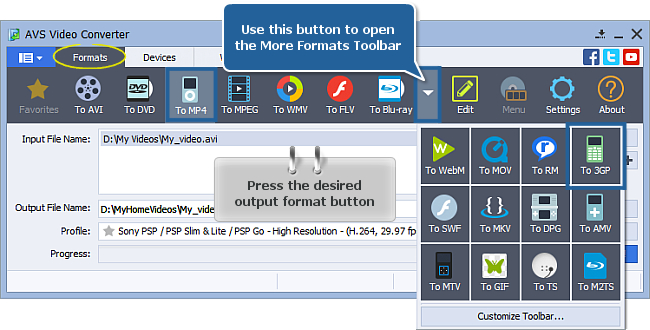
Note: you can also use the
Formats tab of the
Main Toolbar and select the
To MP4 button for mobile phones with MPEG-4 video support or the
To 3GP button for mobile phones with 3GPP and 3GP2 video support (click the More Formats button to open the
More Formats Toolbar, if needed).
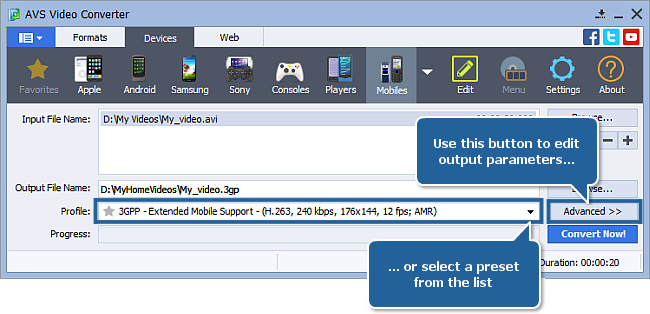
In the list of Profiles (Profile field) select one of the profiles offered for the chosen type of mobile phone. You can also click the Advanced >> button to manually set the profile parameters in the Output File section of the opened Conversion Options tab.
[Back to the Top]
Click the Browse... button next to the Output File Name field and select a location on your HDD for the output video file.
Note: when you select a location for your output video file, you should save the file to your personal computer HDD.
[Back to the Top]
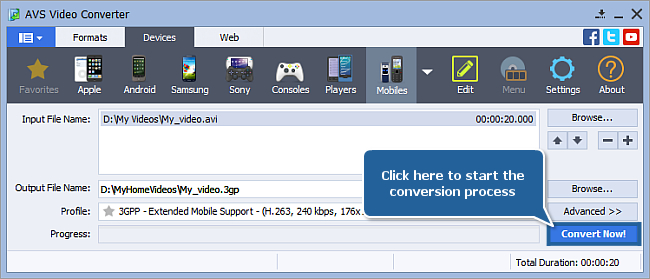
After you have set up all the conversion parameters, hit the Convert Now! button to start converting.
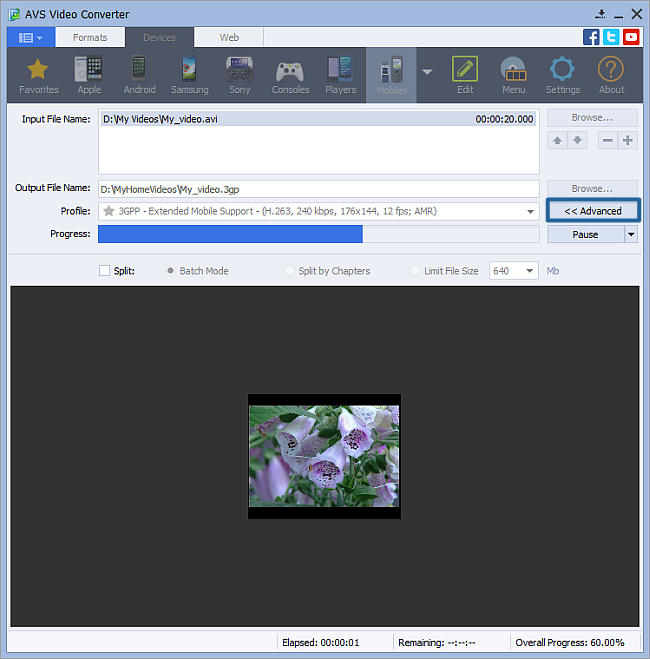
You can visually judge the conversion process if you hit the Advanced>> button.
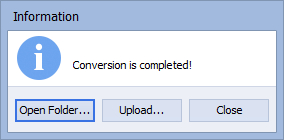
When the process is over the following window will be opened. Click the Upload... button to launch AVS Mobile Uploader.
[Back to the Top]
Turn on your phone and connect it to your computer via USB, Infrared or Bluetooth.
The AVS Mobile Uploader application will be launched to guide you through the upload process so that you could send your converted video file to your phone.
If your mobile phone is not displayed in the AVS Mobile Uploader window you should press the Find Devices button to search for it:
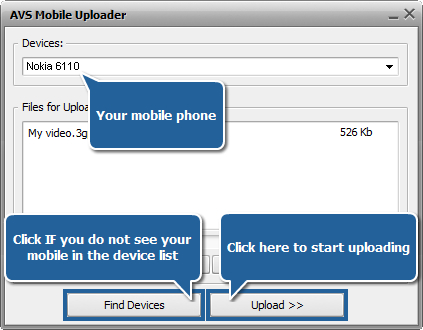
When you click the Upload>> button the upload process itself will take place. It will take some time depending on the output video file size.
Now you can enjoy your favorite home video DVD and video files on your mobile phone!
[Back to the Top]
Version: 12.0.1.650Size: 80.45 MBPlatforms: Windows 10, 8.1, 8, 7, XP, 2003, Vista
(no Mac OS/Linux support)
Download
AVS Video Converter
Registration on AVS4YOU is like buying a single product listed on
www.AVS4YOU.com and getting all other products from our site as a gift. That means you can install and use
ALL OTHER software with the same serial number without additional fees and limitations.
Please note that AVS4YOU programs do not allow you to copy protected material. You may use this software in copying material in which you own the copyright or have obtained permission to copy from the copyright owner.