Turning your personal computer into a multimedia center is quite easy. You will need to have a player that will let you playback media files of various formats - video and audio. AVS Media Player supports the playback of the following video and audio file types:
Video files: Audio Video Interleaved Files (*.avi), MPEG Video Files (*.mpg; *.mpeg; *.mpe; *.mp4; etc.), Windows Media Video (*.wmv; *.asf; *.asx), Video CD (*.dat), QuickTime Movie (*.mov; *.qt), Mobile Video (*.3gp; *.3gpp; *.3g2; *.3gp2), DV Files (*.dv), Microsoft Digital Video Recorder (*.ms-dvr; *.dvr-ms), Google Video Files (*.gvi), OGG Video Files (*.ogm), Matroska Video Files (*.mkv), Flash Video (*.flv).
Audio files: WAV Files (GSM, ADPCM, DSP and others), MP3 (MPEG-1/2 Layer 3, including VBR), MP2 (MPEG-1/2 Layer 2), M4A Files, WMA (Windows Media Audio 9), Ogg Vorbis (ver 1.0), AAC Files, MPC (MusicPack), AIFF (Apple), AU (UNIX).
See a full list of Supported Formats here.
Read step-by-step instructions below on how to playback your home video files collection on your personal computer using AVS Media Player.
Click here to download it. After the download is finished, run the AVSMediaPlayer.exe file and follow the installation wizard instructions.
[Back to the Top]
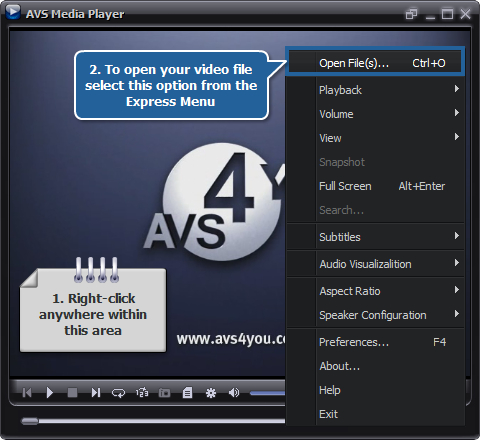
To select your video file you will need to locate a folder with it on your computer hard disk drive. To do that right-click within the Playback Window and select the Open File(s)... option from the Express Menu:
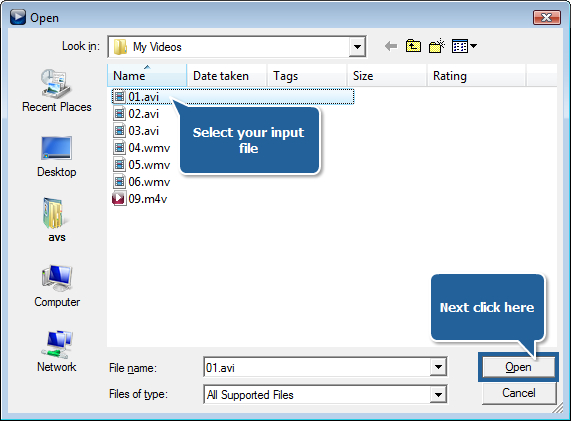
In the opened Windows Explorer window select the place on your computer HDD where the video file is stored and press the Open button:
[Back to the Top]
After the video file opens you can start watching it right away. But if you plan to watch several files, it is better create a list of the files for the playback so that you will not need to open them one by one - AVS Media Player will do it for you.
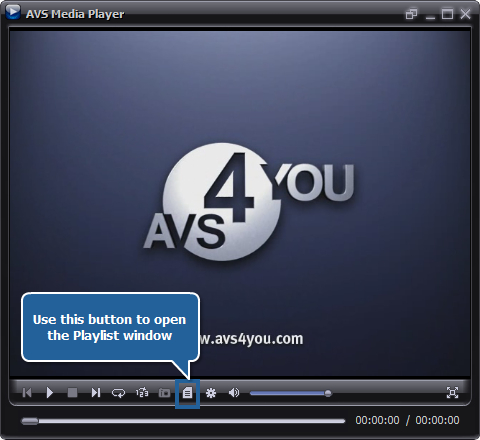
Click the Playlist button to open the Playlist window:
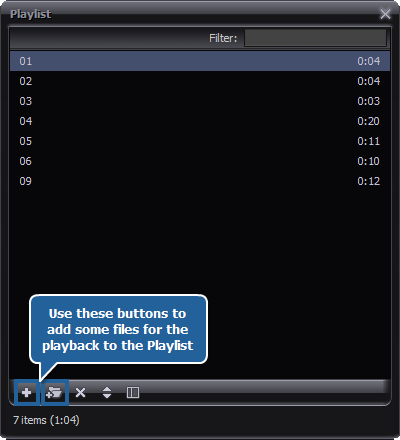
Now you can add different video files to it using the Add files or Add folders buttons located in the bottom part of the Playlist window:
When the files are added, use the player controls to playback them.
[Back to the Top]
And that's not all yet. If you want to further increase the impression from the movie, you will need to setup your audio environment correctly. You can do that in two ways:
Move yourself in your room so that the distance between you and all the speakers were the same;
Or use the Speaker Calibration feature of the AVS Media Player. For the latter use the right mouse button within the Playback Window and select Speaker Configuration -> Calibration... option:
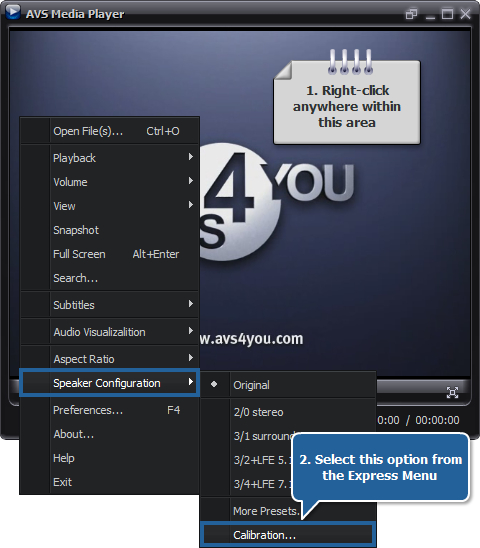
The following window will be opened:
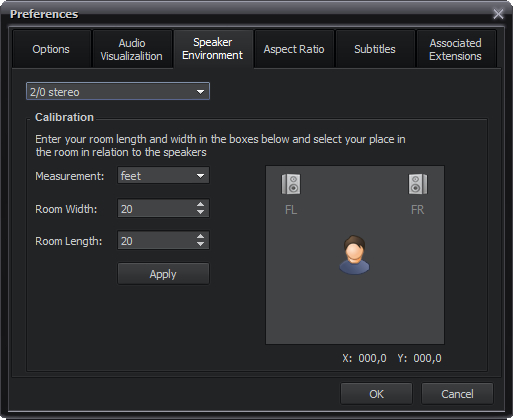
To change the position of the spectator within the room, simply drag the image of the person with the mouse cursor within the room representation. Note, that you can also change the number of the speakers used and their configuration in the upper part of the window, set the proper room width and length. To accept the changes click the Apply button.
As you can see, watching a home video can be as easy as that and just comfortable as well.
[Back to the Top]
Version: 5.1.2.135Size: 103.96 MBPlatforms: Windows 10, 8.1, 8, 7, XP, 2003, Vista
(no Mac OS/Linux support)
Download
AVS Media Player
Registration on AVS4YOU is like buying a single product listed on
www.AVS4YOU.com and getting all other products from our site as a gift. That means you can install and use
ALL OTHER software with the same serial number without additional fees and limitations.
Please note that AVS4YOU programs do not allow you to copy protected material. You may use this software in copying material in which you own the copyright or have obtained permission to copy from the copyright owner.