AVS Video Converter enables you to burn a home video DVD to playback in your home DVD player from all modern video formats. The integrated DVD burning engine and the widest range of supported video formats make AVS Video Converter a perfect tool to create personal DVD videos. Just follow these few steps listed below.
Click here to download it. After the download is finished, run the AVSVideoConverter.exe file and follow the installation wizard instructions.
[Back to the Top]
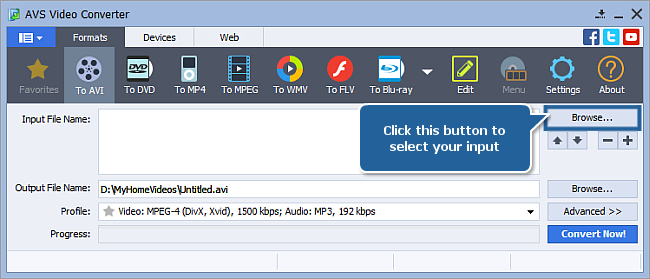
To select a video you would like to convert hit the Browse... button next to the Input File Name field. In the opened Windows Explorer window browse for the necessary video file:
 Note
Note: when your input is a DVD disc, you will need to select the path to your source file: X:\Video_TS\Video_TS.IFO. "X" stands for your DVD-ROM or the hard disk drive folder where your DVD is stored. Please see the
online help section to find more on how to convert your home DVDs to other video formats.
[Back to the Top]
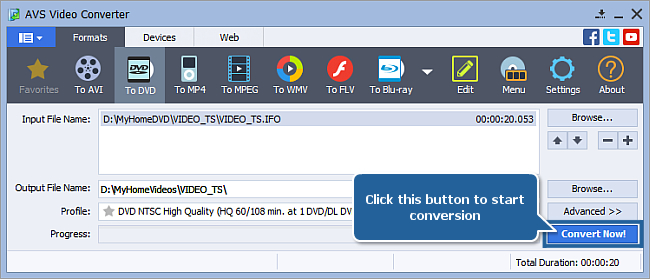
Click the To DVD button on the Formats tab of the Main Toolbar. In the list of video disc types (Profile field) select one of the preset profiles.
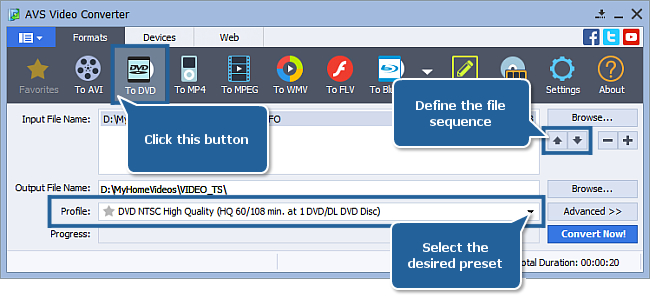
You can edit the files to burn. By clicking the (+/-) buttons you can add or remove files from the list. Using the Arrows you can change the sequence of files.
[Back to the Top]
Click the Browse... button next to the Output File Name field and select a location on your HDD for the output video file.
Note: when you select a location for your output video file, you should save the file to your personal computer HDD.
[Back to the Top]
In case you convert your files into a DVD format, the program will let you create a DVD menu so that you could navigate through your disc easily using it. First of all you need to set the chapters of your DVD menu. To do it switch into the editing mode using the Edit button on the AVS Video Converter Main Toolbar. In the opened window click the Chapters central button:
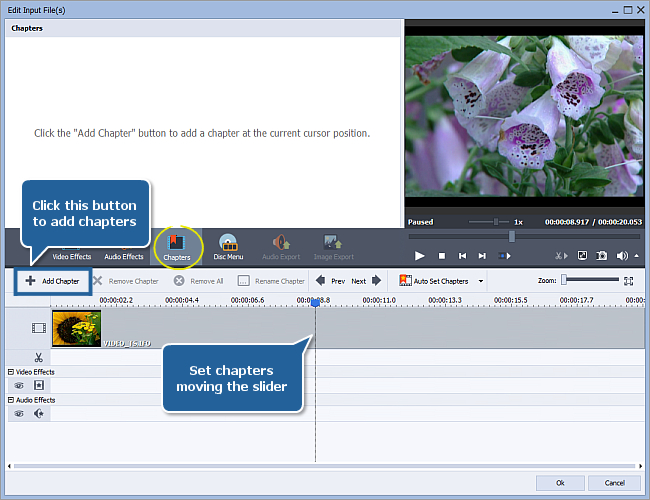
Place the mouse cursor within the Timeline where a chapter should start and click the Add Chapter button on the Timeline Toolbar.
If you want to delete some chapters select the necessary one clicking it with the mouse. Then use the Remove Chapter button at the Timeline Toolbar or right-click this chapter and select Remove Chapter from the express menu. To delete all chapters use the Remove All button.
After all the chapters are added click the Disc Menu central button to start editing your DVD Menu.
Select one of the Disc Menu Styles by double-clicking it or selecting the Apply Menu Style option from the right-click menu. Switch between the Main Page and the Chapters page in the Preview Area. To assign your own background pictures left-click the Working Areas (if they are available for the selected menu style) at the bottom of the Edit Input File(s) window, select the desired image or video file in the opened window and press the Open button.
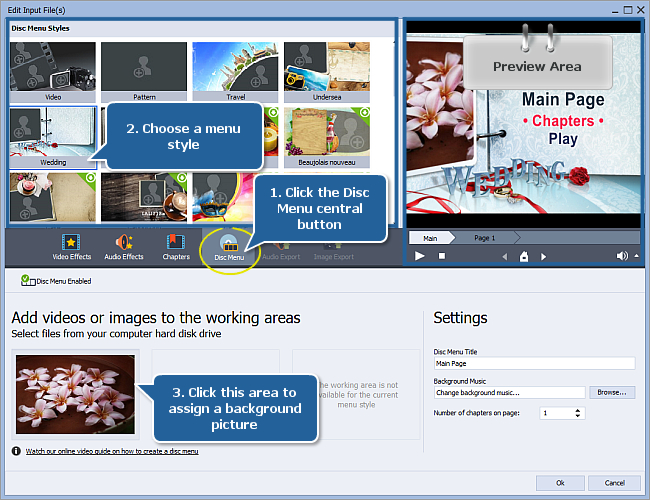
In the Settings section of the Edit Input File(s) window you can change the Disc Menu Title, assign your own Background Music or set the Number of chapters on page using the appropriate controls.
After you add all the chapters and when you are satisfied with the result, click the Ok button to close the Edit Input File(s) window and start converting your video.
[Back to the Top]
After you have set up all the conversion parameters, hit the Convert Now! button to start conversion.
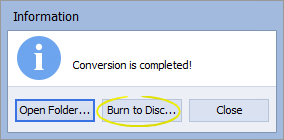
When process is over the following window will appear, where you should click Burn to Disc...:
[Back to the Top]
Insert a blank DVD into your computer optical disc drive. Make sure that the disc is compatible with your drive.
You can select the necessary disc drive if you have several, refresh it and mark the Verify disc check-box to make sure the disc is recorded correctly.
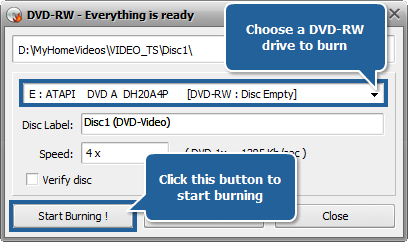
Now click the Start Burning! button to begin the recording. Note, that if the disc is not empty you will be offered to erase it. If you do not want to do that, you can eject the disc and use another one instead.
After the burning is over the disc will be ejected automatically. Note, if you checked the Verify disc, the recording will take a little longer depending on the size of the output files as the program will need time to verify them.
Now you can watch your recorded home video DVD on your Home DVD Player!
[Back to the Top]
Please note that AVS4YOU programs do not allow you to copy protected material. You may use this software in copying material in which you own the copyright or have obtained permission to copy from the copyright owner.