The universal character of AVS Video Converter is probably the main secret of its popularity. This compact tool is ideal not only for converting files, it can also be used for simple video editing and burning the resulting video to discs.
The Edit function is the one that causes most of the questions as it implies working with the timeline. The following guide will give you some tips on editing video with AVS Video Converter, in particular, on how to apply various effects to your video.
Click here to download it. After the download is finished, run the AVSVideoConverter.exe file and follow the installation wizard instructions.
[Back to the Top]
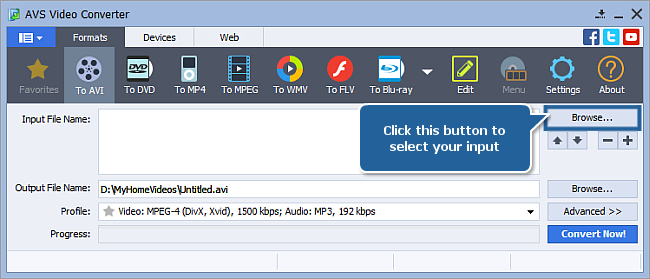
To select a video you would like to convert hit the Browse... button next to the Input File Name field. In the opened Windows Explorer window browse for the necessary video file:
 Note
Note: when your input is a DVD disc, you will need to select the path to your source file: X:\Video_TS\Video_TS.IFO. "X" stands for your DVD-ROM or the hard disk drive folder where your DVD is stored. Please see the
online help section to find more on how to convert your home DVDs to other video formats.
[Back to the Top]
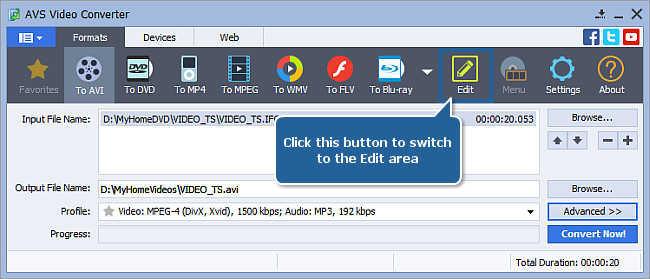
Once the input video is loaded, press the Edit button on the Main Toolbar to open the Edit Input File(s) window.
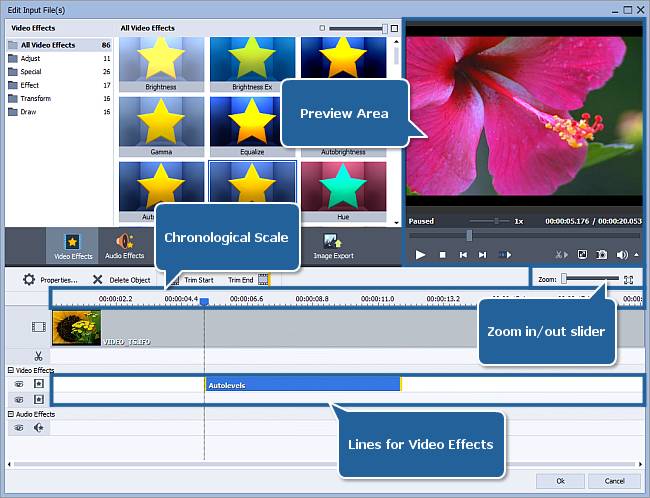
The video file(s) you loaded into the software will be represented on the Timeline. The following components will help you navigate your video:
- The Timeline Scale in the upper part of the Timeline shows the file in its chronological sequence – in hh.mm.ss format. Use the Zoom slider on the right to zoom in or zoom out the scale.
- The Preview Area located in the right part of the Edit Input File(s) screen allows you to visually control the editing process. The current position of the cursor is always displayed in this area. By default it displays the very first frame of the video you imported into the program.
[Back to the Top]
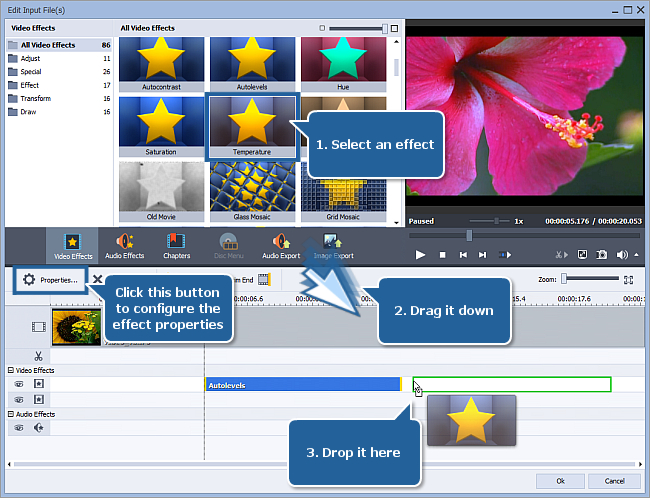
Select the effect you would like to apply in the Effects area. Sort available effect icons by category (draw, adjust etc) or by type (audio or video) for easier access to a specific effect.
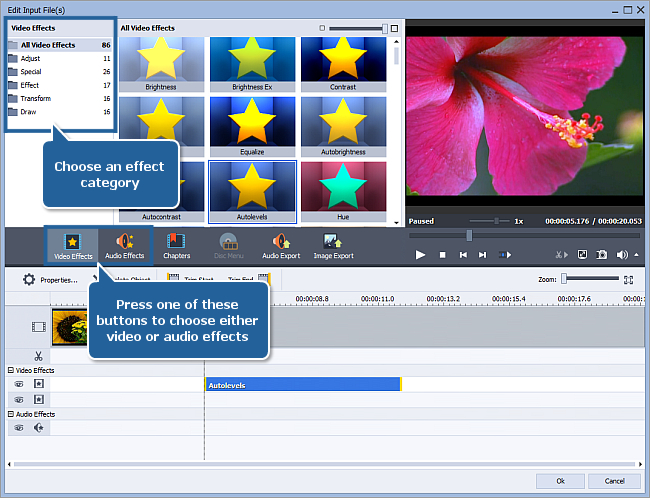
The procedure of applying is the same for all effects. So, we'll take Temperature as an example and go on with it.
Once you located the desired effect, please drag and drop it to the timeline. Click on the Temperature icon and, keeping the mouse button pressed, drag it to the Video Effects area in the lower part of the timeline. When you release the button, the effect will be placed on one of the lines for video effects.
[Back to the Top]
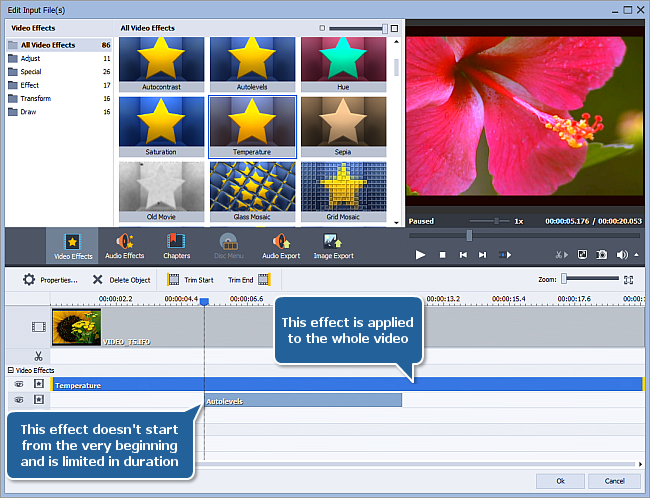
Initially the applied effect covers only a part of the video. In order to adjust the size or position of the effect application area, please do the following:
- To move the area, click it and, without releasing the button, drag it with the mouse along the line.
- To adjust the borders of the area, drag them with the mouse.
- To apply the selected effect to the whole video, drag the left border of the area as close as possible to the left edge of the video effect line, move the right border of the area as close as possible to the right edge of the effect line.
[Back to the Top]
Press the Properties button or double-click the desired effect on the timeline in order to access its properties window:
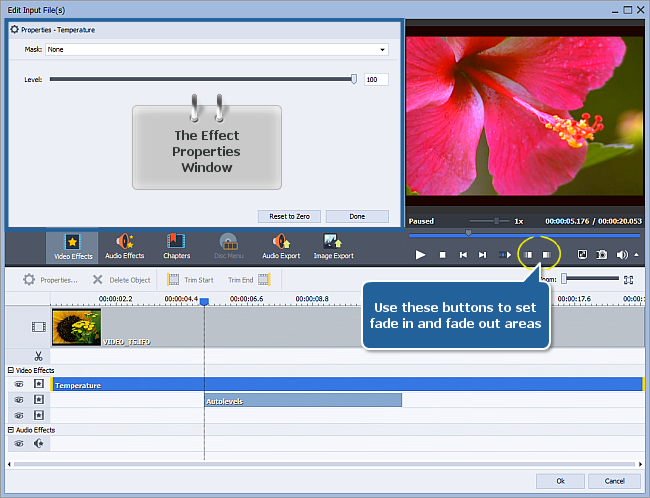
Adjust available effect parameters in the Properties window located on the left. Click Done to apply the changes and close the Properties window.
Use controls in the the Preview Area to set fade in and fade out areas.
[Back to the Top]
After you have applied all the desired effects, click the OK button to accept the changes and close the Edit Input File(s) window. It will bring you back to the main screen. Configure conversion parameters as you need and press Convert Now!.
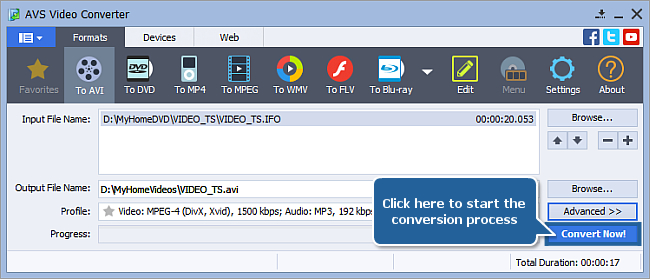
Wait while the software converts your video. It might take up to several hours depending on your computer capabilities.
That's all! The edited video of a new format is now ready to be watched.
[Back to the Top]
Version: 12.0.1.650Size: 80.45 MBPlatforms: Windows 10, 8.1, 8, 7, XP, 2003, Vista
(no Mac OS/Linux support)
Download
AVS Video Converter
Registration on AVS4YOU is like buying a single product listed on
www.AVS4YOU.com and getting all other products from our site as a gift. That means you can install and use
ALL OTHER software with the same serial number without additional fees and limitations.
Please note that AVS4YOU programs do not allow you to copy protected material. You may use this software in copying material in which you own the copyright or have obtained permission to copy from the copyright owner.