Sometimes you might need to correct a set of photos or create a collection of stylized pictures and then convert all of them to another format to be able to post your images on the web, for instance.
You can perform this monotonous task quickly and easily if you use our AVS Image Converter. It enables you to apply one and the same effect to several images and perform batch conversion of the image files to Jpeg, Png, Bmp, Gif, Tiff, Ras, Tga, Pdf formats. Please follow the steps listed below.
Click here to download it. After the download is finished, run the AVSImageConverter.exe file and follow the installation wizard instructions.
[Back to the Top]
 To launch AVS Image Converter you can double-click the corresponding desktop icon or follow Start > All Programs > AVS4YOU > Image > AVS Image Converter.
To load image files you would like to convert click the Add button on the Toolbar. You will be able to load a series of images stored on your computer HDD.
To load a folder with images stored on your computer HDD click the black arrow next to the Add button and select the Add Folder option.
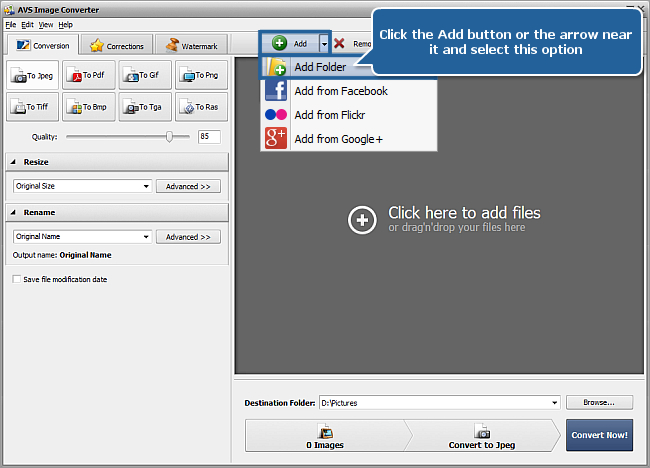
In the opened window browse for the necessary files or folder and press the Open button. All loaded images will be displayed in the Preview Area.
 Note
Note: if you want to add the photos stored in your Facebook, Flickr or Google+ accounts see the instructions
here.
[Back to the Top]
To apply an effect to your images switch to the Corrections tab. The basic correction mode will be available. It allows you to apply one of the effects for quick image editing. To apply the desired effect click its icon in the Working Area on the left.
Note: the selected effect will be applied to all images loaded into the program.
You can view the result while editing in the Preview Area. Use the Navigation Panel placed below the Preview window to view all the images with the applied effect.
To undo the changes you made select the Original Photo effect.
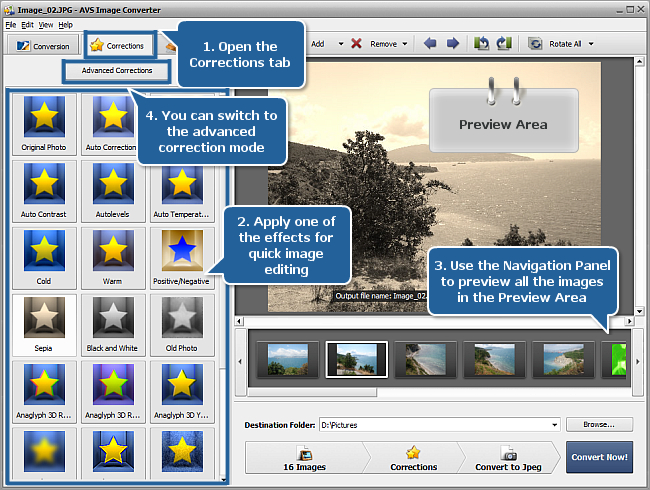
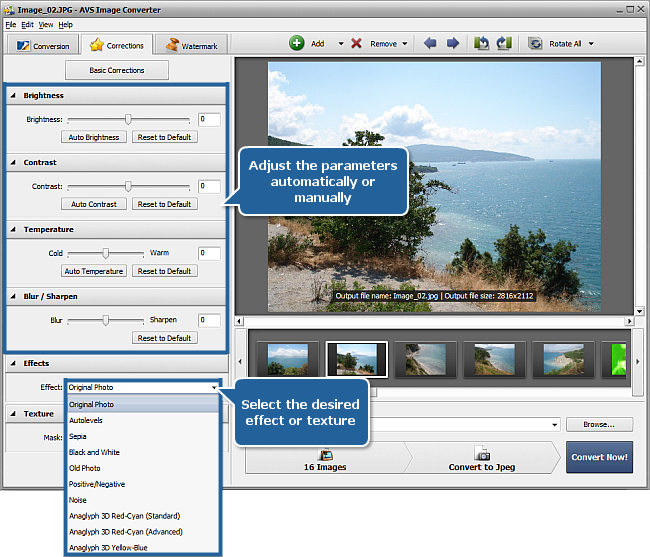
Click the Advanced Corrections button to switch to the advanced correction mode. Using this mode you can adjust the Brightness, Contrast, Temperature and Blur / Sharpen parameters, apply effects or textures in different combinations.
To apply automatic adjustments press the Auto Brightness, Auto Contrast or Auto Temperature button. Use the corresponding sliders to correct the necessary parameter manually. To cancel the correction applied to a certain parameter click the appropriate Reset to Default button.
You can also select one of the available predetermined effects from the Effect drop-down list or choose an image texture from the Mask drop-down list. To discard these changes you can select the Original Photo effect or the None mask respectively.
[Back to the Top]
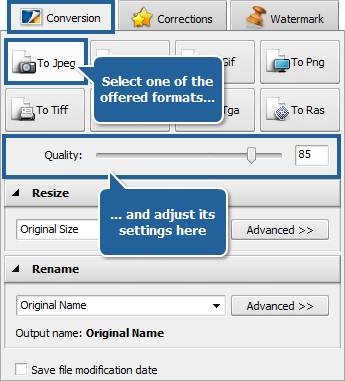
Return to the Conversion tab. Select output format by pressing the appropriate button in the Working Area of this tab. Adjust settings of the format if available.
[Back to the Top]
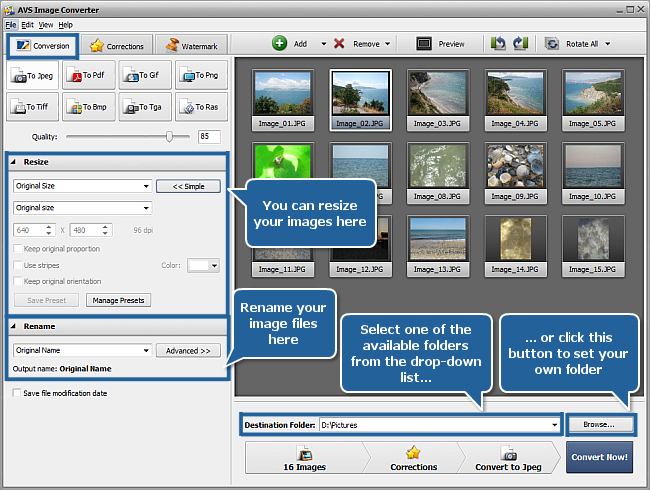
If you want to resize your images you can perform this task at the Conversion tab using the Resize section and selecting the desired preset from the drop-down list. You can click the Advanced >> button to manually set a particular size.
You can also change output name in the Rename section of the Conversion tab.
Then set output folder for the resulting files. To do that select one of the folders from the Destination Folder drop-down list. If you want to specify your own folder press the Browse... button. In the opened window browse for the desired directory and press the OK button.
Note: if you want to preserve the original modification date while converting see the instructions
here.
[Back to the Top]
To start the conversion process press the Convert Now! button.
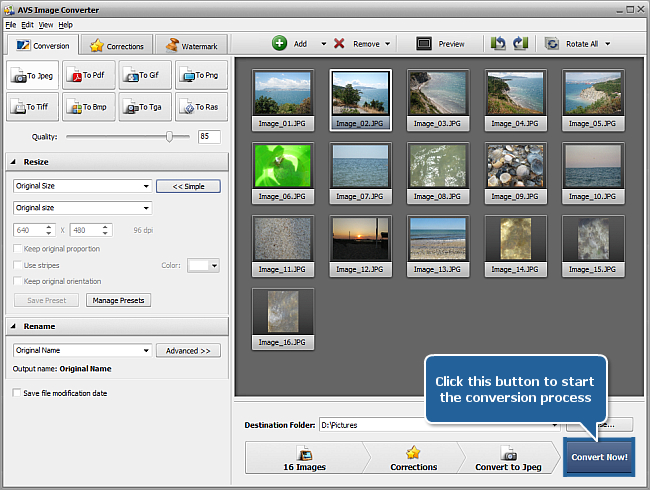
Wait while the software converts your images. You can see overall progress at the Progress bar in the center of the Preview Area. When the process is over the following window will appear:
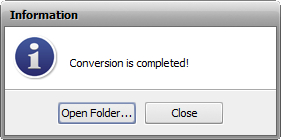
That's all! The edited images of a new format are ready. So a great deal of pictures can be processed within the minimal time.
[Back to the Top]
Please note that AVS4YOU programs do not allow you to copy protected material. You may use this software in copying material in which you own the copyright or have obtained permission to copy from the copyright owner.